
1. Уводзіны
This manual provides comprehensive instructions for the setup, operation, and maintenance of your Western Digital Easystore 5TB External USB 3.0 Portable Hard Drive. This device offers high-capacity storage and fast data transfer speeds, designed for reliable data backup and storage.
2. Змесціва ўпакоўкі
Праверце, ці ёсць усе прадметы ў ўпакоўцы вашага прадукту:
- Western Digital Easystore 5TB Portable Hard Drive
- USB кабель 3.0
- Quick Install Guide (or similar documentation)
3. Прадукт скончыўсяview
Familiarize yourself with the components of your Easystore portable hard drive.

Малюнак 3.1: Фронт view of the Western Digital Easystore 5TB Portable Hard Drive, showcasing its sleek black design and the WD Easystore logo.
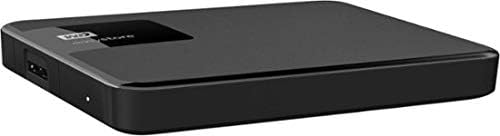
Малюнак 3.2: Збоку view of the Easystore hard drive, highlighting the USB 3.0 port for connectivity and the power indicator light.

Малюнак 3.3: Retail packaging for the Western Digital Easystore Portable Hard Drive, showing product branding and compatibility information.
4. Інструкцыі па ўсталёўцы
4.1 Connecting the Hard Drive
- Connect one end of the provided USB 3.0 cable to the USB port on the Western Digital Easystore portable hard drive.
- Connect the other end of the USB 3.0 cable to an available USB port on your computer (PC or Mac). For optimal performance, use a USB 3.0 port. The drive is backward compatible with USB 2.0 ports, but data transfer speeds will be reduced.
- The drive will power on automatically. The power indicator light on the drive will illuminate.
4.2 Пачатковая ўстаноўка для Windows
The Western Digital Easystore drive is pre-formatted for Windows operating systems (NTFS). It should be recognized automatically by your computer and appear as a new drive letter in 'This PC' or 'My Computer'.
- No additional drivers are typically required for Windows.
- Вы можаце пачаць перавод files неадкладна.
4.3 Initial Setup for Mac
For Mac users, the drive may require reformatting to HFS+ (Mac OS Extended) or APFS for full compatibility and optimal performance with macOS. Reformatting will erase all data on the drive, so ensure it is empty or back up any pre-loaded software if desired.
- Падключыце дыск да вашага Mac.
- Open 'Disk Utility' (Applications > Utilities > Disk Utility).
- Select the Western Digital Easystore drive from the sidebar.
- Click 'Erase'.
- Choose a format (e.g., 'Mac OS Extended (Journaled)' or 'APFS') and a scheme (e.g., 'GUID Partition Map').
- Click 'Erase' again to confirm.
Alternatively, you can install the WD Discovery software for Mac, which may offer tools for managing the drive without reformatting, though reformatting is generally recommended for native Mac performance.
5. Інструкцыя па эксплуатацыі
5.1 Перадача Files
Перадаць files, simply drag and drop them to and from the Easystore drive icon on your desktop or in your file explorer/finder window, similar to using any other folder.
- For Windows: Open 'This PC' or 'File Explorer', locate the drive, and drag files.
- For Mac: The drive icon will appear on your desktop. Drag files да і ад яго.
5.2 Using Backup Software
The Western Digital Easystore drive supports backup software for scheduling regular automatic file transfers. Refer to the included software or download WD Discovery from the official Western Digital website for backup solutions. WD Discovery also allows management of drive settings, including LED control.
5.3 Safely Ejecting the Drive
Заўсёды бяспечна вымайце жорсткі дыск перад адключэннем, каб пазбегнуць пашкоджання дадзеных.
- Windows: Click the 'Safely Remove Hardware and Eject Media' icon in the system tray, then select the Easystore drive.
- Mac: Drag the drive icon from your desktop to the Trash, or right-click (Control-click) the drive icon and select 'Eject'.
6. Тэхнічнае абслугоўванне
- Фізічны догляд: Keep the drive in a clean, dry environment. Avoid extreme temperatures, direct sunlight, and high humidity.
- Абарона: The drive is portable but contains moving parts. Avoid dropping or subjecting it to strong impacts.
- Рэгулярныя рэзервовыя копіі: While the Easystore drive is excellent for storage, it is recommended to maintain multiple copies of critical data across different storage solutions.
- Уборка: Для чысткі вонкавага боку дыска выкарыстоўвайце мяккую сухую тканіну. Не выкарыстоўвайце вадкія ачышчальнікі або растваральнікі.
7. Выпраўленне непаладак
7.1 Дыск не распазнаецца
- Пераканайцеся, што USB-кабель надзейна падключаны як да дыскавода, так і да кампутара.
- Паспрабуйце падключыць дыск да іншага USB-порта на вашым кампутары.
- Праверце дыск з дапамогай іншага USB-кабеля, калі такі маецца.
- Перазагрузіце кампутар.
- For Mac users, ensure the drive has been formatted correctly (see Section 4.3).
7.2 Павольная хуткасць перадачы дадзеных
- Ensure the drive is connected to a USB 3.0 port on your computer. USB 2.0 ports will result in significantly slower speeds.
- Праверце, ці абноўленыя драйверы USB 3.0 вашага кампутара.
- Пазбягайце перадачы вялікай колькасці дробных fileадначасова; вялікі fileперадача больш эфектыўна.
- Закрыйце іншыя праграмы, якія могуць выкарыстоўваць сістэмныя рэсурсы або выконваць аперацыі з дыскам.
7.3 Drive Light Not On
- Check the USB cable connection. The drive is USB-powered, so a secure connection is essential for power.
- Try a different USB port or computer to rule out a port issue.
8. Тэхнічныя характарыстыкі
| Асаблівасць | Дэталь |
|---|---|
| Марка | Western Digital |
| Нумар мадэлі | WDBKUZ0050BBK-WESN |
| Ёмістасць лічбавай памяці | 5 ТБ (5000 ГБ) |
| Тэхналогія падлучэння | USB 3.0 (зваротная сумяшчальнасць з USB 2.0) |
| Форм-фактар жорсткага дыска | 3.5 Inches (Internal drive type, external enclosure is portable) |
| Апісанне жорсткага дыска | Механічны жорсткі дыск |
| Апаратная платформа | Мак, ПК |
| Колер | Чорны |
| Вага прадмета | 8.1 унцыі |
| Памеры прадукту (ДxШxВ) | 4.6 х 6 х 1.6 цалі |
| Асаблівасць | Партатыўны |
9. Гарантыя і падтрымка
For detailed warranty information and technical support, please visit the official Western Digital support website. You will typically need your product's model number (WDBKUZ0050BBK-WESN) and serial number (located on the drive itself or its packaging) when contacting support.
Інтэрнэт-падтрымка: support.wdc.com