
1. Прадукт скончыўсяview
The Yoidesu Mini-ITX Computer Case is a compact and robust enclosure designed for Mini-ITX motherboards. Constructed from high-quality aluminum alloy, it offers excellent heat dissipation and a sleek, minimalist design. This case is ideal for building small form factor PCs, including gaming systems and Home Theater Personal Computers (HTPCs).

Image: The Yoidesu Mini-ITX Computer Case displayed on a desk next to a computer monitor, illustrating its compact size in a typical setup.
Асноўныя характарыстыкі:
- Высокая якасць будаўніцтва: Made of durable aluminum alloy with a super-thick sheet (up to 3.5MM) for enhanced structural integrity.
- Элегантная аздабленне: Features a frosting treatment for a premium aesthetic and feel.
- Кампактны дызайн: Small footprint with dimensions of 197mm x 197mm x 65mm (approximately 7.76"D x 7.76"W x 2.56"H), perfect for space-constrained setups.
- Integrated Heat Dissipation: The all-aluminum alloy frame is designed to integrate and optimize heat dissipation for efficient cooling.
- Mini-ITX Motherboard Compatibility: Specifically designed for ITX motherboards measuring 170mm x 170mm.
2. Настройка і ўстаноўка
Follow these steps to install your components into the Yoidesu Mini-ITX Computer Case.
2.1 Падрыхтоўка справы
Before installing any components, ensure the case is placed on a stable, flat surface. Remove any side panels or covers as instructed to access the interior. The case includes necessary mounting hardware.

Image: The Yoidesu Mini-ITX Computer Case shown with included mounting screws and cable ties, indicating readiness for component installation.
2.2 Устаноўка мацярынскай платы
- Carefully align your Mini-ITX motherboard (170x170mm) with the standoffs inside the case.
- Secure the motherboard using the appropriate screws provided with the case or your motherboard.

Image: Diagram illustrating the correct placement of a Mini-ITX motherboard (17x17cm) within the case for installation.

Image: The Yoidesu Mini-ITX Computer Case with a transparent overlay showing a Mini-ITX motherboard, highlighting its compatibility and intended fit.
2.3 Устаноўка запамінальнай прылады
The case supports 3.5-inch and 2.5-inch hard disks. Locate the internal bays and secure your storage devices using the provided screws.
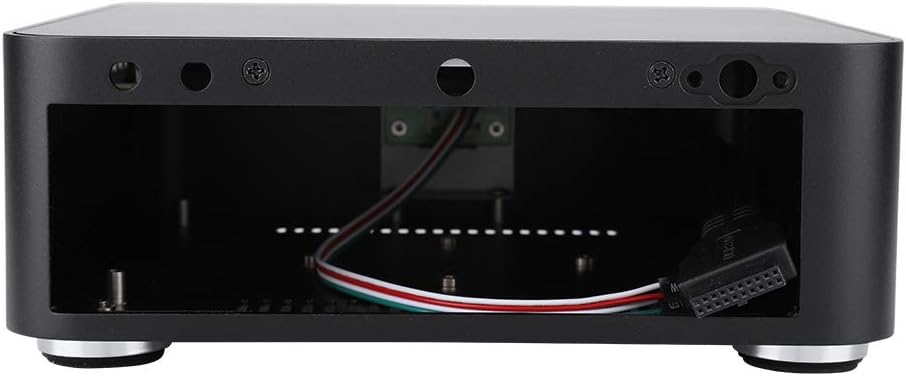
Выява: Унутраная view of the Yoidesu Mini-ITX Computer Case, revealing the metal frame and various mounting points for components like hard drives.
2.4 Устаноўка блока сілкавання (БП).
The case supports bottom-mounted or top-mounted power supply units. Install your PSU according to its design and the available mounting options within the case.
2.5 Падключэнне ўваходных/выхадных прылад пярэдняй панэлі
Connect the front panel cables (USB 2.0, USB 3.0, power button, power LED, HDD LED) to the corresponding headers on your motherboard. Refer to your motherboard's manual for specific header locations.

Выява: Збоку view of the Yoidesu Mini-ITX Computer Case, highlighting the front panel USB 3.0 ports and side ventilation grilles.
3. Operating and Cooling
The Yoidesu Mini-ITX Computer Case is designed for efficient thermal management, especially for Mini-ITX systems.
3.1 Пасіўнае астуджэнне
For low-power CPUs, the all-aluminum construction and integrated design facilitate passive cooling. Heat is dissipated through the bottom, left, and right sides of the case without the need for additional fans.

Image: Cooling diagram showing airflow for both passive cooling (top) and active cooling with an optional fan (bottom) within the case, demonstrating how heat is managed.
3.2 Active Cooling (Optional)
For high-performance CPUs or systems requiring enhanced cooling, a fan can be installed on the right side of the case. This active cooling, combined with the existing ventilation holes on the left and right sides, provides improved thermal performance.
4. Тэхнічнае абслугоўванне
Рэгулярнае тэхнічнае абслугоўванне дапамагае забяспечыць даўгавечнасць і аптымальную прадукцыйнасць корпуса вашага кампутара.
- Уборка: Periodically clean the exterior of the case with a soft, dry cloth. For stubborn marks, a slightly damp можна выкарыстоўваць тканіну, а затым высушыць. Пазбягайце абразіўных ачышчальнікаў або растваральнікаў.
- Выдаленне пылу: Over time, dust can accumulate inside the case, potentially affecting component cooling. Use compressed air to gently clear dust from internal components and ventilation openings. Ensure the system is powered off and unplugged before performing internal cleaning.
- Вентыляцыя: Ensure that the case's ventilation openings are not obstructed to allow for proper airflow and heat dissipation.
5. Выпраўленне непаладак
This section addresses common issues you might encounter with your computer case.
- Перагрэў сістэмы:
- Ensure all internal components are properly seated and connected.
- Verify that ventilation openings are clear and not obstructed.
- If using a high-performance CPU, consider installing an optional cooling fan as described in Section 3.2.
- Check that CPU cooler is correctly installed and making good contact with the CPU.
- Не працуюць парты пярэдняй панэлі:
- Confirm that the front panel USB and audio cables are securely connected to the correct headers on your motherboard.
- Refer to your motherboard manual for correct header pinouts.
- Кнопка харчавання не рэагуе:
- Пераканайцеся, што кабель кнопкі харчавання ад корпуса правільна падлучаны да раздыма пярэдняй панэлі матчынай платы.
- Verify that the power supply unit is functioning and properly connected to the motherboard and wall outlet.
6. Тэхнічныя характарыстыкі
Detailed technical specifications for the Yoidesu Mini-ITX Computer Case.
| Асаблівасць | Спецыфікацыя |
|---|---|
| Марка | Ёйдэсу |
| Нумар мадэлі | Yoidesua8mpt1k3c6-03 |
| Сумяшчальнасць матчыных поплаткаў | Mini ITX (170x170mm) |
| Тып корпуса | Інтэграваны |
| Рэкамендуемае выкарыстанне | Gaming, HTPC, Small Form Factor PC |
| Колер | Чорны |
| Матэрыял | Алюмініевы сплаў |
| Памеры прадукту (Д х Ш х У) | 6.5 цалі х 7.76 цалі х 2.56 цалі (197 мм х 197 мм х 65 мм) |
| Тып мацавання блока харчавання | Bottom-mounted or Top-mounted |
| Спосаб астуджэння | Passive (heat-dissipation-through-aluminum), Optional Active Fan Cooling |
| Колькасць слотаў пашырэння | 2 |
| Total USB 2.0 Ports | 2 |
| Total USB 3.0 Ports | 2 |
| Hard Disk Form Factor Support | 3.5 цалі, 2.5 цалі |
| Internal Bays Quantity | 1 (for 3.5" or 2.5" drive) |
| Сумяшчальныя прылады | Mini-ITX motherboard, 3.5-inch hard disk, 2.5-inch hard disk, network card, PSU, cooling systems within case dimensions. |
7. Гарантыя і падтрымка
For warranty information and technical support, please refer to the official Yoidesu webсайт або звярніцеся да прадаўца. Захоўвайце чэк аб куплі як пацверджанне пакупкі.
Вы можаце наведаць Yoidesu Store on Amazon каб атрымаць дадатковую інфармацыю пра прадукт і рэсурсы падтрымкі.