
1. Уводзіны
Thank you for choosing the DELUX M625BU(3050) RGB Wired Gaming Mouse. This manual provides detailed instructions for setting up, operating, and maintaining your gaming mouse to ensure optimal performance and an enhanced gaming experience. Please read this manual thoroughly before use.
2. Змесціва ўпакоўкі
- DELUX M625BU(3050) RGB Wired Gaming Mouse
- Кіраўніцтва карыстальніка
3. Прадукт скончыўсяview
The DELUX M625BU(3050) is an ergonomic wired gaming mouse designed for precision and customization. It features a high-performance A3050 PixArt optical sensor, 7 programmable buttons, and customizable RGB lighting.
3.1 Mouse Layout and Buttons
Familiarize yourself with the buttons and their default functions:

Image: DELUX M625BU(3050) Gaming Mouse Button Layout
- Левая кнопка: Функцыя асноўнага націску.
- Правая кнопка: Функцыя другаснага націску.
- Кола пракруткі: Пракрутка ўверх/уніз, клік сярэдняй кнопкай мышы.
- Кнопка DPI: Цыклічнае пераключэнне паміж наладамі DPI.
- Кнопка "Наперад": Перамяшчаецца наперад web браўзеры/праграмы.
- Кнопка "Назад": Пераходзіць назад у web браўзеры/праграмы.
- Кнопка агню: Rapid-fire function (default).
3.2 Эрганамічны дызайн
The mouse features an ergonomic streamline structure and non-slip rubber sides, designed to fit comfortably in your palm for extended gaming sessions.
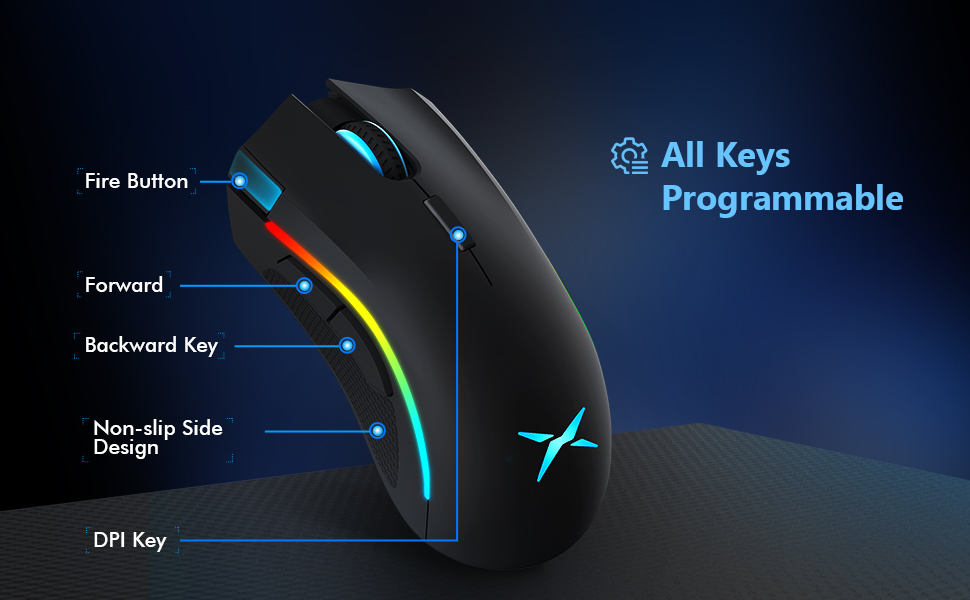
Image: Ergonomic Design Features
4. Настройка
The DELUX M625BU(3050) mouse is a plug-and-play device, requiring no additional drivers for basic functionality.
- Падключыце мыш: Plug the USB connector of the mouse's 1.8m braided cable into an available USB port on your computer.
- Распазнаванне сістэмы: Your operating system (Windows XP, Vista, 7, 8, or 10) will automatically detect and install the necessary drivers.
- Дадатковая ўстаноўка праграмнага забеспячэння: For advanced customization of buttons, DPI, and RGB lighting, download and install the DELUX Pro Game Software from the official DELUX webсайт.

Image: Plug and Play Connectivity
5. Інструкцыя па эксплуатацыі
5.1 Рэгуляванне DPI (кропак на цалю)
The mouse features an A3050 PixArt optical sensor with adjustable DPI settings. You can cycle through preset DPI levels by pressing the DPI button located behind the scroll wheel.

Image: DPI Adjustment Levels
- Available DPI levels: 800, 1600, 3200, 4000.
- Each press of the DPI button will switch to the next level.
- The current DPI level may be indicated by a specific LED color or pattern (refer to software for detailed customization).
5.2 светлавых эфектаў RGB
The mouse features customizable RGB lighting with various effects.
- Змена рэжымаў асвятлення: Press the Left Button, Scroll Wheel, and Right Button simultaneously for 3 seconds to cycle through different lighting modes (e.g., full lighting, breathing, floating).
- Customization via Software: Use the DELUX Pro Game Software to customize RGB backlight effects from 16.8 million colors, adjust lighting direction, and speed.
5.3 Programmable Buttons and Software
All 7 buttons on the M625BU(3050) mouse are programmable using the DELUX Pro Game Software.
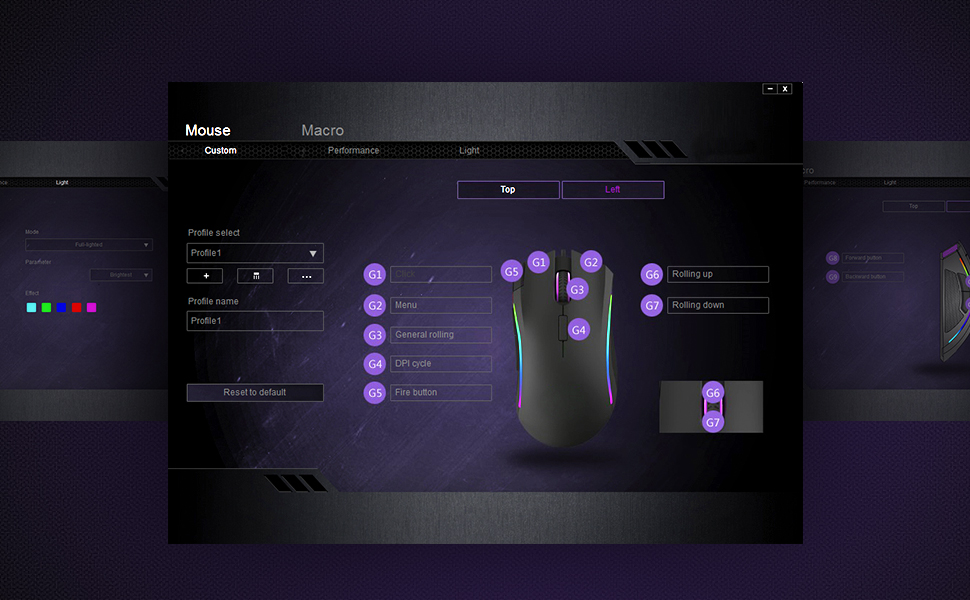
Image: Pro Game Software Interface for Customization
- Функцыі кнопак: Reassign any button to perform different functions, including keyboard keys, multimedia controls, or specific file выкананне.
- Макрасы: Create and assign complex macro sequences to buttons for automated actions.
- Sensitivity and Polling Rate: Fine-tune pointer speed, DPI sensitivity, and polling rate (125/250/500/1000Hz) for precise control.
6. Тэхнічнае абслугоўванне
To ensure the longevity and optimal performance of your DELUX M625BU(3050) gaming mouse, follow these maintenance guidelines:
- Уборка: Выкарыстоўвайце мяккую сухую тканіну для працірання паверхні мышы. Для ўстойлівага бруду злёгкуampпрацярыце тканіну вадой або мяккім ачышчальным растворам. Пазбягайце агрэсіўных хімічных рэчываў.
- Сыход за датчыкам: Keep the optical sensor on the underside of the mouse clean and free from dust or debris. Use a cotton swab if necessary.
- Сыход за кабелем: Пазбягайце рэзкіх выгібаў або празмернага нацягвання аплётанага кабеля, каб пазбегнуць пашкоджанняў.
- захоўванне: Захоўвайце мыш у чыстым, сухім месцы, калі яна не выкарыстоўваецца.
7. Выпраўленне непаладак
If you encounter issues with your DELUX M625BU(3050) mouse, refer to the following common solutions:
| праблема | Магчымае рашэнне |
|---|---|
| Мышка не рэагуе |
|
| Cursor movement is erratic or imprecise |
|
| RGB-падсветка не працуе або працуе няправільна |
|
| Programmable buttons not functioning |
|
| Scroll wheel behaves erratically (e.g., scrolls opposite direction) |
|
8. Тэхнічныя характарыстыкі
| Асаблівасць | Дэталь |
|---|---|
| Нумар мадэлі | M625BU(3050) |
| Сувязь | Wired (1.8m Braided Cable) |
| Датчык | A3050 PixArt Optical Sensor |
| Налады DPI | 800 / 1600 / 3200 / 4000 DPI |
| Стаўка апытання | 125 / 250 / 500 / 1000 Гц |
| Гузікі | 7 праграмуемых кнопак |
| Асвятленне | Customizable RGB Lighting Effects |
| Эрганоміка | Ergonomic Streamline Structure, Non-slip Rubber Side |
| Памеры прадукту | 5.14 х 2.71 х 1.67 цалі |
| Вага прадмета | 3.53 унцыі |
| Сумяшчальнасць | Windows XP, Vista, 7, 8, 10 |
9. Гарантыя і падтрымка
All DELUX products include a Гарантыя 12 месяцаў from the date of purchase. Additionally, DELUX provides бясплатная пажыццёвая тэхнічная падтрымка для гэтага прадукта.
For warranty claims, technical assistance, or further inquiries, please contact DELUX customer support through the official DELUX webсайт або ваш прадавец.