
Iproda T1045A
iProda T1045A 10.1 inch Android Tablet User Manual
Comprehensive instructions for your iProda T1045A Android Tablet.
1. Уводзіны
This manual provides detailed instructions for the setup, operation, maintenance, and troubleshooting of your iProda T1045A 10.1 inch Android Tablet. Please read this manual thoroughly before using your device to ensure proper functionality and to maximize your user experience.
The iProda T1045A is a 10.1-inch tablet featuring an HD IPS display with 1280x800 resolution, powered by a 64-bit Quad-core processor running Android 9 Pie. It includes 3GB RAM, 64GB internal storage expandable up to 128GB via TF card, dual-band Wi-Fi, HDMI output, and a 5000mAh battery for extended use.
2. Прадукт скончыўсяview
2.1 Змест пакета
Пасля адкрыцця ўпакоўкі пераканайцеся, што ўсе прадметы наяўныя:
- iProda T1045A 10.1 inch Android Tablet
- Кабель USB
- Адаптар сілкавання
- Кіраўніцтва карыстальніка (гэты дакумент)

Image: Contents of the iProda T1045A tablet package.
2.2 Макет прылады
Familiarize yourself with the physical components and ports of your tablet:
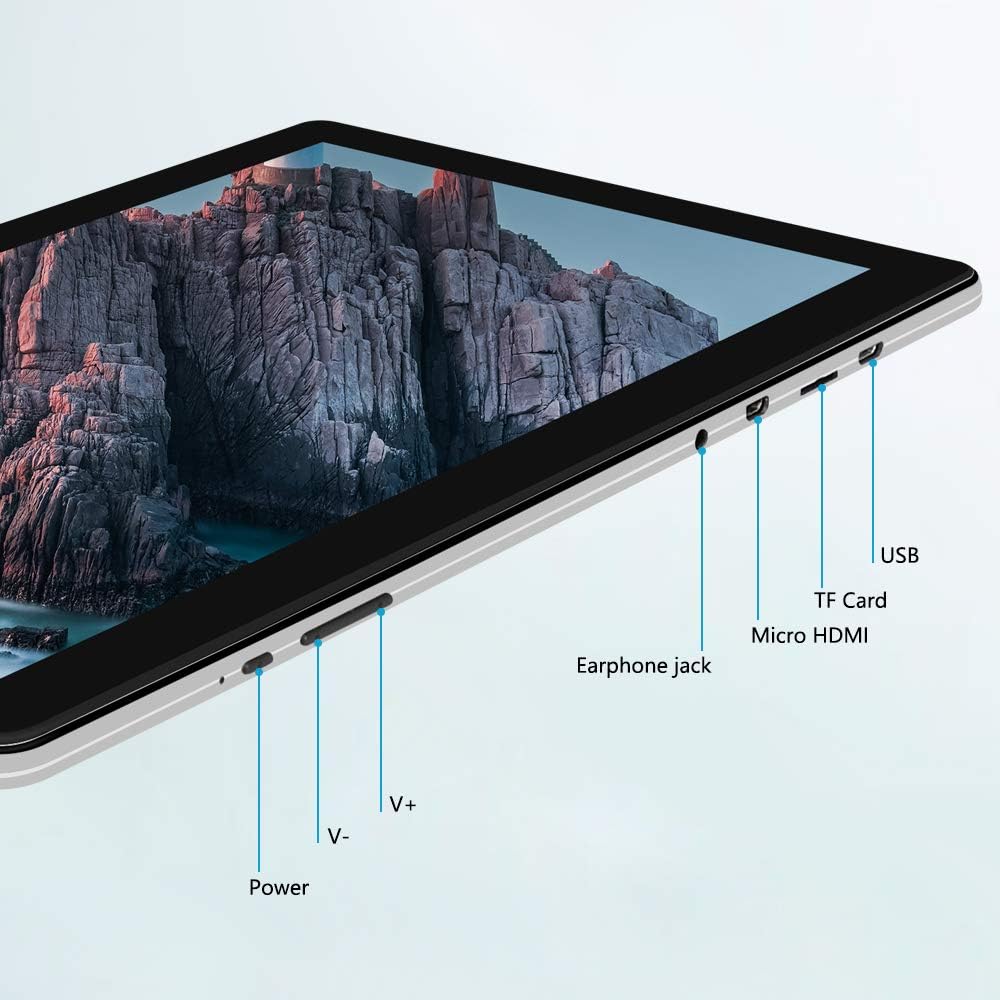
Выява: Збоку view of the iProda T1045A tablet highlighting port locations.
- Кнопка харчавання: Press and hold to power on/off or restart the tablet. Short press to turn the screen on/off.
- Volume Buttons (V+, V-): Адрэгулюйце гучнасць гуку.
- Раз'ём для навушнікаў: Падключыце навушнікі 3.5 мм.
- Слот TF карты: Insert a microSD card for expandable storage (up to 128GB).
- Порт Micro HDMI: Connect to an external display using a Micro HDMI to HDMI cable.
- Порт USB: Connect to a computer for data transfer or for charging the device.
3. Настройка
3.1 Першапачатковая зарадка
Before first use, fully charge the tablet. Connect the provided USB cable to the tablet's USB port and the power adapter, then plug the adapter into a wall outlet. The charging indicator will typically illuminate. A full charge may take several hours.
3.2 Уключэнне/выключэнне
- Каб уключыць: Націсніце і ўтрымлівайце кнопку харчавання, пакуль не загарыцца экран.
- Каб выключыць: Націсніце і ўтрымлівайце кнопку харчавання, пакуль на экране не з'явіцца меню харчавання. Выберыце «Выключыць харчаванне» і пацвердзіце.
- Каб перазапусціць: У меню харчавання абярыце «Перазагрузка».
- Уключэнне/выключэнне экрана: Briefly press the Power button to turn the screen off (sleep mode) or wake it up.
3.3 Майстар пачатковай налады
The first time you power on the tablet, you will be guided through an initial setup process. Follow the on-screen prompts to:
- Выберыце жаданую мову.
- Падключыцеся да сеткі Wi-Fi.
- Set up your Google account (optional, but recommended for app downloads).
- Наладзьце параметры даты і часу.
3.4 Inserting a TF Card (MicroSD)
To expand the tablet's storage:
- Знайдзіце слот для карты TF на бакавой панэлі планшэта.
- Carefully insert a microSD card (up to 128GB) into the slot with the gold contacts facing down until it clicks into place.
- Каб выняць, акуратна ўцісніце карту ўнутр, пакуль яна не выскочыць.
4. Інструкцыя па эксплуатацыі
4.1 Асноўная навігацыя
The iProda T1045A uses a touch-sensitive screen for navigation:
- Націсніце: Выберыце элемент або адкрыйце праграму.
- Націсніце і ўтрымлівайце: Доступ да кантэкстных меню або перамяшчэнне значкоў.
- Правядзіце пальцам: Пракручвайце спісы або пераключайцеся паміж галоўнымі экранамі.
- Дробка: Павялічваць або памяншаць маштаб малюнкаў і web старонкі.
4.2 Падключэнне Wi-Fi
Каб падключыцца да бесправадной сеткі:
- Перайсці да Налады > Сетка і Інтэрнэт > Wi-Fi.
- Уключыць/выключыць Wi-Fi On.
- Выберыце патрэбную сетку са спісу.
- Увядзіце пароль, калі будзе прапанавана, а затым націсніце Злучыцца.
The tablet supports both 2.4G and 5G dual-band Wi-Fi for faster and more stable connections.
4.3 Спалучэнне па Bluetooth
Каб падключыць прыладу Bluetooth (напрыклад, навушнікі, дынамікі):
- Перайсці да Налады > Падключаныя прылады > Bluetooth.
- Пераключыць Bluetooth On.
- Пераканайцеся, што ваша прылада Bluetooth знаходзіцца ў рэжыме спалучэння.
- Выберыце сваю прыладу са спісу даступных прылад і выконвайце падказкі на экране, каб завяршыць спалучэнне.
4.4 Выкарыстанне камер
The tablet is equipped with a 2MP front camera and a 5MP rear camera.
- Адкрыйце Камера application from the app drawer.
- Націсніце на значок камеры, каб пераключыцца паміж пярэдняй і задняй камерамі.
- Націсніце кнопку спуску засаўкі, каб зрабіць фота ці пачаць/спыніць відэазапіс.

Image: Tablet in use, showcasing its camera capabilities.
4.5 Connecting to an External Display (HDMI)
To display your tablet's screen on a larger monitor or TV:
- Connect one end of a Micro HDMI cable to the tablet's Micro HDMI port.
- Connect the other end of the cable to an HDMI input on your external display.
- Select the correct HDMI input source on your external display.
- The tablet's screen content should now be mirrored on the external display.
4.6 Кіраванне праграмамі
The tablet runs Android 9 Pie and supports applications from the Google Play Store.
- Усталяванне праграм: Адкрыйце Play Store праграму, знайдзіце патрэбную праграму і націсніце Усталяваць.
- Выдаленне праграм: Tap and hold an app icon on the home screen or in the app drawer, then drag it to "Uninstall" or select "App info" and choose "Uninstall". Alternatively, go to Налады > Праграмы і апавяшчэнні, выберыце праграму і націсніце Выдаліць.
5. Тэхнічнае абслугоўванне
5.1 Ачыстка прылады
To clean your tablet:
- Power off the tablet before cleaning.
- Выкарыстоўвайце мяккую тканіну без ворса, злёгкуampened with water or a screen cleaner, to wipe the screen and body.
- Пазбягайце выкарыстання агрэсіўных хімікатаў, абразіўных ачышчальнікаў або празмернай вільготнасці.
5.2 Абнаўленне праграмнага забеспячэння
Periodically check for software updates to ensure optimal performance and security:
- Перайсці да Налады > сістэма > Пашыраны > Абнаўленне сістэмы.
- Follow the on-screen instructions to download and install any available updates. Ensure your tablet is sufficiently charged or connected to power during updates.
5.3 Кіраванне сховішчам
To manage internal storage and the TF card:
- Перайсці да Налады > Захоўванне.
- Тут можна view storage usage, free up space, and manage files on both internal storage and the inserted TF card.
6. Выпраўленне непаладак
This section addresses common issues you might encounter with your iProda T1045A tablet.
6.1 Прылада не ўключаецца
- Ensure the tablet is sufficiently charged. Connect it to the power adapter and allow it to charge for at least 30 minutes before attempting to power on again.
- Try holding the Power button for 10-15 seconds to force a restart.
6.2 Праблемы з падключэннем да Wi-Fi
- Verify that Wi-Fi is enabled in Налады.
- Пераканайцеся, што вы ўводзіце правільны пароль Wi-Fi.
- Перазагрузіце Wi-Fi-роўтар і планшэт.
- Try connecting to a different Wi-Fi network to determine if the issue is with the tablet or the network.
6.3 Павольная праца
- Зачыніце непатрэбныя фонавыя праграмы.
- Clear cached data for apps in Налады > Праграмы і апавяшчэнні > [Назва праграмы] > Сховішча і кэш > Ачысціць кэш.
- Ensure sufficient free storage space. Uninstall unused apps or move large fileна карту памяці TF.
- Перазапусціце планшэт.
6.4 Хуткая разрадка батарэі
- Паменшыць яркасць экрана.
- Адключайце Wi-Fi, Bluetooth і GPS, калі яны не выкарыстоўваюцца.
- Close background apps that consume significant power.
- Праверце выкарыстанне батарэі ў Налады > акумулятар каб вызначыць энергаёмістыя праграмы.
- Ensure the tablet is not allowed to run below 15% charge frequently, as this can impact battery longevity.
6.5 Скід да заводскіх налад
Калі праблемы ўзнікаюць пастаянна, іх можа вырашыць скід да заводскіх налад. Папярэджанне: Гэта сатрэ ўсе дадзеныя на вашым планшэце. Перад тым, як працягнуць, зрабіце рэзервовую копію важных дадзеных.
- Перайсці да Налады > сістэма > Пашыраны > Скінуць параметры.
- Выберыце Сцерці ўсе даныя (скід да заводскіх налад).
- Пацвердзіце сваё рашэнне і выконвайце падказкі на экране.
7. Тэхнічныя характарыстыкі
Below are the technical specifications for the iProda T1045A tablet:
| Назва мадэлі | T1045A |
| Аперацыйная сістэма | Android 9 Pie |
| Памер дысплея | 10.1 цалі |
| Дазвол дысплея | 1280 x 800 пікселяў (HD IPS) |
| Працэсар | MediaTek Quad-core 1.5Ghz |
| АЗП | 3 ГБ |
| Унутраная памяць | 64 ГБ SSD |
| Сховішча з магчымасцю пашырэння | Up to 128 GB via TF Card (MicroSD) |
| Графічны супрацэсар | ARM Mali-T720 MP2 |
| Задняя камера | 5 МП |
| Пярэдняя камера | 2 МП |
| Ёмістасць батарэі | Літый-палімерны 5000 мАг |
| Сярэдні тэрмін службы батарэі | Да 8 гадзін |
| Бесправоднае падключэнне | Dual-Band Wi-Fi (802.11a/b/g/n), Bluetooth 4.0 |
| Парты | 1x USB 2.0, 1x Micro HDMI, 3.5mm Earphone Jack, TF Card Slot |
| Памеры | 34.5 х 19.7 х 5.5 см |
| Вага | 550 г |

Image: Key performance specifications of the tablet.

Image: Tablet portability and battery details.
8. Гарантыя і падтрымка
8.1 Гарантыя на выраб
The iProda T1045A tablet comes with a Гарантыя 12 месяцаў з даты пакупкі. Гэтая гарантыя распаўсюджваецца на вытворчыя дэфекты і няспраўнасці пры нармальным выкарыстанні. Яна не распаўсюджваецца на пашкоджанні, выкліканыя няправільным выкарыстаннем, аварыямі, несанкцыянаваным рамонтам або звычайным зносам.
8.2 Падтрымка кліентаў
If you encounter any issues not covered in the troubleshooting section or require further assistance, please contact iProda customer support. Refer to your purchase documentation or the iProda official webсайт для кантактнай інфармацыі.
When contacting support, please have your tablet's model number (T1045A) and purchase details readily available.