
1. Уводзіны
Thank you for choosing the Glorious Model O- (Minus) Gaming Mouse. This manual provides essential information for setting up, operating, and maintaining your new gaming mouse. The Model O- (Minus) is engineered for competitive e-sports, featuring an ultralight design, a flexible Ascended Cord, and customizable RGB lighting to enhance your gaming experience.
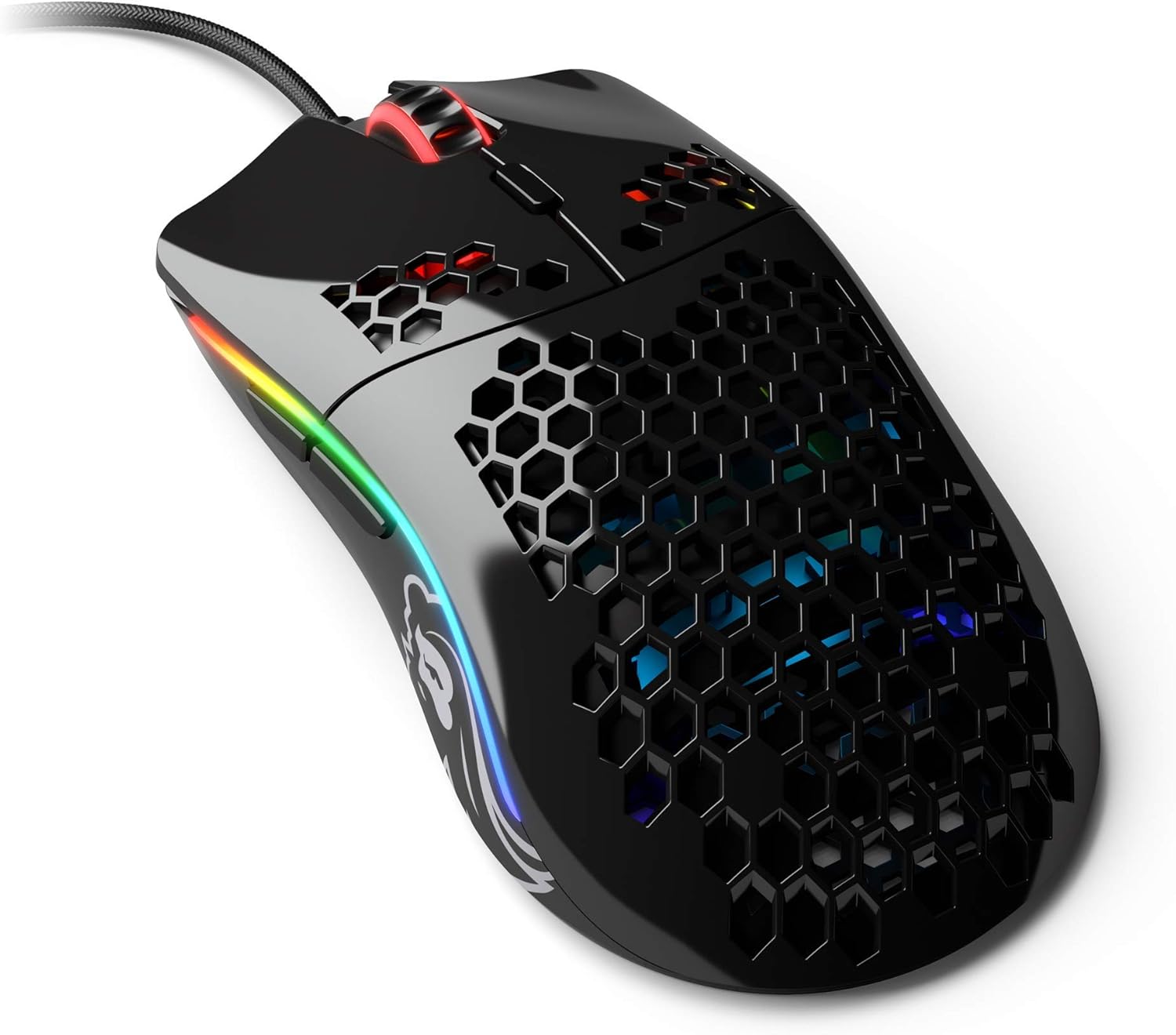
Image: The Glorious Model O- (Minus) Gaming Mouse in Glossy Black, showcasing its honeycomb shell design and RGB lighting.
2. Настройка
2.1 Змест пакета
Before proceeding, please ensure all components are present:
- Glorious Model O- (Minus) Gaming Mouse
- Ascended Cord (attached)
- Кароткае кіраўніцтва (гэты дакумент)
2.2 Падключэнне мышы
- Знайдзіце даступны USB-порт на вашым кампутары.
- Plug the USB connector of the Glorious Model O- (Minus) into the USB port.
- The mouse is plug-and-play and should be recognized automatically by your operating system.

Image: The Glorious Ascended Cord, a lightweight and flexible USB cable designed to minimize drag.
2.3 Software Installation (Glorious Core)
For advanced customization of DPI settings, button assignments, and RGB lighting, download the Glorious Core software from the official Glorious webсайт (www.gloriousgaming.com/pages/glorious-core). Выконвайце інструкцыі на экране для ўсталёўкі.

Image: Screenshot of the Glorious Core software interface, demonstrating options for lighting and key binding customization for the mouse.
3. Інструкцыя па эксплуатацыі
3.1 Асноўныя функцыі мышы
- Пстрычка левай кнопкай мышы: Кнопка асноўнага дзеяння.
- Пстрыкніце правай кнопкай мышы: Дадатковая кнопка дзеяння, звычайна для кантэкстных меню.
- Кола пракруткі: Scrolls content up/down. Can also be clicked for middle-click functionality.
- Бакавыя кнопкі: Programmable buttons, typically for forward/back navigation in browsers or in-game actions.
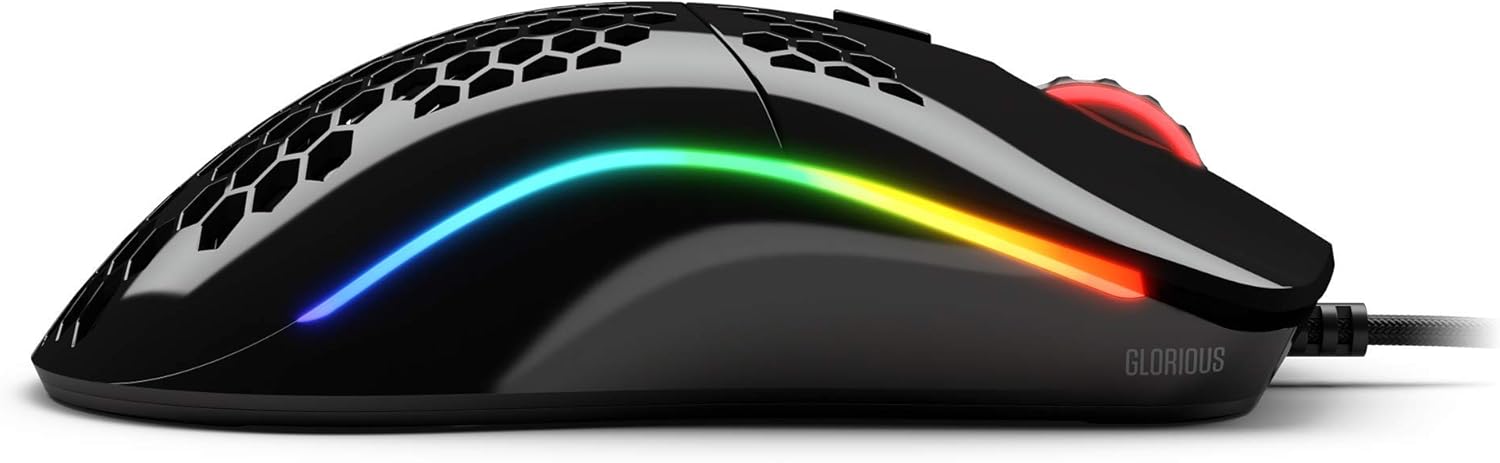
Выява: Збоку view of the Glorious Model O- (Minus) mouse, highlighting the two programmable side buttons and the vibrant RGB lighting strip.
3.2 Рэгуляванне DPI
The Model O- (Minus) features a dedicated DPI button on the underside of the mouse. Press this button to cycle through pre-set DPI stages. The default DPI stages can be customized using the Glorious Core software.
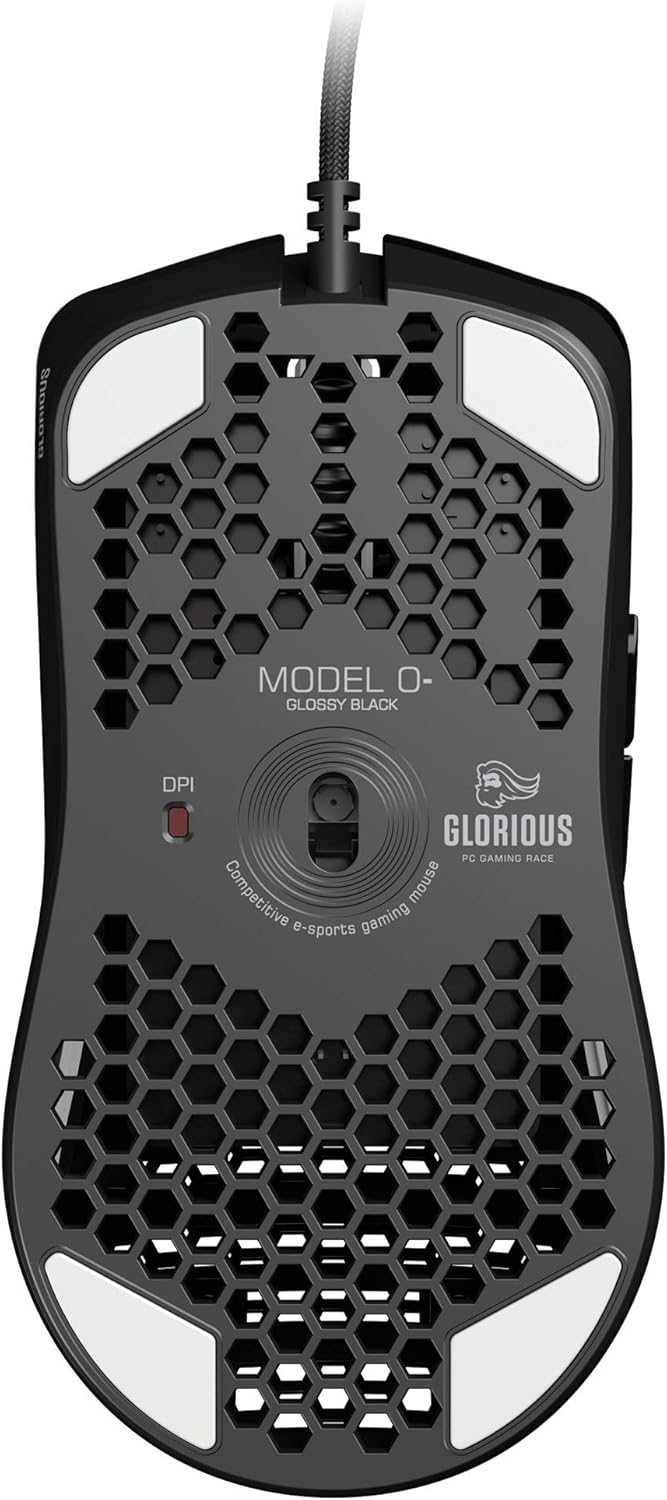
Image: The underside of the Glorious Model O- (Minus) mouse, clearly showing the DPI switch button and the optical sensor.
3.3 Налада RGB-падсветкі
The RGB lighting on your Glorious Model O- (Minus) can be fully customized using the Glorious Core software. You can select from various effects, colors, and brightness levels to match your setup or mood.
4. Тэхнічнае абслугоўванне
4.1 Чыстка мышы
- Перад чысткай пераканайцеся, што мыш адключана ад кампутара.
- Выкарыстоўвайце мяккую тканіну без ворса. dampпрамыйце паверхню мышы вадой або мяккім ачышчальным растворам.
- Для аптычнага датчыка выкарыстоўвайце ватовы тампон, злёгку прамакнутыampened with isopropyl alcohol to gently clean the lens. Avoid excessive moisture.
- Do not use harsh chemicals or abrasive materials, as these can damage the mouse's finish or internal components.
4.2 Сыход за кабелем
The Ascended Cord is designed to be lightweight and flexible. Avoid sharp bends or excessive pulling on the cable to prevent damage. Use a cable tie or management system to keep the cable tidy and prevent tangles.
5. Выпраўленне непаладак
5.1 Мыш не рэагуе
- Пераканайцеся, што кабель USB надзейна падключаны да спраўнага порта USB на вашым кампутары.
- Паспрабуйце падключыць мыш да іншага USB-порта.
- Перазагрузіце кампутар.
- Праверце мыш на іншым кампутары, каб вызначыць, ці праблема ў мышэй, ці ў вашай сістэме.
5.2 Inconsistent Tracking or Cursor Movement
- Ачысціце аптычны датчык, як апісана ў раздзеле «Тэхнічнае абслугоўванне».
- Пераканайцеся, што вы карыстаецеся мышшу на чыстай, аднастайнай паверхні (напрыклад, кілімку для мышы). Пазбягайце моцна бліскучых або празрыстых паверхняў.
- Check DPI settings using the DPI button or Glorious Core software.
- Update your mouse drivers or Glorious Core software to the latest version.
5.3 RGB Lighting Not Working Correctly
- Ensure Glorious Core software is installed and up to date.
- Check the lighting settings within Glorious Core to ensure RGB is enabled and configured as desired.
- Перазагрузіце кампутар.
6. Тэхнічныя характарыстыкі
| Асаблівасць | Дэталь |
|---|---|
| Памеры прадукту | 4.72 х 2.48 х 1.42 цалі |
| Вага прадмета | 2.08 унцыі |
| Тэхналогія падлучэння | USB (правадной) |
| Тэхналогія выяўлення руху | Аптычны |
| Колер | Глянцавы чорны |
| Асаблівасць | Амбідэкстральны дызайн |
| Вытворца | Glorious PC Gaming Race |
7. Гарантыя і падтрымка
7.1 Інфармацыя аб гарантыі
The Glorious Model O- (Minus) Gaming Mouse comes with a Гарантыя 2 год. This warranty covers manufacturing defects and ensures hassle-free return and replacement on all Glorious electronic devices. Please retain your proof of purchase for warranty claims.
7.2 Падтрымка кліентаў
If you encounter any issues not covered in this manual or require further assistance, please contact Glorious customer support through their official webсайт:
- Webсайт: www.gloriousgaming.com/pages/support
- Our dedicated support team is available to assist with any questions or concerns you may have.