
1. Уводзіны
This manual provides detailed instructions for the installation, operation, and maintenance of your EZoneTronics Android 10.1 2DIN Car Stereo. This unit features a 9-inch capacitive touchscreen, Android 10.1 operating system, GPS navigation, Bluetooth 4.0, Wi-Fi, AM/FM/RDS radio, and support for Mirror Link, Apple CarPlay, and Android Auto. Please read this manual thoroughly before using the product to ensure proper function and safety.
2. Сумяшчальнасць з транспартнымі сродкамі
This car stereo is designed for specific Mercedes-Benz models:
- Mercedes-Benz ML-W164 / ML300 / ML350 / ML450 / ML500 / ML320 / ML63 AMG (2005-2012)
- Mercedes-Benz GL-X164 / GL320 / GL350 / GL420 / GL450 / GL500 (2005-2012)
Важная заўвага: If your vehicle is equipped with a Harman, Kardon, or BOSE amplification system, an additional fiber optic decoder box (e.g., ASIN B08K49SQSM) may be required for proper audio functionality. Consult a professional installer if you are unsure.
3. Змесціва ўпакоўкі
Праверце, ці ўсе пералічаныя ніжэй прадметы ўваходзяць у вашу ўпакоўку:
- 1 x EZoneTronics Android Car Stereo Unit
- 1 х GPS антэна
- 1 х сілавы рэмень
- 1 x RCA Output Cable
- 2 x USB Adapters
- 1 х кабель уваходу камеры
- 1 х Кіраўніцтва карыстальніка (гэты дакумент)
- 1 x Canbus Box
4. Настройка і ўстаноўка
Installation of this car stereo requires technical knowledge and experience with automotive electrical systems. Professional installation is highly recommended to prevent damage to the unit or your vehicle.
4.1 Праверка перад устаноўкай
- Перад пачаткам усталёўкі пераканайцеся, што запальванне аўтамабіля выключана, а акумулятар адключаны.
- Пераканайцеся, што ўсе кампаненты пакета наяўныя.
- Review your vehicle's wiring diagram for specific connections.
4.2 Этапы ўстаноўкі (агульныя)
- Carefully remove the original car stereo unit from your dashboard.
- Connect the provided power harness to the vehicle's wiring. Ensure all connections are secure.
- Падключыце антэну GPS і накіруйце яе да месца з добрай прагляднасцю. view неба (напрыклад, кут прыборнай панэлі).
- Connect the USB adapters and route them to an accessible location (e.g., glove compartment).
- If installing a rear camera, connect the camera input cable and route it to the camera location.
- Connect the RCA output cable for external ampлайфхакі або сабвуферы, калі такія маюцца.
- Connect the Canbus box as per the wiring diagram to enable steering wheel controls and other vehicle-specific functions.
- Carefully slide the new EZoneTronics unit into the dashboard opening.
- Замацуйце прыладу на месцы.
- Reconnect the vehicle battery and test the unit's functionality.

Малюнак 4.1: Comparison of the car dashboard before and after the EZoneTronics car stereo installation. The top image shows the new unit installed, while the bottom images show the original radio (left) and the new unit (right) for direct comparison.
5. Інструкцыя па эксплуатацыі
5.1 Асноўныя аперацыі
- Уключэнне/выключэнне харчавання: Press and hold the power button (usually on the front panel) to turn the unit on or off. A short press typically mutes/unmutes audio.
- Сэнсарны экран: The 9-inch capacitive touchscreen responds to touch gestures similar to a smartphone. Tap to select, swipe to scroll.
- Галоўны экран: The main interface provides access to various functions like Radio, Music, Navigation, Bluetooth, and Apps.
5.2 Radio (AM/FM/RDS)
The unit features a built-in AM/FM/RDS radio tuner for clear signal reception.
- Accessing Radio: Tap the 'Radio' icon on the home screen.
- Сканаванне: Use the 'Scan' or 'Seek' buttons on the screen to automatically search for available stations.
- Захаванне налад: Once a station is tuned, press and hold a preset number button on the screen to save it.
- Функцыя RDS: Radio Data System (RDS) displays station information like song title or program type where available.

Малюнак 5.2: The FM/AM/RDS Radio interface on the EZoneTronics car stereo, showing frequency display and preset buttons for easy station selection.
5.3 Bluetooth 4.0
Падключыце смартфон праз Bluetooth для hands-free званкоў і струменевай перадачы аўдыё.
- Спалучэнне: Go to the 'Bluetooth' menu on the stereo. Enable Bluetooth on your phone and search for available devices. Select 'EZoneTronics' (or similar name) and confirm the pairing code.
- Гучная сувязь: Once paired, you can make and receive calls directly from the stereo screen. Your phone's contact list may sync automatically.
- Струменевая перадача аўдыё (A2DP): Play music from your phone through the car stereo speakers. Control playback (play/pause, skip) from the stereo.

Малюнак 5.3: The Bluetooth 4.0 interface showing music playback controls and icons for phone video, dial-up, hang-up, and phone music functions.
5.4 GPS-навігацыя
The unit includes an integrated GPS receiver and comes with Google Maps pre-installed. Other navigation apps can be downloaded from the Google Play Store.
- Інтэрнэт-навігацыя: Connect to Wi-Fi to use online maps and real-time traffic information.
- Аўтаномная навігацыя: Download offline map data for specific regions via Wi-Fi for navigation without an internet connection.
- Using Navigation Apps: Tap the 'Navigation' icon to launch the default map application. Follow on-screen prompts to enter destinations and start routes.
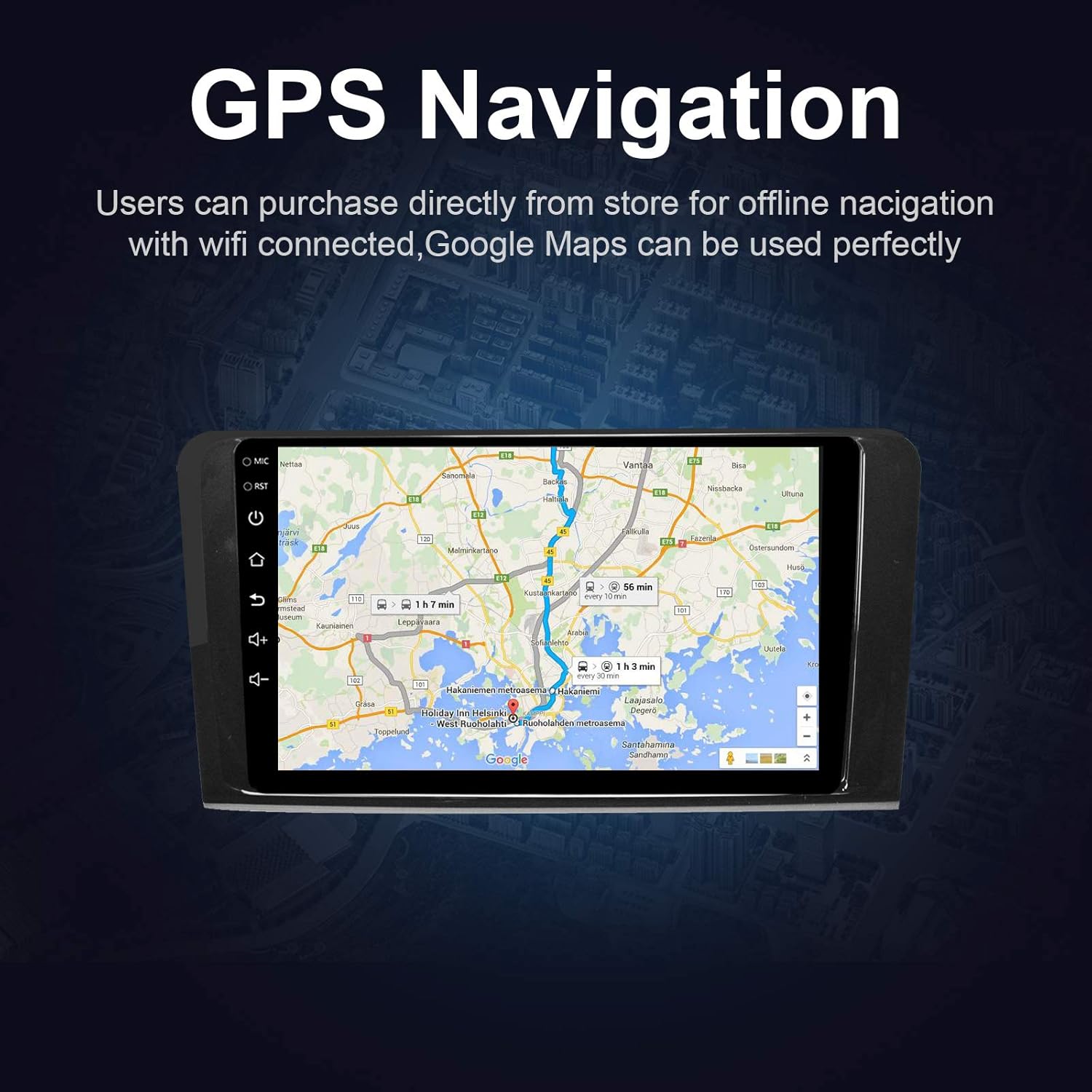
Малюнак 5.4: The GPS Navigation screen showing a map with a highlighted route and estimated travel time.
5.5 Apple CarPlay і Android Auto
The unit supports both wireless Apple CarPlay and wired Android Auto, allowing seamless integration with your smartphone.
- Apple CarPlay (Wireless): Connect your iPhone via Bluetooth and Wi-Fi. Follow the on-screen prompts to enable CarPlay.
- Android Auto (Wired): Connect your Android phone via a USB cable. Ensure Android Auto is installed on your phone.
- Асаблівасці: Access phone calls, messages, music, and navigation apps directly from the car stereo interface, optimized for driving.
5.6 Зеркальная спасылка
Mirror Link allows you to display your smartphone's screen directly on the car stereo.
- Для прылад iOS: Supports AirPlay mirroring wirelessly.
- Для прылад Android: Connect via a USB cable.
- Актывацыя: Select the 'Mirror Link' app on the stereo and follow the instructions for your specific phone model.

Малюнак 5.6: The Mirror Link function showing a smartphone screen mirrored onto the car stereo display.
5.7 Функцыя падзелу экрана
The Android 10.1 system supports multitasking, allowing you to run two applications simultaneously on the screen.
- Актывацыя: While one app is open, press and hold the recent apps button (or swipe up from the bottom and hold, depending on the Android version) and drag another compatible app to the other half of the screen.
- выкарыстанне: Напрыкладample, you can use navigation on one side and play music or radio on the other.

Малюнак 5.7: The Split Screen function in action, showing a navigation map on one side and a music player on the other, enabling multitasking.
5.8 Digital Sound Processor (DSP) / Equalizer
Customize your audio experience with the built-in 14-band equalizer and sound processor.
- Доступ да эквалайзера: Tap the 'Equalizer' or 'Sound Settings' icon from the home screen or audio playback interface.
- Карэкціроўкі: Adjust individual frequency bands (bass, treble, mid-range) to your preference.
- Прэсеты: Select from various pre-defined sound modes (e.g., Pop, Rock, Classic, Jazz) or create custom profiles.
- Volume/Fader/Balance: Control overall volume, and adjust audio distribution between front/rear and left/right speakers.

Малюнак 5.8: The Digital Sound Processor (DSP) system interface, showing a 14-band equalizer for precise audio adjustments.
5.9 Multimedia Playback (USB)
Прайграванне аўдыё і відэа fileз USB-назапашвальнікаў.
- Падключэнне USB: Insert a USB drive into one of the provided USB ports.
- Доступ Files: The unit will automatically detect the USB device. Navigate to the 'Music' or 'Video' app to browse and play files.
- Падтрымліваюцца фарматы: The unit supports various audio and video formats, including high-definition 1080P video.

Малюнак 5.9: The car stereo displaying high-definition 1080P video content, demonstrating its multimedia playback capabilities.
6. Тэхнічнае абслугоўванне
Правільнае абслугоўванне забяспечвае даўгавечнасць і аптымальную працу вашай аўтамабільнай стэрэасістэмы.
- Ачыстка экрана: Выкарыстоўвайце мяккую безворсовую тканіну, злёгку dampвадой або сродкам для чысткі экранаў, спецыяльна прызначаным для электронікі. Не выкарыстоўвайце абразіўныя ачышчальнікі або растваральнікі.
- Генеральная ўборка: Wipe the unit's exterior with a soft, dry cloth. Avoid getting liquids into openings.
- Абнаўленні праграмнага забеспячэння: Periodically check for available software updates through the unit's settings menu (requires Wi-Fi connection) to ensure optimal performance and access to new features.
- Пазбягайце экстрэмальных тэмператур: Не падвяргайце прыладу ўздзеянню мольных тэмператур або холаду на працягу доўгага часу, бо гэта можа паўплываць на прадукцыйнасць і тэрмін службы.
7. Выпраўленне непаладак
If you encounter issues with your EZoneTronics car stereo, refer to the following common problems and solutions:
| праблема | Магчымая прычына | Рашэнне |
|---|---|---|
| Прылада не ўключаецца. | Incorrect wiring, blown fuse, vehicle battery disconnected. | Check power connections and fuses. Ensure battery is connected. Consult a professional installer. |
| Няма гуку. | Volume too low, mute activated, incorrect speaker wiring, fiber optic box needed. | Increase volume, check mute status. Verify speaker connections. If your car has a premium sound system, ensure a fiber optic decoder box is installed. |
| Сігнал GPS слабы або не знойдзены. | GPS-антэна няправільна ўсталявана або перакрыта. | Ensure the GPS antenna is placed in a location with a clear view неба і надзейна падключаны. |
| Праблемы з падключэннем Bluetooth. | Phone not in pairing mode, incorrect pairing code, interference. | Ensure Bluetooth is enabled on both devices and in pairing mode. Re-pair the devices. Restart both the stereo and phone. |
| Не працуе кіраванне на рулі. | Canbus box not connected or configured correctly. | Verify the Canbus box connection and ensure it is properly configured in the unit's settings. Refer to installation instructions. |
| Touchscreen unresponsive or slow. | Temporary software glitch, excessive background apps. | Restart the unit. Close unnecessary background applications. If the issue persists, perform a factory reset (note: this will erase all user data). |
8. Тэхнічныя характарыстыкі
Key technical specifications of the EZoneTronics Android Car Stereo:
| Асаблівасць | Спецыфікацыя |
|---|---|
| Нумар мадэлі | RMCT-BENZ-ML05-2G16-IP |
| Аперацыйная сістэма | Android 10.1 |
| Памер экрана | 9-цалевы ВК-экран |
| Тып экрана | Ёмістны сэнсарны экран |
| дазвол | 1024 х 600 пікселяў |
| Працэсар | Quad Core 1.3G |
| АЗП | 2 ГБ DDR3 |
| Унутраная памяць | 32 ГБ флэш-памяці |
| Сувязь | Bluetooth 4.0 (A2DP, Hands-free), Wi-Fi, USB (2 rear inputs) |
| GPS-прыёмнік | Built-in, compatible with Waze, Google Maps, etc. |
| Радыё цюнэр | AM/FM/RDS |
| Аўдыёвыхад | 4 x 45W Power Output, 2.1 Channel RCA/Sub Output |
| Відэа ўваход | 1 Channel (for rear camera) |
| Аўдыё ўваход | Канал 2 |
| Асаблівасці | Steering Wheel Control, Mirror Link, CarPlay, Android Auto, Multi-EQ Presets, Spotify, Digital Sound Processor |
| Памеры прадукту (Д х Ш х У) | 32 х 26 х 13 см |
| Вага | 1.38 кг |
9. Гарантыя і падтрымка
9.1 Гарантыя на выраб
This EZoneTronics car stereo comes with a 1-гадовая гарантыя вытворцы from the date of purchase. This warranty covers defects in materials and workmanship under normal use. It does not cover damage caused by improper installation, misuse, accidents, or unauthorized modifications.
9.2 Тэхнічная падтрымка
For technical assistance, troubleshooting beyond this manual, or warranty claims, please contact our support team:
- электронная пошта: sales2@rhythmhk.com
When contacting support, please provide your product model number (RMCT-BENZ-ML05-2G16-IP) and a detailed description of the issue.