
MERCUSYS MR50G
Mercusys MR50G AC1900 Dual-Band Wi-Fi 5 Router User Manual
Model: MR50G
Уводзіны
This manual provides comprehensive instructions for setting up, operating, maintaining, and troubleshooting your Mercusys MR50G AC1900 Dual-Band Wi-Fi 5 Router. The MR50G is designed to deliver high-speed wireless connectivity with AC1900 speeds, Gigabit Ethernet ports, and advanced features like MU-MIMO and Beamforming.

Выява: спераду view of the Mercusys MR50G router, illustrating its dual-band capabilities with 5GHz (1300 Mbps) and 2.4GHz (600 Mbps) speeds.
Кіраўніцтва па ўстаноўцы
1. Змесціва ўпакоўкі
Пераканайцеся, што ваш пакет змяшчае наступныя элементы:
- Mercusys MR50G AC1900 Dual-Band Wi-Fi 5 Router
- Адаптар сілкавання
- Кабель Ethernet
- Quick Installation Guide (User Guide)
2. Фізічнае падключэнне
Каб падключыць маршрутызатар, выканайце наступныя дзеянні:
- Выключэнне: Адключыце харчаванне ад мадэма і маршрутызатара (калі гэта магчыма).
- Падключэнне мадэма да маршрутызатара: Connect one end of the provided Ethernet cable to the WAN port (usually blue) on your MR50G router and the other end to your modem's Ethernet port.
- Падключэнне прылад (неабавязкова): For wired connections, connect your computer or other devices to the LAN ports (yellow) on the MR50G router using Ethernet cables.
- Уключэнне: Connect the power adapter to the router's power port and plug it into a power outlet. Power on your modem, then power on the MR50G router.
- Чакайце індыкатараў: Wait for the router's LED indicators to stabilize. The Power LED should be solid green.
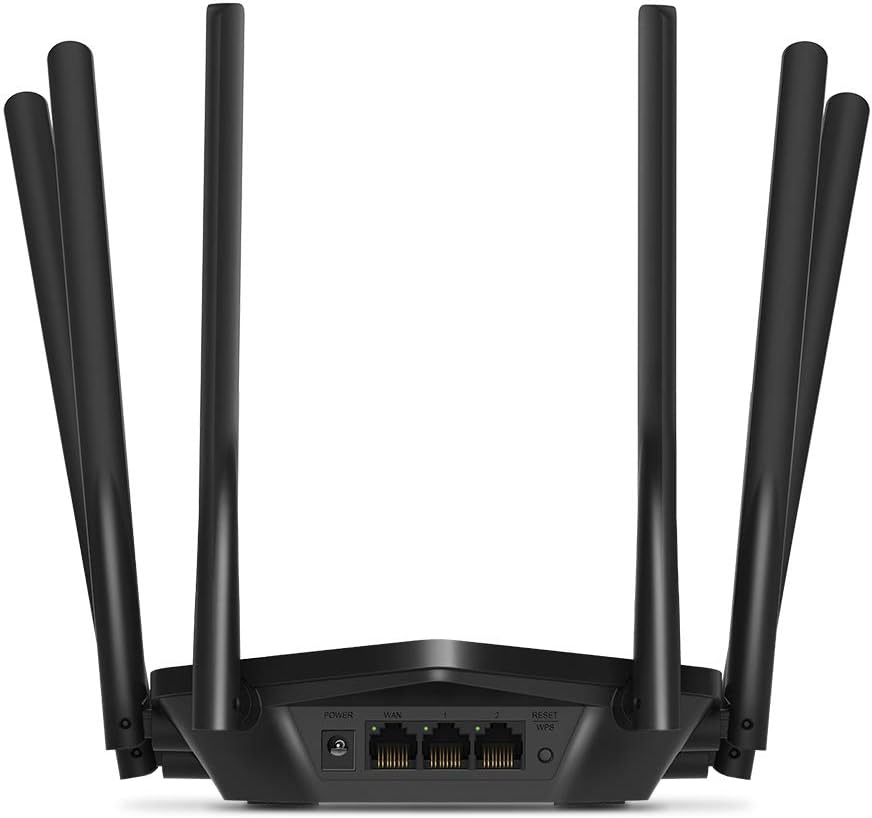
Выява: Задняя частка view of the Mercusys MR50G router, illustrating the power input, WAN port (blue), and three LAN ports (yellow) for wired connections, along with the Reset/WPS button.
3. Пачатковая канфігурацыя
Каб наладзіць маршрутызатар у першы раз:
- Падключыцеся да Wi-Fi: Connect your computer or mobile device to the router's default Wi-Fi network (SSID and password are typically printed on a label on the bottom of the router).
- Доступ Web інтэрфейс: Адкрыйце a web браўзэр і ўвядзіце
mwlogin.netor192.168.1.1у адрасны радок. - Стварыць пароль для ўваходу: Follow the on-screen instructions to create a login password for the router's management page.
- Выканайце хуткую наладу: The Quick Setup wizard will guide you through basic internet and wireless settings.
Інструкцыя па эксплуатацыі
1. Basic Wi-Fi Settings
Пасля ўваходу ў web інтэрфейс:
- Імя сеткі (SSID): Navigate to the Wireless settings to change your Wi-Fi network names (SSIDs) for both 2.4 GHz and 5 GHz bands.
- Пароль: Set a strong, unique password for your Wi-Fi networks. The MR50G supports WPA3 for enhanced security.
- Тып бяспекі: It is recommended to use WPA2-PSK/WPA3-Personal for optimal security.
2. Праца ў двух дыяпазонах
The MR50G operates on two frequency bands:
- 2.4 ГГц: Забяспечвае больш шырокае пакрыццё і лепшае пранікненне скрозь сцены, падыходзіць для агульнага карыстання Інтэрнэтам і старых прылад.
- 5 ГГц: Offers faster speeds and less interference, ideal for bandwidth-intensive activities like 4K streaming and online gaming, but with a shorter range.
You can configure separate SSIDs for each band or use Smart Connect to combine them into a single SSID, allowing the router to automatically assign devices to the optimal band.
3. Рэжым кропкі доступу
To use the MR50G as an Access Point (AP) to extend an existing wired network:
- Падключыць: Connect an Ethernet cable from your existing router's LAN port to one of the MR50G's LAN ports (not the WAN port).
- налада: Log into the MR50G's web interface, navigate to the Operation Mode settings, and select "Access Point Mode". Follow the prompts to complete the setup.
4. Пашыраныя магчымасці
- MU-MIMO: Multi-User, Multiple-Input, Multiple-Output technology allows the router to communicate with multiple devices simultaneously, improving network efficiency.
- Фарміраванне прамяня: Накіроўвае сігналы Wi-Fi на падлучаныя прылады, павялічваючы магутнасць сігналу і радыус дзеяння.
- Падтрымка VPN: The router supports VPN functionality, allowing for secure remote access or connection to VPN services. Refer to the router's web interface for specific VPN client/server configurations.
- Бацькоўскі кантроль: Manage and restrict internet access for specific devices or users.
- Гасцявая сетка: Стварыце асобную сетку Wi-Fi для гасцей, забяспечваючы бяспеку асноўнай сеткі.
Тэхнічнае абслугоўванне
1. Абнаўленне прашыўкі
Regularly check for and install firmware updates to ensure optimal performance, security, and access to new features. Firmware updates can typically be found in the router's web interface under System Tools or Advanced settings.
2. Скід налад маршрутызатара
If you encounter persistent issues or forget your login password, you may need to reset the router to its factory default settings:
- With the router powered on, press and hold the Reset/WPS button on the back panel for approximately 5-10 seconds until the LED indicators flash.
- Release the button and wait for the router to restart. All settings will be restored to factory defaults.
3. Аптымальнае размяшчэнне
For the best Wi-Fi coverage and performance:
- Place the router in a central location in your home or office.
- Avoid placing it near obstructions like thick walls, metal objects, or large appliances (microwaves, refrigerators) that can interfere with Wi-Fi signals.
- Elevate the router if possible, as Wi-Fi signals tend to spread downwards.

Image: Mercusys MR50G router positioned on a table, demonstrating a typical placement for optimal signal distribution within a living space.
Ліквідацыю непаладак
1. Няма доступу да Інтэрнэту
- Праверце злучэнні: Пераканайцеся, што ўсе кабелі Ethernet надзейна падключаны да правільных партоў (WAN да мадэма, LAN да прылад).
- Перазапуск прылад: Power cycle your modem, then the router, and then your connected devices.
- Праверце святлодыёд WAN: Verify that the WAN LED on the router is lit, indicating a connection to the modem.
- Статус інтэрнэт-правайдэра: Звярніцеся да свайго пастаўшчыка інтэрнэт-паслуг (ISP), каб пацвердзіць адсутнасць паслугtages у вашым раёне.
2. Павольная хуткасць Wi-Fi
- Размяшчэнне маршрутызатара: Ensure the router is placed optimally (refer to "Optimal Placement" section).
- Перашкоды: Перамясціце маршрутызатар далей ад іншых электронных прылад, якія могуць ствараць перашкоды.
- Выбар групы: For speed-critical applications, ensure your device is connected to the 5 GHz band.
- Аптымізацыя канала: У маршрутызатары web інтэрфейс, паспрабуйце змяніць канал Wi-Fi для дыяпазонаў 2.4 ГГц і 5 ГГц на менш перагружаны.
- Прашыўка: Пераканайцеся, што прашыўка вашага маршрутызатара абноўлена.
3. Cannot Access Router Management Page
- IP-адрас: Пераканайцеся, што вы выкарыстоўваеце правільны адрас (
mwlogin.netor192.168.1.1). - Правадное злучэнне: Try accessing the page from a computer connected directly to the router via an Ethernet cable.
- Ачысціць кэш браўзера: Ачысціць свой web кэш і файлы cookie браўзера або паспрабуйце іншы браўзер.
- Брандмаўэр/Антывірус: Часова адключыце любы брандмаўэр або антывіруснае праграмнае забеспячэнне на вашым кампутары, якія могуць блакаваць доступ.
- Скінуць налады маршрутызатара: If all else fails, perform a factory reset (refer to "Resetting the Router" section).
Тэхнічныя характарыстыкі
| мадэль | MR50G (EU) |
| Стандарты бесправадной сувязі | IEEE 802.11a / b / g / n / ac |
| Частата | 2.4 ГГц і 5 ГГц (двухдыяпазонны) |
| Хуткасць перадачы дадзеных | AC1900 (600 Мбіт/с на 2.4 ГГц, 1300 Мбіт/с на 5 ГГц) |
| Парты Ethernet | 1 гігабітны порт WAN, 3 гігабітныя парты LAN |
| Антэны | 6x Fixed Omni-Directional Antennas |
| Бяспека | WPA-PSK / WPA2-PSK / WPA3-Personal |
| Памеры (Ш х Г х У) | 15.72 х 17.56 х 4.5 см |
| Вага | 450 г |
| Асаблівасці | MU-MIMO, Beamforming, Access Point Mode, VPN Support, Parental Controls, Guest Network |
| Увод магутнасці | 100-240 В ~ 50/60 Гц |
Гарантыя і падтрымка
Mercusys products come with a limited warranty. For detailed warranty information, please refer to the warranty card included with your product or visit the official Mercusys webсайт.
For technical support, firmware updates, and additional resources, please visit the Mercusys support website. You can typically find contact information and FAQs there.
Official Mercusys Webсайт: www.mercusys.com
Ask a question about this manual
Ask about setup, troubleshooting, compatibility, parts, safety, or missing instructions. Manuals+ will review the question and use this page’s manual context to help answer it.