
1. Уводзіны
This manual provides essential information for the safe and efficient use of your Amazon Fire HD 10 tablet (2021 release). Please read it thoroughly before operating your device.
Асноўныя характарыстыкі
- Fast and Responsive: Powered by an octa-core processor and 3 GB RAM, offering 50% more RAM than the previous generation.
- Працяглая батарэя: Up to 12 hours of battery life for reading, browsing, video, and music.
- Яркі дысплей: 10.1-inch 1080p Full HD display, 10% brighter than the previous generation, with over 2 million pixels.
- AmpЗахоўванне: Available with 32 GB or 64 GB internal storage, expandable up to 1 TB with a microSD card (sold separately).
- Сумяшчальнасць прыкладанняў: Access to popular apps like Netflix, Facebook, Disney+, Instagram, TikTok, and more via Amazon’s Appstore.
- Інструменты прадукцыйнасці: Supports apps like Microsoft Office, OneNote, and Dropbox for enhanced productivity.
- Трывалы дызайн: Thinner and lighter than the previous generation, with a screen strengthened by aluminosilicate glass.
- Функцыянальнасць падзеленага экрана: Allows two compatible apps to be open side-by-side for multitasking.
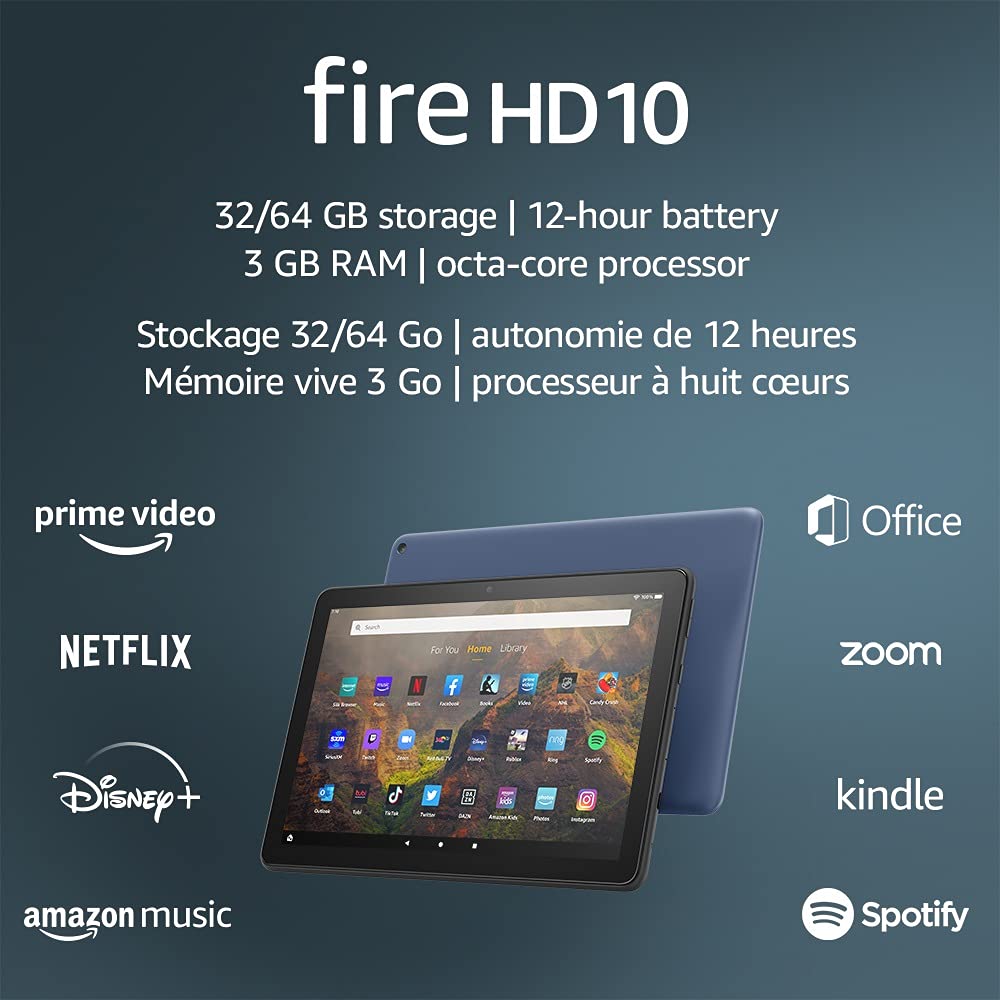
Image 1.1: The Amazon Fire HD 10 tablet highlighting its 32/64 GB storage, 12-hour battery, 3 GB RAM, and octa-core processor, alongside logos of supported applications such as Prime Video, Netflix, Disney+, Amazon Music, Office, Zoom, Kindle, and Spotify.
2. Настройка
2.1 Распакоўка і першапачатковая аплата
Upon receiving your Fire HD 10 tablet, carefully remove all components from the packaging. Before first use, it is recommended to fully charge the device.
- Connect the provided USB-C (2.0) cable to the tablet's USB-C port.
- Plug the other end of the USB-C cable into the 9W power adapter.
- Падключыце адаптар сілкавання да насценнай разеткі.
- A full charge from 0% to 100% typically takes approximately 4 hours while the device is in standby mode.
2.2 Уключэнне/выключэнне
- Каб уключыць: Press and hold the power button located on the side of the tablet until the Amazon logo appears on the screen.
- Каб выключыць: Press and hold the power button until a power options menu appears. Select 'Power Off'.
- Каб перазапусціць: У меню параметраў электрасілкавання абярыце «Перазагрузка».
2.3 Падключэнне да Wi-Fi
To access online content and services, connect your Fire HD 10 to a Wi-Fi network.
- From the Home screen, swipe down from the top to open the Quick Settings panel.
- Націсніце на значок Wi-Fi.
- Выберыце патрэбную сетку Wi-Fi са спісу даступных сетак.
- Калі будзе прапанавана, увядзіце пароль сеткі і націсніце «Падключыцца».
- The tablet supports 2.4 GHz and 5.0 GHz networks. Ad-hoc (peer-to-peer) Wi-Fi networks are not supported.
2.4 Налада ўліковага запісу
During the initial setup process, you will be guided to register your Fire HD 10 to an Amazon account. This is necessary to download apps, access Amazon content, and utilize cloud services.
- Follow the on-screen prompts to sign in with an existing Amazon account or create a new one.
- Ensure your account details are accurate for full functionality.
3. Інструкцыя па эксплуатацыі
3.1 Навігацыя па інтэрфейсе
The Fire HD 10 tablet features a touch-sensitive display for interaction.
- Націсніце: Каб выбраць элемент, адкрыйце праграму або націсніце кнопку.
- Правядзіце пальцам: To scroll through pages, lists, or switch between home screens.
- Звядзенне пальцамі для павелічэння: To zoom in or out on images, web pages, or documents.
- Доўгі націск: Каб атрымаць доступ да кантэкстных меню або перамясціць значкі праграм.
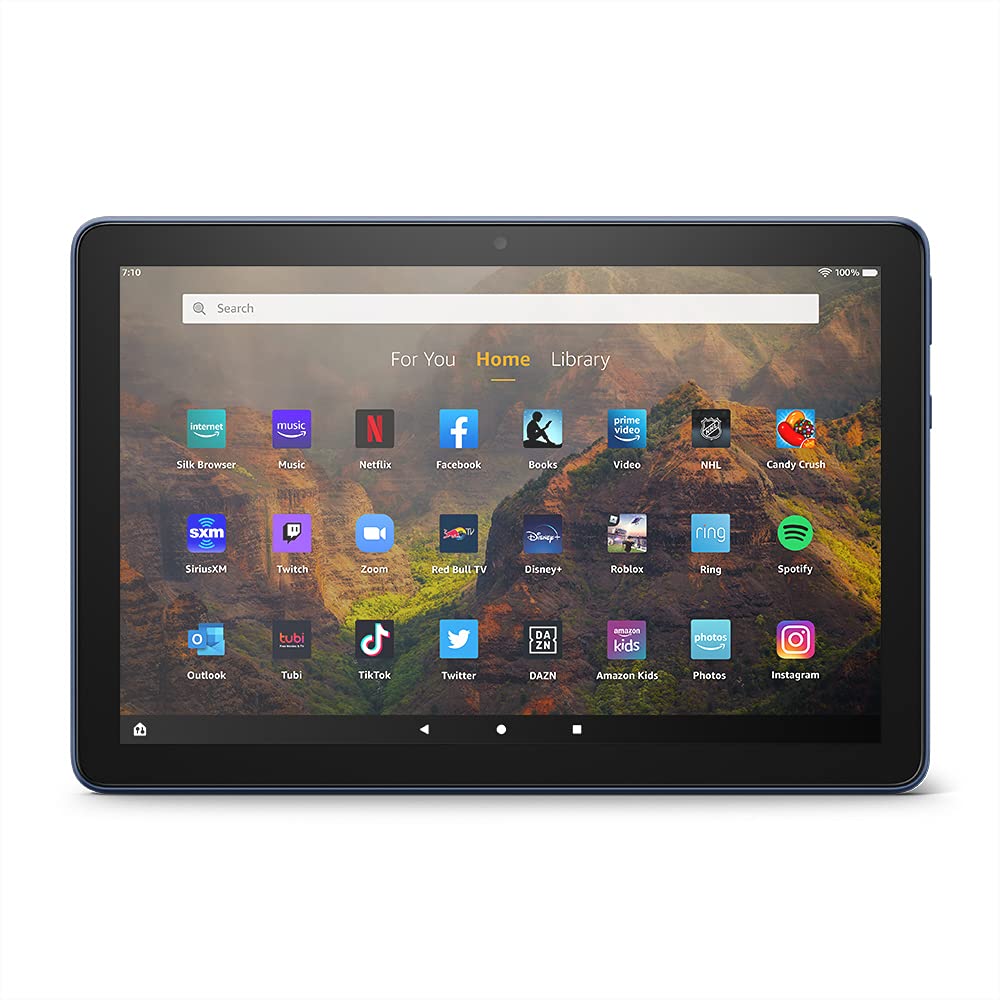
Image 3.1: The Amazon Fire HD 10 tablet's home screen, showcasing a grid of application icons including Silk Browser, Music, Netflix, Facebook, Books, Video, NHL, Candy Crush, SiriusXM, Twitch, Zoom, Red Bull TV, Disney+, Roblox, Ring, Spotify, Outlook, Tubi, TikTok, Twitter, DAZN, Amazon Kids, Photos, and Instagтаран.
3.2 Выкарыстанне праграм
Applications can be downloaded from the Amazon Appstore. Google Play is not supported.
- Tap an app icon on the Home screen to launch it.
- To find new apps, open the 'Appstore' application.
- Some apps may require a subscription for full access.

Image 3.2: A collage of content available on the Amazon Fire HD 10 tablet, featuring book covers like 'The Silent Patient', Amazon Original series and movies such as 'The Wilds', 'Coming to America', 'The Expanse', 'Dune', 'Hanna', 'One Night in Miami', 'Sound of Metal', 'The Marvelous Mrs. Maisel', 'Upload', and 'The Boys', alongside social media app logos for TikTok, Facebook, and Twitter.
3.3 Шматзадачнасць на падзеленым экране
The Fire HD 10 supports split screen functionality, allowing two compatible applications to run side-by-side.
- Адкрыйце першае прыкладанне, якім вы хочаце скарыстацца.
- Swipe up from the bottom of the screen to reveal the navigation bar.
- Long-press the icon of the first app in the recent apps view.
- Select 'Split Screen' from the options.
- Choose a second compatible app from your recent apps or app drawer to fill the other half of the screen.

Image 3.3: The Amazon Fire HD 10 tablet, shown with an optional Bluetooth keyboard case, demonstrating its split-screen capability. Two applications are open simultaneously: a calendar app on the left and a messaging app on the right, illustrating enhanced productivity.
3.4 Выкарыстанне камеры
The tablet is equipped with a 2 MP front-facing camera and a 5 MP rear-facing camera, both capable of 720p HD video recording.
- Open the 'Camera' app from your Home screen or app drawer.
- Націсніце кнопку спуску засаўкі, каб зрабіць фотаздымак.
- Пераключайцеся паміж пярэдняй і задняй камерамі з дапамогай значка пераключэння камеры.
- Выберыце рэжым відэа для запісу відэа.
3.5 Аўдыё і Bluetooth
The Fire HD 10 includes dual integrated speakers and a 3.5 mm stereo jack for headphones. It also supports Bluetooth 5.0 LE.
- Connect wired headphones or external speakers via the 3.5 mm jack.
- To pair Bluetooth devices (headphones, speakers, microphones, LE accessories):
- Go to 'Settings' > 'Connected Devices' > 'Bluetooth'.
- Пераканайцеся, што Bluetooth уключаны.
- Абярыце сваю прыладу са спісу даступных прылад і выконвайце інструкцыі па спалучэнні.
3.6 Кіраванне сховішчам
Your Fire HD 10 comes with either 32 GB or 64 GB of internal storage. You can expand this by up to 1 TB using a microSD card.
- To insert a microSD card: Locate the microSD slot on the side of the tablet, open the cover, and gently insert the card until it clicks into place.
- Manage storage by going to 'Settings' > 'Storage'. Here you can view usage and move compatible apps or media to the microSD card.
4. Тэхнічнае абслугоўванне
4.1 Сыход за акумулятарам
- Avoid exposing the tablet to extreme temperatures, as this can degrade battery performance.
- Для аптымальнага тэрміну службы батарэі пазбягайце частай поўнай разрадкі батарэі або працяглага захоўвання яе зараджанай на 100%.
- Use only the provided 9W power adapter and USB-C cable for charging.
4.2 Ачыстка прылады
- Выключыце планшэт перад чысткай.
- Выкарыстоўвайце мяккую тканіну без ворса, каб акуратна працерці экран і корпус.
- Для ўстойлівых плям злёгкуampen the cloth with water. Avoid using harsh chemicals, abrasive cleaners, or aerosol sprays.
4.3 Абнаўленне праграмнага забеспячэння
Amazon periodically releases software updates to improve performance and add new features. Ensure your device is connected to Wi-Fi to receive these updates.
- Updates are typically downloaded and installed automatically.
- You can manually check for updates by going to 'Settings' > 'Device Options' > 'System Updates'.
5. Выпраўленне непаладак
5.1 Прылада не адказвае
- If the device is frozen or unresponsive, press and hold the power button for approximately 20 seconds to force a restart.
- Ensure the device has sufficient battery charge. Connect it to the charger and try powering it on again.
5.2 Праблемы з падключэннем да Wi-Fi
- Verify that Wi-Fi is enabled in Quick Settings or 'Settings' > 'Wireless'.
- Пераканайцеся, што вы знаходзіцеся ў зоне дзеяння вашага Wi-Fi маршрутызатара.
- Перазагрузіце Wi-Fi-роўтар і мадэм.
- Forget the network in 'Settings' > 'Wireless' and reconnect, re-entering the password if necessary.
5.3 Apps Crashing or Not Loading
- Зачыніце і зноў адкрыйце праграму.
- Clear the app's cache: Go to 'Settings' > 'Apps & Games' > 'Manage All Applications', select the problematic app, and tap 'Clear Cache'.
- Пераканайцеся, што праграмнае забеспячэнне вашага планшэта абноўлена.
- Калі праблема не знікне, падумайце аб выдаленні і пераўсталёўцы праграмы.
5.4 Кароткі тэрмін службы батарэі
- Паменшыць яркасць экрана.
- Зачыніце невыкарыстоўваныя праграмы, якія працуюць у фонавым рэжыме.
- Выключайце Wi-Fi або Bluetooth, калі яны не выкарыстоўваюцца.
- Абмежаваць выкарыстанне фонавых дадзеных для праграм.
- Check 'Settings' > 'Battery' to identify apps consuming the most power.
6. Тэхнічныя характарыстыкі
| Асаблівасць | Дэталь |
|---|---|
| Пакаленне | 11 пакаленне 2021 года выпуску |
| Дысплей | Brilliant 10.1” 1080p display (1920 x 1200) with over 2 million pixels (224 ppi). Screen strengthened with aluminosilicate glass. |
| Памер | 247mm 166mm х мм х 9.2 |
| Вага | 465 grams (Actual size and weight may vary) |
| ЦП і аператыўная памяць | Васьмі'ядравы працэсар 2.0 ГГц з 3 ГБ аператыўнай памяці |
| Захоўванне | 32 GB (24.2 GB available) or 64 GB (55.0 GB available) internal storage. Expandable up to 1 TB with microSD card. |
| Тэрмін службы батарэі | Up to 12 hours of mixed usage (reading, web, video, music). Varies by settings and usage. |
| Час зарадкі | Approx. 4 hours (0-100%) with provided 9W adapter in standby. |
| Падключэнне да Wi-Fi | Supports 2.4 GHz and 5.0 GHz networks. Does not support ad-hoc networks. |
| Парты | USB-C (2.0) for charging, microSD slot for external storage. |
| Аўдыё | 3.5 mm stereo jack, dual integrated speakers, external volume controls. |
| Датчыкі | Accelerometer, ambient light sensors. |
| Спецыфікацыі камеры | 2 MP front-facing, 5 MP rear-facing cameras with 720p HD video recording. |
| Мікрафоны | 2 built-in microphones. |
| Службы вызначэння месцазнаходжання | Location-based services via WiFi. |
| Даступныя колеры | Black, Denim. |
| Bluetooth | Built-in Bluetooth 5.0 LE with A2DP support for stereo headphones, speakers, microphone, and LE accessories. |
6.1 Функцыі даступнасці
The Fire HD 10 tablet includes various accessibility features to assist users. These can be accessed via 'Settings' > 'Accessibility'.
- ГоласView Праграма чытання з экрана: Provides spoken feedback for users who are blind or visually impaired.
- Павелічальнік экрана: Allows users to zoom in/out and pan around the screen.
- Пераключальны доступ: Enables interaction for users with motor impairments via compatible Bluetooth devices.
- Kindle Чытанне ўслых: Alexa can read Kindle books aloud.
- Налады дысплея: Includes options for Closed Captioning, Font Size, Display Size, High Contrast Text, Color Inversion, Color Correction, and Convert Stereo to Mono audio. (Note: Captions are not available for all content.)
7. Гарантыя і падтрымка
7.1 Інфармацыя аб гарантыі
Your Amazon Fire HD 10 tablet comes with a 1-year limited warranty and service. Optional 1-year, 2-year, and 3-year extended warranties are available for purchase separately for customers in Canada.
Use of the Fire HD 10 tablet is subject to Amazon's Conditions of Use and associated terms.
7.2 У камплекце
The following items are included with your Fire HD 10 tablet:
- Планшэт Fire HD 10
- Кабель USB-C (2.0)
- Адаптар сілкавання 9 Вт
- Кароткае кіраўніцтва
7.3 Дадатковая падтрымка
For additional assistance, please visit the Amazon Device Support website or contact Amazon Customer Service.