
AZZA CSAZ-340F
AZZA CSAZ-340F CELESTA ATX Mid Tower Gaming Case
Кіраўніцтва карыстальніка
1. Уводзіны
This manual provides comprehensive instructions for the installation, operation, and maintenance of your AZZA CSAZ-340F CELESTA ATX Mid Tower Gaming Case. Please read this manual thoroughly before beginning installation to ensure proper setup and to maximize the performance and longevity of your system components.

Малюнак 1: The AZZA CSAZ-340F CELESTA Mid Tower ATX Case, showcasing its design and form factor.
2. Інфармацыя па бяспецы
- Always disconnect the power supply from the wall outlet before installing or removing any components inside the case.
- Handle all components with care to prevent damage from electrostatic discharge (ESD). Consider using an anti-static wrist strap.
- Keep the case and components away from liquids and excessive moisture.
- Забяспечце належную вентыляцыю вакол корпуса, каб прадухіліць перагрэў.
- Do not attempt to modify the case structure or components, as this may void your warranty and pose safety risks.
- Keep small parts and packaging materials out of reach of children.
3. Змесціва ўпакоўкі
Праверце, ці ёсць у вашай упакоўцы ўсе пералічаныя ніжэй прадметы:
- AZZA CSAZ-340F CELESTA ATX Mid Tower Gaming Case
- Скрынка з аксэсуарамі (утрымлівае шрубы, распоркі, кабельныя сцяжкі і г.д.)
- Кіраўніцтва карыстальніка (гэты дакумент)
4. Тэхнічныя характарыстыкі
The following table details the technical specifications of the AZZA CSAZ-340F CELESTA case:
| Асаблівасць | Спецыфікацыя |
|---|---|
| Марка | АЗЗА |
| Назва мадэлі | CSAZ-340F CELESTA |
| Тып корпуса | Сярэдняя вежа |
| Сумяшчальнасць матчыных поплаткаў | ATX, Micro ATX, Mini ITX |
| Колер | Чорны |
| Матэрыял | Метал |
| Тып мацавання блока харчавання | Ніжняе мацаванне |
| Спосаб астуджэння | паветра |
| Fan Size (Included/Supported) | 120mm (Rear included), Supports 120mm/140mm |
| Максімальная даўжыня GPU | 320 мм |
| Максімальная вышыня працэсарнага кулера | 165 мм |
| Максімальная даўжыня БП | 160 мм |
| 3.5" HDD Support | 2 |
| 2.5" SSD Support | 4/6 (depending on configuration) |
| Падтрымка пярэдняга вентылятара | 3 х 120 мм або 3 х 140 мм |
| Падтрымка лепшых фанатаў | 2 х 120 мм або 2 х 140 мм |
| Падтрымка задняга вентылятара | 1 х 120 мм |
| Падтрымка пярэдняга радыятара | Up to 280mm/360mm |
| Падтрымка верхняга радыятара | 2 x 120mm (from image) |
| Задняя апора радыятара | 1 x 120mm (from image) |
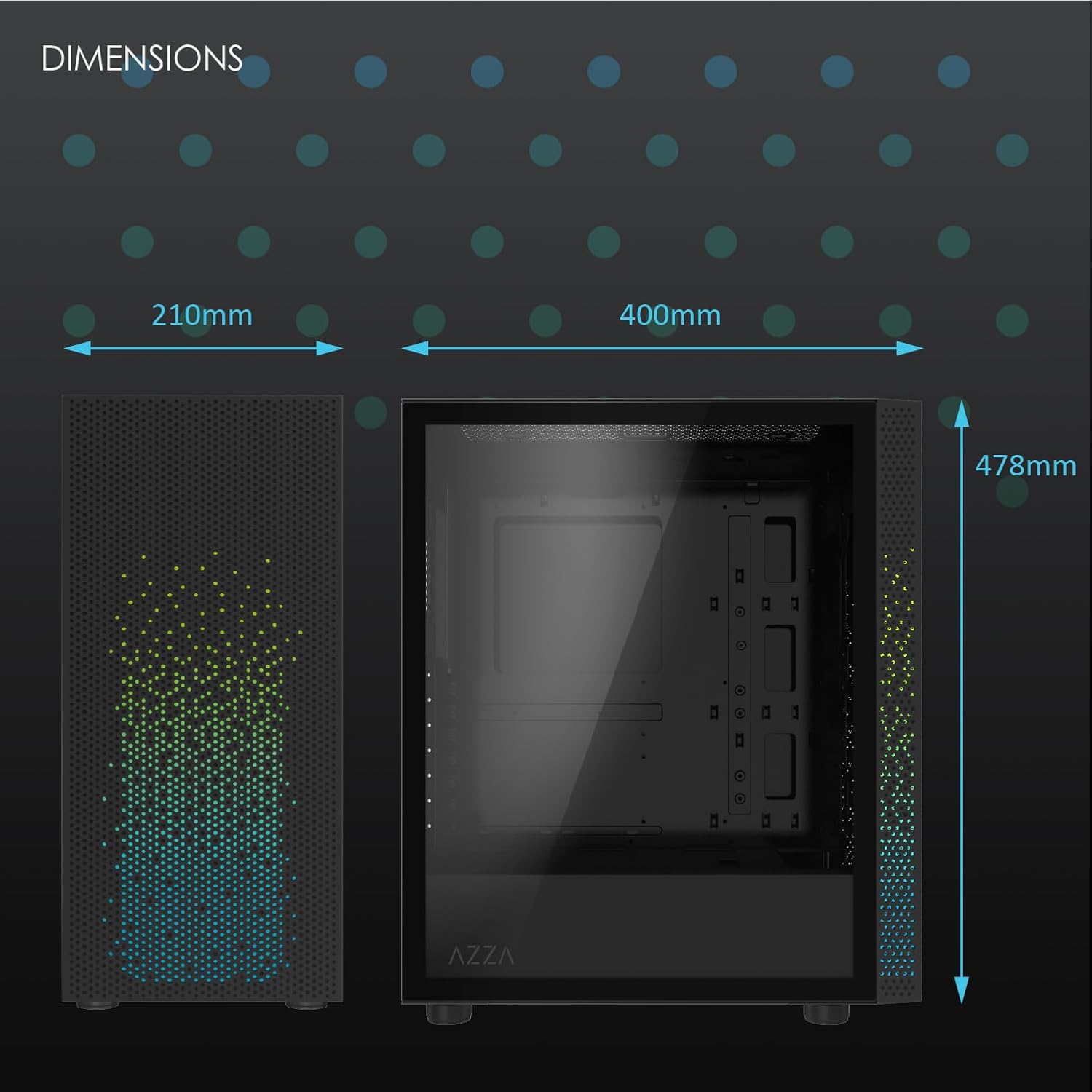
Малюнак 2: Physical dimensions of the AZZA CSAZ-340F CELESTA case: 210mm (width), 400mm (depth), 478mm (height).

Малюнак 3: Diagram illustrating fan and radiator mounting options for the AZZA CSAZ-340F CELESTA case, including front, top, and rear configurations.

Малюнак 4: Internal component support diagram for the AZZA CSAZ-340F CELESTA, showing maximum dimensions for CPU cooler, GPU, and PSU, along with drive bay locations.
5. Настройка і ўстаноўка
Follow these steps to install your components into the AZZA CSAZ-340F CELESTA case.
5.1 Падрыхтоўка справы
- Пастаўце корпус на роўную, устойлівую паверхню.
- Remove the side panels. Typically, these are secured with thumbscrews at the rear of the case.
5.2 Устаноўка мацярынскай платы
- Install the I/O shield (if not pre-installed) into the rear opening of the case.
- Ensure the correct standoffs are installed for your ATX, Micro-ATX, or Mini-ITX motherboard. Adjust or add standoffs as needed using the provided tools.
- Акуратна ўстаўце матчыну плату на апоры, сумясціўшы адтуліны для шруб.
- Secure the motherboard with the appropriate screws from the accessory box. Do not overtighten.
5.3 Устаноўка блока сілкавання (БП).
- Position the PSU in the bottom rear compartment of the case, ensuring the fan faces downwards (if there's a filtered vent) or upwards.
- Замацуйце блок харчавання да корпуса з дапамогай прадугледжаных шруб з задняй часткі.
- Пракладзеце неабходныя кабелі харчавання праз адтуліны для арганізацыі кабеляў.
5.4 Storage Drive Installation (HDD/SSD)
- 3.5-цалевыя жорсткія дыскі: Locate the drive cage. Slide the 3.5" HDDs into the drive trays and secure them, often tool-less or with screws.
- 2.5-цалевыя SSD-назапашвальнікі: Mount 2.5" SSDs to the dedicated mounting points on the motherboard tray or drive cage using screws.
- Connect SATA data and power cables to the installed drives.
5.5 Усталёўка відэакарты (GPU)
- Зніміце неабходныя вечкі слотаў PCIe з задняй панэлі корпуса.
- Carefully insert your graphics card into the appropriate PCIe slot on the motherboard until it clicks into place.
- Замацуеце відэакарту да корпуса шрубамі.
- Connect any required PCIe power cables from the PSU to the graphics card.
5.6 Усталёўка кулера працэсара
Install your CPU cooler according to its specific manufacturer instructions. Ensure it does not exceed the maximum height of 165mm.
5.7 Устаноўка вентылятара і радыятара
The case supports various fan and radiator configurations:
- Спераду: Up to 3 x 120mm or 3 x 140mm fans, or radiators up to 280mm/360mm.
- Верх: Up to 2 x 120mm or 2 x 140mm fans, or 2 x 120mm radiators.
- Ззаду: 1 x 120mm fan (pre-installed) or 1 x 120mm radiator.
Mount fans and radiators using the appropriate screws and ensure proper airflow direction.
5.8 Арганізацыя кабеляў
Выкарыстоўвайце адтуліны для арганізацыі кабеляў і кропкі мацавання за паддонам матчынай платы, каб пракласці і замацаваць кабелі. Гэта паляпшае цыркуляцыю паветра і эстэтыку.
5.9 Канчатковая зборка
- Double-check all connections and ensure no cables are obstructing fans.
- Зноў прымацуеце бакавыя панэлі.
- Connect external peripherals (monitor, keyboard, mouse, etc.) and the power cable.
6. Кіраванне сістэмай
Once all components are installed and connected, you can power on your system. The front panel features power and reset buttons, along with USB and audio ports for convenient access.

Малюнак 5: Close-up of the AZZA CSAZ-340F CELESTA's front panel, highlighting the integrated lighting effects.
7. Тэхнічнае абслугоўванне
- Пылавыя фільтры: Regularly clean the dust filters (if present) to maintain optimal airflow and cooling performance.
- Уборка інтэр'еру: Periodically open the case and use compressed air to remove dust from components and fans. Ensure the system is powered off and unplugged before cleaning.
- Знешняя ачыстка: Працярыце вонкавыя паверхні мяккай, damp тканіна. Пазбягайце рэзкіх хімікатаў.
8. Выпраўленне непаладак
Калі ў вас узніклі праблемы, разгледзьце наступныя распаўсюджаныя дзеянні па ліквідацыі непаладак:
- Сістэма не ўключаецца:
- Ensure the power cable is securely connected to both the PSU and the wall outlet.
- Check that the PSU switch is in the "ON" position.
- Verify all internal power connections (24-pin ATX, 8-pin CPU, PCIe power) are seated correctly.
- Confirm front panel power button cables are correctly connected to the motherboard.
- Няма вываду на дысплей:
- Пераканайцеся, што манітор падлучаны да відэакарты (не да інтэграваных графічных партоў матчынай платы, калі толькі вы не выкарыстоўваеце інтэграваную графіку).
- Зноў усталюйце відэакарту ў слот PCIe.
- Check monitor input selection.
- Перагрэў:
- Verify all case fans are spinning and oriented correctly for airflow.
- Clean any dust filters and internal components.
- Ensure CPU cooler is properly seated and making good contact with the CPU.
9. Гарантыя і падтрымка
For warranty information and technical support, please refer to the official AZZA website or contact AZZA customer service directly. Keep your proof of purchase for warranty claims.
AZZA Official Webсайт: www.azza.com
Ask a question about this manual
Ask about setup, troubleshooting, compatibility, parts, safety, or missing instructions. Manuals+ will review the question and use this page’s manual context to help answer it.