
1. Уводзіны
This manual provides comprehensive instructions for the SHARKOON Elite Shark CA300T Extended ATX PC Case. It covers the product's features, setup procedures, operational guidelines, maintenance tips, troubleshooting solutions, and detailed technical specifications. Please read this manual thoroughly before installation and use to ensure optimal performance and longevity of your PC case.
2. Асноўныя магчымасці
- Футурыстычны дызайн: The CA300T features an expressive front panel with a geometric pattern, framed by brushed aluminum, giving it a distinctive and modern aesthetic.
- Пашыраны паветраны паток: Equipped with three pre-installed 120mm RGB LED fans at the front and one at the rear, ensuring consistent airflow. The front panel includes a mesh grille for optimal ventilation, and the top panel offers a perforated cover for additional fan/radiator mounting.
- Illuminated I/O Panel: The side-mounted I/O panel includes standard audio ports, USB 3.0 ports, and a USB-C port, all featuring their own RGB illumination.
- Панэлі з загартаванага шкла: Two tempered glass side panels provide a clear view of internal components. The right-side panel is partially tinted to conceal the power supply tunnel while highlighting SSDs or HDDs.
- Прасторны інтэр'ер: Designed to accommodate large components, including graphics cards up to 42.5 cm, power supplies up to 24 cm, and CPU coolers up to 16.5 cm.
- Эфектыўнае кіраванне кабелямі: Features a spacious, foldable cable compartment and a sliding cable cover to keep wiring organized and out of sight.
- Параметры захоўвання: Supports up to seven 2.5-inch drives or four 3.5-inch drives.
3. Змесціва ўпакоўкі
The SHARKOON Elite Shark CA300T PC Case package typically includes:
- SHARKOON Elite Shark CA300T PC Case (White)
- Pre-installed 120mm RGB LED Fans (3x Front, 1x Rear)
- Скрынка з аксэсуарамі (шрубы, кабельныя сцяжкі, распоркі і г.д.)
- Кіраўніцтва карыстальніка (гэты дакумент)
Note: Specific contents may vary slightly. Please check the packaging for a complete list.
4. Інструкцыі па ўсталёўцы
Follow these steps to set up your SHARKOON Elite Shark CA300T PC case and install your components.
4.1. Падрыхтоўка справы
- Распакуйце корпус: Асцярожна дастаньце корпус ПК з упакоўкі.
- Зняць бакавыя панэлі: Unscrew the thumbscrews on the rear of the case for both tempered glass side panels. Gently slide and lift the panels to remove them. Place them on a soft, flat surface to prevent scratches.
- Скрынка для аксесуараў: Знайдзіце скрынку з аксэсуарамі ўнутры корпуса, у якой знаходзяцца ўсе неабходныя шрубы і мацавальныя элементы.
4.2. Устаноўка мацярынскай платы
- Усталяваць Standoffs: Ensure the correct standoffs are installed for your motherboard form factor (ATX, SSI EEB). The case typically has pre-installed standoffs for standard ATX.
- Усталюйце экран уводу/вываду: If your motherboard requires an external I/O shield, install it into the rear opening of the case before mounting the motherboard.
- Мацаванне матчынай платы: Carefully place your motherboard onto the standoffs, aligning the screw holes. Secure the motherboard with the provided screws.
4.3. Усталёўка блока сілкавання (БС)
- Пазіцыя блока харчавання: The PSU mounts at the rear bottom of the case. Slide your PSU into the designated compartment from the rear.
- Бяспечны блок харчавання: Align the PSU with the screw holes and secure it with the provided screws from the rear of the case.
- Кабельнае кіраванне: Route PSU cables through the cutouts to the back of the motherboard tray for organized cable management.
4.4. Усталёўка назапашвальніка
The CA300T supports various drive configurations:
- 2.5-inch Drives (SSDs): Mount SSDs to the dedicated brackets behind the motherboard tray or within the PSU shroud.
- 3.5-inch Drives (HDDs): Install HDDs into the drive cages located under the PSU shroud.
4.5. Усталёўка відэакарты і платы пашырэння
- Зняць вечкі слотаў: Зніміце неабходныя вечкі слотаў пашырэння з задняй панэлі корпуса.
- Усталяваць карту: Устаўце відэакарту або іншыя карты пашырэння ў адпаведныя слоты PCIe на матчынай плаце.
- Бяспечная карта: Secure the card with the provided screws.
4.6. Падключэнне кабеляў пярэдняй панэлі
Connect the front panel cables (USB 3.0, USB-C, HD Audio, Power Switch, Reset Switch, Power LED, HDD LED) to their corresponding headers on your motherboard. Refer to your motherboard manual for exact pin layouts.
4.7. Канчатковая зборка
- Кабельнае кіраванне: Use the cable ties and routing channels to organize all internal cables behind the motherboard tray.
- Зноў прымацуеце бакавыя панэлі: Carefully reattach both tempered glass side panels and secure them with the thumbscrews.
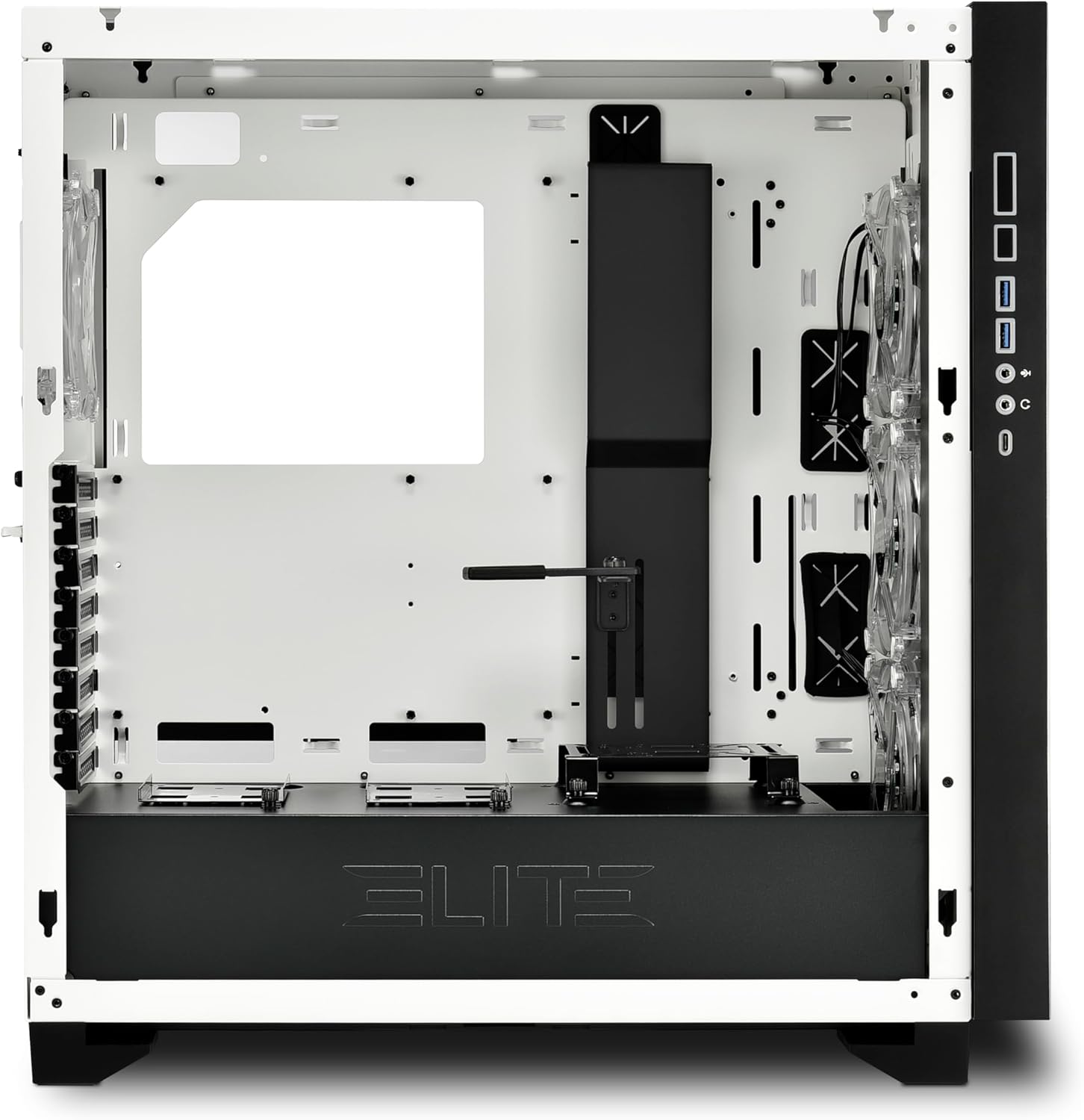
Малюнак 1: Інтэр'ер view of the CA300T, highlighting component space.
5. Інструкцыя па эксплуатацыі
5.1. Уключэнне вашай сістэмы
After all components are installed and cables are connected, plug your power supply into a wall outlet and flip the PSU's power switch to the 'ON' position. Press the power button on the case's front I/O panel to start your computer.
5.2. Кіраванне RGB-падсветкай
The pre-installed RGB fans and illuminated I/O panel can be controlled via your motherboard's RGB software (if compatible) or a dedicated RGB controller if included with your motherboard or purchased separately. Refer to your motherboard manual for specific RGB header locations and software instructions.
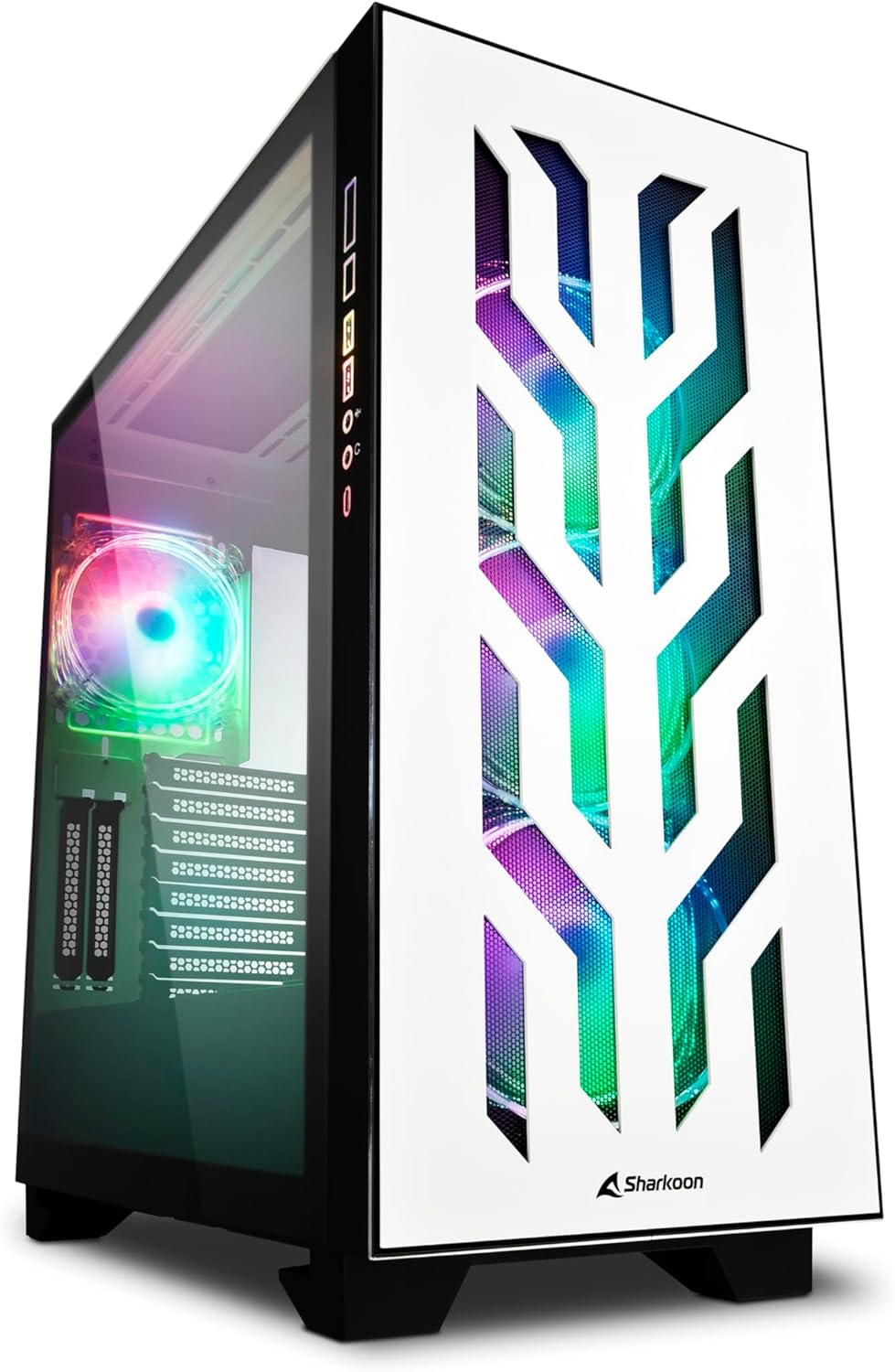
Figure 2: The CA300T with its illuminated RGB fans and distinctive front panel.
6. Тэхнічнае абслугоўванне
Regular maintenance helps ensure optimal performance and extends the lifespan of your PC components.
6.1. Ачыстка пылавога фільтра
The CA300T includes magnetic dust filters. It is recommended to clean these filters every 1-3 months, depending on your environment, to maintain optimal airflow and prevent dust buildup inside the case.
- Знайдзіце фільтры: Identify the dust filters on the top, front, and bottom of the case.
- Выдаліць фільтры: Gently pull or slide out the magnetic dust filters.
- Чыстыя фільтры: Use a soft brush, vacuum cleaner, or rinse with water (ensure completely dry before reinstallation) to remove accumulated dust.
- Зноў усталюйце фільтры: Place the clean filters back into their respective positions.
6.2. Генеральная ўборка
Для вонкавых паверхняў выкарыстоўвайце мяккую,amp cloth to wipe down the case. Avoid abrasive cleaners or solvents that could damage the finish or tempered glass.

Малюнак 3: Верх view of the CA300T, showing the perforated top panel.
7. Выпраўленне непаладак
У гэтым раздзеле разглядаюцца распаўсюджаныя праблемы, з якімі вы можаце сутыкнуцца падчас налады або працы.
7.1. Сістэма не ўключаецца
- Праверце блок харчавання: Ensure the power supply unit is properly connected to the wall outlet and the PSU's power switch is in the 'ON' position.
- Злучэння на пярэдняй панэлі: Verify that the power switch cable from the case's front panel is correctly connected to the motherboard's power header.
- Internal Power Cables: Confirm that all necessary power cables (24-pin ATX, CPU 8-pin, GPU PCIe) are securely connected to the motherboard and components.
7.2. Fans Not Spinning / RGB Not Lighting Up
- Падключэнне вентылятараў: Ensure all fan power cables are securely connected to the motherboard's fan headers or a fan controller.
- RGB Connections: Verify that RGB cables are correctly connected to the motherboard's RGB headers or a dedicated RGB controller.
- Software/Controller: Check your motherboard's BIOS/UEFI settings or RGB software to ensure fans and RGB lighting are enabled and configured correctly.
7.3. USB Ports Not Functioning
- Internal USB Headers: Confirm that the internal USB 3.0 and USB-C cables from the case's front panel are securely connected to the corresponding headers on your motherboard.
- Motherboard Drivers: Ensure all necessary motherboard chipset and USB drivers are installed.
8. Тэхнічныя характарыстыкі
| Марка | Шаркун |
| Назва мадэлі | CA300T |
| Колер | Белы |
| Тып корпуса | Extended ATX Tower |
| Матэрыял | Метал, загартаванае шкло |
| Сумяшчальнасць матчыных поплаткаў | ATX, SSI EEB |
| Мантаж блока харчавання | Мацаванне ззаду |
| Спосаб астуджэння | паветра |
| Папярэдне ўсталяваныя вентылятары | 4x 120mm RGB LED Fans (3x Front, 1x Rear) |
| Пярэднія парты I / O | USB 3.0 (x2), USB-C (x1), Audio In/Out |
| Максімальная даўжыня графічнага працэсара | 42.5 см |
| Макс. Вышыня кулера працэсара | 16.5 см |
| Макс. Даўжыня БП | 24 см |
| Прывадныя адсекі | Up to 7x 2.5" or 4x 3.5" |
| Рэкамендуемае выкарыстанне | Гульнявая |
9. Гарантыя і падтрымка
9.1. Гарантыя на прадукт
The SHARKOON Elite Shark CA300T PC Case comes with a Гарантыя 2 год on spare parts. This warranty covers defects in materials and workmanship under normal use. Please retain your proof of purchase for warranty claims.
9.2. Абнаўленне праграмнага забеспячэння
Software updates, if applicable for any integrated components or controllers, are guaranteed until 13 красавіка 2030 г.
9.3. Падтрымка кліентаў
For technical assistance, warranty claims, or further inquiries, please contact Sharkoon customer support through their official website or the retailer where the product was purchased. Have your product model and proof of purchase ready when contacting support.