
Docooler XUH6362338938855GM
Docooler JINGSHA X99-8D3 Motherboard User Manual
Model: XUH6362338938855GM
1. Уводзіны і большview
The Docooler JINGSHA X99-8D3 is a high-performance ATX gaming motherboard designed for LGA2011 V3 processors. It features four-channel DDR3 memory support, an M.2 NVME slot for high-speed storage, and multiple PCI-E expansion slots, making it suitable for demanding computing tasks and gaming setups. This manual will guide you through the installation, configuration, and maintenance of your motherboard.
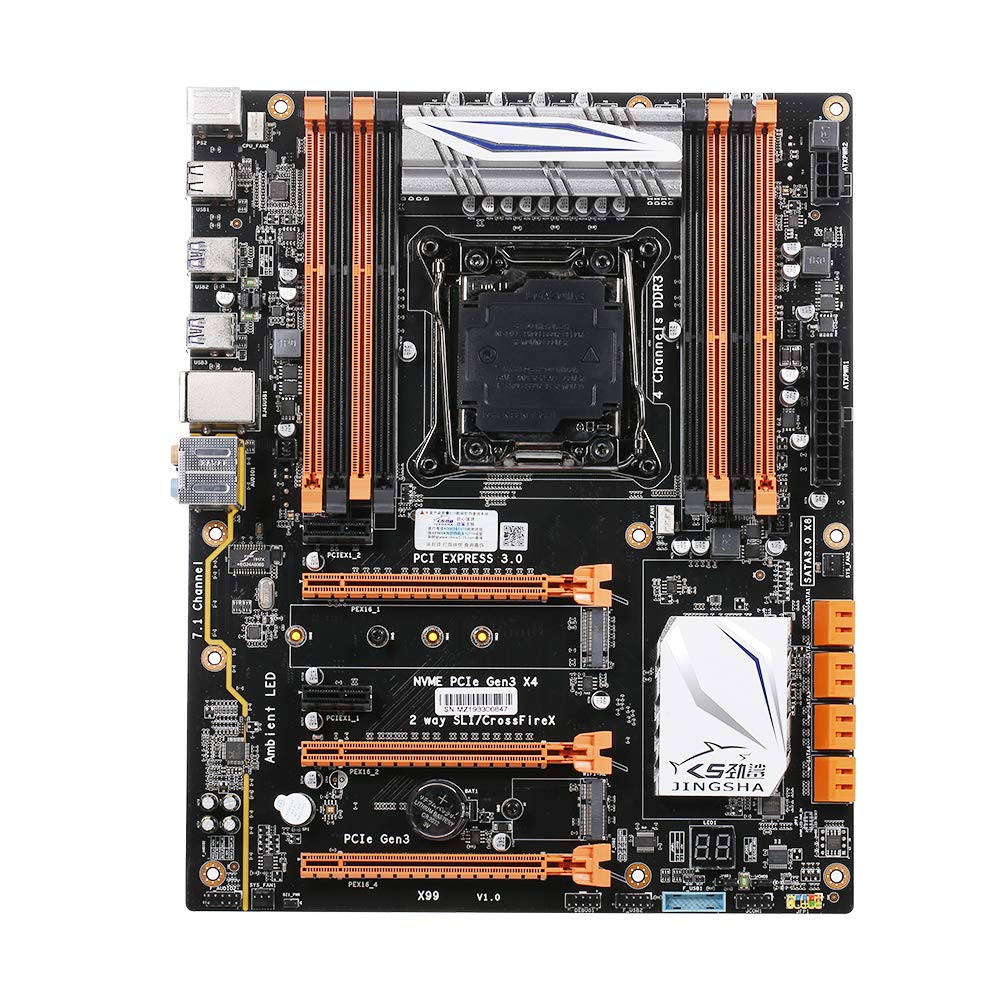
Малюнак 1.1: Зверху ўніз view of the Docooler JINGSHA X99-8D3 Motherboard, showcasing its layout with CPU socket, RAM slots, and various expansion slots.
2. Асноўныя магчымасці
- M.2 NVME Support: Equipped with an M.2 hard disk port, supporting high-speed PCI-E NVME X4 for optimal operating system and application driver performance.
- Quad-Channel DDR3 Memory: Features 8 DDR3 memory slots across 4 channels, significantly improving capacity and performance, supporting up to 256GB.
- Digital Diagnostic Card: Integrated digital diagnostic card automatically tests hardware devices to ensure proper operation and assist in troubleshooting.
- Multiple PCI-E Expansion Slots: Provides 3 PCI-E expanded slots, configurable as X16/X8 to handle various workloads and multi-GPU setups.
- Трывалая канструкцыя: Built with a 10-layer PCB and high-quality capacitors for enhanced stability and heat resistance.

Figure 2.1: Diagram illustrating the six core technologies and features of the motherboard, including 4-channel DDR3*8, M.2 hard disk interface, digital diagnostic card, 7.1 channel audio, SATA3.0*8 interface, and Crossfire support.
3. Змесціва ўпакоўкі
Калі ласка, пераканайцеся, што ўсе пералічаныя ніжэй прадметы прысутнічаюць у вашай упакоўцы:
- 1x Docooler JINGSHA X99-8D3 Motherboard
- Кабель 1x SATA
- 1x I/O Baffle (Backplate)
- 1x CPU Fan Board
- A bag of screws
4. Тэхнічныя характарыстыкі
| Асаблівасць | Спецыфікацыя |
|---|---|
| мадэль | X99-8D3 |
| Формаў-фактар | ATX |
| Graphic Slot | PCIE3.0 16X*3 |
| Сеткавая карта | Гігабітная сеткавая карта |
| Аўдыёканал | Канал 7.1 |
| CPU Type Support | LGA2011 V3 (2629V3/2649V3/2669V3/2678V3/2696V3/2676V3/2673V3) |
| Пласты друкаванай платы | 10 пласта |
| Слот памяці | DDR3*8 |
| Максімальная ёмістасць памяці | 256 ГБ |
| Інтэрфейс SATA | SATA3.0*8, M.2 NVME |
| Інтэрфейс PS/2 | Мыш / клавіятура |
| Электразабеспячэнне | 8 PIN*1, 24 PIN*1 |
| Інтэрфейс USB | USB3.0*6, USB2.0*6 |
| Expanded Interface | PCIE 1X*2, M.2 WIFI*1 |
| Памер прадмета | 30.2 х 24.4 см (11.89 х 9.61 цалі) |
| Вага прадмета | 930.5 г (32.82 унцыі) |

Малюнак 4.1: падрабязна view of the motherboard's rear I/O panel, showing PS/2 ports, USB 2.0, USB 3.0, Gigabit Network Port, and 7.1 Audio Ports.
5. Настройка і ўстаноўка
Before beginning installation, ensure your system is powered off and unplugged from the wall outlet. Handle the motherboard by its edges to avoid static discharge.
5.1 Усталёўка працэсара
- Locate the LGA2011 V3 CPU socket on the motherboard.
- Gently push down the CPU retention lever and swing it open.
- Align the triangular mark on your CPU with the corresponding mark on the socket. Carefully place the CPU into the socket without forcing it.
- Зачыніце рычаг фіксацыі, каб зафіксаваць працэсар.
- Нанесці тонкі, роўны пласт цеплапасты на верхнюю частку працэсара.
- Install the CPU cooler according to its manufacturer's instructions, ensuring proper contact and pressure.

Малюнак 5.1: Буйны план view of the LGA2011 V3 CPU socket on the motherboard, ready for CPU installation.
5.2 Installing RAM Modules
- Адкрыйце зашчапкі з абодвух канцоў слотаў памяці DDR3.
- Align the notch on the RAM module with the key in the memory slot.
- Моцна націсніце на абодва канцы модуля аператыўнай памяці, пакуль зашчапкі не зафіксуюць модуль.
- For optimal performance, install RAM modules in matching pairs across the four channels as indicated in the motherboard manual or silkscreen.

Малюнак 5.2: View of the eight DDR3 RAM slots on the motherboard, showing their arrangement for quad-channel memory configuration.
5.3 Installing Storage Devices (M.2 NVME & SATA)
- M.2 NVME SSD: Locate the M.2 slot. Insert the M.2 SSD at an angle into the slot, then gently push it down and secure it with the provided screw.
- Дыскі SATA: Connect your SATA SSDs or HDDs to the SATA 3.0 ports using SATA data cables. Ensure the power supply SATA power connectors are also attached to the drives.

Figure 5.3: Close-up of the M.2 interface on the motherboard, highlighting its position and the PCI-E Gen3 X4 connection for high-speed data transfer.
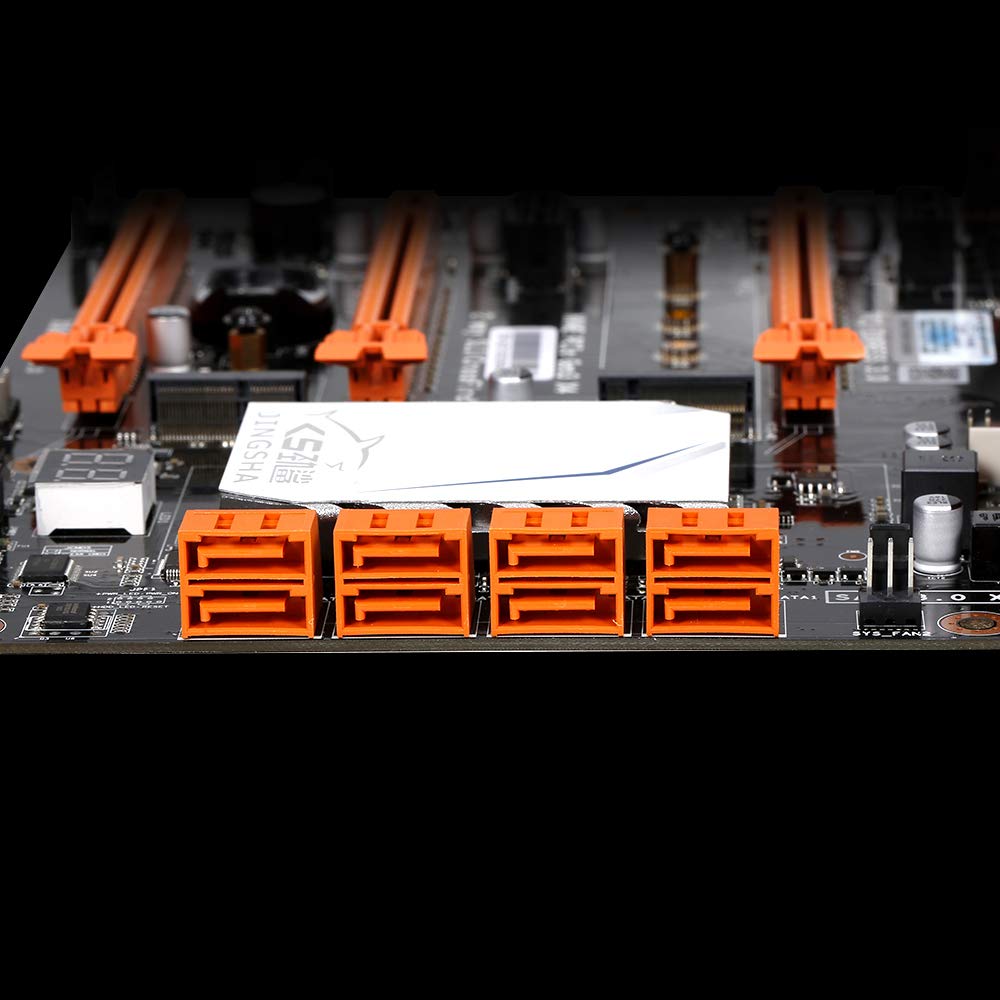
Малюнак 5.4: View of the eight orange SATA 3.0 ports on the motherboard, providing ample connectivity for storage devices.
5.4 Падключэнне крыніцы сілкавання
- Падключыце 24-кантактны раз'ём харчавання ATX ад блока харчавання (БП) да адпаведнага порта на матчынай плаце.
- Connect the 8-pin CPU power connector (EPS12V) from your PSU to the 8-pin port near the CPU socket.
5.5 Installing Expansion Cards (PCIe)
- Locate the desired PCI-E 3.0 x16 or x1 slots.
- Зніміце адпаведную вечка слота пашырэння з корпуса кампутара.
- Align the expansion card with the slot and press down firmly until it is fully seated. Secure the card with a screw to the case.

Малюнак 5.5: Пад вуглом view of the motherboard, highlighting the three PCI Express 3.0 x16 slots and the smaller PCIe x1 slots, ready for graphics cards and other expansion cards.
6. Кіраванне матчынай платай
6.1 Першая загрузка і налада BIOS
- Пасля зборкі ўсіх кампанентаў падключыце манітор, клавіятуру і мыш.
- Power on your system. During the initial boot sequence, repeatedly press the DEL or F2 key (common for JINGSHA motherboards) to enter the BIOS/UEFI setup utility.
- У BIOS пераканайцеся, што ўсе ўсталяваныя кампаненты (працэсар, аператыўная памяць, назапашвальнік) правільна вызначаюцца.
- Наладзьце парадак загрузкі, каб прыярытэтызаваць усталявальны носьбіт аперацыйнай сістэмы (USB-назапашвальнік або DVD-дыск).
- Захавайце змены і выйдзіце з BIOS. Сістэма перазагрузіцца.
6.2 Устаноўка аперацыйнай сістэмы
Follow the instructions provided with your operating system (e.g., Windows, Linux) to complete the installation process. Ensure you install all necessary drivers for the motherboard's chipsets, network, audio, and other components from the manufacturer's website or included driver disc.
7. Тэхнічнае абслугоўванне
Правільнае абслугоўванне гарантуе даўгавечнасць і стабільную працу вашай матчынай платы.
- Выдаленне пылу: Рэгулярна чысціце мацярынскую плату і кампаненты ад пылу сціснутым паветрам. Перад чысткай пераканайцеся, што сістэма выключана і адключана ад сеткі.
- Абнаўленні BIOS: Periodically check the Docooler or JINGSHA official website for BIOS updates. BIOS updates can improve compatibility, stability, and performance. Follow update instructions carefully to avoid damaging the motherboard.
- Абнаўленні драйвераў: Абнаўляйце драйверы сістэмы, каб забяспечыць аптымальную прадукцыйнасць і сумяшчальнасць з новым праграмным і апаратным забеспячэннем.
- Умовы навакольнага асяроддзя: Operate the motherboard in a well-ventilated environment with stable temperature and humidity to prevent overheating and component degradation.
8. Выпраўленне непаладак
У гэтым раздзеле разглядаюцца распаўсюджаныя праблемы, з якімі вы можаце сутыкнуцца.
8.1 Няма харчавання / Няма загрузкі
- Пераканайцеся, што 24-кантактны раз'ём харчавання ATX і 8-кантактны раз'ём харчавання працэсара надзейна падключаны да матчынай платы.
- Check if the power supply unit (PSU) is switched on and connected to a working power outlet.
- Verify that the front panel power button cable is correctly connected to the motherboard's header.
8.2 Няма вываду на дысплей
- Ensure your graphics card (if dedicated) is properly seated in its PCI-E slot and has all necessary power cables connected.
- Check that your monitor cable is securely connected to the graphics card or motherboard (if integrated graphics are used, though X99 typically requires a dedicated GPU).
- Try reseating your RAM modules. Incorrectly seated RAM is a common cause of no display.
8.3 POST Code Display (Digital Diagnostic Card)
The motherboard is equipped with a digital diagnostic card (POST code display) that shows a two-digit code during boot-up. Refer to the motherboard's detailed technical documentation (often available on the manufacturer's website) for a list of POST codes and their meanings. This can help pinpoint the exact component causing a boot failure.

Малюнак 8.1: Буйны план view showing the integrated digital diagnostic card (POST code display) on the motherboard, which assists in identifying hardware issues during boot.
9. Гарантыя і падтрымка
For warranty information and technical support, please refer to the documentation provided with your purchase or visit the official Docooler or JINGSHA webсайт. Захоўвайце пацвярджэнне пакупкі для прэтэнзій па гарантыі.