
1. Уводзіны
This manual provides essential information for the safe and efficient operation of your iFFALCON 32F2A 32-inch HD Ready Android Smart LED TV. Please read these instructions thoroughly before using the television and retain them for future reference.
The iFFALCON 32F2A is an 80 cm (32 inches) HD Ready Android Smart LED TV designed to offer a comprehensive entertainment experience. It features a 720p resolution display, integrated Android operating system, and smart functionalities like Google Assistant and Chromecast built-in.
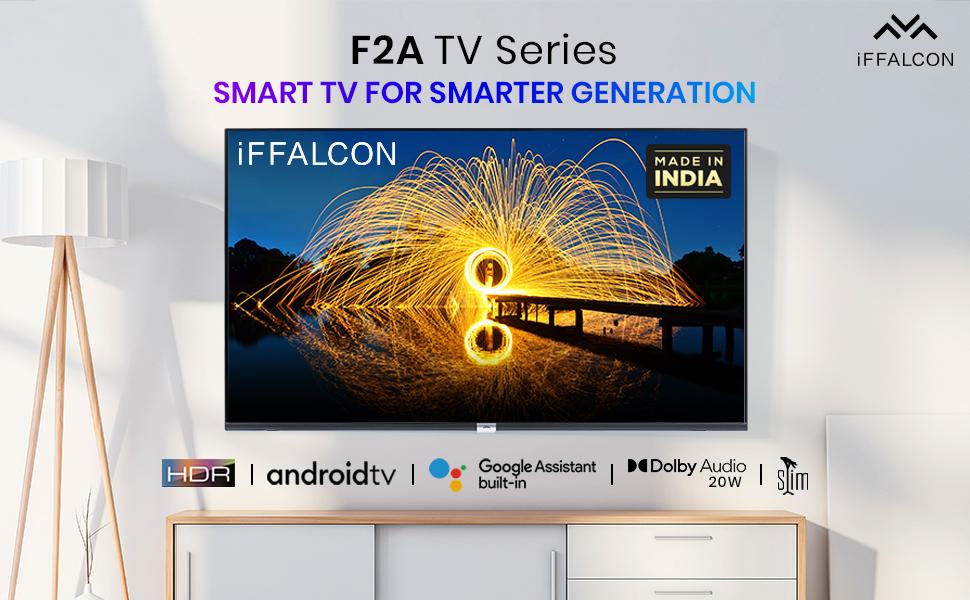
Выява 1.1: Спераду view of the iFFALCON 32F2A Smart LED TV displaying the Android TV interface, alongside icons representing key features such as HDR, Android TV, Google Assistant, Micro Dimming, IPQ Engine, Chromecast built-in, AI, and Dolby Audio with 20W speakers.
2. Што ў скрынцы
Verify that all components are present and undamaged upon unpacking your new television.
- 1 х святлодыёдны тэлевізар iFFALCON 32F2A
- 1 х Настольная падстаўка
- 1 х Кіраўніцтва карыстальніка
- 1 х гарантыйны талон
- 1 х пульт дыстанцыйнага кіравання
- 2 батарэйкі тыпу AAA (для пульта дыстанцыйнага кіравання)
3. Настройка
3.1 Распакоўка і размяшчэнне
Carefully remove the TV from its packaging. It is recommended to have two people for this process. Place the TV on a stable, flat surface or mount it securely on a wall.
3.2 Attaching the Table Top Stand
- Пакладзеце тэлевізар экранам уніз на мяккую, чыстую паверхню, каб пазбегнуць драпін.
- Сумясціце асновы падстаўкі з адпаведнымі пазы ў ніжняй частцы тэлевізара.
- Замацуйце асновы падстаўкі з дапамогай прадугледжаных шруб. Пераканайцеся, што яны надзейна зацягнуты.
3.3 Насценны мантаж (дадаткова)
If you choose to wall mount your TV, please note that the wall mount bracket is not included and must be purchased separately. Follow the instructions provided with your wall mount kit and ensure professional installation for safety.
3.4 Падключэнне знешніх прылад
Your iFFALCON 32F2A TV offers various connectivity options:
- Парты HDMI: Падключыце Blu-ray прайгравальнікі, гульнявыя прыстаўкі або тэлевізійныя прыстаўкі.
- Порт USB: Падключыце USB-назапашвальнікі для прайгравання медыяфайлаў.
- Ethernet порт: Для праваднога падключэння да Інтэрнэту.
- Раз'ём для навушнікаў: Для прыватнага праслухоўвання.
3.5 Падключэнне харчавання
Connect the power cord to the TV's power input and then to a suitable AC power outlet (240 Volts, 50 Watts). Ensure the power cable is securely connected.
3.6 Пачатковае ўключэнне і майстар налады
After connecting power, press the power button on the TV or remote control. The TV will guide you through the initial setup wizard, including language selection, network connection (Wi-Fi or Ethernet), Google account sign-in, and channel scanning.

Image 3.1: A diagram illustrating the physical dimensions of the iFFALCON 32F2A TV, including screen size (32 inches / 79.97 cm diagonal), width (73.20 cm / 29 inch), height (48.20 cm / 19 inch), and depth (17.30 cm / 6.9 inch).
4. Інструкцыя па эксплуатацыі
4.1 Пульт дыстанцыйнага кіравання
The provided remote control allows you to navigate the TV's interface and access various functions. Insert the two AAA batteries (included) into the remote control, ensuring correct polarity.
- Кнопка харчавання: Уключае або выключае тэлевізар.
- Кнопкі навігацыі: Для перамяшчэння па меню выкарыстоўвайце джойсцікі і кнопку OK.
- Гучнасць +/-: Рэгулюе ўзровень гучнасці.
- Канал +/-: Змяняе тэлеканалы.
- Кнопка дадому: Вяртаецца на галоўны экран Android TV.
- Кнопка "Назад": Вяртае да папярэдняга экрана.
- Кнопка Памочніка Google: Актывуе галасавое кіраванне.
- Кнопка Netflix: Direct access to Netflix.
- Amazon Prime Video Button: Direct access to Amazon Prime Video.
- Zee5 Button: Direct access to Zee5.
- TCL Channel Button: Direct access to TCL channel.

Image 4.1: The smart remote control for the iFFALCON TV, highlighting the Google Assistant button and a dedicated hotkey for Netflix for quick access.
4.2 Інтэрфейс Android TV
Your TV runs on Android 9, providing access to a wide range of apps and services. The home screen displays recommended content, installed applications, and input sources.
- Праграмы: Access pre-installed applications like Netflix, YouTube, Prime Video, Disney+Hotstar, Sun NXT, and Zee5. Download more from the Google Play Store.
- Уваходы: Switch between HDMI inputs, USB, and other connected devices.
- Налады: Customize TV settings such as picture, sound, network, and system preferences.

Image 4.2: The iFFALCON Smart LED TV showcasing its Android TV home screen, featuring prominent app icons for Netflix, YouTube, Prime Video, and other streaming services.

Image 4.3: The iFFALCON Smart LED TV interface, illustrating the availability of popular streaming platforms such as YouTube, Prime Video, Disney+ Hotstar, SonyLIV, Zee5, ALTBalaji, Voot Select, and Eros Now.
4.3 Памочнік Google
The built-in Google Assistant allows you to control your TV and smart home devices using voice commands. Press the Google Assistant button on your remote and speak into the microphone.
- Search Content: Say "Play a cartoon movie" or "Пошук action films."
- Control TV: Say "Turn up the volume" or "Switch to HDMI 1."
- Get Information: Ask "What's the weather today?" or "How long is Moonlight?"
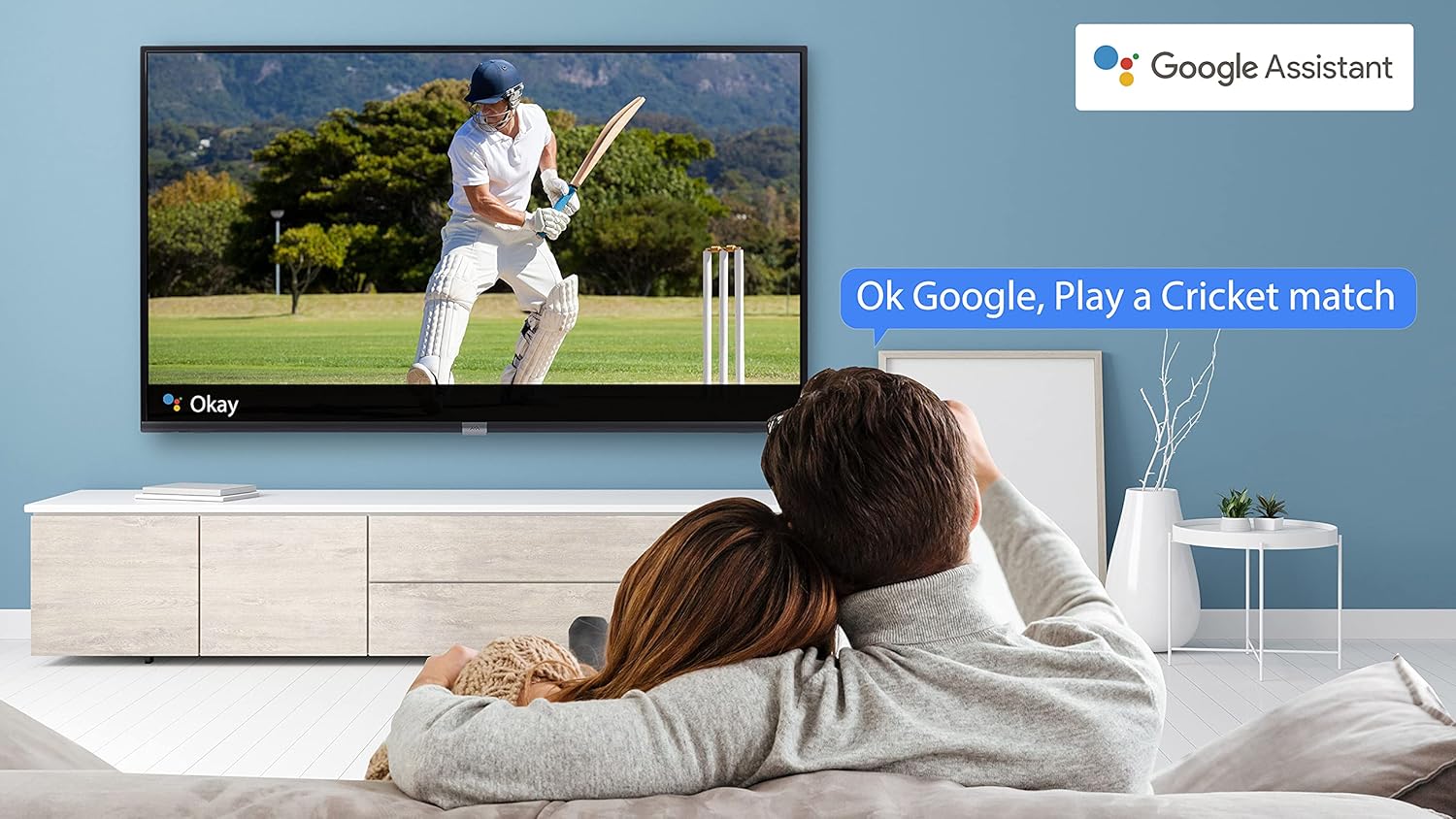
Image 4.4: A couple watching a cricket match on the iFFALCON TV, with a Google Assistant prompt bubble showing "Ok Google, Play a Cricket match," demonstrating voice control functionality.
Image 4.5: The Google Assistant logo, indicating the TV's integrated voice control capabilities.
4.4 Убудаваны Chromecast
Use Chromecast built-in to cast content from your compatible smartphone, tablet, or computer directly to your TV screen. Ensure your device and TV are connected to the same Wi-Fi network.

Image 4.6: A smartphone displaying a car image, with a casting icon indicating that the content is being mirrored to a larger TV screen, demonstrating the Chromecast built-in feature.
5. Асноўныя магчымасці
5.1 HDR (пашыраны дынамічны дыяпазон)
HDR technology enhances contrast, color accuracy, and brightness, delivering a more lifelike and immersive viewing experience with greater detail in both dark and bright scenes.

Image 5.1: A split-screen comparison showing the visual difference between an image without HDR 10 (left, darker, less vibrant) and with HDR 10 (right, brighter, more detailed, and richer colors).
5.2 Мікразацямненне
Micro Dimming analyzes the TV content in hundreds of separate zones to adjust brightness and darkness independently. This results in improved contrast and picture quality, especially in scenes with mixed light levels.
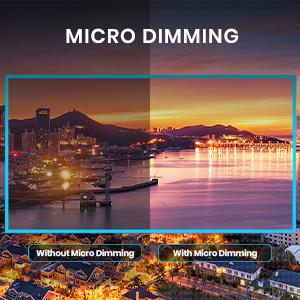
Image 5.2: A split-screen comparison demonstrating the effect of Micro Dimming, with the 'Without Micro Dimming' side appearing less vibrant and the 'With Micro Dimming' side showing enhanced contrast and color saturation in a city night scene.
5.3 IPQ Engine
The IPQ Engine (Image Quality Processing Engine) optimizes picture quality by intelligently adjusting brightness, color range, and contrast, ensuring a more vivid and accurate display.

Image 5.3: A visual representation of the IPQ Engine, highlighting its 'High Brightness Precision Control Technology' and 'Intelligent Color Range Control Technology' for optimized picture quality.
5.4 Dolby Audio
Experience rich, clear, and powerful sound with Dolby Audio. This technology enhances the audio output, providing an immersive listening experience for movies, music, and games.

Image 5.4: The Dolby Audio logo, signifying enhanced sound quality and an immersive audio experience.
5.5 Smart Volume
Smart Volume automatically adjusts the sound level to prevent sudden changes in volume, such as during commercials or when switching channels, ensuring a consistent listening experience.

Image 5.5: An illustration of the Smart Volume feature, showing how it maintains consistent audio levels across different content types, represented by varying sound wave patterns.
5.6 Спартыўны рэжым
Sports Mode optimizes picture and sound settings for sports content, enhancing motion clarity and audio to provide a more engaging viewing experience for live sports.

Image 5.6: A split-screen comparison of a cricket player, showing the 'Without Sports Mode' side with standard clarity and the 'With Sports Mode' side with enhanced motion and detail, indicated by a playback bar.
5.7 Тонкі дызайн
The iFFALCON 32F2A features a slim design, allowing it to blend seamlessly into various living spaces and offering a modern aesthetic.

Image 5.7: An illustration emphasizing the slim profile of the iFFALCON TV, with a hand demonstrating its thinness.
6. Тэхнічнае абслугоўванне
6.1 Ачыстка экрана
Акуратна працярыце экран мяккай тканінай без ворса. Для ўстойлівых плям злёгку працярыцеampПрацярыце тканіну вадой або спецыяльным сродкам для чысткі экранаў. Пазбягайце выкарыстання агрэсіўных хімічных рэчываў або абразіўных матэрыялаў.
6.2 Уборка шафы
Працірайце корпус тэлевізара мяккай сухой тканінай. Не выкарыстоўвайце вадкія ачышчальнікі непасрэдна на корпусе.
6.3 Power Cord Care
Рэгулярна правярайце шнур харчавання на наяўнасць пашкоджанняў. Не стаўце на шнур цяжкія прадметы і не падвяргайце яго ўздзеянню празмернага нагрэву.
7. Выпраўленне непаладак
Калі ў вас узніклі праблемы з тэлевізарам, звярніцеся да наступных распаўсюджаных праблем і іх рашэнняў:
| праблема | Магчымая прычына | Рашэнне |
|---|---|---|
| Няма ўлады | Шнур сілкавання адключаны, праблема з разеткай | Ensure power cord is securely plugged in. Check if the power outlet is working. |
| Няма выявы, але гук ёсць | Incorrect input source, faulty cable | Пераканайцеся, што выбрана правільная крыніца ўваходнага сігналу. Праверце падключэнне кабеля HDMI/AV. |
| Няма гуку, але выява ёсць | Volume muted or too low, audio settings issue | Increase volume. Check audio output settings in the TV menu. |
| Пульт дыстанцыйнага кіравання не працуе | Dead batteries, obstruction, remote out of range | Replace batteries. Remove obstructions between remote and TV. Ensure remote is within operating range. |
| Немагчыма падключыцца да Wi-Fi | Incorrect password, router issue, TV too far from router | Re-enter Wi-Fi password. Restart router. Move TV closer to router or use Ethernet. |
Калі праблема не знікне пасля выкарыстання гэтых рашэнняў, звярніцеся ў службу падтрымкі кліентаў.
8. Тэхнічныя характарыстыкі
Падрабязныя тэхнічныя характарыстыкі тэлевізара iFFALCON 32F2A Smart LED TV:
| Асаблівасць | Спецыфікацыя |
|---|---|
| Марка | iFFALCON |
| Назва мадэлі | 32F2A |
| Памер экрана | 32 цалі (80 см) |
| Тэхналогія адлюстравання | Святлодыёдны, панэль класа A+ |
| дазвол | HD Ready (1366 x 768 пікселяў) |
| Частата абнаўлення | 60 Гц |
| Viewing кут | 178 градусаў |
| Суадносіны бакоў выявы | 16:9 |
| Каэфіцыент кантраснасці выявы | 3000:1 |
| Аперацыйная сістэма | Android |
| Памер усталяванай аператыўнай памяці | 1 ГБ |
| Ёмістасць лічбавай памяці | 8 ГБ |
| Графічны супрацэсар | Mali470x2 |
| Аўдыё Wattage | 16 ват |
| Аб'ёмны гук дынамікаў | Dolby Audio |
| Тэхналогія падлучэння | Wi-Fi, Ethernet, HDMI, USB |
| Усяго партоў USB | 1 |
| Крыніца харчавання | AC |
| тtage | 240 вольт |
| Ватtage | 50 ват |
| Памеры прадукту | 48.2 х 73.2 х 18.3 см |
| Вага прадмета | 3.9 кг |
9. Гарантыя і падтрымка
Your iFFALCON 32F2A TV comes with a warranty. Please refer to the included Warranty Card for detailed terms and conditions, including the warranty period and coverage.
For technical assistance, service requests, or further inquiries, please visit the official iFFALCON support website or contact their customer service helpline. Contact information can typically be found on the Warranty Card or the manufacturer's official webсайт.