
PD 61 Key RGB Gateron Switch Wireless Bluetooth Mechanical Gaming Keyboard
Кіраўніцтва карыстальніка
FEKER 61 Key RGB Gateron Switch Wireless Bluetooth Mechanical Gaming Keyboard
Model: 61 Key RGB Gateron Switch | Brand: PD
Уводзіны
Дзякуй за пакупкуasing the FEKER 61 Key RGB Gateron Switch Wireless Bluetooth Mechanical Gaming Keyboard. This manual provides detailed instructions on how to set up, operate, maintain, and troubleshoot your new keyboard. Please read this manual thoroughly before using the product to ensure optimal performance and longevity.
Змест пакета

Image: The FEKER 61 Key RGB Gateron Switch Wireless Bluetooth Mechanical Gaming Keyboard, its retail box, a USB-C cable, a keycap puller, and a switch puller.
- FEKER 61 Key RGB Mechanical Keyboard
- Кабель USB-C да USB-A
- Здымальнік клавішнай шапкі
- Пераключальнік
- Кіраўніцтва карыстальніка (гэты дакумент)
Асноўныя характарыстыкі

Image: A diagram highlighting the key features of the FEKER 01 keyboard, including fully programmable keys, compact layout, Bluetooth 5.0, 1550mAh battery, customizable RGB backlight, and Outemu mechanical switches.
- Full RGB Backlight: Each key features independent RGB backlighting, allowing for extensive customization.
- Каўпачкі клавіш PBT: Equipped with durable double-shot PBT keycaps, which are more resistant to shine and wear compared to ABS keycaps.
- Dual FN Keys: Includes FN1 and FN2 keys, providing enhanced possibilities for layer function customization.
- Long Endurance Time: Features a 1900mAh large capacity battery with a built-in protection circuit to prevent battery damage.
- Двухрэжымнае падключэнне: Supports both Bluetooth 4.0 and Type-C USB-C wired connections for wide compatibility.
- Шырокая сумяшчальнасць: Compatible with multiple operating systems including iOS, Windows, Linux, and Android.
- NKRO Support: Supports N-Key Rollover (NKRO) in wired mode for precise input.

Image: An illustration displaying the four available switch options: Blue Switch, Brown Switch, Red Switch, and Black Switch, indicating the variety of mechanical switches this keyboard can be equipped with.
Тэхнічныя характарыстыкі
| Атрыбут | Каштоўнасць |
|---|---|
| Марка | PD |
| мадэль | 61 Key RGB Mechanical Keyboard |
| Тэхналогія падлучэння | Bluetooth 4.0, USB-C |
| Сумяшчальнасць аперацыйнай сістэмы | Android, iOS, Linux, Windows |
| Асаблівасці | Backlit (Full RGB), Programmable Keys, PBT Keycaps |
| Ёмістасць батарэі | 1900 мАг (літый-іённы) |
| тtage | 5 В (пастаянны ток) |
| Вага прадмета | 3 кг |
| Колер | Чорны |
Настройка
1. Зарадка клавіятуры
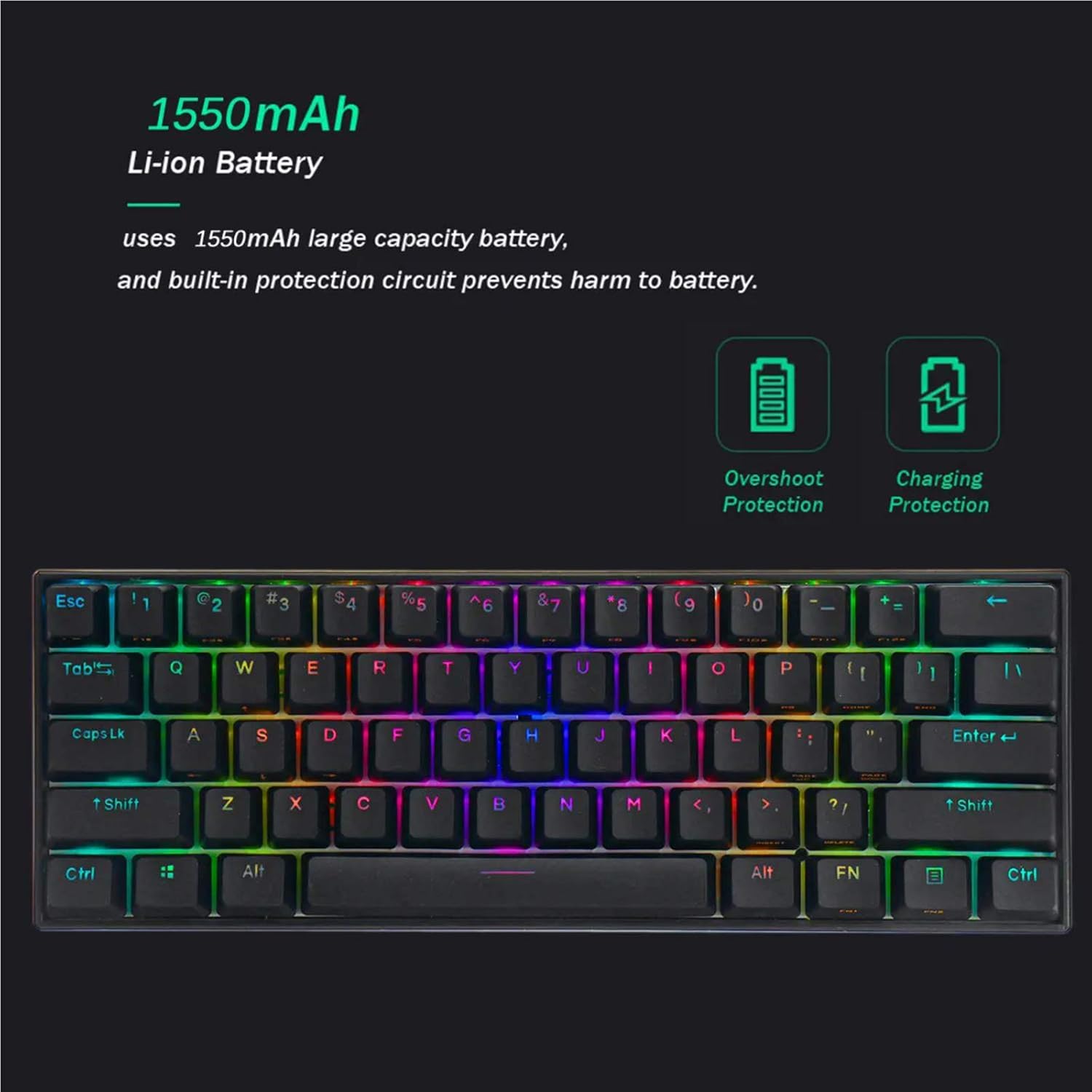
Image: A visual representation of the keyboard's 1550mAh Li-ion battery, highlighting its overshoot protection and charging protection features.
Before first use, it is recommended to fully charge the keyboard.
- Падключыце кабель USB-C з камплекта да порта USB-C клавіятуры.
- Падключыце другі канец кабеля да крыніцы харчавання USB (напрыклад, USB-порт кампутара, насценны адаптар USB).
- The keyboard's indicator light will show charging status (refer to LED indicator section for details). A full charge typically takes a few hours.
2. Рэжымы падключэння
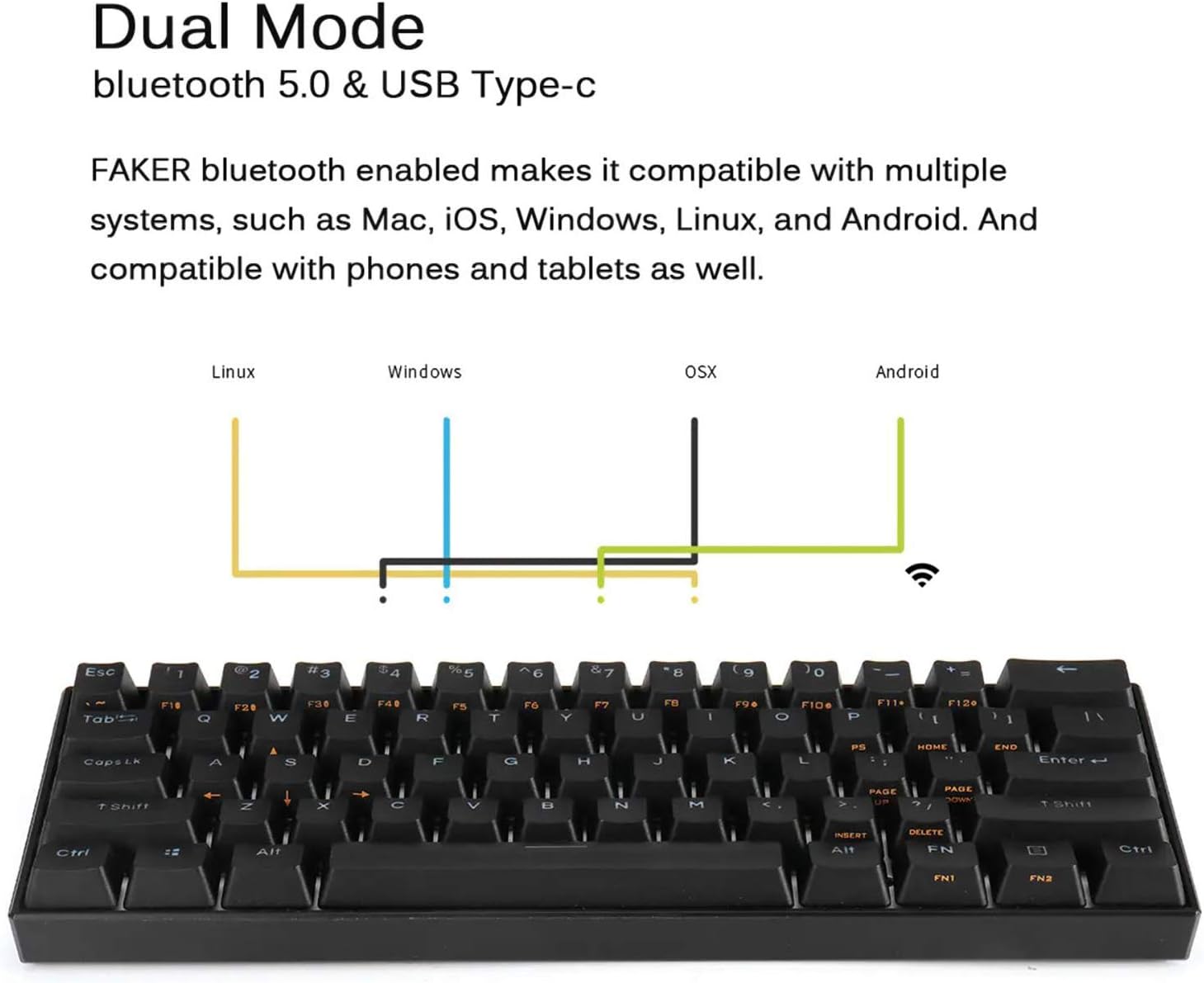
Image: A diagram showing the dual mode connection capabilities (Bluetooth 5.0 & USB Type-C) of the FEKER keyboard, along with its compatibility across Linux, Windows, OSX, and Android operating systems.
Wired Mode (USB-C)
- Падключыце кабель USB-C да клавіятуры і кампутара.
- The keyboard will automatically switch to wired mode. This mode supports NKRO.
Bluetooth Mode (Wireless)
- Пераканайцеся, што клавіятура зараджана.
- Turn on the Bluetooth switch located on the bottom of the keyboard.
- На вашай прыладзе (камп'ютары, планшэце, тэлефоне) уключыце Bluetooth і пачніце пошук новых прылад.
- Select "FEKER Keyboard" (or similar name) from the list of available devices to pair.
- If prompted, enter the pairing code displayed on your screen using the keyboard and press Enter.
- Клавіятура можа захоўваць некалькі Bluetooth Profiles. Refer to the keyboard's specific key combinations (often FN + Q/W/E/R/T) for switching between paired devices.
Аперацыя
1. Асноўныя функцыі клавіятуры
The FEKER 61 Key keyboard features a compact layout. Many functions are accessed via the FN (Function) keys.
FN Key Combinations (Exampлес):
- FN + [клавіша]: Accesses secondary functions printed on keycaps (e.g., F1-F12, multimedia controls, arrow keys).
- FN1 / FN2: The keyboard features two FN keys (FN1 and FN2) which can be programmed to access different layers of functions, offering greater customization. Consult the software section for programming details.
- FN + Backspace: Delete (common for 60% keyboards).
- FN + P: Print Screen (example, check keycap legends).
- FN + ; / ': Home / End (example, check keycap legends).
- FN + , / .: Page Up / Page Down (example, check keycap legends).
2. Кіраванне падсветкай RGB
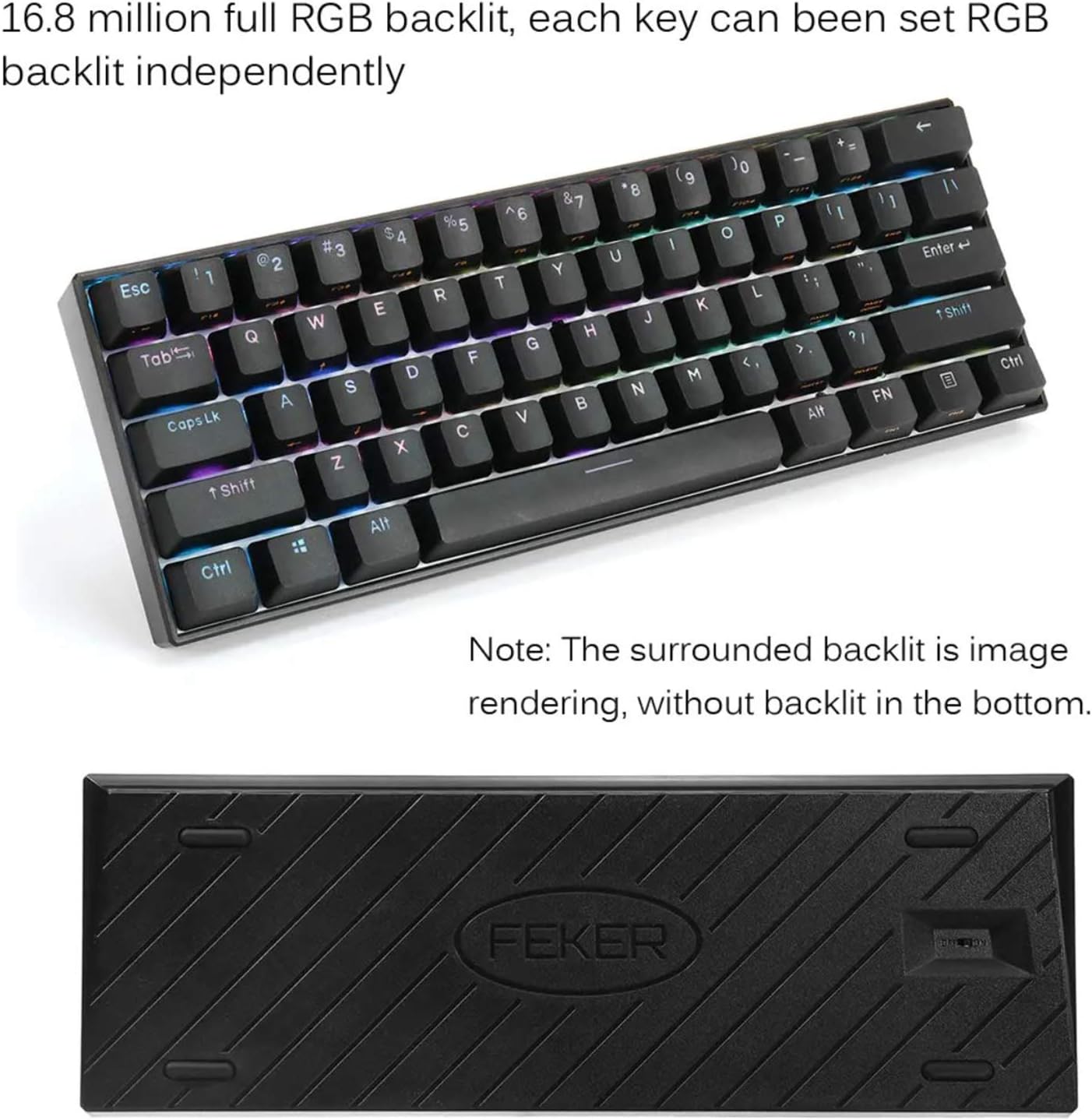
Image: The FEKER 61 Key keyboard displaying its 16.8 million full RGB backlight, with a note clarifying that the surrounding backlight in the image is a rendering and not present on the physical product's bottom.
The keyboard offers extensive RGB backlight customization.
- Змена рэжымаў асвятлення: Use FN + specific keys (often FN + \| or FN + Right Shift) to cycle through various preset lighting effects.
- Рэгуляванне яркасці: Use FN + Up/Down Arrow keys (or similar, check keycap legends) to increase or decrease backlight brightness.
- Рэгуляванне хуткасці: Use FN + Left/Right Arrow keys (or similar) to change the speed of dynamic lighting effects.
- Налада колераў: For full color customization and per-key lighting, use the dedicated software.
3. Customization Software

Image: A screenshot of the FEKER keyboard's customization software interface, showing options for profile management, customization, lighting, gaming mode, and macros, emphasizing the ability to customize any color for every single key.
The FEKER keyboard comes with dedicated software for advanced customization of key assignments, macros, and RGB lighting.
- Спампоўка праграмнага забеспячэння: Visit the official PD or FEKER website to download the latest version of the keyboard customization software.
- Ўстаноўка: Follow the on-screen instructions to install the software on your Windows or macOS computer.
- Key Reassignment: Remap any key to a different function, macro, or multimedia control.
- Макразапіс: Create and assign complex macro sequences to any key.
- Настройка асвятлення:

Image: A screenshot of the "CUSTOMIZE" tab within the FEKER keyboard software, illustrating options for remapping keys and setting up profiles.

Image: A screenshot of the "LIGHTING" tab in the FEKER keyboard software, showing controls for color, direction, speed, and brightness of the RGB backlight, including various lighting effects like "Rolling".
- Choose from a wide array of preset effects.
- Create custom per-key lighting profiles.
- Adjust color, speed, and brightness for each effect.
- профіfile Кіраванне: Save and load different profiles for various applications or games.
Тэхнічнае абслугоўванне
- Уборка:
- Disconnect the keyboard before cleaning.
- Выкарыстоўвайце мяккую безворсовую тканіну, злёгку dampened with water or a mild cleaning solution to wipe the keycaps and frame.
- Для выдалення пылу і смецця паміж клавішамі выкарыстоўвайце сціснутае паветра або невялікую шчотку.
- The included keycap puller can be used to remove keycaps for deeper cleaning.
- Сыход за батарэяй:
- Пазбягайце частай поўнай разрадкі акумулятара.
- Калі клавіятура не выкарыстоўваецца працяглы час, захоўвайце яе ў прахалодным сухім месцы.
- Не падвяргайце клавіятуру ўздзеянню экстрэмальных тэмператур.
- захоўванне: When not in use, store the keyboard in a clean, dry environment away from direct sunlight and excessive dust.
Ліквідацыю непаладак
- Keyboard Not Responding (Wired Mode):
- Пераканайцеся, што кабель USB-C надзейна падключаны як да клавіятуры, так і да кампутара.
- Паспрабуйце іншы порт USB на вашым кампутары.
- Праверце з іншым кабелем USB-C, калі ён ёсць.
- Перазагрузіце кампутар.
- Keyboard Not Connecting (Bluetooth Mode):
- Ensure the keyboard's Bluetooth switch is ON.
- Пераканайцеся, што клавіятура зараджана.
- Пераканайцеся, што Bluetooth уключаны на вашай прыладзе і яна бачная.
- Паспрабуйце адлучыць клавіятуру ад прылады і зноў падключыць яе ў наладах Bluetooth.
- Пераканайцеся, што іншыя прылады не перашкаджаюць сігналу Bluetooth.
- If using multiple Bluetooth profiles, ensure you are on the correct profile (e.g., FN + Q/W/E).
- Keys Not Working / Double Typing:
- Check if there's any debris under the keycap. Use the keycap puller to remove and clean.
- If it's a specific switch issue, and the keyboard is hot-swappable, consider replacing the switch using the switch puller.
- Пераканайцеся, што прашыўка клавіятуры абноўлена (праверце інфармацыю вытворцы webсайт).
- RGB Backlight Not Working / Flickering:
- Ensure backlight brightness is not set to minimum or off.
- Check lighting settings in the customization software.
- Ensure the keyboard is sufficiently charged, as low battery can affect lighting.
- Try resetting the keyboard (refer to software or manufacturer's webсайт для атрымання канкрэтных інструкцый па скідзе).
Гарантыя і падтрымка
For warranty information, technical support, or further assistance, please refer to the warranty card included with your product or visit the official PD/FEKER webсайт.
Webсайт: www.example.com/support (Placeholder - please refer to actual product documentation for correct URL)