
Уводзіны
This manual provides comprehensive instructions for the Vivitar Podcast and Social Media Microphone MIC918. This high-quality condenser microphone is designed for clear audio capture for various applications, including podcasting, live streaming, gaming, voice-overs, and vocal recording. It features a simple plug-and-play USB connection, integrated volume control, and a stable tripod stand for optimal positioning.
Інфармацыя па бяспецы
- Do not expose the microphone to water or excessive moisture.
- Пазбягайце экстрэмальных тэмператур або прамых сонечных прамянёў.
- Do not attempt to disassemble or modify the microphone. This will void the warranty.
- Трымайце мікрафон далей ад моцных магнітных палёў.
- Для чысткі выкарыстоўвайце толькі мяккую сухую тканіну.
Прадукт скончаныview
Змест пакета
- Vivitar MIC918 Microphone Unit
- Штатыў
- Integrated USB Connection Cable
Кампаненты мікрафона
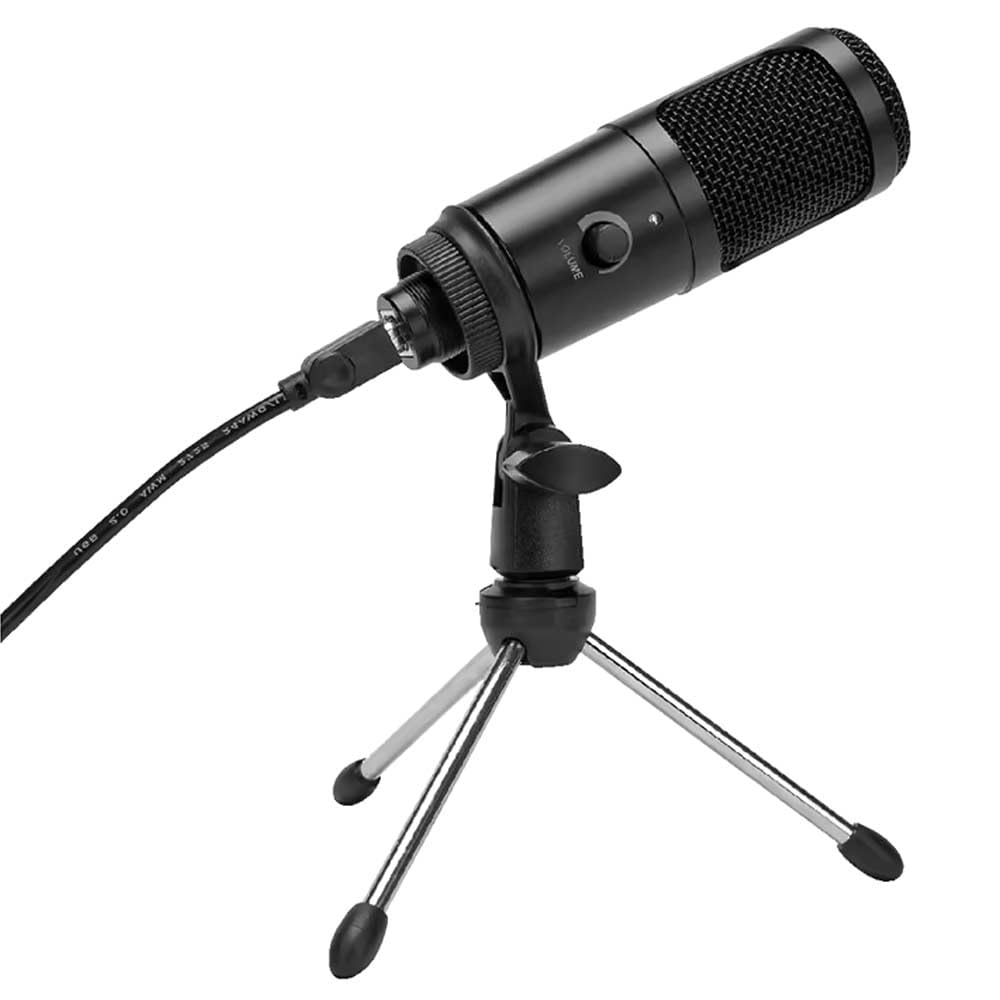
Малюнак 1: Vivitar MIC918 Microphone unit attached to its tripod stand, showing the integrated USB cable.

Малюнак 2: Збоку view of the Vivitar MIC918 Microphone, highlighting the volume control knob and the Vivitar brand logo.
The microphone unit features a durable metal construction. The front side includes a volume control knob for easy audio level adjustments. The microphone is designed with a unidirectional polar pattern to focus on sound directly in front of it, reducing background noise.
Настройка
Падключэнне мікрафона
- Збярыце падстаўку: If not already assembled, unfold the tripod stand and ensure it is stable on a flat surface. Securely attach the microphone unit to the stand's mounting point. The rotating shaft ring allows for angle adjustment.
- Падключэнне да прылады: Plug the integrated USB cable from the microphone into an available USB port on your computer, laptop, or compatible gaming console.
- Plug and Play: The Vivitar MIC918 is a plug-and-play device. Your operating system (Windows, macOS, etc.) should automatically detect and install the necessary drivers. No additional software installation is typically required.
- Выберыце ў якасці ўваходнай прылады: After connecting, navigate to your device's sound settings or the audio settings within your recording/streaming software. Select the "Vivitar MIC918" or similar USB audio device as your primary input (microphone) device.
Аперацыйная
Рэгуляванне гучнасці
The microphone features a built-in volume control knob located on its side (refer to Figure 2). Rotate this knob clockwise to increase the microphone's input sensitivity (volume) and counter-clockwise to decrease it. Adjust this to achieve the desired recording level without distortion.
Размяшчэнне мікрафона
For optimal audio capture, position the microphone directly in front of the sound source (e.g., your mouth for speaking or singing). The tilting tripod stand allows you to adjust the microphone's angle to best suit your needs. Due to its unidirectional polar pattern, the microphone is most sensitive to sounds coming from the front and less sensitive to sounds from the sides or rear, helping to minimize ambient noise.
Тэхнічнае абслугоўванне
- Уборка: Use a soft, dry, lint-free cloth to wipe the microphone's exterior. Do not use liquid cleaners, aerosols, or solvents.
- захоўванне: When not in use, store the microphone in a clean, dry place, away from dust and extreme temperatures.
- Апрацоўка: Асцярожна звяртайцеся з мікрафонам. Пазбягайце яго падзення і моцных удараў.
Ліквідацыю непаладак
| праблема | Магчымая прычына | Рашэнне |
|---|---|---|
| Няма гуку з мікрафона. | Мікрафон падключаны няправільна. Выбрана няправільная прылада ўводу. Microphone volume too low. | Ensure USB cable is securely plugged into both the microphone and the device. Verify that "Vivitar MIC918" is selected as the input device in your system's sound settings or recording software. Increase the volume using the knob on the microphone and check system input levels. |
| Poor sound quality (e.g., muffled, too quiet, background noise). | Incorrect microphone positioning. Высокі ўзровень навакольнага шуму. Input level too high or too low. | Position the microphone closer to the sound source and ensure it's facing directly towards it. Запісвайце ў больш ціхім асяроддзі. Adjust the microphone's volume knob and system input levels to an optimal range, avoiding clipping or being too faint. |
| Microphone not recognized by computer. | Няспраўны порт USB або кабель. System driver issue. | Паспрабуйце падключыць мікрафон да іншага порта USB на вашым кампутары. Restart your computer. If the issue persists, check your operating system's device manager for any driver conflicts or updates. |
Тэхнічныя характарыстыкі
| Асаблівасць | Спецыфікацыя |
|---|---|
| Марка | У прамым эфіры |
| Нумар мадэлі | MIC918 |
| Сувязь | USB (Plug and Play) |
| Тып мікрафона | Кандэнсатар |
| Палярны ўзор | Аднанакіраваны |
| Стаўленне сігнал / шум | 78 дБ |
| Матэрыял корпуса | Метал |
| Вага прадмета | 0.95 фунта (прыблізна 0.43 кг) |
| Памеры прадмета (Д х Ш х У) | 8.86 х 5.36 х 2.49 цалі (прыблізна 22.5 х 13.6 х 6.3 см) |
| Крыніца харчавання | Электрычны шнур (праз USB) |
| Сумяшчальныя прылады | Computers, Laptops, Gaming Consoles |
Інфармацыя аб гарантыі
The Vivitar Podcast and Social Media Microphone MIC918 comes with a 3-Year USA Warranty. For specific terms, conditions, and to register your product, please refer to the official Vivitar webсайт або звярніцеся непасрэдна ў службу падтрымкі кліентаў. Захоўвайце пацвярджэнне пакупкі для прэтэнзій па гарантыі.
Падтрымка кліентаў
For further assistance, technical support, or inquiries regarding your Vivitar MIC918 microphone, please visit the official Vivitar website or contact their customer service department. Contact information can typically be found on the Vivitar website under the 'Support' or 'Contact Us' sections.