
1. Уводзіны
The D-Link AC1750 WiFi Range Extender (DAP-1720) is designed to expand the coverage of your existing wireless network, providing a stronger and more reliable Wi-Fi signal throughout your home or office. This device supports dual-band connectivity (2.4 GHz and 5 GHz) with combined speeds up to 1750 Mbps, making it ideal for high-bandwidth activities like 4K streaming and online gaming across multiple devices. Its smart signal indicator assists in finding the optimal placement for maximum coverage.
2. Прадукт скончыўсяview
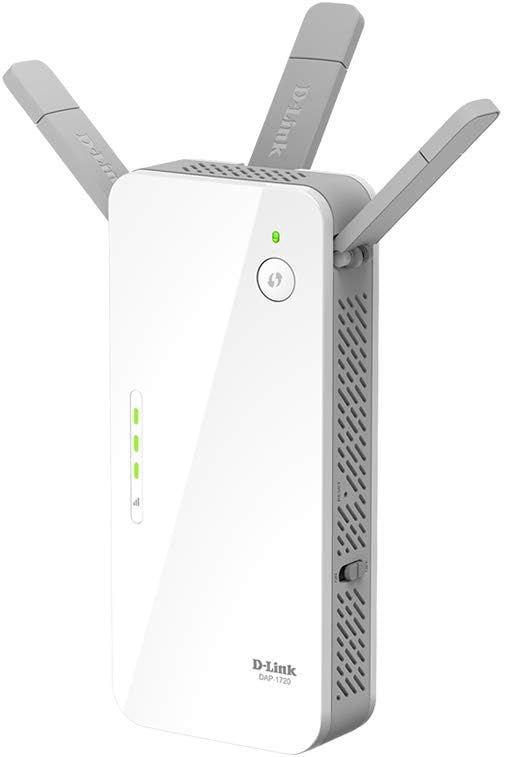
The DAP-1720 features a compact, plug-in design with external antennas for enhanced signal strength. It includes a Gigabit Ethernet port for wired connections and a smart signal indicator for easy setup.
2.1 Асноўныя магчымасці
- Extends Wi-Fi coverage and eliminates dead spots with Dual Band connectivity.
- Supports both 2.4 GHz and 5 GHz bands for combined speeds up to 1750 Mbps.
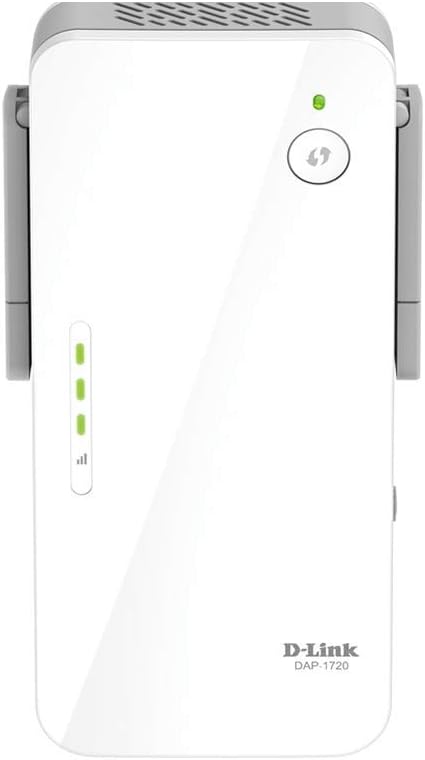
- Smart Signal Indicator helps identify the best location for optimal Wi-Fi coverage.
- Features a 3x3 antenna configuration for improved data rates and reliability.
- Includes a 10/100/1000 Gigabit Ethernet Port for wired device connectivity.
2.2 Макет прылады


3. Інструкцыі па ўсталёўцы
There are two primary methods to set up your D-Link DAP-1720 Range Extender: using Wi-Fi Protected Setup (WPS) or manual configuration via a web браўзер.
3.1 WPS Setup (Recommended)
- Уключэнне: Plug the DAP-1720 into a power outlet near your existing wireless router. Wait for the power LED to turn solid green.
- Актывуйце WPS на маршрутызатары: Press the WPS button on your wireless router. Refer to your router's manual for the exact location of this button.
- Актывуйце WPS на пашыральніку: Within two minutes, press the WPS button on the DAP-1720 (often indicated by a circular arrow icon).
- Стан манітора: The signal indicator LEDs on the DAP-1720 will flash during the connection process. Once connected, the LEDs will turn solid green, indicating a successful connection.
- Аптымальнае размяшчэнне: Unplug the DAP-1720 and move it to a location halfway between your router and the Wi-Fi dead zone. Plug it into a power outlet. The Smart Signal Indicator LEDs will help you find the best spot. Aim for at least two solid green bars for good signal strength.
Note: If the signal indicator shows red or only one bar, move the extender closer to your router.
3.2 Manual Setup (Web браўзер)
- Уключэнне: Plug the DAP-1720 into a power outlet near your existing wireless router.
- Падключэнне да пашыральніка: On your computer or mobile device, connect to the D-Link extender's default Wi-Fi network (e.g., "dlink-XXXX"). The default Wi-Fi name and password are usually found on a label on the device or in the Quick Installation Guide (QIG).
- Майстар налады доступу: Адкрыйце a web браўзэр і ўвядзіце http://dlinkap.local або IP-адрас па змаўчанні (напрыклад, 192.168.0.50) у адрасны радок.
- Выконвайце інструкцыі на экране: The setup wizard will guide you through selecting your existing Wi-Fi network(s) and configuring the extender's settings, including its new Wi-Fi name and password.
- Аптымальнае размяшчэнне: After configuration, unplug the DAP-1720 and move it to a suitable location as described in step 5 of the WPS setup.
4. Operating Your Range Extender
4.1 Падключэнне прылад
- Бесправадныя прылады: Once the extender is set up, search for the new extended Wi-Fi network name (SSID) on your devices (e.g., "YourNetworkName_EXT" or "YourNetworkName_5G_EXT") and connect using the password you configured.
- Правадныя прылады: For devices like smart TVs, gaming consoles, or desktop computers that benefit from a stable wired connection, use an Ethernet cable to connect them to the Gigabit Ethernet port on the DAP-1720.
4.2 Двухдыяпазонная функцыянальнасць
The DAP-1720 operates on both 2.4 GHz and 5 GHz frequency bands. The 2.4 GHz band offers wider coverage and better penetration through walls, while the 5 GHz band provides faster speeds over shorter distances with less interference. Your devices will automatically connect to the optimal band, or you can manually select the preferred band if separate SSIDs were configured during setup.
5. Тэхнічнае абслугоўванне
- Абнаўленні прашыўкі: Periodically check the D-Link support webсайт для абнаўленняў прашыўкі. Абнаўленне прашыўкі вашай прылады забяспечвае аптымальную прадукцыйнасць, бяспеку і доступ да новых функцый.
- Уборка: Ensure the device's ventilation slots are clear of dust to prevent overheating. Use a soft, dry cloth for cleaning. Do not use liquid cleaners.
- Скід прылады: If you encounter persistent issues or wish to reconfigure the extender from scratch, you can perform a factory reset. Locate the reset button (usually a small pinhole) on the device, and while the device is powered on, press and hold it for about 10 seconds using a paperclip until the LEDs flash.
6. Выпраўленне непаладак
6.1 Няма доступу да Інтэрнэту пасля падключэння да пашыральніка
- Праверце падключэнне да маршрутызатара: Пераканайцеся, што ваш асноўны маршрутызатар працуе належным чынам і мае доступ да Інтэрнэту.
- Размяшчэнне падаўжальніка: Verify the DAP-1720 is placed within range of your main router. The Smart Signal Indicator should show at least two green bars. Relocate if necessary.
- Паўторна запусціце праграму ўстаноўкі: Try re-running the WPS or manual setup process to ensure the extender is properly connected to your main Wi-Fi network.
- Канфлікт IP-адрасоў: If you manually configured the extender, ensure its IP address does not conflict with other devices on your network.
6.2 Poor Signal or Slow Speeds
- Перамясціць пашыральнік: Move the extender closer to your main router. The ideal location is halfway between the router and the area needing coverage.
- Мінімізуйце перашкоды: Keep the extender away from large metal objects, concrete walls, and devices that emit radio frequency interference (e.g., microwaves, cordless phones).
- Check Router Performance: Ensure your main router is providing adequate signal strength and speed.
- Абнаўленне прашыўкі: Ensure the extender's firmware is up-to-date.
6.3 Немагчыма атрымаць доступ Web-Based Setup Page
- Праверце злучэнне: Ensure your device is connected to the extender's Wi-Fi network (e.g., "dlink-XXXX") or directly via Ethernet.
- Правільны адрас: Двойчы праверце, ці правільна вы ўводзіце тэкст http://dlinkap.local or the correct IP address into your browser's address bar.
- Ачысціць кэш браўзера: Паспрабуйце ачысціць кэш і файлы cookie браўзера або скарыстайцеся іншым браўзерам.
- Temporarily Disable Firewall/Antivirus: Your computer's security software might be blocking access.
- Скід да заводскіх налад: If all else fails, perform a factory reset and attempt the manual setup again.
7. Тэхнічныя характарыстыкі
| Асаблівасць | Дэталь |
|---|---|
| Нумар мадэлі | DAP-1720/RE |
| бесправадной стандарт | 802.11ac, 802.11n |
| Хуткасць перадачы даных | Да 1750 Мбіт/с (450 Мбіт/с на частаце 2.4 ГГц, 1300 Мбіт/с на частаце 5 ГГц) |
| Клас дыяпазону частот | Двухдыяпазонны |
| Порт Ethernet | 1 x 10/100/1000 Gigabit Ethernet Port |
| Канфігурацыя антэны | 3x3 Internal Antennas |
| Памеры прадукту | 6.5 х 2.5 х 1.5 цалі |
| Вага прадмета | 8 унцыі |
| Уключаныя кампаненты | DAP-1720 device, Quick Installation Guide (QIG) |
8. Гарантыя і падтрымка
For detailed warranty information, technical support, and additional resources, please visit the official D-Link support webсайт. Вы можаце знайсці часта задаваныя пытанні, абноўленыя драйверы і кантактную інфармацыю службы падтрымкі кліентаў.
Падтрымка D-Link Webсайт: www.dlink.com/support