
1. Уводзіны
This manual provides essential information for setting up, operating, maintaining, and troubleshooting your Samsung Galaxy Tab Active3. The Galaxy Tab Active3 is an 8-inch rugged tablet designed for durability and performance in demanding environments. It features MIL-STD-810H compliance and IP68 water and dust resistance, ensuring reliability. Key functionalities include an integrated S Pen, a replaceable battery with 'No Battery Mode' support, Wireless DeX for a PC-like experience, and enhanced touch sensitivity for glove use.
2. Кіраўніцтва па наладцы
2.1 Змест пакета
Пераканайцеся, што ваш пакет змяшчае наступныя элементы:
- Samsung Galaxy Tab Active3 Tablet
- Зарадны кабель
- S Pen (інтэграваны)
2.2 Першапачатковая зарадка
Before first use, fully charge the tablet using the provided charging cable and a compatible power adapter. The tablet supports fast charging.
2.3 Уключэнне/выключэнне
- Каб уключыць: Press and hold the Power key until the Samsung logo appears.
- Каб выключыць: Press and hold the Power key, then select 'Power off' from the options.
2.4 Усталёўка SIM-карты і карты MicroSD
The Galaxy Tab Active3 supports LTE connectivity and expandable storage via a microSD card (up to 1TB).
- Знайдзіце латок для SIM-карты/microSD на бакавой панэлі планшэта.
- Use the provided ejection tool to open the tray.
- Carefully place the Nano-SIM card and/or microSD card into their respective slots, ensuring correct orientation.
- Надзейна зачыніце латок.
2.5 Пачатковая налада прылады
Пры першым уключэнні выканайце наступныя дзеянні, як паказана на экране:
- Выберыце сваю мову.
- Падключыцеся да сеткі Wi-Fi.
- Увайдзіце ў свой уліковы запіс Google або стварыце новы.
- Set up biometric security (fingerprint or face recognition) for enhanced device protection.
3. Інструкцыя па эксплуатацыі
3.1 Трывалая канструкцыя і даўгавечнасць
The Galaxy Tab Active3 is built to withstand harsh conditions. It is MIL-STD-810H compliant for shock resistance and IP68 rated for water and dust resistance. This means it can be submerged in up to 1.5 meters of fresh water for up to 30 minutes and is protected against dust ingress.

Image: Galaxy Tab Active3 demonstrating its water and dust resistance.
3.2 S Pen and Enhanced Touch Capability
The integrated S Pen allows for precise input, note-taking, and drawing. The tablet also features enhanced touch sensitivity, enabling operation even when wearing gloves. To activate glove mode, navigate to Settings > Display > Touch sensitivity.

Image: Using the S Pen and enhanced touch with gloves on the Galaxy Tab Active3.
3.3 Battery Management and No Battery Mode
The Galaxy Tab Active3 is equipped with a long-lasting, replaceable 5050mAh battery. For extended use in fixed installations or vehicles, the tablet supports 'No Battery Mode'. When connected to a dedicated power source, the tablet can operate without the battery installed, preventing battery degradation in constant power environments.

Image: Internal components highlighting the battery and POGO pin for charging.
3.4 Wireless DeX
Samsung Wireless DeX allows you to connect your tablet to a compatible display wirelessly, providing a PC-like desktop experience. This enables multitasking with multiple windows and a familiar interface, enhancing productivity.
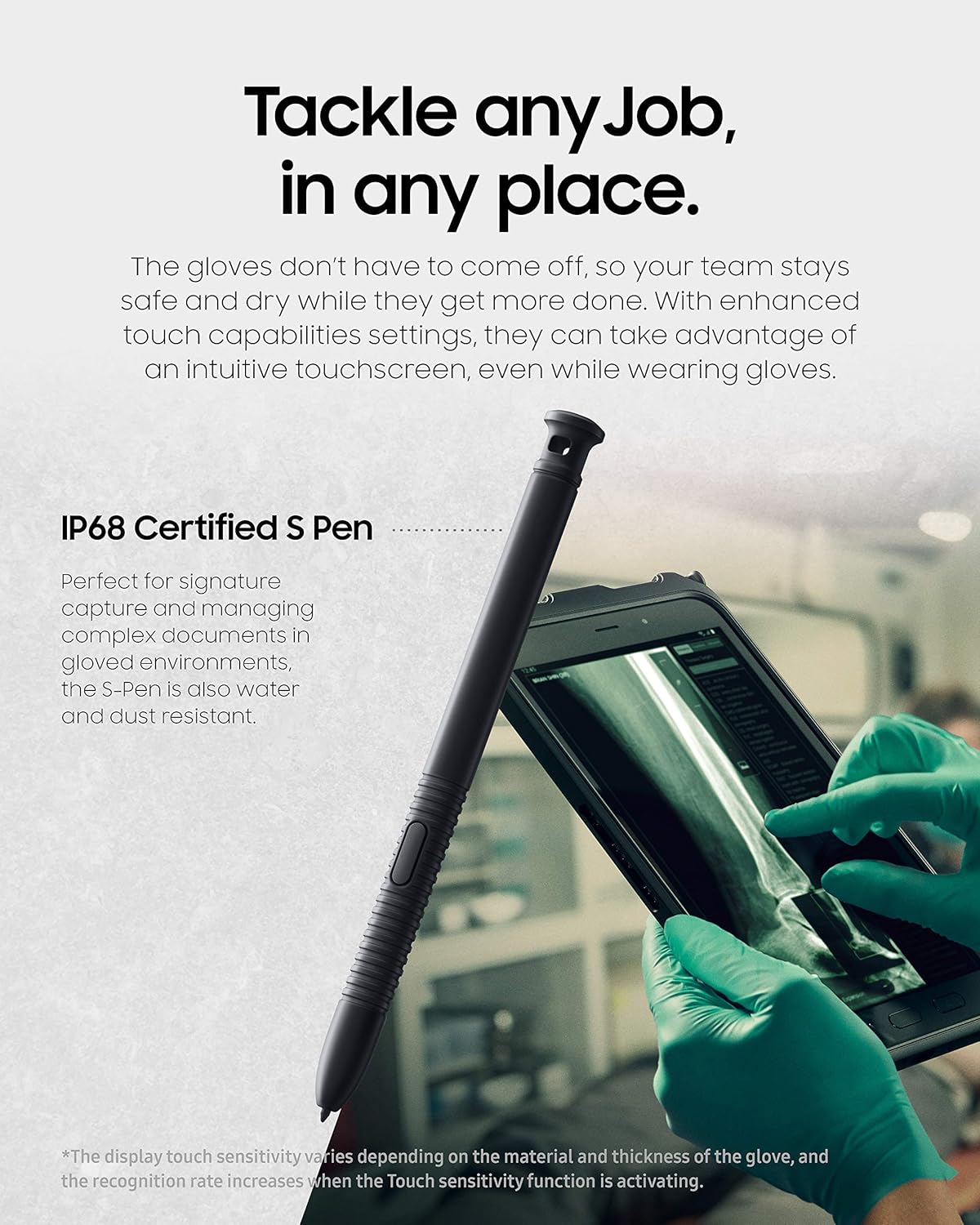
Image: Galaxy Tab Active3 utilizing Wireless DeX for a desktop experience.
3.5 Camera and NFC
The tablet features a 13MP rear camera for clear photo and document scanning, and a front camera for video calls. NFC (Near Field Communication) with EMV Level 1 support enables secure contactless payments and data exchange.

Image: Rear camera detail and NFC payment use case.
3.6 Programmable Key and Biometric Security
A programmable key provides quick access to frequently used apps or functions. For security, the tablet includes face recognition and fingerprint access, ensuring only authorized users can access the device.
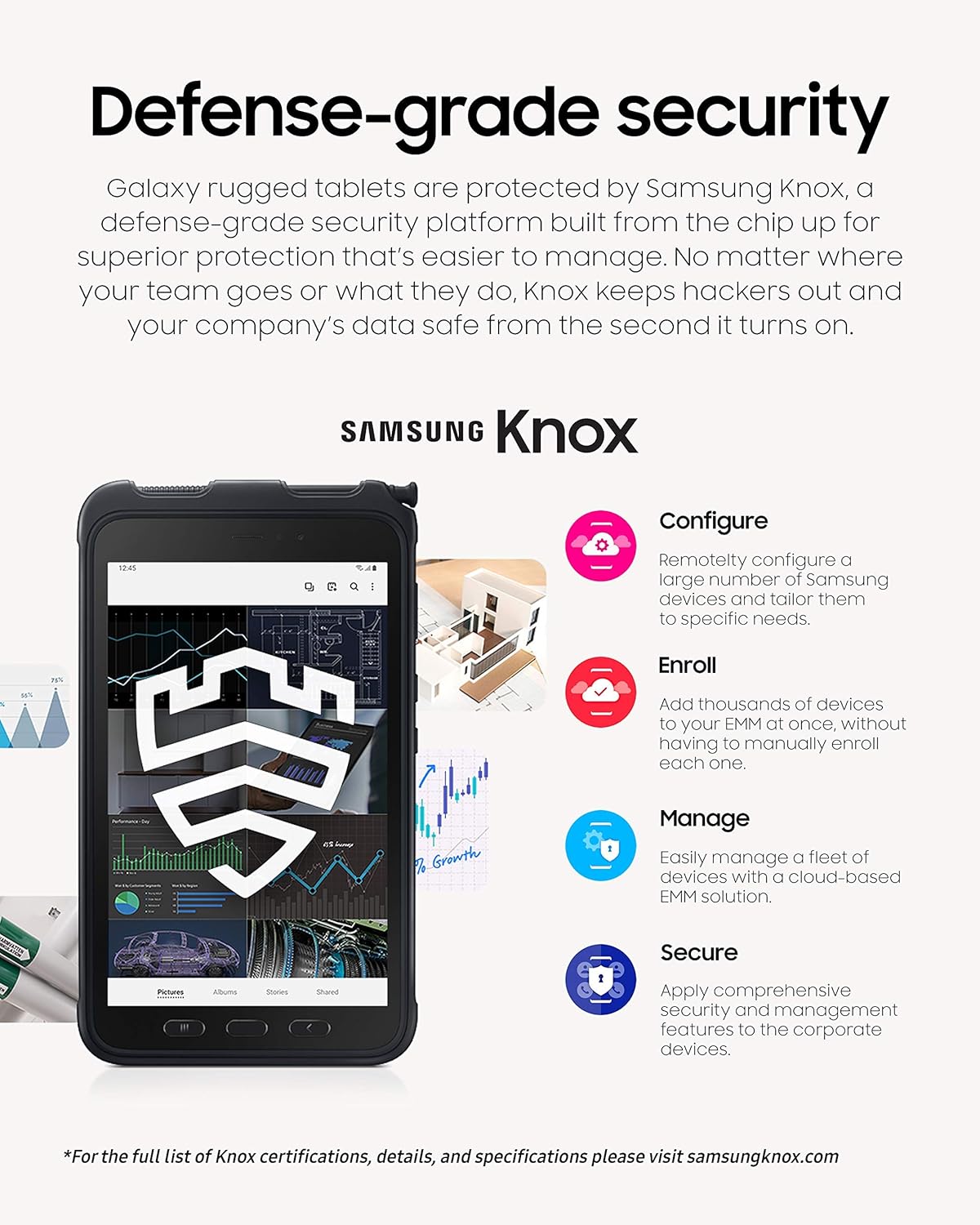
Image: Biometric security features and programmable key.
4. Тэхнічнае абслугоўванне
4.1 Ачыстка прылады
Due to its IP68 rating, the tablet can be rinsed with fresh water if it gets dirty. After exposure to water, ensure all ports are dry before charging. Use a soft, lint-free cloth to wipe the screen and body. Avoid harsh chemicals or abrasive materials.
4.2 Сыход за акумулятарам
To prolong battery life, avoid extreme temperatures and do not leave the tablet fully charged or fully discharged for extended periods. The replaceable battery allows for easy replacement if its capacity diminishes over time.
4.3 Абнаўленне праграмнага забеспячэння
Рэгулярна правярайце наяўнасць абнаўленняў праграмнага забеспячэння і ўсталёўвайце іх, каб забяспечыць аптымальную прадукцыйнасць, бяспеку і доступ да найноўшых функцый. Перайдзіце да Налады > Абнаўленне праграмнага забеспячэння > Спампаваць і ўсталяваць.
4.4 Кіраванне сховішчам
The tablet comes with 64GB of internal storage. Utilize a microSD card for additional storage of photos, videos, and documents to keep the internal storage free for apps and system files.
5. Выпраўленне непаладак
5.1 Агульныя праблемы і рашэнні
- Прылада не ўключаецца: Ensure the battery is charged. If the battery is removable, try removing and reinserting it.
- Павольная прадукцыйнасць: Закрыйце невыкарыстоўваныя праграмы, ачысціце кэш або перазагрузіце прыладу. Праверце наяўнасць даступных абнаўленняў праграмнага забеспячэння.
- Connectivity issues (Wi-Fi/LTE): Toggle Wi-Fi/LTE off and on. Restart your router or contact your service provider.
- Сэнсарны экран не рэагуе: Restart the device. If the issue persists, ensure the screen is clean and free of damage.
5.2 Скід да заводскіх налад
Калі праблемы ўзнікаюць пастаянна, іх можа вырашыць скід да заводскіх налад. Папярэджанне: Гэта сатрэ ўсе дадзеныя на вашай прыладзе. Перад тым, як працягнуць, зрабіце рэзервовую копію важных дадзеных. Перайдзіце да Налады > Агульнае кіраванне > Скід > Скід да заводскіх налад.
6. Тэхнічныя характарыстыкі

Image: Performance overview of the Galaxy Tab Active3.
| Асаблівасць | Дэталь |
|---|---|
| Нумар мадэлі | SM-T577UZKDXAA |
| Марка | Samsung |
| Памер экрана | 8 цалі |
| Дазвол дысплея | 1920 х 1200 пікселяў |
| Працэсар | Exynos 9810 (Octa Core, 2.7 GHz) |
| АЗП | 4 ГБ |
| Ёмістасць захоўвання | 64 ГБ (пашырэнне да 1 ТБ з дапамогай карты microSD) |
| Аперацыйная сістэма | Android 10 |
| Задняя камера | 13 МП |
| Пярэдняя камера | так |
| Ёмістасць батарэі | 5050 mAh (Average life: 11 hours) |
| Сувязь | LTE (Unlocked), Wi-Fi, Bluetooth, NFC, GPS |
| Даўгавечнасць | MIL-STD-810H, IP68 Water and Dust Resistant |
| Функцыі бяспекі | Biometric Security (Fingerprint, Face Recognition), Samsung Knox |
| Вага | 15.04 унцыі |
7. Інфармацыя аб гарантыі
This Samsung Galaxy Tab Active3 (SM-T577UZKDXAA) is covered by a 90-day limited warranty. For products purchased as 'Amazon Renewed', they are eligible for replacement or refund under the Amazon Renewed Guarantee if you are not satisfied with your purchase. Please refer to the specific terms and conditions of the Amazon Renewed Guarantee for full details.
8. Падтрымка
For further technical assistance, troubleshooting beyond this manual, or warranty claims, please contact Samsung Customer Support or refer to the official Samsung website for your region. You can find updated drivers, firmware, and additional support resources there.
For information regarding Samsung Knox security features and certifications, visit samsungknox.com.