
Уводзіны
Welcome to the instruction manual for your FULLJA 9-Inch WiFi Digital Picture Frame. This guide provides detailed information on setting up, operating, and maintaining your digital photo frame to ensure optimal performance and enjoyment. Please read through these instructions carefully before using your device.

Image: The FULLJA 9-Inch WiFi Digital Picture Frame, showcasing its display with a family photo, alongside a smartphone illustrating the VPhoto app for easy sharing.
Прадукт скончаныview
Асноўныя характарыстыкі
- Wi-Fi Wireless Sharing: Easily upload photos and videos via the VPhoto app or email.
- Superb HD IPS Display: 9-inch screen with 1024x768 resolution for clear and vibrant image presentation.
- Інтэрфейс сэнсарнага экрана: Sensitive touch screen for intuitive navigation and control.
- 8 ГБ убудаванай памяці: Ample space for a large collection of photos and short videos.
- Некалькі прыкладанняў: Includes slideshows, video playback, background music, alarm, weather forecast, calendar, and auto on/off functions.
Змест пакета
- FULLJA 9-Inch WiFi Digital Picture Frame
- Адаптар сілкавання
- Кіраўніцтва карыстальніка
- Stand/Bracket
Кампаненты прылады
The digital picture frame features a sleek design with a high-definition IPS touch screen. On the rear or sides, you will find ports for power input, a Micro USB port for data transfer, and a Micro SD card slot for expanded storage. The intuitive touch interface allows for direct interaction with the display.
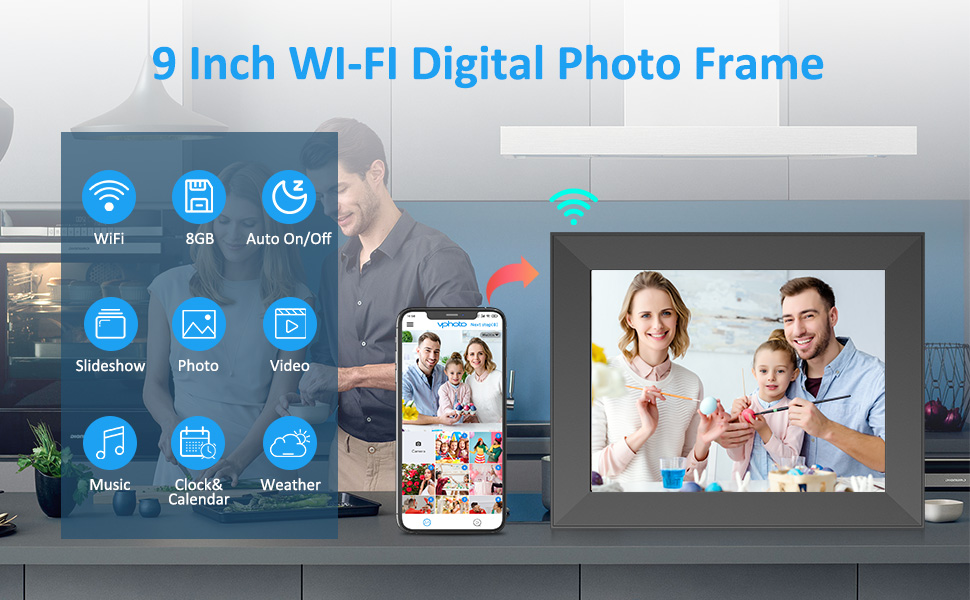
Image: An illustration highlighting the various functionalities of the FULLJA 9-Inch WiFi Digital Photo Frame, such as Wi-Fi connectivity, 8GB storage, automatic power control, slideshows, photo and video display, music playback, clock and calendar, and weather updates. A smartphone is depicted sharing content to the frame.
Кіраўніцтва па ўстаноўцы
1. Уключэнне
- Connect the provided power adapter to the frame's power input port.
- Plug the adapter into a standard wall outlet. The frame will automatically power on.
2. Падключэнне да Wi-Fi
- Upon initial startup, the frame will guide you through the Wi-Fi setup process.
- Выберыце патрэбную сетку Wi-Fi са спісу.
- Увядзіце пароль Wi-Fi з дапамогай экраннай клавіятуры і націсніце «Падключыцца».
- Once connected, a Wi-Fi icon will appear on the top right of the screen.
3. Installing the VPhoto App
To share photos and videos wirelessly, download the 'VPhoto' app on your smartphone or tablet.
- Для прылад iOS: Пошук 'VPhoto' in the Apple App Store.
- Для прылад Android: Пошук 'VPhoto' in the Google Play Store.

Image: The digital picture frame screen showing a QR code for binding the device. Text instructions below guide users to search for the 'VPhoto' app on iOS and Android app stores, and provide details for email setup using a connection code.
4. Binding Your Device
After installing the VPhoto app, you need to bind your smartphone to the digital picture frame.
- Выкарыстоўваючы QR-код: On the frame, navigate to Settings > My Frame to find the QR code. Open the VPhoto app on your smartphone and scan the QR code to bind the devices.
- Using Email: You can also send photos via email. The frame's settings will provide a unique email address. To bind an email, send an email to the frame's address with the subject line 'bdConnectionCode' followed by the connection code found in the frame's settings.
Video: An official product video demonstrating the setup process and features of the FULLJA 9-Inch WiFi Digital Photo Frame, including connecting to Wi-Fi and binding the device.
Інструкцыя па эксплуатацыі
Навігацыя па інтэрфейсе сэнсарнага экрана
The frame features a responsive touch screen. Swipe left or right to browse photos, tap to access options, and use the intuitive icons for various functions.
Загрузка фота і відэа
- Via VPhoto App: Open the VPhoto app, select the photos or videos you wish to share, and send them directly to your bound frame.
- Праз электронную пошту: Send photos or short videos as attachments to the frame's unique email address.
- Via Micro SD Card/USB: Insert a Micro SD card or USB drive into the designated slot to import media directly.

Image: The digital picture frame displaying a family photo, accompanied by icons representing different methods for wireless sharing, including a mobile app, email, Micro USB, and Micro SD card.
Налады слайд-шоў
Customize your photo slideshow experience:
- Інтэрвал слайд-шоў: Adjust the duration each photo is displayed (e.g., 5, 10, 15 seconds, 1, 5 minutes).
- Эфект пераходу слайд-шоў: Choose from various transition styles (e.g., random, fade, wipe).
- Фонавая музыка: Enable or disable background music during slideshows.
Дадатковыя функцыі
Your FULLJA digital picture frame offers several useful functions:
- Будзільнік: Усталюйце будзільнікі для напамінкаў.
- Гадзіннік і каляндар: Адлюстраванне бягучага часу і даты.
- Прагноз надвор'я: View local weather information (requires location services and Wi-Fi).
- Аўтаматычнае ўключэнне/выключэнне: Schedule specific times for the frame to power on and off automatically.

Image: The digital picture frame showcasing a family photo, with a visual representation of its diverse features including Wi-Fi connectivity, photo and video display, music playback, touch screen functionality, clock and calendar, automatic power on/off, and weather updates.
Тэхнічнае абслугоўванне
Cleaning Your Frame
To maintain the clarity of your display, gently wipe the screen with a soft, lint-free cloth. Avoid using abrasive cleaners or sprays directly on the screen.
Скід да заводскіх налад
If you encounter persistent issues or wish to clear all data, you can perform a factory reset. Navigate to Settings > Factory Data Reset. Be aware that this will erase all photos, videos, and settings from the frame.
Ліквідацыю непаладак
- Рама не ўключаецца: Пераканайцеся, што адаптар сілкавання надзейна падключаны як да рамы, так і да спраўнай разеткі.
- Не ўдаецца падключыцца да Wi-Fi: Verify your Wi-Fi password is correct. Ensure the frame is within range of your Wi-Fi router. Try restarting your router.
- Photos/Videos not uploading: Check your internet connection. Ensure the VPhoto app is updated to the latest version. Confirm the device is correctly bound. For email uploads, check the subject line format and attachments.
- Дрэнная якасць выявы: Ensure the original photos are high resolution. The frame's display is 1024x768.
- Сэнсарны экран не рэагуе: Try restarting the frame by unplugging and re-plugging the power adapter. If the issue persists, a factory reset may be necessary.
Тэхнічныя характарыстыкі
| Асаблівасць | Дэталь |
|---|---|
| Памер экрана | 9 цалі |
| дазвол | Дысплей 1024*768 IPS HD |
| Унутраная памяць | 8 ГБ |
| Сувязь | Wi-Fi |
| Сумяшчальныя прылады | iPhone, Android |
| Памеры прадукту | 7.4 х 9.34 х 0.99 цалі |
| Вага прадмета | 2.19 фунта |
Гарантыя і падтрымка
For warranty information or technical support, please refer to the documentation included with your product or contact FULLJA customer service. Keep your purchase receipt for warranty claims.