
1. Уводзіны
Thank you for choosing the NEC E438 43-inch LCD 4K UHD Commercial-Grade Monitor. This manual provides detailed instructions for the safe and efficient use of your display. Please read this manual thoroughly before operating the product and retain it for future reference.
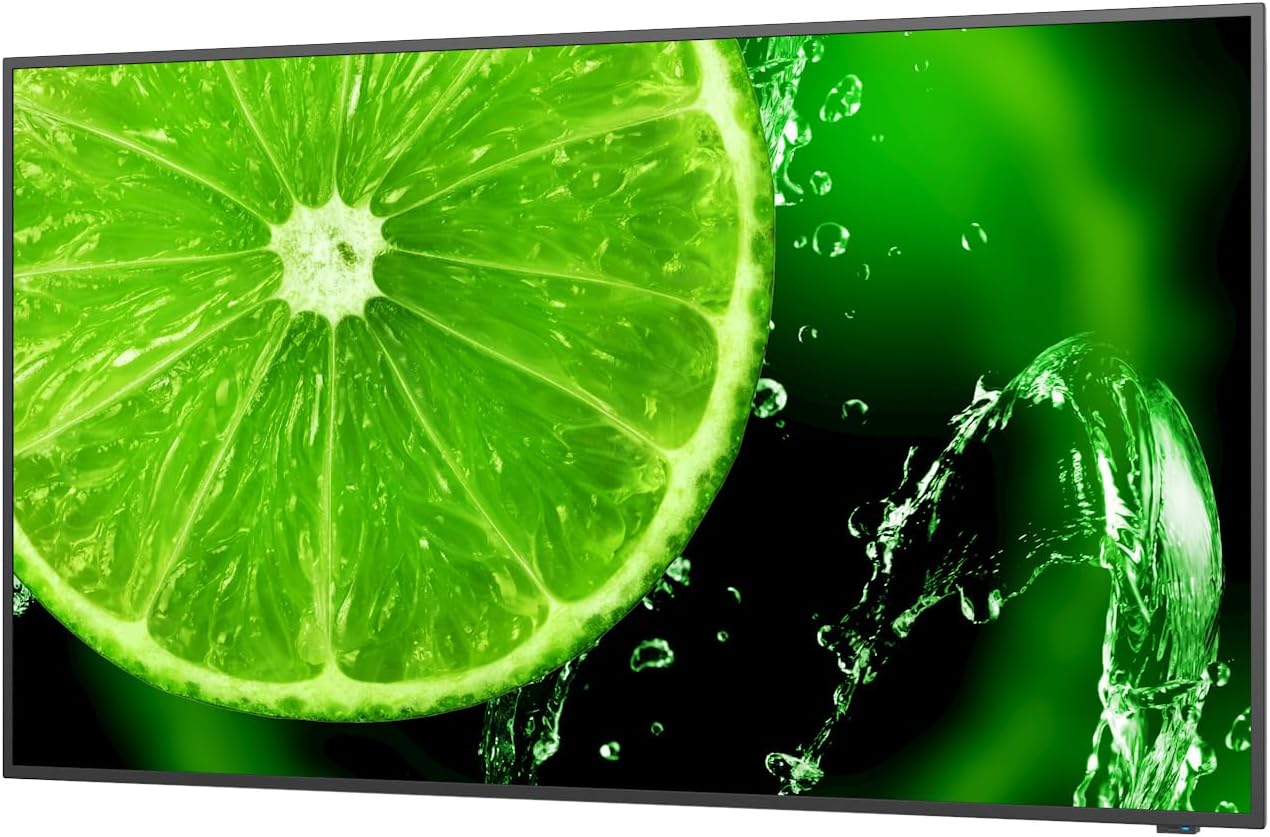
Малюнак 1: Спераду view of the NEC E438 43-inch 4K UHD monitor.
2. Інфармацыя па бяспецы
Observe the following safety precautions to prevent damage to the product and to ensure your safety:
- Не падвяргайце манітор уздзеянню дажджу або вільгаці, каб пазбегнуць пажару або паражэння электрычным токам.
- Не адчыняйце манітор casing. Па ўсіх пытаннях тэхнічнага абслугоўвання звяртайцеся да кваліфікаванага персаналу.
- Забяспечце належную вентыляцыю. Не блакуйце вентыляцыйныя адтуліны.
- Use only the power cord supplied with the monitor or a suitable replacement.
- Place the monitor on a stable, level surface or mount it securely according to VESA standards.
- Адключыце вілку сілкавання ад разеткі, калі манітор не будзе выкарыстоўвацца працяглы час.
3. Змесціва ўпакоўкі
Праверце наяўнасць усіх прадметаў у камплекце:
- NEC E438 43-inch LCD 4K UHD Monitor
- Шнур харчавання
- Кабель HDMI
- USB-кабель C
- Пульт дыстанцыйнага кіравання (з батарэйкамі)
- Кіраўніцтва карыстальніка (гэты дакумент)
- Кароткае кіраўніцтва па ўстаноўцы
4. Настройка
4.1 Фізічнае размяшчэнне
Place the monitor on a sturdy, flat surface or mount it using a VESA-compatible wall mount or stand. Ensure adequate space around the monitor for ventilation.
4.2 Злучальныя кабелі
Connect the necessary cables to the corresponding ports on the monitor and your source device (e.g., computer, media player).

Малюнак 2: Задняя частка view of the monitor showing connection ports and mounting points.

Малюнак 3: бок view of the monitor illustrating the input port cluster.
- Магутнасць: Connect the power cord to the monitor's AC input and then to a grounded electrical outlet.
- Відэа ўваход: Use an HDMI, VGA, or USB-C cable to connect your source device to the monitor. The monitor supports multiple HDMI inputs.
- LAN: Падключыце кабель Ethernet да порта LAN для падключэння да сеткі.
- USB-C: For video, data, and power delivery (if supported by the source device).
5. Інструкцыя па эксплуатацыі
5.1 Уключэнне/выключэнне сілкавання
Press the power button located on the monitor or on the remote control to turn the display on or off. The power indicator light will illuminate when the monitor is on.
5.2 Выбар уводу
Use the 'Input' button on the remote control or the monitor's control panel to cycle through available input sources (HDMI 1, HDMI 2, HDMI 3, VGA, USB-C, etc.).
5.3 Экраннае меню (OSD).
Access the OSD menu to adjust various display settings such as brightness, contrast, color temperature, aspect ratio, and audio settings. Navigate the menu using the directional buttons on the remote or monitor and confirm selections with the 'Enter' button.
5.4 Аўдыё
The monitor includes integrated speakers. Adjust the volume using the remote control or through the OSD menu. You can also connect external audio devices if desired.
6. Тэхнічнае абслугоўванне
6.1 Чыстка манітора
- Перад чысткай заўсёды адключайце манітор ад сеткі.
- Выкарыстоўвайце мяккую безворсовую тканіну, злёгку dampвадой або мяккім неабразіўным ачышчальнікам для экранаў.
- Не распыляйце ачышчальнік непасрэдна на экран.
- Пазбягайце выкарыстання агрэсіўных хімікатаў, растваральнікаў або абразіўных матэрыялаў.
6.2 Агульны догляд
- Трымайце манітор далей ад прамых сонечных прамянёў і крыніц цяпла.
- Забяспечце належную вентыляцыю, каб прадухіліць перагрэў.
- Не кладзіце цяжкія прадметы на манітор або яго кабелі.
7. Выпраўленне непаладак
Калі ў вас узніклі праблемы з маніторам, звярніцеся да наступных распаўсюджаных крокаў па ліквідацыі непаладак:
| праблема | Магчымае рашэнне |
|---|---|
| Няма ўлады | Праверце, ці надзейна падключаны шнур харчавання да манітора і разеткі. Пераканайцеся, што разетка спраўная. |
| Няма сігналу | Verify that the video cable (HDMI, VGA, USB-C) is correctly connected to both the monitor and the source device. Select the correct input source using the 'Input' button. |
| Выява скажоная або невыразная | Adjust resolution and refresh rate settings on your source device. Check cable connections for looseness or damage. Perform an auto-adjustment via the OSD menu if using VGA. |
| З дынамікаў няма гуку | Check the volume settings on the monitor and your source device. Ensure the audio output is correctly configured on your source device. |
If the problem persists after trying these steps, please contact NEC customer support.
8. Тэхнічныя характарыстыкі
Key technical specifications for the NEC E438 monitor:
- Памер экрана: 43 цалі
- дазвол: 3840 x 2160 (4K UHD)
- Суадносіны бакоў: 16:9
- Тып панэлі: IPS (пераключэнне плоскасці)
- Яркасць выявы: 350 cd/m² (NITS)
- Відэа ўваходы: HDMI (multiple), VGA, USB-C
- Іншыя парты: LAN, Total 2 USB Ports
- Дакладчыкі: Інтэграваны
- Памеры прадукту: 2.8 х 38.2 х 22.04 цалі
- Вага прадмета: 19.58 фунта
- тtage: 240 вольт
- Нумар мадэлі: 60005045

Figure 4: Excerpt from the product data sheet.
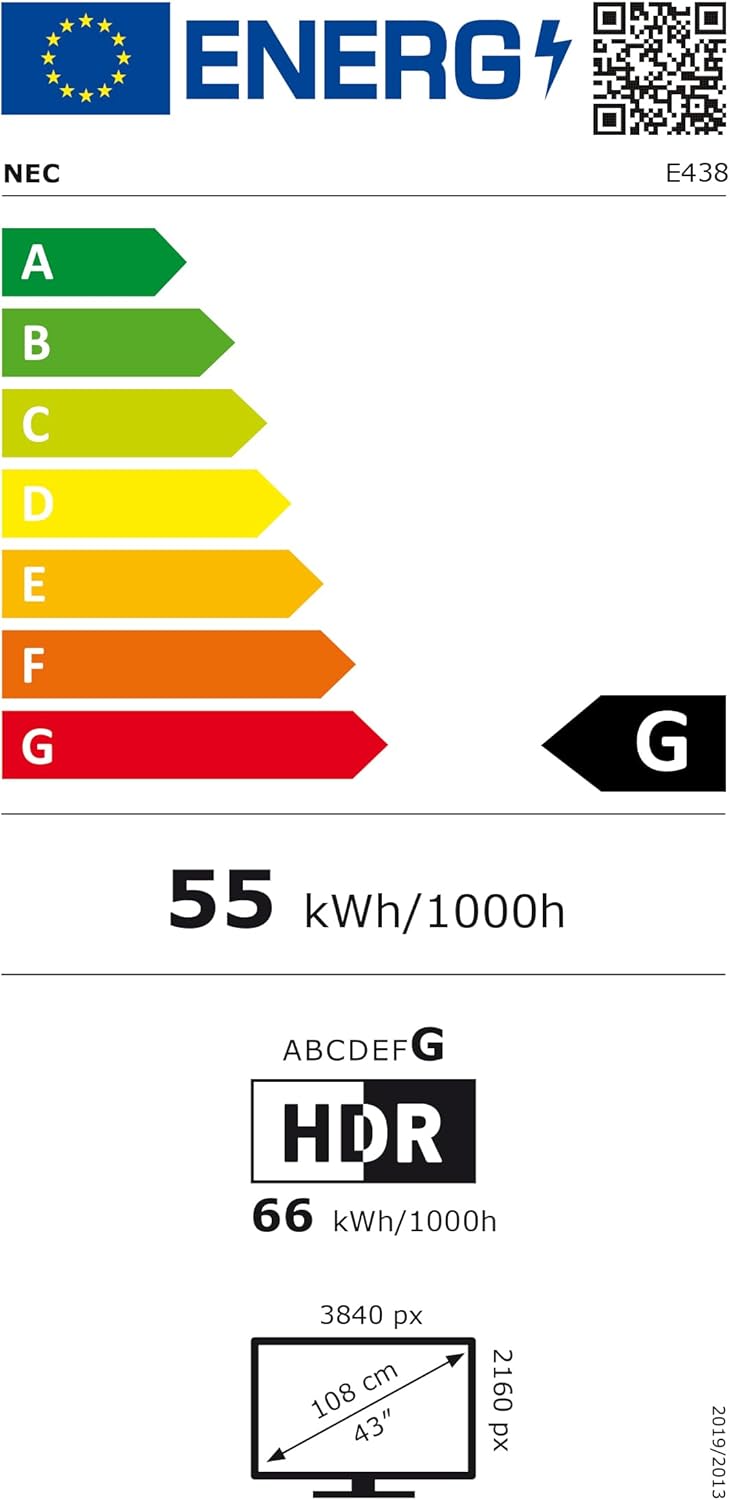
Figure 5: EU Energy Label for the NEC E438 monitor.
For more detailed energy information, please visit the EPREL database: https://eprel.ec.europa.eu/qr/429363
9. Гарантыя і падтрымка
9.1 Інфармацыя аб гарантыі
This NEC E438 monitor comes with a 3-year limited warranty. Please refer to the warranty card included in your package for specific terms and conditions. Keep your proof of purchase for warranty claims.
9.2 Падтрымка кліентаў
For technical assistance, service, or further inquiries, please contact NEC customer support. Visit the official NEC webсайт для кантактнай інфармацыі і рэсурсаў падтрымкі.