
White Shark Shinobi 60% (B093C63NSG)
White Shark Shinobi 60% Mechanical Keyboard User Manual
Model: Shinobi 60% (B093C63NSG)
Уводзіны
Welcome to the user manual for your White Shark Shinobi 60% Mechanical Keyboard. This guide provides essential information for setting up, operating, maintaining, and troubleshooting your new gaming keyboard. Please read this manual thoroughly to ensure optimal performance and longevity of your device.
Змест пакета
Перш чым працягнуць, пераканайцеся, што ў вашай упакоўцы ёсць усе неабходныя рэчы:
- White Shark Shinobi 60% Mechanical Keyboard
- Кабель USB-C да USB-A
- Кіраўніцтва карыстальніка (гэты дакумент)
Настройка
Follow these steps to set up your White Shark Shinobi 60% Mechanical Keyboard:
- Падключэнне клавіятуры: Locate the USB-C port on the back or side of the keyboard. Insert the smaller end of the provided USB-C to USB-A cable into this port.
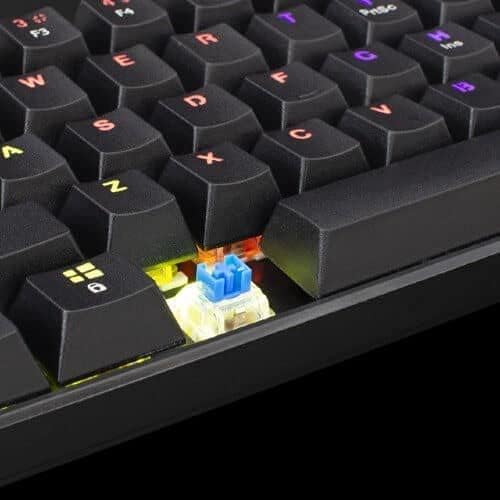
Image: Connecting the USB-C cable to the keyboard's port.
- Падключыцеся да кампутара: Устаўце большы канец кабеля USB-A ў даступны порт USB на вашым кампутары.
- Ўстаноўка драйвера: The keyboard is plug-and-play. Your operating system (Windows, macOS, Linux) should automatically detect and install the necessary drivers. No manual driver installation is typically required.
- Пачатковае ўключэнне: Once connected, the keyboard's backlight should illuminate, indicating it is powered on and ready for use.
Інструкцыя па эксплуатацыі
The White Shark Shinobi 60% Mechanical Keyboard features a compact layout. Many functions are accessed via function (Fn) key combinations.
Key Layout and Functions

Выява: Зверхуview of the Shinobi 60% keyboard layout.
The 60% layout means some standard keys are accessed through a secondary function layer, typically by holding the Fn ключ.
Кіраванне падсветкай
The keyboard features customizable RGB backlighting.
- Змяніць рэжым асвятлення: Выкарыстоўвайце Fn + \ | to cycle through various lighting effects.
- Наладзіць яркасць: Выкарыстоўвайце Fn + ] } (павялічыцца) і Fn + [{ (decrease) to adjust backlight brightness.
- Адрэгуляваць хуткасць: Выкарыстоўвайце Fn + ; : (павялічыцца) і Fn + '" (decrease) to adjust the speed of dynamic lighting effects.
- Змяніць колер: Выкарыстоўвайце Fn + Enter змяніць колер статычных рэжымаў асвятлення.
Мультымедыйныя і функцыянальныя клавішы
Access multimedia controls and other functions using the Fn key in combination with other keys. Refer to the keycaps for secondary legends.
| Камбінацыя клавіш | Функцыя |
|---|---|
| fn + A | Прайграванне/Паўза |
| Fn + S | Папярэдні трэк |
| Fn + D | Наступны трэк |
| Fn + F | Памяншэнне гучнасці |
| Fn + G | Павялічыць гучнасць |
| Fn + H | Адключыць гук |
| Fn + J | Мой кампутар |
| Fn + K | Браўзэр |
| Fn + L | Электронная пошта |
| Fn + W | Памяняйце месцамі клавішы WASD і стрэлкі |
| Fn + прабел | Lock/Unlock Fn key (for continuous access to secondary functions) |
Тэхнічнае абслугоўванне
Proper maintenance ensures the longevity and performance of your mechanical keyboard.
Чыстка клавіятуры
- Выдаленне пылу: Выкарыстоўвайце сціснутае паветра, каб выдаліць пыл і смецце паміж клавішамі.
- Ачыстка паверхні: Gently wipe the keycaps and keyboard surface with a soft, lint-free cloth slightly dampвадой або мяккім неабразіўным ачышчальным растворам. Пазбягайце празмернай вільготнасці.
- Глыбокая чыстка (клавіятуры): For a deeper clean, keycaps can be carefully removed using a keycap puller (not included). Wash them with mild soap and water, rinse thoroughly, and ensure they are completely dry before reattaching.

Image: Detail of a mechanical switch under a keycap.
Захоўванне
Калі клавіятура не выкарыстоўваецца працяглы час, захоўвайце яе ў прахалодным, сухім месцы, удалечыні ад прамых сонечных прамянёў і экстрэмальных тэмператур.
Ліквідацыю непаладак
If you encounter issues with your White Shark Shinobi keyboard, refer to the following common solutions:
Клавіятура не адказвае
- Праверце падключэнне кабеля: Ensure the USB-C cable is securely plugged into both the keyboard and the computer. Try unplugging and re-plugging it.
- Паспрабуйце іншы порт USB: Connect the keyboard to a different USB port on your computer.
- Перазагрузіце кампутар: Простая перазагрузка кампутара часта можа вырашыць праблемы з падключэннем.
- Тэст на іншым кампутары: If possible, test the keyboard on another computer to determine if the issue is with the keyboard or your original computer's setup.
Backlight Not Working or Incorrect
- Праверце яркасць: Ensure the brightness is not set to the lowest level using Fn + ] }.
- Рэжымы цыклу: Паспрабуйце пераключацца паміж рэжымамі асвятлення, выкарыстоўваючы Fn + \ |.
- Скід да заводскіх налад: Some keyboards have a factory reset combination (e.g., Fn + Esc for 3-5 seconds). Refer to specific product documentation if available, or try this common combination.
Клавішы не рэгіструюцца або ўводзяцца два разы
- Ачыстка пад клавішамі: Dust or debris under the keycap or switch can cause issues. Refer to the "Maintenance" section for cleaning instructions.
- Праграмнае ўмяшанне: Ensure no conflicting software (e.g., macro programs, other keyboard drivers) is running.
Тэхнічныя характарыстыкі
Key technical specifications for the White Shark Shinobi 60% Mechanical Keyboard:
| Асаблівасць | Дэталь |
|---|---|
| Назва мадэлі | Shinobi 60% |
| Марка | Белая акула |
| Тэхналогія падлучэння | Правадной USB |
| Апісанне клавіятуры | Гульнявыя, механічныя |
| Асаблівасць | Падсветка (RGB) |
| Колькасць ключоў | 61 |
| Тып перамыкача | Tactile (Blue Switches) |
| Сумяшчальныя прылады | Ноўтбук, настольны кампутар |
| ASIN | B093C63NSG |

Image: Product packaging indicating blue switches.
Інфармацыя аб гарантыі
Specific warranty terms and conditions for the White Shark Shinobi 60% Mechanical Keyboard may vary by region and retailer. Please retain your proof of purchase for warranty claims. For detailed warranty information, refer to the official White Shark webсайт або звярніцеся ў месца пакупкі.
Падтрымка
For further assistance, technical support, or frequently asked questions, please visit the official White Shark support webсайт.
Афіцыйны Webсайт: While a direct link is not provided, search for "White Shark Gaming" to find their official support page.