
1. Уводзіны
The Rapoo MT550 is a versatile multi-device wireless mouse designed for enhanced productivity and comfort. This manual provides detailed instructions for setting up, operating, and maintaining your MT550 mouse, ensuring optimal performance across various devices.
Асноўныя функцыі ўключаюць у сябе:
- Multi-device connectivity (Bluetooth 3.0, Bluetooth 4.0, and 2.4G wireless)
- Adjustable DPI settings (600/1000/1300/1600)
- Эрганамічны дызайн для зручнага выкарыстання
- Long battery life of up to 12 months
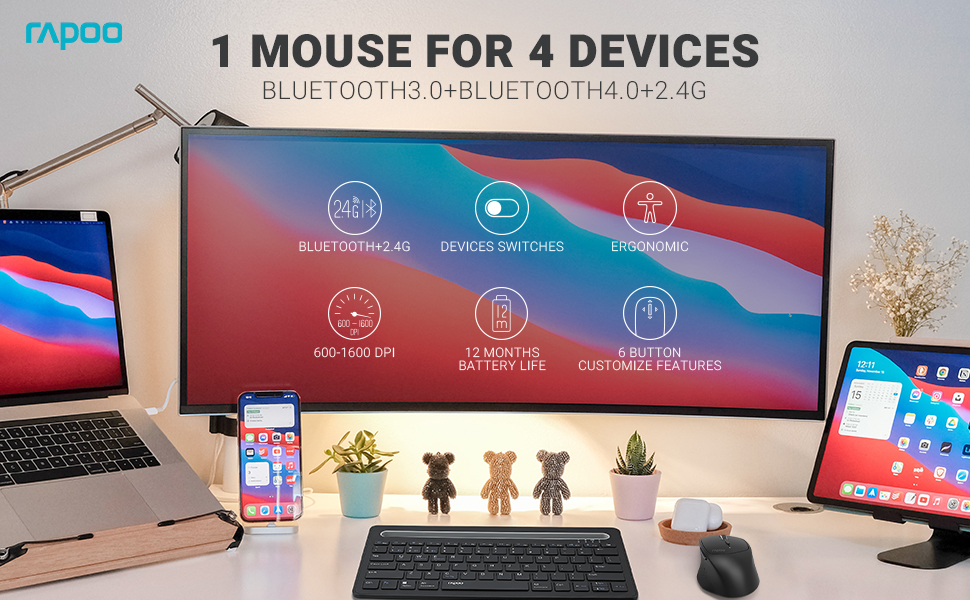
Image: The Rapoo MT550 mouse, highlighting its design for endurance, versatility, and comfort.
2. Настройка
2.1. Устаноўка батарэі
The Rapoo MT550 mouse requires two AA batteries (included). To install:
- Знайдзіце вечка адсека для батарэй на ніжняй частцы мышы.
- Адкрыйце крышку.
- Устаўце дзве батарэйкі тыпу АА, сачыце за правільнай палярнасцю (+/-).
- Зачыніце крышку батарэйнага адсека.
2.2. Падключэнне праз бесправадную сувязь 2.4G (USB-прыёмнік)
For a 2.4G wireless connection:
- Уключыце мыш з дапамогай перамыкача ON/OFF на ніжняй панэлі.
- Locate the USB receiver stored in the battery compartment.
- Устаўце USB-прыёмнік у свабодны порт USB на вашым кампутары.
- The mouse should automatically connect. If not, press the device switch button until the indicator for channel 4 (usually indicated by a specific light pattern or number) is active.
2.3. Падключэнне праз Bluetooth
The Rapoo MT550 supports up to three Bluetooth connections. To connect:
- Уключыце мыш з дапамогай перамыкача ON/OFF.
- Short press the device switch button to select a Bluetooth channel (1, 2, or 3). The corresponding indicator light will illuminate.
- Press and hold the Bluetooth pairing button (often located near the device switch button) for approximately 3 seconds until the indicator light for the selected channel starts flashing rapidly. This indicates the mouse is in pairing mode.
- On your device (computer, laptop, tablet, phone), enable Bluetooth and search for new devices.
- Select "Rapoo MT550" from the list of available devices to complete the pairing process.
- Repeat these steps to pair with up to two additional Bluetooth devices on channels 2 and 3.

Image: Labeled diagram of the Rapoo MT550 mouse, indicating the location of the ON/OFF switch, Bluetooth button, device switch button, battery slot, USB receiver, DPI button, scroller, and other buttons.
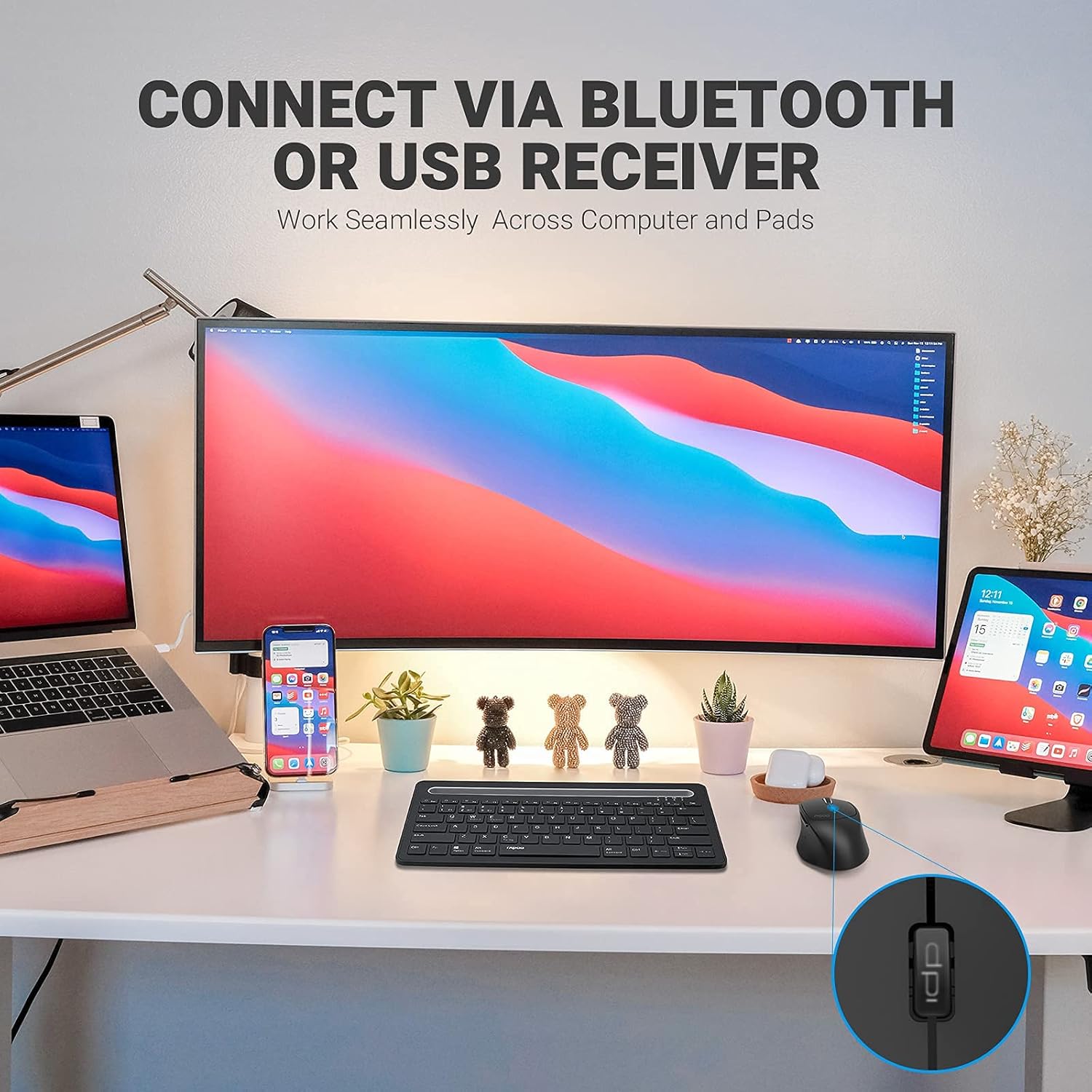
Image: A workstation demonstrating the Rapoo MT550 mouse connecting to multiple devices via Bluetooth or USB receiver.
3. Інструкцыя па эксплуатацыі
3.1. Пераключэнне паміж прыладамі
To switch between your connected devices:
- Short press the device switch button located on the underside of the mouse.
- Each press will cycle through the connected channels (1, 2, 3 for Bluetooth, 4 for 2.4G USB receiver). The corresponding indicator light will show the active channel.
3.2. Рэгуляванне DPI (адчувальнасці)
The MT550 mouse features four adjustable DPI settings for precise control:
- Press the DPI button, located behind the scroll wheel, to cycle through the available settings: 600, 1000, 1300, and 1600 DPI.
- The indicator light will briefly change to reflect the selected DPI level.

Выява: Крупны план view of the DPI button on the Rapoo MT550 mouse, with the indicator light showing the current DPI setting.
3.3. Using Forward/Back Buttons
The two thumb buttons on the side of the mouse provide quick navigation:
- The forward button advances to the next page or folder.
- The back button returns to the previous page or folder.
4. Тэхнічнае абслугоўванне
4.1. Уборка
To maintain the appearance and functionality of your mouse:
- Выкарыстоўвайце мяккую, сухую тканіну, каб працерці паверхню мышы.
- Пазбягайце выкарыстання агрэсіўных хімікатаў, абразіўных ачышчальнікаў або растваральнікаў, бо яны могуць пашкодзіць пакрыццё.
4.2. Замена батарэі
When the low battery indicator appears or the mouse becomes unresponsive, it's time to replace the batteries:
- Выканайце дзеянні па ўсталёўцы акумулятара, апісаныя ў раздзеле 2.1.
- Ensure you use two fresh AA batteries and insert them with the correct polarity.
4.3. Захоўванне
When not in use for extended periods, store the mouse in a dry, cool environment away from direct sunlight and extreme temperatures.
5. Выпраўленне непаладак
If you encounter issues with your Rapoo MT550 mouse, refer to the following troubleshooting steps:
5.1. Мыш не рэагуе
- Праверце магутнасць: Ensure the mouse is turned on using the ON/OFF switch.
- Праверце батарэі: Праверце, ці правільна ўсталяваныя батарэйкі і ці дастаткова зараджаныя. Пры неабходнасці заменіце іх.
- 2.4G-прыёмнік: For 2.4G connection, ensure the USB receiver is securely plugged into a working USB port on your computer. Try a different USB port.
- Злучэнне Bluetooth: For Bluetooth, ensure Bluetooth is enabled on your device and the mouse is paired to the correct channel. Try re-pairing the mouse if the connection is lost.
5.2. Перарывістае падключэнне або затрымка
- Блізкасць: Move the mouse closer to your computer or device to ensure a strong signal.
- Перашкоды: Avoid using the mouse near other wireless devices (e.g., Wi-Fi routers, cordless phones) that might cause interference.
- Паверхня: Ensure you are using the mouse on a suitable surface. While the MT550 is designed for various surfaces, extreme textures or reflective surfaces can affect tracking.
5.3. DPI не змяняецца
- Ensure you are pressing the dedicated DPI button, not another button.
- If the issue persists, try turning the mouse off and on again.
6. Тэхнічныя характарыстыкі
| Памеры прадукту | 3.93 х 2.55 х 1.57 цалі |
| Вага прадмета | 5.3 унцыі |
| Батарэі | 2 батарэйкі АА (у камплекце) |
| Тэхналогія падлучэння | Bluetooth (3.0/4.0) and 2.4G Wireless |
| Тэхналогія выяўлення руху | Аптычны |
| Рэгуляваны DPI | 600/1000/1300/1600 |
| Колькасць кнопак | 6 (Left, Right, Scroll, DPI, Forward, Back) |
| Тэрмін службы батарэі | Да 12 месяцаў (пры нармальных умовах) |
7. Гарантыя і падтрымка
Rapoo provides the following coverage for your MT550 Multi-Device Wireless Mouse:
- Гарантыя: 3-year worry-free warranty.
- Палітыка вяртання: 180-дзённая гарантыя вяртання грошай.
For further assistance, technical support, or warranty claims, please visit the official Rapoo webсайт або звярніцеся ў іх аддзел абслугоўвання кліентаў.


