
1. Уводзіны
Thank you for choosing the Angetube 1080P Webcam with Microphone. This high-definition USB computer camera is designed to provide clear video and audio for various applications, including video conferencing, streaming, and online calls. This manual provides essential information for setting up, operating, and maintaining your webкулачок.
2. Асноўныя магчымасці
- HD Video Quality: Built-in 1080p Full HD 2MP CMOS sensor and 6-layer premium optical lens capture ultra-clear images at 1080P/30FPS.
- Крышталёва чысты гук: Equipped with independent IC audio processing enhancement and dual Automatic Noise Reduction technology microphone for optimized sound quality.
- Plug & Play: Easy setup without the need for additional software or drivers. Connect via USB for immediate use.
- Шырокая сумяшчальнасць: Compatible with Windows 7/8/10/11, Mac OS, Android 5.0 or above, Google Chrome OS, and Linux. Supports popular applications like OBS, YouTube, Facebook, Skype, FaceTime, Xsplit, and Zoom.
- Гнуткі мантаж: Features a versatile clip for secure attachment to monitors, laptops, or tripods, with flexible rotation for optimal viewныя вуглы.
- Ручная факусоўка: Allows for precise focus adjustment to ensure sharp images.
- Auto Light & Color Correction: Automatically adjusts to dim lighting conditions to maintain clear video quality.
3. Змесціва ўпакоўкі
- Angetube 1080P Webcam with integrated USB cable
- Кіраўніцтва карыстальніка
4. Кіраўніцтва па наладцы
Follow these simple steps to set up your Angetube webкамера:
- Змантаваць Webкамера: Месца webcam on top of your computer monitor, laptop screen, or desktop. The flexible clip is designed to securely grip various surfaces.
- Падключэнне праз USB: Plug the integrated USB cable of the webкамеры ў даступны USB-порт на вашым кампутары.
- Аўтаматычная ўстаноўка драйвераў: The intelligent system will automatically detect and install the necessary hardware drivers within seconds. No manual software installation is required for basic functionality.
- Open Video Application: Launch your preferred video conferencing or streaming software (e.g., Zoom, Skype, OBS).
- Выберыце Webкамера: In your application's settings, select the Angetube webcam as your primary video and audio input device.
- Adjust Focus (Manual Focus Model): If your model features manual focus, gently rotate the lens ring until your image appears sharp and clear.

Image: Step-by-step diagram illustrating the installation process of the Angetube webcam on a computer monitor and connecting its USB cable.

Image: The Angetube webcam demonstrating its flexible mounting bracket, allowing for 720-degree rotation and 180-degree tilt to achieve desired camera angles.
Video: Official Angetube product video demonstrating the webcam's features and ease of use.
5. Інструкцыя па эксплуатацыі
5.1 Асноўныя аперацыі
- Пасля падлучэння, the webcam is ready for use with any compatible application.
- The built-in microphone will automatically be detected and used by your application.
- Адрэгулюйце webcam's position and angle as needed using its flexible mount.
5.2 Optional Software
Для пашыранай налады вашага webcam settings (e.g., brightness, contrast, saturation, sharpness, white balance, exposure), download the optional Angetube Webcam Software. This software supports Windows 7/8/10/11 and MacOS 10.13 or later.
- Наведайце афіцыйны сайт Angetube website to download the latest version of the software.
- Усталюйце праграмнае забеспячэнне, выконваючы інструкцыі на экране.
- Launch the software to access and modify various image and audio parameters.

Image: A split image demonstrating the superior clarity and detail of 1080P Full HD video compared to 720P, showcasinг webcam's high-definition capability.

Image: Another visual comparison highlighting the difference in video quality between 1080P and 720P, illustrating the webcam's ability to produce exceptionally clear videos.
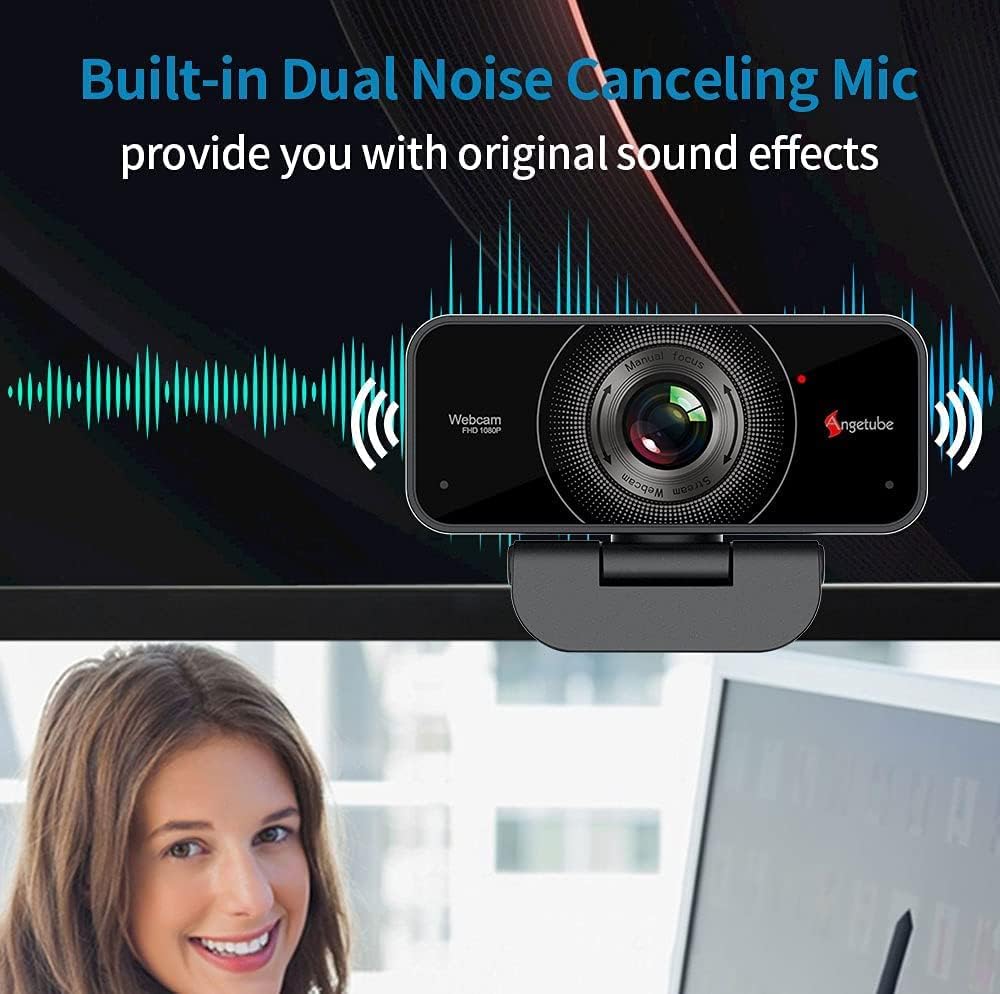
Image: The Angetube webcam positioned on a monitor, with a graphic overlay indicating its built-in dual noise-canceling microphone for clear sound.

Выява: Візуальнае адлюстраванне webcam's dual noise-canceling microphone, designed to enhance sound absorption and reduce background noise for clear communication.

Image: A close-up of a hand manually adjusting the focus ring on the webcam, demonstrating the manual focus capability for achieving sharp images.

Image: A comparison showing the Angetube webcam's superior auto light and color correction in dim lighting conditions compared to other webcams, ensuring users look their best during video calls.
6. Сумяшчальнасць
The Angetube webcam offers broad compatibility with various operating systems and applications:
- Аперацыйныя сістэмы: Windows 7/8/10/11, Mac OS, Android 5.0 or above, Google Chrome OS, Linux.
- прыкладанні: OBS, YouTube, Facebook, Skype, FaceTime, Xsplit, Mixer, Zoom, Microsoft Teams, Cisco Webпр.

Image: The Angetube webcam with logos of compatible operating systems (Windows, Mac OS, Linux, Ubuntu) and popular applications (WhatsApp, Facebook, YouTube, Skype, Twitter, LINE, TikTok, Mixer, XSplit, Zoom, Xbox, Cisco).

Выява: Візуальны малюнак, які дэманструе webcam's simple USB plug-and-play connection to a laptop, alongside logos of supported operating systems (Linux, Windows, Mac OS, Ubuntu) and video communication platforms (Facebook, Zoom, Skype, Microsoft Teams, YouTube, OBS Studio).
7. Тэхнічнае абслугоўванне
- Keep the lens clean using a soft, dry cloth. Avoid abrasive materials or harsh chemicals.
- Захоўваць webcam in a cool, dry place when not in use.
- Пазбягайце выкрыцця webcam to extreme temperatures or direct sunlight for prolonged periods.
8. Выпраўленне непаладак
- Няма відэа/аўдыё: Ensure the USB cable is securely connected. Try a different USB port or restart your computer. Verify that the webcam is selected as the input device in your application settings.
- Размытая выява: If your model has manual focus, rotate the lens ring to adjust focus. Ensure the lens is clean.
- Дрэнная якасць выявы: Check your lighting conditions. Use the optional Angetube Webcam Software to adjust brightness, contrast, and other settings.
- Праблемы з мікрафонам: Забяспечце webcam's microphone is not muted in your system or application settings. Check for any conflicting audio devices.
9. Тэхнічныя характарыстыкі
| Асаблівасць | Дэталь |
|---|---|
| Фірмовае найменне | Angetube |
| Нумар мадэлі тавару | 525MF |
| Вага прадмета | 7 унцыі |
| Памеры прадукту | 4.3 х 2.5 х 4.3 цалі |
| Тэхналогія фотадатчыка | CMOS |
| Дазвол відэазахопу | 1080p |
| Максімальная фокусная адлегласць | 1200 міліметра |
| Максімальная дыяфрагма | 2 ф |
| Фармат захопу відэа | MP4 |
| Падтрымоўваны аўдыяфармат | AAC, MP3, PCM |
| Тэхналогія падлучэння | USB |
10. Гарантыя і падтрымка
Angetube is committed to ensuring a perfect customer experience. If you are not satisfied with your webcam, please contact Angetube customer service for immediate assistance or a refund. Our customer service team is available 24/7 to address any needs or concerns you may have.
For further support, please refer to the official Angetube webсайт або звярніцеся непасрэдна ў службу падтрымкі кліентаў.