
1. Уводзіны
This manual provides detailed instructions for the EVICIV Portable Touchscreen Monitor, Model MDS-156B03. Please read this manual thoroughly before using the product to ensure proper operation and to maximize its performance and lifespan. This monitor is designed to extend your visual workspace and enhance productivity with its portable design and touchscreen capabilities.

Image 1.1: The EVICIV Portable Touchscreen Monitor.
2. Змесціва ўпакоўкі
Калі ласка, праверце змесціва ўпакоўкі пасля распакавання. Калі якія-небудзь прадметы адсутнічаюць або пашкоджаныя, звярніцеся ў службу падтрымкі кліентаў.
- EVICIV Portable Touchscreen Monitor (MDS-156B03)
- Кабель HDMI
- USB-A to USB-C Cable (for touch functionality)
- USB-C to USB-C Cables (x2, for power, display, and touch)
- Адаптар сілкавання USB-C
- Кіраўніцтва карыстальніка (гэты дакумент)
3. Асаблівасці прадукту
The EVICIV Portable Touchscreen Monitor offers a range of features designed for versatility and high performance:
- 15.6-inch Full HD (1080p) Display: Enjoy crisp and clear visuals.
- 5-Point Touch Functionality: Interact directly with your content for intuitive control.
- 100% дакладнасць колераперадачы sRGB: Experience vibrant and true-to-life colors.
- Built-in Kick-Stand: Забяспечвае рэгуляванне viewing angles and supports both portrait and landscape orientations.
- Кабельнае кіраванне: Integrated design helps keep cables organized behind the monitor.
- Святлодыёдная падсветка: Features RGB light effects for an enhanced aesthetic.
- Універсальнае падключэнне: Equipped with USB-C and HDMI ports for broad compatibility.
3.1. Adjustable Stand and Orientation
The integrated kick-stand allows for flexible positioning, enabling you to pivot the monitor 90 degrees for portrait mode, which can significantly increase viewability for certain tasks like coding or document review.

Image 3.1: Monitor pivoted 90 degrees for increased viewability in portrait mode.

Image 3.2: The monitor's rounded bezel and built-in kick-stand supporting both portrait and landscape orientations.
3.2. Кіраванне кабелем
The monitor features a design that helps manage cables, keeping your workspace tidy and organized.

Image 3.3: The monitor's cable management system keeps connections neat.
3.3. Color Accuracy
With 100% sRGB coverage, the monitor delivers outstanding color accuracy and resolution, making it suitable for tasks requiring precise color representation.

Image 3.4: Visual representation of 100% sRGB color accuracy.
3.4. Святлодыёдная падсвятленне
The monitor includes an LED backlight with customizable RGB light effects, allowing you to personalize your setup.
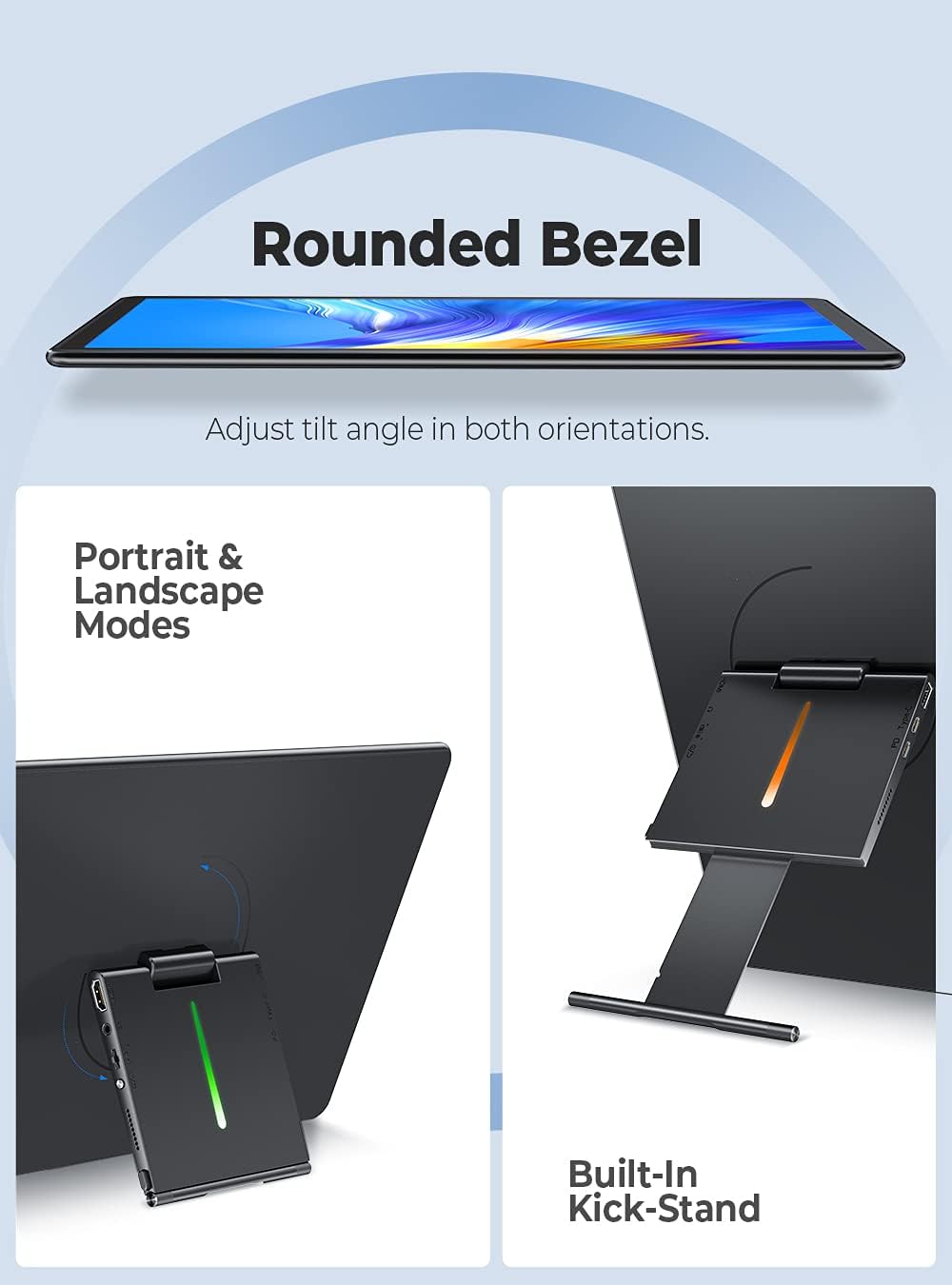
Image 3.5: The monitor's LED backlight feature.
4. Інструкцыі па ўсталёўцы
Follow these steps to set up your EVICIV Portable Touchscreen Monitor:
- Падключэнне сілкавання: Connect the USB-C power adapter to the monitor's USB-C PD port. Ensure the monitor receives adequate power.
- Падключэнне да прылады:
- Using USB-C (Full Function): If your device (laptop, smartphone) has a full-featured USB-C port that supports DisplayPort Alternate Mode and power delivery, connect one of the provided USB-C to USB-C cables directly from your device to the monitor's USB-C port. This single cable can provide power, video, and touch functionality.
- Using HDMI and USB-A: If your device does not have a full-featured USB-C port, connect the HDMI cable from your device to the monitor's HDMI port for video output. For touch functionality, connect the USB-A end of the USB-A to USB-C cable to your device and the USB-C end to the monitor's USB-C data port. Ensure the monitor is also powered via its USB-C PD port.
- Пачатковы дысплей: Once connected, your device should automatically detect the monitor. If not, you may need to adjust display settings on your device (e.g., extend display, duplicate display).
- Touch Driver Installation: For Windows 10/11, the touch driver should install automatically when connected via USB. For other operating systems, specific drivers may be required.

Image 4.1: Connecting the monitor using USB and HDMI cables.
4.1. Відэакіраўніцтва па ўсталёўцы
For a visual guide on setting up your EVICIV Portable Touchscreen Monitor, please refer to the official product video below:
Video 4.1: Official EVICIV video demonstrating the 15.6-inch USB Type-C Portable Monitor's features and connectivity.
5. Інструкцыя па эксплуатацыі
5.1. Уключэнне/выключэнне харчавання
Locate the power button on the side or back of the monitor. Press and hold for a few seconds to power on or off. A short press may activate or deactivate the display.
5.2. Экраннае меню (OSD).
The OSD menu allows you to adjust various display settings. Typically, buttons on the side or back of the monitor are used to navigate and select options within the OSD. Common settings include:
- Яркасць/кантраст: Адрэгулюйце ўзровень яркасці і кантраснасці дысплея.
- Налады колеру: Змяніць каляровую тэмпературу, адценне і насычанасць.
- Крыніца ўводу: Manually select between USB-C and HDMI inputs.
- Аб'ём: Кіруйце гучнасцю ўбудаваных дынамікаў.
5.3. Сэнсарная функцыянальнасць
The monitor supports 5-point multi-touch. Basic touch gestures include tapping to select, swiping to scroll, and pinch-to-zoom. Ensure the USB connection for touch is properly established for this feature to work.
5.4. Арыентацыя экрана
The monitor can be used in both landscape and portrait modes. To switch orientation, physically rotate the monitor. Your operating system may automatically adjust the display orientation. If not, you can manually change it in your device's display settings.
6. Тэхнічнае абслугоўванне
Правільнае абслугоўванне забяспечвае даўгавечнасць і аптымальную прадукцыйнасць вашага манітора.
- Ачыстка экрана: Выкарыстоўвайце мяккую тканіну без ворса, спецыяльна прызначаную для электронікі. Злёгку працярыцеampen the cloth with water or a screen-cleaning solution. Avoid harsh chemicals, alcohol, or abrasive materials.
- Ачышчэнне арганізма: Wipe the monitor's body with a soft, dry cloth.
- захоўванне: When not in use, store the monitor in a clean, dry place away from direct sunlight and extreme temperatures. Consider using a protective sleeve or case for transport to prevent scratches and damage.
- Пазбягайце вадкасці: Do not spray liquids directly onto the monitor.
7. Выпраўленне непаладак
Калі ў вас узніклі праблемы з маніторам, звярніцеся да наступных распаўсюджаных рашэнняў:
- Няма дысплея/чорны экран:
- Ensure the monitor is properly powered and the power adapter is connected.
- Check all video cables (USB-C, HDMI) are securely connected to both the monitor and your device.
- Праверце, ці выбрана правільная крыніца ўваходнага сігналу ў экранным меню манітора.
- Test with a different cable or device if possible.
- Touch Functionality Not Working:
- Ensure the USB connection for touch (USB-C to USB-C or USB-A to USB-C) is firmly connected.
- For Windows, check Device Manager to see if the touch screen driver is installed correctly. Reconnect the USB cable to trigger driver reinstallation.
- Some operating systems may require specific drivers or may not fully support multi-touch.
- Дрэнная якасць выявы/няправільныя колеры:
- Access the OSD menu and adjust brightness, contrast, and color settings.
- For optimal color, navigate to the OSD's color options, select 'User Settings', and adjust the RGB sliders. A common adjustment for better balance is setting Green to 70-80% while Red and Blue remain at 100%.
- Ensure your device's graphics settings are configured for the monitor's native resolution (1920x1080).
- Няма гуку або нізкая гучнасць:
- Check the volume settings in the monitor's OSD menu.
- Verify the audio output settings on your connected device.
- The built-in speakers are designed for basic audio; for higher quality sound, external speakers are recommended.
8. Тэхнічныя характарыстыкі
| Асаблівасць | Дэталь |
|---|---|
| Марка | ЭВІЦІВ |
| Нумар мадэлі | MDS-156B03 |
| Памер экрана | 15.6 цалі |
| дазвол | FHD 1080p (1920 x 1080) |
| Суадносіны бакоў | 16:10 |
| Апісанне паверхні экрана | Глянцавы |
| Каэфіцыент кантраснасці | 2000:1 |
| Частата абнаўлення | 60 Гц |
| Viewing кут | 178 градусаў |
| Час водгуку | 1 мілісекунд |
| Тэхналогія падлучэння | USB, HDMI, USB Type C |
| Канкрэтнае выкарыстанне прадукту | Gaming, Productivity |
| Тып мацавання | Desk Mount (Built-in Kick-Stand) |
| Total Number of HDMI Ports | 1 |
9. Гарантыя і падтрымка
EVICIV products are manufactured to high-quality standards. For specific warranty information, please refer to the warranty card included in your product packaging or visit the official EVICIV website. For technical support, troubleshooting assistance, or to inquire about replacement parts, please contact EVICIV customer service through the contact information provided on the official webсайт або ваша платформа для пакупак.