
1. Уводзіны
Дзякуй за пакупкуasing the Rapoo N300 Optical Wired Gaming Mouse. This manual provides detailed instructions for setting up, operating, and maintaining your new mouse. Please read this manual thoroughly before use to ensure optimal performance and longevity of the product.
2. Прадукт скончыўсяview
2.1 Асноўныя магчымасці
- Высокадакладнае аптычнае адсочванне: Equipped with a 2000 DPI tracking engine for accurate and responsive cursor control.
- 6 Кнопкі: Includes left, right, scroll wheel, DPI switch, and two side buttons for enhanced functionality.
- 2D Anti-Slip Scroll Wheel: Provides precise scrolling and tactile feedback.
- Амбідэкстральны дызайн: Ergonomically designed for comfortable use by both left and right-handed users.
- Правадное падключэнне USB: Ensures a stable and lag-free connection.
2.2 Змест пакета
- Rapoo N300 Optical Wired Gaming Mouse
- Кіраўніцтва карыстальніка (гэты дакумент)
2.3 Дыяграма прадукту

Малюнак 1: Топ view of the Rapoo N300 mouse, showing the left and right click buttons, scroll wheel, and DPI switch button. The Rapoo logo is visible at the base.

Малюнак 2: Збоку view of the Rapoo N300 mouse, highlighting the two side buttons and the textured grip area for improved handling.
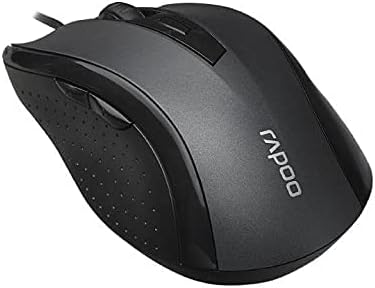
Малюнак 3: Вуглавы view of the Rapoo N300 mouse, showcasing its ergonomic contour and the placement of the scroll wheel and side buttons.

Малюнак 4: Знізу view of the Rapoo N300 mouse, displaying the optical sensor, product model number (N300), interface type (USB), and regulatory compliance markings.
3. Інструкцыі па ўсталёўцы
- Падключыце мыш: Locate an available USB port on your computer (desktop or laptop). Insert the USB connector of the Rapoo N300 mouse firmly into the USB port.
- Ўстаноўка драйвера: The Rapoo N300 mouse is a plug-and-play device. Your operating system (Windows XP, Windows 7, Linux, or newer versions) will automatically detect and install the necessary drivers. This process may take a few moments.
- Праверка: Once the drivers are installed, the mouse cursor should become responsive. Move the mouse to confirm functionality.
No additional software installation is typically required for basic functionality.
4. Інструкцыя па эксплуатацыі
4.1 Асноўныя функцыі
- Пстрычка левай кнопкай мышы: Primary action, selection, opening items.
- Пстрыкніце правай кнопкай мышы: Адкрывае кантэкстныя меню.
- Кола пракруткі: Пракручвае дакументы і web pages vertically. Can also be pressed for middle-click functionality (application-dependent).
4.2 Рэгуляванне DPI
The Rapoo N300 features a dedicated DPI switch button, usually located behind the scroll wheel. Press this button to cycle through different DPI (Dots Per Inch) sensitivity settings. Each press will change the cursor speed, allowing you to adjust it to your preference for various tasks, from precise editing to fast-paced gaming.
4.3 бакавыя кнопкі
The two side buttons typically function as "Forward" and "Backward" in web браўзэры і file explorers. Their functionality may be customizable through operating system settings or third-party software, if available.
5. Тэхнічнае абслугоўванне
- Уборка: Выкарыстоўвайце мяккую сухую тканіну для працірання паверхні мышы. Для выдалення ўстойлівага бруду злёгку працярыцеampПрацярыце тканіну вадой або мяккім ачышчальным растворам. Пазбягайце выкарыстання агрэсіўных хімікатаў або абразіўных матэрыялаў.
- Аптычны датчык: Ensure the optical sensor on the bottom of the mouse remains clean and free of dust or debris for optimal tracking performance. Do not attempt to disassemble the mouse.
- Сыход за кабелем: Пазбягайце рэзкіх выгібаў або празмернага нацягвання USB-кабеля, каб пазбегнуць пашкоджанняў.
6. Выпраўленне непаладак
| праблема | Магчымае рашэнне |
|---|---|
| Мышка не рэагуе |
|
| Рух курсора няўстойлівы або скачковы |
|
| Кнопка DPI не змяняе адчувальнасць |
|
7. Тэхнічныя характарыстыкі
| Асаблівасць | Дэталь |
|---|---|
| мадэль | N300 |
| Tracking Engine | Аптычны |
| DPI | Да 2000 DPI |
| Колькасць кнопак | 6 (Left, Right, Scroll Wheel, DPI, Side Button 1, Side Button 2) |
| Кола пракруткі | 2D Anti-Slip |
| Рука арыентацыі | Амбідэкстр |
| Тып інтэрфейсу | Правадной USB |
| Сумяшчальнасць аперацыйнай сістэмы | Windows XP, Windows 7, Linux, and newer versions |
| Колер | Чорны |
| Вага прадмета | Прыкладна 100г |
| Памеры (пакет) | 15.4 х 8.4 х 4.2 см |
8. Гарантыя і падтрымка
Rapoo products are designed for reliability and performance. For specific warranty information and support details, please refer to the warranty card included with your product or visit the official Rapoo webсайт. Захоўвайце чэк аб куплі як пацвярджэнне пакупкі для гарантыйных прэтэнзій.
For technical assistance or further inquiries, please contact Rapoo customer support through their official channels.


