
Уводзіны
This manual provides essential information for setting up, operating, maintaining, and troubleshooting your CyberpowerPC Gamer Xtreme Gaming PC. This system is designed for high-performance gaming and multitasking, featuring an AMD Ryzen 7 3700X processor, NVIDIA GeForce RTX 3060 graphics, 16GB DDR4 RAM, and a combination of SSD and HDD storage, running on Windows 10 Home 64-Bit.
1. Настройка
1.1 Распакаванне
Carefully remove the PC from its packaging. Ensure all accessories, including the power cable, keyboard, and mouse, are present. Retain the original packaging for future transport or service needs.

Малюнак 1: Спераду view of the CyberpowerPC Gamer Xtreme, highlighting its design and RGB lighting.
1.2 Падключэнне перыферыйных прылад
Connect your monitor, keyboard, mouse, and other peripherals to the appropriate ports on the rear and top of the PC. Ensure all connections are secure.
- Манітор: Connect your monitor to the graphics card's HDMI or DisplayPort output.
- Клавіятура і мыш: Connect to any available USB ports (USB 2.0 or USB 3.0).
- Магутнасць: Падключыце кабель харчавання да блока харчавання кампутара, а затым да заземленай электрычнай разеткі.
- Сетка: For wired internet, connect an Ethernet cable to the LAN port. For wireless, ensure the Wi-Fi antenna (if included) is attached.

Малюнак 2: Пад вуглом view of the CyberpowerPC Gamer Xtreme, highlighting the front panel design and side ventilation.

Малюнак 3: Верх view of the PC, illustrating the accessible front I/O ports and top ventilation.
1.3 Пачатковае ўключэнне і налада Windows
Press the power button located on the top panel of the PC. The system will boot up. Follow the on-screen instructions to complete the Windows 10 Home setup, including language selection, network connection, and user account creation.
2. Інструкцыя па эксплуатацыі
2.1 Уключэнне/выключэнне сілкавання
- Каб уключыць: Press the power button on the top panel.
- Каб выключыць: Націсніце кнопку «Пуск» у Windows, а затым выберыце «Харчаванне» > «Завяршыць працу».
- Каб перазапусціць: Націсніце кнопку «Пуск», а затым выберыце «Харчаванне» > «Перазагрузка».
- Спаць: Націсніце кнопку «Пуск», а затым выберыце «Харчаванне» > «Сон».
2.2 Падключэнне да сеткі
Your PC supports both wired (Ethernet) and wireless (Wi-Fi) network connections.
- Wired: Connect an Ethernet cable from your router/modem to the LAN port on the rear of the PC.
- Бесправадная сувязь: In Windows, click the network icon in the taskbar, select your Wi-Fi network, enter the password, and click Connect.
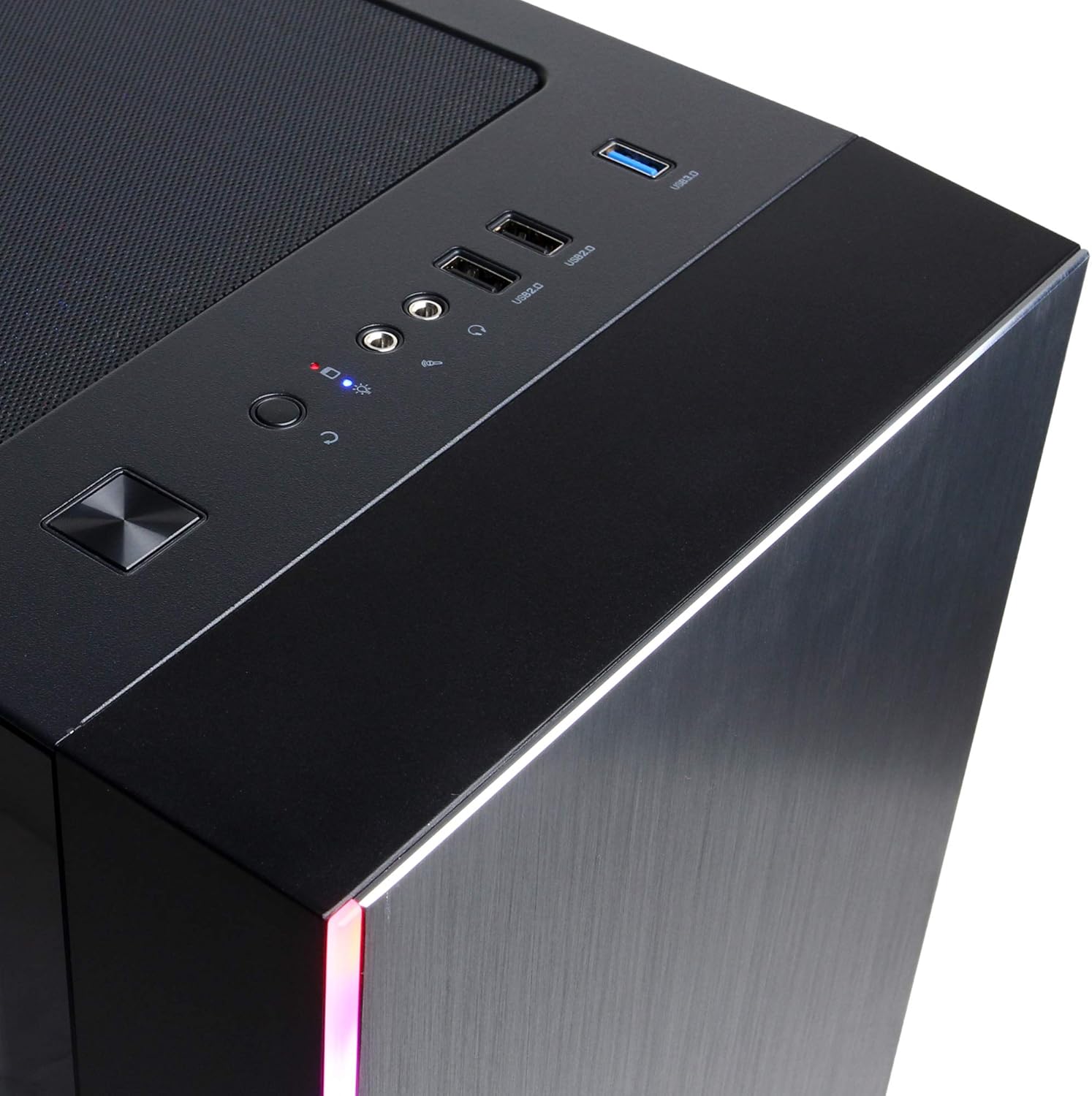
Figure 4: Detail of the top I/O panel, providing easy access to USB and audio connections.
3. Тэхнічнае абслугоўванне
3.1 Ачыстка
Regular cleaning helps maintain optimal performance and extends the lifespan of your PC.
- Знешні выгляд: Выкарыстоўвайце мяккі, damp тканінай, каб выцерці вонкавую паверхню. Пазбягайце агрэсіўных хімічных рэчываў.
- пыл: Periodically use compressed air to clear dust from ventilation grilles and internal components. Ensure the PC is powered off and unplugged before cleaning.
3.2 Абнаўленне праграмнага забеспячэння
Keep your operating system, drivers, and applications updated to ensure security, stability, and performance.
- Абнаўленні Windows: Перайдзіце ў Налады > Абнаўленне і бяспека > Абнаўленне Windows.
- Драйверы графікі: Download the latest drivers directly from NVIDIA's official webсайт.
4. Выпраўленне непаладак
4.1 Няма харчавання
- Пераканайцеся, што кабель харчавання надзейна падключаны як да кампутара, так і да разеткі.
- Праверце працаздольнасць разеткі, падключыўшы да яе іншую прыладу.
- Check the power switch on the PSU (if present) is in the 'On' position.
4.2 Няма дысплея
- Пераканайцеся, што манітор уключаны і падлучаны да выхаду відэакарты, а не да інтэграваных графічных партоў матчынай платы (калі ёсць).
- Паспрабуйце іншы кабель дысплея або манітор, калі такі маецца.
- Пераканайцеся, што крыніца ўваходнага сігналу манітора выбрана правільна.
4.3 Запаволенне або завісанне сістэмы
- Праверце дыспетчар задач (Ctrl+Shift+Esc) на наяўнасць высокага спажывання працэсара, аператыўнай памяці або дыска пэўнымі праграмамі.
- Пераканайцеся, што Windows і драйверы абноўленыя.
- Запусціце праверку на вірусы і шкоднасныя праграмы.
- Ensure adequate ventilation and check for excessive dust buildup.
5. Тэхнічныя характарыстыкі
| Асаблівасць | Дэталь |
|---|---|
| Марка | CyberpowerPC |
| Назва мадэлі | Gamer Xtreme |
| Аперацыйная сістэма | Windows 10 хатняя |
| Мадэль працэсара | AMD Ryzen 7 3700X |
| Хуткасць працэсара | 3.6 GHz (Base) |
| Графічны супрацэсар | NVIDIA GeForce RTX 3060 |
| Аператыўная памяць відэакарты | 12 ГБ GDDR6 |
| RAM Memory Installed | 16 ГБ DDR4 |
| Захоўванне | 240 GB SSD, 1 TB HDD |
| Сувязь | HDMI, Wi-Fi (802.11ab), USB 2.0, USB 3.0 |
| Памеры прадмета (ДxШxВ) | 18.6 х 17.4 х 8.9 цалі |
| Спосаб астуджэння | паветра |
| UPC | 811842073769 |
6. Інфармацыя аб гарантыі
Your CyberpowerPC Gamer Xtreme Gaming PC is covered by a manufacturer's limited warranty. Specific terms and conditions, including warranty duration and coverage details, are typically provided with your purchase documentation or can be found on the official CyberpowerPC webсайт. Калі ласка, захавайце пацвярджэнне пакупкі для прэтэнзій па гарантыі.
7. Падтрымка
For technical assistance, troubleshooting, or further inquiries, please visit the official CyberpowerPC support website or contact their customer service. You may need your product model number (GMA3088W) and serial number for support.
- Афіцыйны Webсайт: www.cyberpowerpc.com
- Support Section: Look for a "Support" or "Contact Us" link on their webсайт.


