
1. Уводзіны
Thank you for choosing the IMICE X6 Wired USB Gaming Mouse. This manual provides essential information for setting up, operating, and maintaining your new gaming mouse. Please read it carefully to ensure optimal performance and longevity of your device.
2. Інфармацыя па бяспецы
- Трымайце прыладу далей ад вадкасцей і празмернай вільгаці.
- Пазбягайце экстрэмальных тэмператур.
- Do not attempt to disassemble or modify the mouse. This may void your warranty and cause damage.
- Для чысткі выкарыстоўвайце мяккую сухую тканіну.
3. Змесціва ўпакоўкі
Пакет павінен змяшчаць наступныя рэчы:
- IMICE X6 Wired USB Gaming Mouse
- Кіраўніцтва карыстальніка (гэты дакумент)
4. Прадукт скончыўсяview
The IMICE X6 gaming mouse features an ergonomic design with multiple programmable buttons and adjustable DPI settings for a customized gaming experience.
4.1 Button Functions and Working Modes
The mouse supports two working modes: Normal mode and Multimedia mode. You can switch between these modes by long-pressing the DPI button for more than 5 seconds.
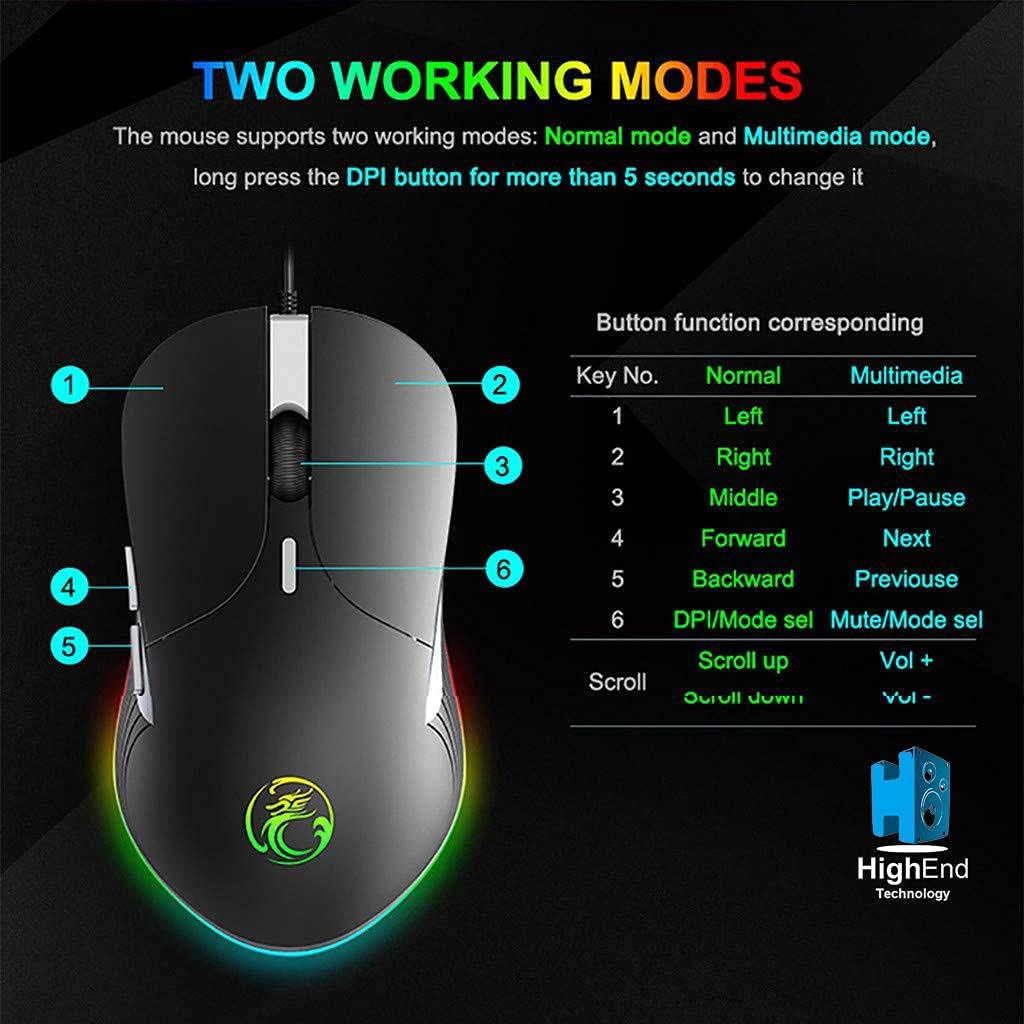
Малюнак 4.1: Button layout and function table for IMICE X6 mouse. The image displays the mouse from a top-down perspective, highlighting six numbered buttons. A table next to it lists the default functions for each button in 'Normal' mode (Left, Right, Middle, Forward, Backward, DPI/Mode select) and 'Multimedia' mode (Left, Right, Play/Pause, Next, Previous, Mute/Mode select). The scroll wheel also has functions for 'Scroll up' (Vol +) and 'Scroll down' (Vol -).
4.2 Кампаненты мышы
Familiarize yourself with the main components of your IMICE X6 mouse.

Малюнак 4.2: Labeled components of the IMICE X6 mouse. This image shows a side-angle view of the mouse, pointing out the 'Right click' button, 'Scroll' wheel, 'DPI switch', 'Left click' button, 'Forward' button, and 'Backward' button. The text also mentions that software can be used to implement functions like lighting and button functions, utilizing a built-in memory chip.
5. Настройка
Setting up your IMICE X6 mouse is a simple plug-and-play process.
- Падключыце USB-кабель: Plug the USB connector of the mouse into an available USB port on your computer or laptop.
- Ўстаноўка драйвера: Ваша аперацыйная сістэма (Windows, macOS, Linux) павінна аўтаматычна выявіць і ўсталяваць неабходныя драйверы. Для базавай функцыянальнасці звычайна не патрабуецца ўсталёўка дадатковага праграмнага забеспячэння.
- Праверка функцыянальнасці: Once connected, move the mouse and click the buttons to ensure it is working correctly.
6. Інструкцыя па эксплуатацыі
6.1 Асноўныя аперацыі
- Пстрычка левай кнопкай мышы: Primary button for selecting items, activating functions.
- Пстрыкніце правай кнопкай мышы: Secondary button for context menus and special functions.
- Кола пракруткі: Пракручвайце дакументы ўверх або ўніз і web старонкі. Таксама можна націснуць для выканання функцыі сярэдняй кнопкай мышы.
- Кнопкі наперад/назад: Перамяшчацца web pages or folders (default function).
6.2 Рэгуляванне адчувальнасці DPI
The IMICE X6 mouse features 6 adjustable DPI levels, allowing you to change cursor speed and precision on the fly. The DPI button is typically located behind the scroll wheel.
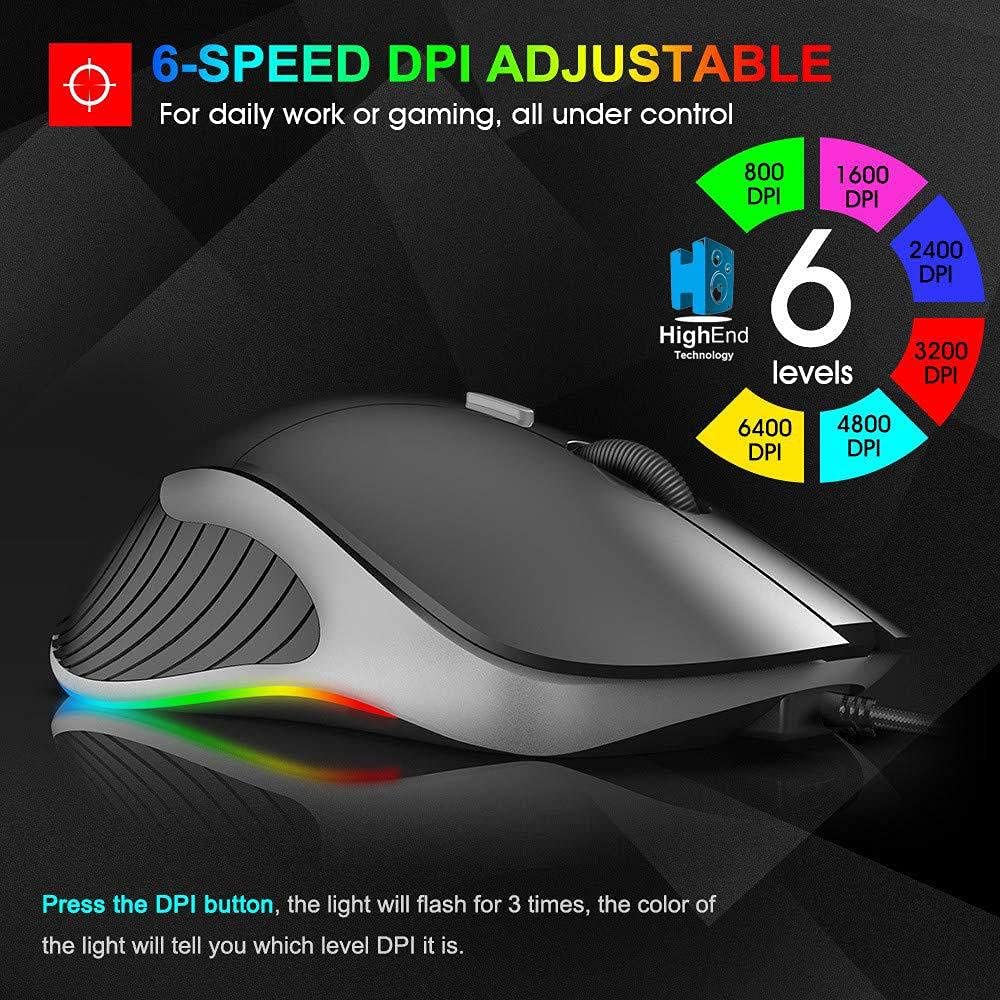
Малюнак 6.1: 6-Speed DPI Adjustment. This image shows the mouse from a side-top view, with six colored circles indicating DPI levels: 800, 1600, 2400, 3200, 4800, and 6400 DPI. The text explains that pressing the DPI button will make the light flash 3 times, and the color of the light indicates the current DPI level.
To change DPI:
- Націсніце Кнопка DPI (Button 6 in Image 4.1).
- The mouse's LED lighting will flash 3 times, and the color will indicate the current DPI level.
- Continue pressing the DPI button to cycle through the available DPI settings: 800, 1600, 2400, 3200, 4800, and 6400 DPI.
6.3 Switching Working Modes
As mentioned in Section 4.1, the mouse has two working modes:
- Звычайны рэжым: Standard mouse functions for general use and gaming.
- Мультымедыйны рэжым: Buttons are remapped for media control (e.g., Play/Pause, Next, Previous, Volume).
To switch modes, long-press the DPI button for more than 5 seconds. The mouse will indicate the mode change, typically through a change in LED behavior.
7. Тэхнічнае абслугоўванне
Правільнае абслугоўванне гарантуе даўгавечнасць і прадукцыйнасць вашай мышы.
- Уборка: Use a soft, lint-free cloth to wipe the surface of the mouse. For stubborn dirt, slightly dampпрамыйце тканіну вадой. Пазбягайце агрэсіўных хімічных рэчываў або абразіўных матэрыялаў.
- Абслугоўванне датчыка: Для забеспячэння дакладнага адсочвання падтрымлівайце аптычны датчык на ніжняй частцы мышы ў чысціні і без пылу і смецця.
- Сыход за кабелем: Пазбягайце рэзкіх выгібаў або празмернага нацягвання USB-кабеля, каб пазбегнуць пашкоджанняў.
8. Выпраўленне непаладак
If you encounter issues with your IMICE X6 mouse, try the following solutions:
| праблема | Рашэнне |
|---|---|
| Мышка не рэагуе |
|
| Рух курсора няўстойлівы або скачковы |
|
| DPI setting not changing |
|
9. Тэхнічныя характарыстыкі
Key technical specifications for the IMICE X6 Gaming Mouse:
- Марка: IMICE
- мадэль: X6
- колер: Чорны
- Тэхналогія падключэння: USB (правадной)
- Выяўленне руху: Аптычны
- Maximum Mouse Sensitivity (DPI): 6400 DPI
- Рэгуляваныя ўзроўні DPI: 800, 1600, 2400, 3200, 4800, 6400 DPI
- Колькасць кнопак: 5
- Арыентацыя рукі: Амбідэкстр
- Рэкамендаванае выкарыстанне: Гульнявая
- Сумяшчальныя прылады: ПК, ноўтбук
- Крыніца харчавання: Plug-in Electric (USB powered)
- Неабходныя батарэі: няма
10. Гарантыя і падтрымка
Your IMICE X6 Gaming Mouse comes with a standard manufacturer's warranty. Please refer to the warranty card included with your purchase or contact your retailer for specific warranty terms and conditions.
For technical support or further assistance, please contact the vendor or visit the official IMICE support webсайт (калі ёсць).