
1. Уводзіны
This manual provides detailed instructions for the installation, operation, and maintenance of the VIVOTEK ND9323P H.265 8-Channel Embedded PoE Network Video Recorder (NVR). Please read this manual thoroughly before using the product to ensure proper and safe operation. Keep this manual for future reference.
2. Інфармацыя па бяспецы
Observe the following safety precautions to prevent damage to the NVR and to ensure user safety:
- крыніца харчавання: Use only the power adapter supplied with the NVR. Ensure the power source matches the NVR's voltagэлектронныя патрабаванні.
- Вентыляцыя: Do not block any ventilation openings. Install the NVR in a well-ventilated area to prevent overheating.
- Асяроддзе: Avoid exposing the NVR to water, moisture, extreme temperatures, or direct sunlight. Do not place heavy objects on the NVR.
- Абслугоўванне: Не спрабуйце самастойна абслугоўваць гэты прадукт. Звярніцеся да ўсіх абслугоўванняў кваліфікаванага абслуговага персаналу.
- Апрацоўка: Handle the NVR with care. Avoid dropping or subjecting it to strong impacts.
3. Змесціва ўпакоўкі
Carefully unpack the box and ensure all items are present and in good condition. If any items are missing or damaged, contact your vendor immediately.
- VIVOTEK ND9323P NVR Unit
- Адаптар сілкавання
- USB мыш
- Кіраўніцтва па хуткай ўстаноўцы
- Accessory Pack (Screws for HDD installation, Ethernet cable)
- Case (referring to the NVR enclosure itself)
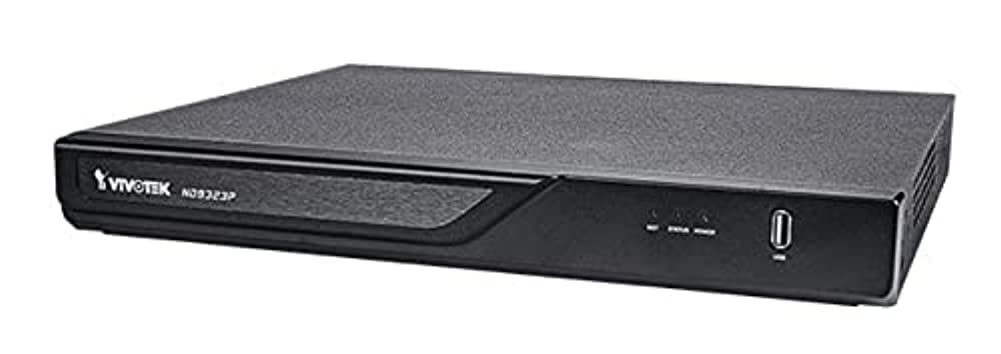
Figure 3.1: VIVOTEK ND9323P NVR unit. This image shows the front panel of the NVR, typically featuring status indicators and USB ports.
4. Прадукт скончыўсяview
The VIVOTEK ND9323P is an 8-channel embedded Network Video Recorder designed for IP surveillance systems. It supports H.265 video compression for efficient storage and bandwidth usage. With its integrated Power over Ethernet (PoE) ports, it simplifies camera installation by providing both power and data connectivity through a single Ethernet cable.
4.1 Асноўныя магчымасці
- 8-Channel Video Input
- H.265/H.264 Video Compression
- 8 x 802.3at/af PoE Ports
- Local Display Output (HDMI/VGA)
- Remote Access via VIVOTEK VIVOCloud App or VMS
- Supports up to 16TB HDD storage (HDD not included)
4.2 Пярэдняя і задняя панэлі
Refer to the Quick Installation Guide for detailed diagrams of the front and rear panels, indicating ports and indicators.
- Пярэдняя панэль: Power LED, HDD LED, Network LED, USB ports.
- Задняя панэль: Power input, LAN port, PoE ports (1-8), HDMI output, VGA output, Audio I/O, USB ports.
5. Настройка
5.1 Усталёўка жорсткага дыска (неабавязкова)
The NVR does not typically include a pre-installed hard drive. Follow these steps to install a 3.5-inch SATA hard drive:
- Адкруціце і зніміце верхнюю крышку відэарэгістратара.
- Connect the SATA data and power cables from the NVR to the hard drive.
- Secure the hard drive to the NVR chassis using the provided screws.
- Устаўце верхнюю крышку на месца і замацуйце яе шрубамі.
Заўвага: Ensure the NVR is powered off and unplugged before installing or removing a hard drive.
5.2 Фізічныя злучэнні
- Падключэнне камер: Connect your IP cameras to the NVR's PoE ports (1-8) using Ethernet cables. The NVR will provide power and network connectivity to the cameras.
- Падключэнне да сеткі: Connect the NVR's LAN port to your local network router or switch using an Ethernet cable.
- Падключэнне дысплея: Падключыце манітор да выхаднога порта HDMI або VGA відэарэгістратара.
- Падключыце мыш: Plug the USB mouse into one of the NVR's USB ports.
- Уключэнне: Падключыце адаптар сілкавання да ўваходу сілкавання відэарэгістратара, а затым падключыце яго да разеткі. Відэарэгістратар уключыцца аўтаматычна.
5.3 Пачатковая канфігурацыя
Upon first boot, the NVR will guide you through a setup wizard on the connected monitor:
- Выбар мовы: Выберыце пераважную мову.
- Настройка пароля: Create a strong password for the administrator account. This is crucial for security.
- Налады сеткі: Configure network settings (DHCP or Static IP). DHCP is recommended for most home users.
- Час і дата: Усталюйце правільны гадзінны пояс, дату і час.
- Ініцыялізацыя жорсткага дыска: If you installed a new hard drive, the NVR will prompt you to format it. Confirm to proceed. Папярэджанне: Formatting will erase all data on the drive.
- Пошук і даданне камеры: The NVR will automatically search for connected VIVOTEK cameras. Select and add them to the NVR.
- Фініш: Complete the wizard to access the NVR's live view.
6. Кіраванне відэарэгістратарам
6.1 Доступ да відэарэгістратара
You can access and manage the NVR through various methods:
- Мясцовы дысплей: Directly via the connected monitor and USB mouse.
- Web Браўзэр: Enter the NVR's IP address into a web браўзер на кампутары, падлучаным да той жа сеткі.
- VIVOTEK VIVOCloud App: Download the mobile app for remote viewінг і кіраванне.
- VIVOTEK VAST 2 VMS: For advanced management and multi-NVR systems.
6.2 У прамым эфіры View
У прамым эфіры view displays real-time video feeds from all connected cameras. You can switch between single-camera view, шматкамерная сетка view, and customize the display layout.
6.3 Налады запісу
Наладзьце расклады і рэжымы запісу для кожнай камеры:
- Бесперапынная запіс: Запісы 24/7.
- Запіс выяўлення руху: Запісвае толькі пры выяўленні руху.
- Запланаваны запіс: Records during specific time periods.
- Запіс падзеі: Records based on external triggers or alarms.
Access these settings through the NVR's main menu: Configuration > Recording > Schedule.
6.4 Прайграванне
Каб паўторнаview запісана footage:
- У галоўным меню абярыце Прайграванне.
- Choose the camera(s) and the date/time range you wish to review.
- Use the timeline and playback controls (play, pause, fast forward, rewind) to navigate through the footage.
6.5 Event Management and Notifications
Configure the NVR to respond to events such as motion detection, camera tampering, or network disconnection. The NVR can send email notifications, trigger alarms, or start recording.
Access these settings via: Канфігурацыя > Падзея.
7. Тэхнічнае абслугоўванне
7.1 Абнаўленне прашыўкі
Regularly check for and install firmware updates to ensure optimal performance, security, and access to new features. Firmware can be updated via the NVR's web interface or local display menu: Configuration > System > Firmware Upgrade.
Увага: Do not power off the NVR during a firmware upgrade. This can cause permanent damage.
7.2 Кіраванне жорсткімі дыскамі
Monitor the health of your hard drive(s) and ensure sufficient storage space. The NVR will automatically overwrite the oldest recordings when the disk is full, based on your settings.
Access HDD status and settings via: Configuration > Storage > HDD Management.
7.3 Ачыстка
Keep the NVR unit clean and free from dust. Use a soft, dry cloth for cleaning. Do not use liquid cleaners or aerosols.
8. Выпраўленне непаладак
This section addresses common issues you might encounter with your VIVOTEK ND9323P NVR.
8.1 No Video Display on Monitor
- Праверце кабелі: Пераканайцеся, што кабель HDMI/VGA надзейна падключаны як да відэарэгістратара, так і да манітора.
- Уваход для манітора: Verify the monitor is set to the correct input source (HDMI/VGA).
- NVR Power: Confirm the NVR is powered on and its power LED is illuminated.
8.2 Cameras Not Showing Up / No Image
- Падключэнне PoE: Ensure cameras are properly connected to the NVR's PoE ports. Check if the PoE port LEDs on the NVR are active.
- Магутнасць камеры: If not using PoE, ensure cameras are receiving power from their own power adapters.
- Падключэнне да сеткі: Verify the NVR and cameras are on the same network segment if not directly connected via PoE.
- Статус камеры: Check the camera's own status indicators.
- NVR Camera Management: Перайсці да Configuration > Camera > Camera Management to ensure cameras are added and enabled. Try rescanning for cameras.
8.3 Cannot Access NVR via Web Браўзэр
- IP-адрас: Confirm the NVR's IP address is correct and that your computer is on the same network.
- Сеткавы кабель: Ensure the NVR's LAN port is connected to your network.
- Брандмаўэр: Temporarily disable your computer's firewall to check if it's blocking access.
- Сумяшчальнасць з браўзерамі: Use a recommended web браўзер (напрыклад, Chrome, Firefox).
8.4 Забыты пароль
If you forget the administrator password, you may need to perform a factory reset. Refer to the VIVOTEK support website or contact technical support for the specific procedure for your model, as this often involves a physical reset button or a specific utility.
9. Тэхнічныя характарыстыкі
The following table lists the key specifications for the VIVOTEK ND9323P NVR:
| Асаблівасць | Спецыфікацыя |
|---|---|
| Нумар мадэлі | ND9323P |
| Марка | ВІВОТЭК |
| Колькасць каналаў | 8 |
| Тэхналогія падлучэння | Ethernet |
| Сумяшчальныя прылады | Camera, Mobile Device |
| Кампрэсія відэа | H.265, H.264 |
| Парты PoE | 8 x 802.3at/af |
| Памеры прадукту | 19.69 х 19.69 х 11.02 цалі |
| Вага прадмета | 0.01 унцыі |
| Вытворца | Віватэк |
10. Гарантыя і падтрымка
VIVOTEK products are covered by a limited warranty. For detailed warranty terms and conditions, please refer to the warranty card included with your product or visit the official VIVOTEK webсайт.
For technical support, product registration, or to download the latest firmware and software, please visit the VIVOTEK support portal:
VIVOTEK Official Support Webсайт
When contacting support, please have your NVR's model number (ND9323P) and serial number ready.