
1. Уводзіны
This manual provides detailed instructions for the setup, operation, and maintenance of your SteelSeries Prime Wireless FPS Gaming Mouse. Designed for competitive FPS gameplay, this mouse features advanced magnetic optical switches, a high-precision optical sensor, and robust wireless connectivity.
Асноўныя характарыстыкі
- Designed specifically for the most demanding levels of FPS gameplay with unreal 100 million crispy clicks.
- Prestige Optical Magnetic Switches harness the power of light for response times and last 5x longer than the competition.
- TrueMove Air precision optical gaming sensor with advanced true 1-to-1 tracking.
- Quantum 2.0 Wireless transmits wireless data at unreal speeds more reliably than ever before.
- Long-lasting high-performance battery with fast-charging for over 100 hours of gameplay on a single charge.
2. Змесціва ўпакоўкі
Калі ласка, пераканайцеся, што ўсе прадметы прысутнічаюць у вашай упакоўцы:
- SteelSeries Prime Wireless FPS Gaming Mouse
- Суперсеткавы кабель USB-C - USB-A
- Бесправадны USB-C-адаптар
- Пашырэнне адаптар
- Інфармацыйнае кіраўніцтва па прадукце
3. Прадукт скончыўсяview
Familiarize yourself with the components of your SteelSeries Prime Wireless Gaming Mouse:

Фронт view of the SteelSeries Prime Wireless Gaming Mouse, highlighting the scroll wheel with RGB lighting.

Вуглавы view of the mouse, showing the two programmable side buttons on the left.
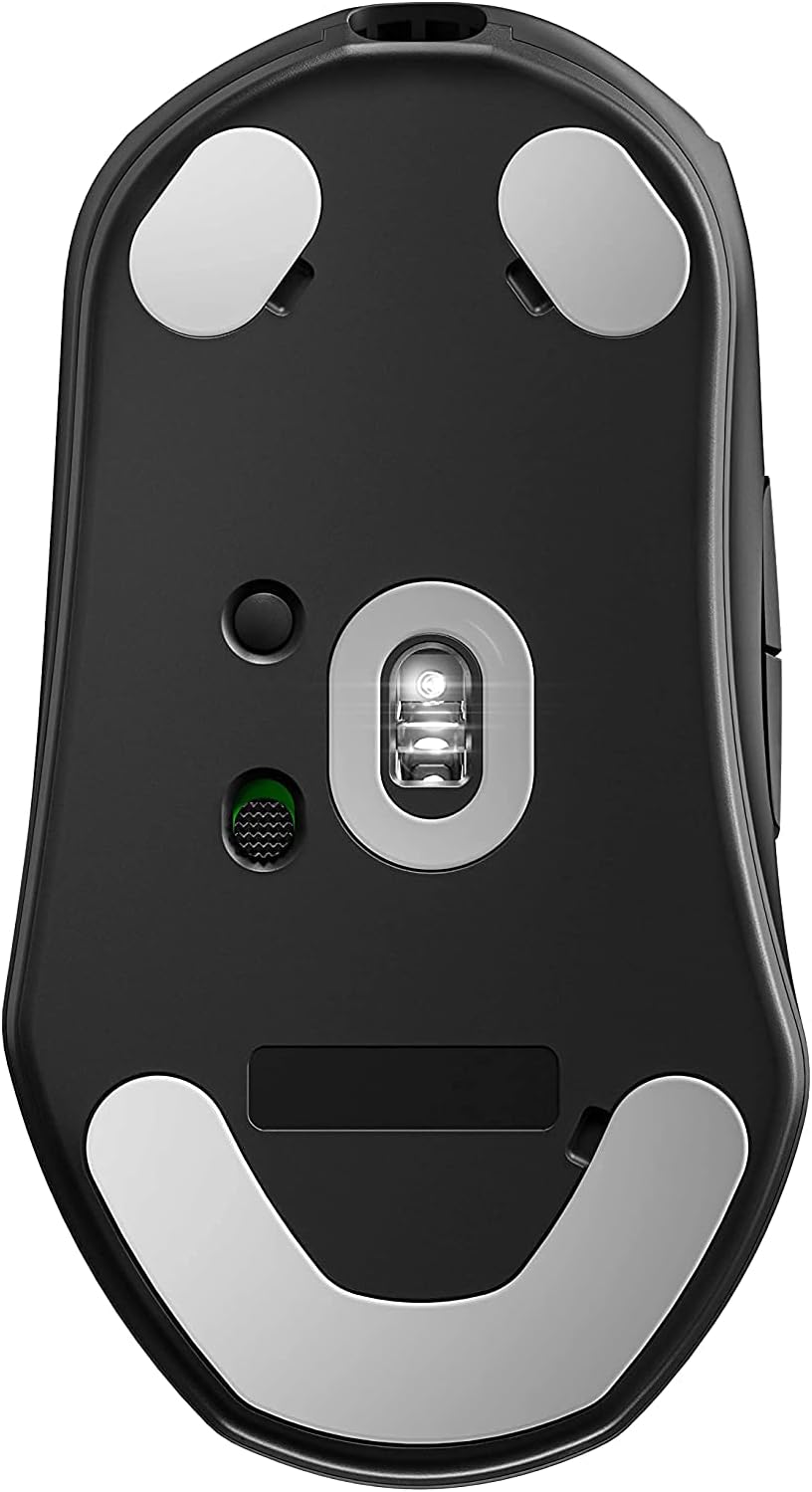
Знізу view of the mouse, displaying the TrueMove Air optical sensor, power switch, and PTFE glide feet.
4. Настройка
Першапачатковае злучэнне
- Зарадзіць мыш: Connect the USB-C end of the Super Mesh Cable to the mouse and the USB-A end to an available USB port on your computer. Allow the mouse to charge fully before first use.
- Connect the Wireless Dongle: Insert the USB-C Wireless Dongle into an available USB port on your computer. For optimal performance, use the included extension adapter to position the dongle closer to the mouse.
- Уключэнне: Locate the power switch on the bottom of the mouse and slide it to the 'ON' position. The mouse should automatically connect to the dongle.
Software Installation (SteelSeries Engine)
To unlock the full potential of your Prime Wireless mouse, including custom button assignments, CPI adjustments, and RGB lighting effects, download and install the SteelSeries Engine software from the official SteelSeries webсайт (steelseries.com/engine). Выконвайце інструкцыі на экране для ўсталёўкі.
5. Інструкцыя па эксплуатацыі
Базавае выкарыстанне
- Левы клік (кнопка 1): Першаснае дзеянне, выбар.
- Пстрыкніце правай кнопкай мышы (кнопка 2): Кантэкстнае меню, другаснае дзеянне.
- Кола пракруткі (кнопка 3): Пракрутка ўверх/уніз, клік сярэдняй кнопкай мышы.
Праграмуемыя кнопкі
The SteelSeries Prime Wireless mouse features 5 programmable buttons. These can be customized using the SteelSeries Engine software to perform various functions, macros, or keybinds specific to your gaming or productivity needs.
Карэкціроўка CPI
The mouse's CPI (Counts Per Inch) can be adjusted through the SteelSeries Engine software. This allows you to fine-tune the mouse sensitivity to your preference, with multiple customizable CPI profiles даступныя.
Prism RGB Lighting
Customize the Prism RGB lighting on your mouse's scroll wheel using the SteelSeries Engine software. Choose from a wide range of colors and effects to personalize your gaming setup.
6. Тэхнічнае абслугоўванне
Уборка
- Gently wipe the mouse surface with a soft, lint-free cloth.
- Для ўстойлівага бруду злёгку ачысціцеampen тканіна з вадой або мяккім неабразіўным ачышчальнікам.
- Пазбягайце выкарыстання агрэсіўных хімікатаў, растваральнікаў або абразіўных матэрыялаў, бо яны могуць пашкодзіць пакрыццё мышы.
- Сачыце за трапленнем вадкасці ва ўнутраныя кампаненты мышы.
Сыход за батарэяй
- To maximize battery lifespan, avoid fully discharging the mouse frequently.
- Charge the mouse when the battery indicator suggests low power.
- If storing the mouse for an extended period, charge it to approximately 50% before storage.
7. Выпраўленне непаладак
| праблема | Магчымая прычына | Рашэнне |
|---|---|---|
| Мышка не рэагуе | Low battery; Dongle not connected; Power switch off; Driver issue. | Charge the mouse; Ensure dongle is securely plugged in; Turn on the mouse; Reinstall SteelSeries Engine software. |
| Затрымка або заіканне рухаў | Interference; Dongle too far; Dirty sensor. | Move dongle closer using extension adapter; Clear wireless interference sources; Clean optical sensor. |
| Buttons not working correctly | Software configuration; Physical damage. | Check button assignments in SteelSeries Engine; Contact support if physical damage is suspected. |
| Не працуе RGB-асвятленне | Software settings; Low battery. | Verify lighting settings in SteelSeries Engine; Ensure mouse is sufficiently charged. |
8. Тэхнічныя характарыстыкі
| Асаблівасць | Дэталь |
|---|---|
| Памеры прадукту | 2.67 х 4.93 х 1.67 цалі |
| Вага прадмета | 2.72 унцыі |
| ASIN | B09887BBY6 |
| Батарэі | Патрабуецца 1 літый-іённы акумулятар |
| Дата першай даступнасці | 29 чэрвеня 2021 г |
| Вытворца | SteelSeries |
| Марка | SteelSeries |
| Колер | Чорны |
| Тэхналогія падлучэння | USB, бесправадная сетка |
| Асаблівасць | Бесправадная сувязь |
| Тэхналогія выяўлення руху | Аптычны |
9. Гарантыя і падтрымка
SteelSeries products are covered by a limited warranty. For detailed warranty information specific to your region and product, please visit the official SteelSeries website or refer to the warranty card included with your original purchase.
For technical assistance, troubleshooting, or general inquiries, please contact SteelSeries Customer Support through their official webсайт: steelseries.com/support.