
D-Link DSL-224
D-Link N300 VDSL2 Router DSL-224 User Manual
Model: DSL-224
1. Уводзіны
This manual provides detailed instructions for the installation, configuration, and operation of your D-Link N300 VDSL2 Router, model DSL-224. This device combines a VDSL2/ADSL2+ modem and a high-speed wireless router, offering a complete solution for internet connectivity in your home or small office.
Please read this manual thoroughly before attempting to install or use the device to ensure proper setup and optimal performance.
2. Змесціва ўпакоўкі
Пераканайцеся, што ваш пакет змяшчае наступныя элементы:
- D-Link N300 VDSL2 Router (DSL-224)
- Адаптар сілкавання
- Кабель Ethernet (RJ-45)
- Тэлефонны кабель (RJ-11)
- Кіраўніцтва па хуткай ўстаноўцы
If any items are missing or damaged, please contact your local D-Link reseller for assistance.
3. Фізічны канецview
3.1 Пярэдняя панэль
The front panel of the DSL-224 router features LED indicators that provide real-time status information about the device's operation.

Малюнак 3.1: Фронт view of the D-Link DSL-224 Router, showing the status indicator lights. From left to right, these typically include Power, DSL, Internet, Wi-Fi, and LAN activity indicators.
- Святлодыёд харчавання: Паказвае, ці ўключаны маршрутызатар.
- Святлодыёд DSL: Indicates the status of the VDSL/ADSL connection. A solid light means a stable connection.
- Інтэрнэт LED: Indicates internet connectivity. A solid light means the router has an active internet connection.
- Святлодыёд WLAN: Indicates wireless network activity. Blinks when data is being transmitted wirelessly.
- Святлодыёды лакальнай сеткі (1-4): Паказвае актыўнасць на адпаведных портах Ethernet.
3.2 Задняя панэль
The rear panel contains all the physical connection ports for power, DSL line, and Ethernet devices.
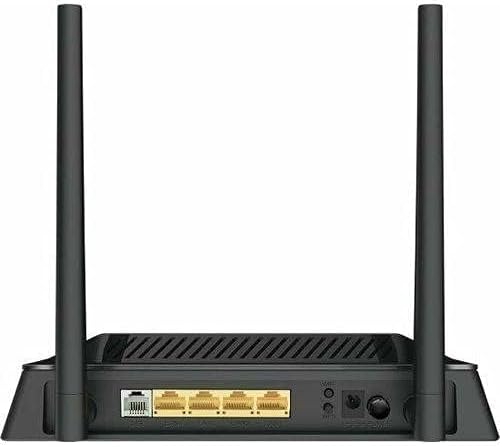
Малюнак 3.2: Тыл view of the D-Link DSL-224 Router, displaying the various ports. These include the DSL port, four LAN Ethernet ports, the power input, and a reset button.
- DSL Port (RJ-11): Connects to your VDSL/ADSL line from the wall jack.
- LAN Ports (1-4, RJ-45): Connects to wired devices such as computers, gaming consoles, or network printers.
- Порт харчавання: Падключаецца да адаптара харчавання, які ўваходзіць у камплект.
- Кнопка скіду: Used to restore the router to factory default settings. Press and hold for 5-10 seconds while the device is powered on.
- Кнопка WPS: For easy and secure wireless connection setup.
- Кнопка ўключэння/выключэння: Каб уключыць або выключыць прыладу.
4. Настройка
4.1 Устаноўка абсталявання
- Размяшчэнне маршрутызатара: Place the router in a central location to maximize wireless coverage. Avoid placing it near obstructions or devices that emit radio frequency interference.
- Connect the DSL Line: Connect one end of the phone cable (RJ-11) to the DSL port on the router and the other end to your wall's VDSL/ADSL jack. If you have a splitter, connect it to the splitter's modem port.
- Падключэнне да кампутара (неабавязкова): For initial setup, you may connect a computer directly to one of the LAN ports on the router using an Ethernet cable (RJ-45).
- Падключыце харчаванне: Connect the power adapter to the router's power port and then plug the adapter into a power outlet. Press the Power On/Off button if available.
- Праверце святлодыёды: Wait for the Power, DSL, and Internet LEDs to become solid green. The DSL LED may blink for a few minutes before becoming solid.
4.2 Пачатковая канфігурацыя (Web Інтэрфейс)
- Доступ да Web інтэрфейс: Адкрыйце a web browser on a connected computer (wired or wireless). In the address bar, type the router's default IP address (commonly http://192.168.1.1 or http://192.168.0.1) і націсніце Enter.
- Лагін: Enter the default username and password. These are usually printed on a sticker on the bottom of the router (e.g., Username: адмін, Пароль: адмін or blank).
- Запусціце майстар налады: Follow the on-screen setup wizard to configure your internet connection (VDSL/ADSL settings provided by your Internet Service Provider) and wireless network (SSID and password).
- Змяніць пароль па змаўчанні: For security, it is highly recommended to change the default administrator password for the router's web інтэрфейс.
5. Кіраванне маршрутызатарам
5.1 Connecting Devices Wirelessly
- Find Network: На вашай бесправадной прыладзе (ноўтбуку, смартфоне, планшэце) знайдзіце даступныя сеткі Wi-Fi.
- Select SSID: Select the Wi-Fi network name (SSID) you configured during setup.
- Увядзіце пароль: Enter the Wi-Fi password (WPA/WPA2 key) you set.
- Connect using WPS: Alternatively, press the WPS button on the router and then activate WPS on your wireless device within two minutes to establish a connection without entering a password.
5.2 Падключэнне прылад праз Ethernet
Connect an Ethernet cable from the LAN port of your computer or other wired device to any of the available LAN ports (1-4) on the rear of the DSL-224 router.
6. Тэхнічнае абслугоўванне
6.1 Абнаўленне прашыўкі
Periodically check the D-Link support website for firmware updates for your DSL-224 router. Firmware updates can improve performance, add new features, and fix security vulnerabilities. Follow the instructions provided with the firmware update carefully.
6.2 Скід да заводскіх налад
If you encounter persistent issues or forget your login credentials, you can perform a factory reset:
- With the router powered on, use a paperclip or a thin object to press and hold the Reset button on the rear panel for 5-10 seconds.
- Release the button when the Power LED blinks or all LEDs briefly turn off and then on.
- The router will restart with factory default settings. You will need to reconfigure your internet and wireless settings.
7. Выпраўленне непаладак
This section addresses common issues you might encounter with your D-Link DSL-224 router.
7.1 Няма падключэння да Інтэрнэту
- Праверце кабелі: Ensure all cables (DSL, Ethernet) are securely connected.
- Праверце святлодыёды: Verify that the Power, DSL, and Internet LEDs are solid green. If the DSL LED is blinking, there might be an issue with your phone line or ISP connection. If the Internet LED is off, check your ISP settings in the router's web інтэрфейс.
- Перазапусціць маршрутызатар: Выключыце маршрутызатар, пачакайце 30 секунд, а затым зноў уключыце яго.
- Налады інтэрнэт-правайдэра: Confirm that your VDSL/ADSL settings (VPI/VCI, connection type, username, password) are correctly entered in the router's configuration. Contact your ISP if unsure.
7.2 Не ўдаецца падключыцца да Wi-Fi
- Check WLAN LED: Ensure the WLAN LED on the front panel is lit or blinking.
- Правільны пароль: Double-check that you are entering the correct Wi-Fi password (WPA/WPA2 key).
- Моц сігналу: Падыдзіце бліжэй да маршрутызатара, каб палепшыць узровень сігналу.
- Перазагрузка прылады: Restart your wireless device and try connecting again.
- Перазагрузка маршрутызатара: Restart the router as described above.
7.3 Павольная хуткасць Інтэрнэту
- Правадное супраць бесправаднога: Test speed with a wired connection to determine if the issue is with the wireless network or the internet connection itself.
- Перашкоды: Reduce interference by moving the router away from other electronic devices (cordless phones, microwaves).
- Аптымізацыя канала: У маршрутызатары web interface, try changing the wireless channel to a less congested one.
- ISP Bandwidth: Contact your ISP to verify your subscribed speed and check for any network issues on their end.
8. Тэхнічныя характарыстыкі
Below are the technical specifications for the D-Link N300 VDSL2 Router DSL-224:
| Асаблівасць | Апісанне |
|---|---|
| Марка | D-Link |
| Назва мадэлі | DSL-224 |
| Тэхналогія падлучэння | Бесправадная сувязь |
| Бесправадны тып | 802.11н |
| Стандарт бесправадной сувязі | 802.11н |
| Клас дыяпазону частот | Двухдыяпазонны |
| Колькасць партоў | 4 (LAN) |
| Тып антэны | Выпраўлена |
| Уключаныя кампаненты | Маршрутызатар |
| Сумяшчальныя прылады | Персанальны кампутар |
| Вага прадмета | 510 г |
| Памеры ўпакоўкі | 22.2 х 17.4 х 7.8 см |
9. Гарантыя і падтрымка
For warranty information and technical support, please refer to the warranty card included with your product or visit the official D-Link support website. You can typically find drivers, firmware updates, and additional support resources there.
Падтрымка D-Link Webсайт: www.dlink.com/support (Please note: This is a generic example URL. Refer to your product's specific documentation for the correct regional support link.)