
Уводзіны
This manual provides comprehensive instructions for the Acer Aspire 5 laptop, equipped with an 11th Gen Intel Core i3-1115G4 processor, 8GB DDR4 RAM, and a 512GB NVMe SSD. It covers initial setup, operational guidelines, maintenance procedures, and troubleshooting common issues to ensure optimal performance and longevity of your device.
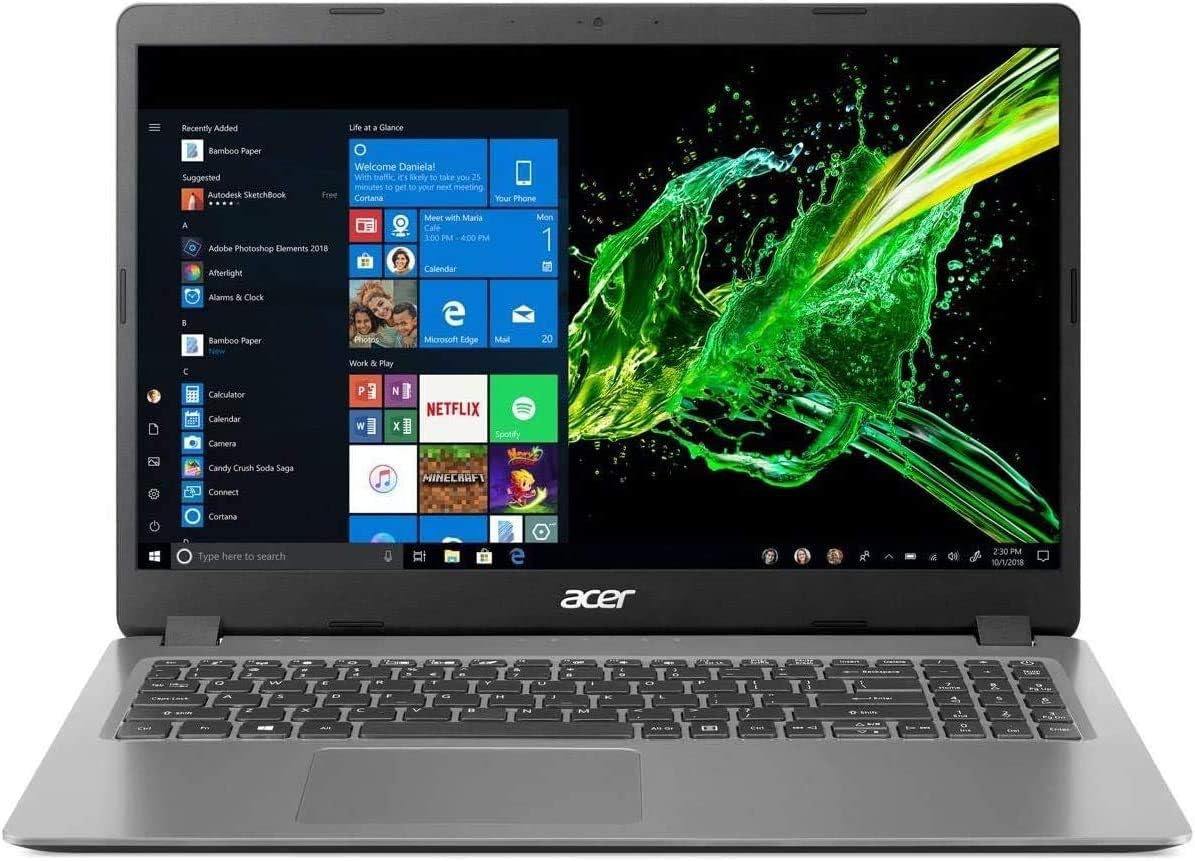
Выява: спераду view of the Acer Aspire 5 laptop with the screen powered on, showing the Windows 10 interface.
1. Настройка
1.1 Распакоўка і першапачатковы агляд
- Акуратна дастаньце ноўтбук і ўсе аксэсуары з упакоўкі.
- Verify that all components are present: Acer Aspire 5 laptop, AC power adapter, and HDMI cable.
- Праверце ноўтбук на наяўнасць фізічных пашкоджанняў. Калі вы выявіце пашкоджанні, неадкладна звярніцеся да прадаўца.
1.2 Падключэнне адаптара сілкавання
- Падключыце кабель адаптара пераменнага току да ўваходнага порта харчавання на бакавой панэлі ноўтбука.
- Падключыце адаптар пераменнага току да заземленай электрычнай разеткі.
- Індыкатар батарэі загарыцца, паказваючы, што ноўтбук зараджаецца.
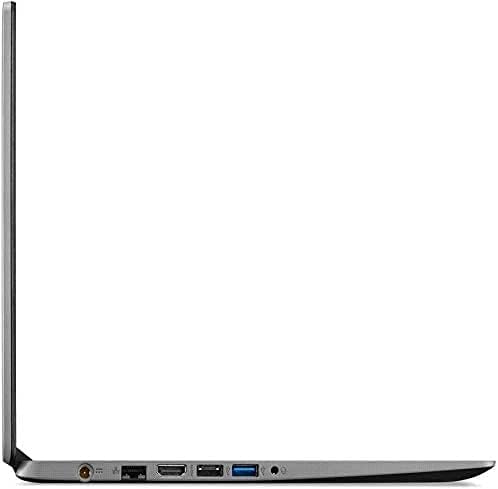
Image: Right side of the Acer Aspire 5 laptop, highlighting the power input port, USB 2.0 port, and security lock slot.
1.3 Пачатковае ўключэнне і налада Windows
- Open the laptop lid and press the power button located on the keyboard.
- Follow the on-screen instructions to complete the Windows 10 Home (S Mode) setup process. This includes selecting your region, keyboard layout, connecting to a Wi-Fi network, and creating a user account.
- Ensure you have an active internet connection for Windows activation and updates. The laptop supports Wi-Fi 6 (802.11ax) for fast wireless connectivity.
2. Кіраванне ноўтбукам
2.1 Выкарыстанне клавіятуры і сэнсарнай панэлі
The Acer Aspire 5 features a standard keyboard and a precision touchpad for navigation. Familiarize yourself with the function keys (F1-F12) which often have secondary actions (e.g., volume control, screen brightness) when pressed with the Fn ключ.

Выява: зверху ўніз view of the Acer Aspire 5 laptop's keyboard and touchpad layout.
2.2 Understanding Windows 10 Home (S Mode)
- Windows 10 Home in S Mode is a version of Windows designed for security and performance, exclusively running apps from the Microsoft Store.
- You can switch out of S Mode to standard Windows 10 Home at any time, but you cannot switch back. Refer to Microsoft's official documentation for detailed instructions on switching out of S Mode.
2.3 Падключэнне знешніх прылад
Ваш ноўтбук абсталяваны рознымі партамі для падключэння перыферыйных прылад:
- USB 3.2 тыпу C: Для хуткаснай перадачы дадзеных і падключэння сумяшчальных прылад USB-C.
- USB 3.2 пакалення 1 (x2): For connecting USB devices, one port supports power-off charging.
- USB 2.0: Для стандартных USB-прылад.
- HDMI 2.0: For connecting to external displays or projectors, supporting HDCP. An HDMI cable is included.
- Ethernet (RJ-45): Для правадных сеткавых злучэнняў.
- Headphone/Speaker/Line-out Jack: Для выхаду гуку.
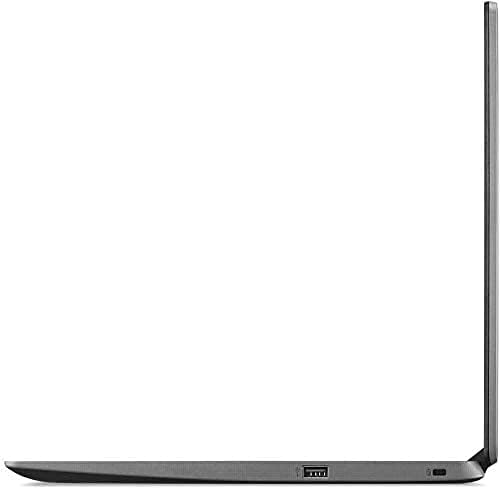
Image: Left side of the Acer Aspire 5 laptop, showing the USB Type-C, HDMI, and USB 3.2 ports.
2.4 Функцыі гуку
The laptop is designed and certified to work with Cortana, Microsoft's voice assistant. It also features Acer True Harmony for enhanced sound quality through its integrated speakers or connected headphones.
3. Тэхнічнае абслугоўванне
3.1 Сыход за акумулятарам
- The laptop's battery provides up to 8.5 hours of average standby life.
- To prolong battery lifespan, avoid fully discharging the battery frequently.
- Захоўвайце ноўтбук у прахалодным, сухім месцы, калі ён не выкарыстоўваецца працяглы час.
3.2 Інструкцыі па ачыстцы
- Для чысткі экрана выкарыстоўвайце мяккую тканіну без ворса. Для выдалення ўстойлівых плям,ampзлёгку прамакніце тканіну вадой або растворам для чысткі экрана.
- Працірайце клавіятуру і корпус мяккай сухой тканінай. Пазбягайце выкарыстання агрэсіўных хімічных рэчываў або абразіўных матэрыялаў.
- Periodically clean the ventilation openings to prevent dust buildup, which can affect cooling performance.
3.3 Абнаўленне праграмнага забеспячэння
Рэгулярна правярайце наяўнасць абнаўленняў Windows і ўсталёўвайце іх, каб пераканацца, што ў вашай сістэме ёсць апошнія патчы бяспекі і паляпшэнні прадукцыйнасці. Вы можаце атрымаць доступ да Цэнтра абнаўлення Windows праз меню «Налады».
3.4 Кіраванне сховішчам
Your laptop comes with a 512GB PCIe SSD. To maintain optimal performance, periodically review і выдаліце непатрэбнае fileвыдаліце невыкарыстоўваныя праграмы і падумайце аб выкарыстанні воблачнага сховішча для вялікіх files.
4. Выпраўленне непаладак
У гэтым раздзеле разглядаюцца распаўсюджаныя праблемы, з якімі вы можаце сутыкнуцца пры выкарыстанні ноўтбука Acer Aspire 5.
4.1 Праблемы з харчаваннем
- Ноўтбук не ўключаецца: Ensure the AC adapter is securely connected to both the laptop and a working power outlet. Check if the power indicator light is on. Try pressing and holding the power button for 10-15 seconds to perform a hard reset.
- Акумулятар не зараджаецца: Verify the AC adapter connection. If the issue persists, the adapter or battery may require service.
4.2 Праблемы з адлюстраваннем
- Няма выявы на экране: Connect an external monitor via the HDMI port to check if the display output is working. If the external monitor works, the laptop's internal display may have an issue.
- Цёмны экран: Адрэгулюйце яркасць экрана з дапамогай функцыянальных клавіш (звычайна F3/F4 або падобных значкоў).
4.3 Праблемы з падключэннем
- Wi-Fi не падключаецца: Пераканайцеся, што Wi-Fi уключаны ў наладах Windows. Перазагрузіце маршрутызатар і ноўтбук. Праверце наяўнасць абноўленых драйвераў Wi-Fi.
- Прылада Bluetooth не спалучаецца: Ensure Bluetooth is enabled on both the laptop and the device. Place devices close to each other and try pairing again.
4.4 Агульная неадказнасць сістэмы
- If the system becomes unresponsive, press Ctrl + Alt + Delete to open Task Manager and close unresponsive applications.
- If the system remains unresponsive, perform a hard shutdown by pressing and holding the power button until the laptop turns off. Wait a few seconds, then restart.
5. Тэхнічныя характарыстыкі
| Асаблівасць | Спецыфікацыя |
|---|---|
| Марка | Acer |
| Назва мадэлі | Acer Aspire 5 |
| Працэсар | 11th Gen Intel Core i3-1115G4 (up to 4.1 GHz) |
| АЗП | 8 ГБ DDR4 |
| Захоўванне | Цвёрдацельны назапашвальнік NVMe PCIe ёмістасцю 512 ГБ |
| Аперацыйная сістэма | Windows 10 Home (S Mode) |
| Дысплей | 15.6-цалевы шырокаэкранны дысплей Full HD (1920 x 1080) са святлодыёднай падсветкай, IPS |
| Графіка | Інтэграваная відэакарта Intel UHD |
| Бесправоднае падключэнне | Wi-Fi 6 (802.11ax), Bluetooth |
| Парты | 1x USB 3.2 Type-C, 2x USB 3.2 Gen 1 (1 with Power-off Charging), 1x USB 2.0, 1x HDMI 2.0, 1x Ethernet (RJ-45), 1x Headphone/Speaker/Line-out Jack |
| Тэрмін службы батарэі | Up to 8.5 Hours (Average Standby) |
| Вага | 4.19 фунта |
| Колер | Серабро |
6. Гарантыя і падтрымка
6.1 Інфармацыя аб гарантыі
This product includes a standard manufacturer's warranty. Additionally, a 1-year standard warranty is provided on upgraded RAM/SSD components. Please retain your proof of purchase for warranty claims.
6.2 Тэхнічная падтрымка
Каб атрымаць тэхнічную дапамогу, спампаваць драйверы або атрымаць дадатковую падтрымку, наведайце афіцыйную службу падтрымкі Acer. website. You will need your laptop's serial number, typically found on a label on the underside of the device.