
1. Уводзіны
This manual provides instructions for the Monoprice Dark Matter 27-inch 165Hz Gaming Monitor. This monitor features an IPS panel, a 165Hz refresh rate, and a 1920x1080p Full HD resolution. It includes Adaptive Sync technology for smooth visuals and offers multiple connectivity options, including HDMI and DisplayPort inputs.
2. Інфармацыя па бяспецы
- Read all instructions before operating the monitor.
- Keep the monitor away from water or damp асяроддзях.
- Не перакрывайце вентыляцыйныя адтуліны.
- Выкарыстоўвайце толькі адаптар сілкавання, прадастаўлены вытворцам.
- Пазбягайце размяшчэння манітора на няўстойлівых паверхнях.
- Адключайце кабель сілкавання падчас навальніцы або калі прылада не выкарыстоўваецца працяглы час.
- Звяртайцеся да кваліфікаванага персаналу.
3. Змесціва ўпакоўкі
Пераканайцеся, што ваш пакет змяшчае наступныя элементы:
- Monoprice Dark Matter 27-inch Gaming Monitor
- Падстаўка для манітора (аснова і шыя)
- Адаптар харчавання і кабель харчавання
- Кабель HDMI
- Кіраўніцтва карыстальніка (гэты дакумент)
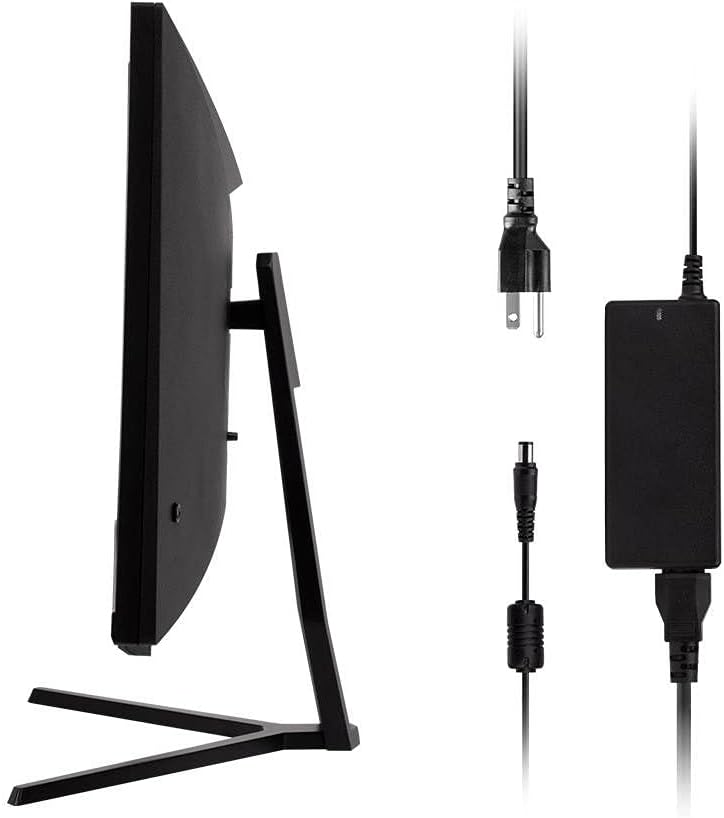
Image: Monitor side view with included power adapter and cable.
4. Манітор надview
Фронт View
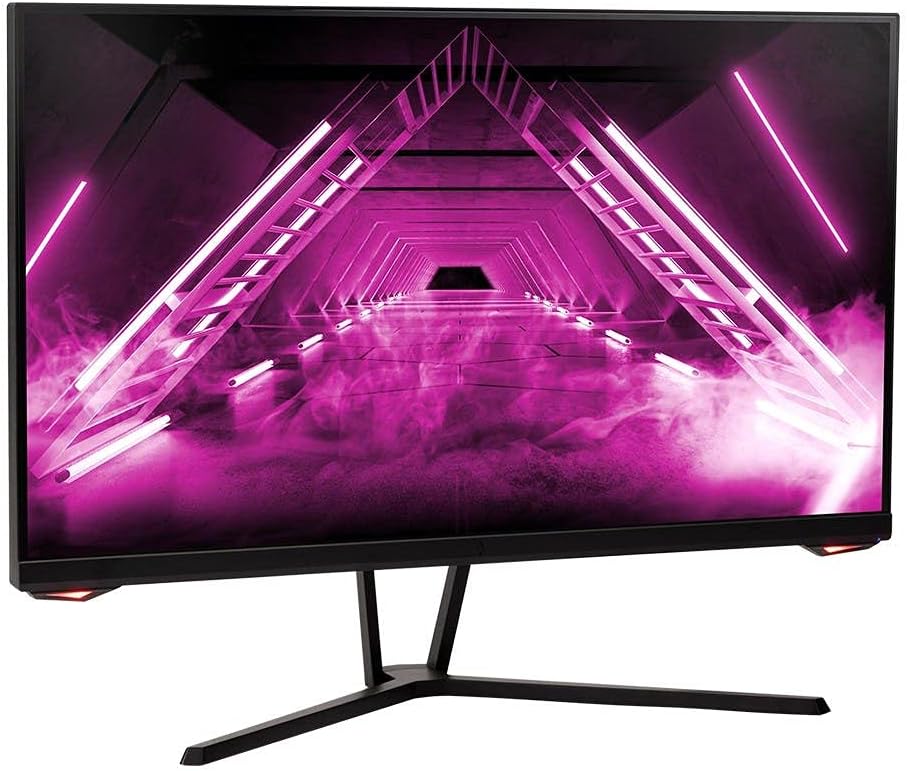
Выява: спераду view манітора.
Тыл View і парты
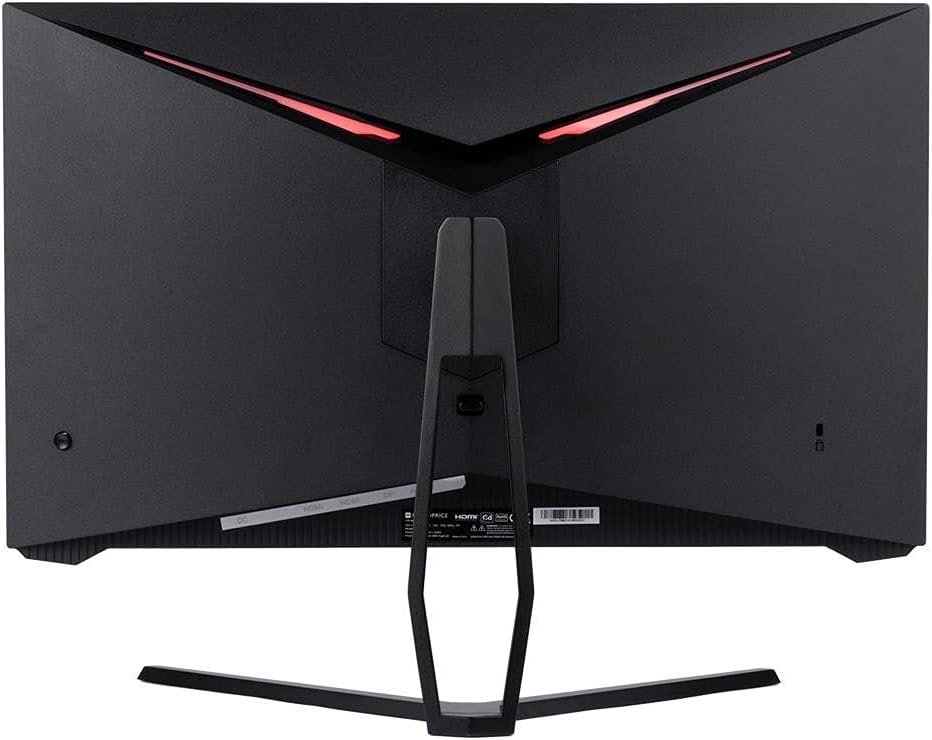
Выява: Задняя частка view of the monitor, highlighting the VESA mount and stand attachment.

Image: Close-up of the monitor's input ports.
5. Настройка
5.1 Зборка падстаўкі
- Асцярожна выміце манітор з упакоўкі, паклаўшы яго на мяккую паверхню.
- Attach the stand neck to the monitor's rear panel by aligning the tabs and securing any screws if present.
- Attach the stand base to the stand neck, ensuring it is firmly secured.
- Змесціце сабраны манітор на ўстойлівую, роўную паверхню.
5.2 Мацаванне VESA
The monitor supports a 75x75mm VESA mount pattern. To use a wall or desk mount:
- Remove the pre-attached stand by unscrewing it from the monitor's rear panel.
- Attach your VESA-compatible mount to the monitor using the appropriate screws (not included).
- Ensure the mount is securely fastened before releasinманітор.
5.3 Падключэнне да кампутара
Падключыце манітор да кампутара адным з наступных спосабаў:
- DisplayPort: Connect one end of a DisplayPort cable to the DisplayPort output on your computer's graphics card and the other end to the DisplayPort input on the monitor.
- HDMI: Connect one end of an HDMI cable to an HDMI output on your computer's graphics card and the other end to one of the HDMI inputs on the monitor.
After connecting the video cable, connect the power adapter to the monitor's DC input and then plug the power cable into a wall outlet.
6. Кіраванне маніторам
6.1 Уключэнне/выключэнне сілкавання
Press the power button, typically located on the rear or bottom of the monitor, to turn the monitor on or off. The power indicator light will illuminate when the monitor is on.
6.2 Экраннае меню (OSD).
The OSD menu allows you to adjust various monitor settings. Access the OSD menu by pressing the menu button (often a joystick or a series of buttons) on the monitor. Navigate through the options using the directional controls and confirm selections.
Звычайныя налады экраннага меню ўключаюць:
- Налады малюнка: Яркасць, кантраснасць, рэзкасць, каляровая тэмпература.
- Выбар уводу: Выбірайце паміж уваходамі DisplayPort і HDMI.
- Аўдыё: Рэгуляванне гучнасці для аўдыёвыхаду.
- Гульнявыя асаблівасці: Overdrive, FreeSync/Adaptive Sync settings.
6.3 Асноўныя магчымасці
- 165 Гц частата абнаўлення: This monitor supports a 165Hz refresh rate, providing smoother motion and reduced input lag compared to standard 60Hz monitors. Ensure your graphics card and system settings are configured to utilize this refresh rate.
- Адаптыўная сінхранізацыя: This technology synchronizes the monitor's refresh rate with your graphics card's frame rate, eliminating screen tearing and stuttering for a smoother gaming experience. Enable Adaptive Sync in your graphics card's control panel and the monitor's OSD menu.
- Поўнае HD-дазвол (1920x1080p): The monitor displays content at 1920x1080 pixels, offering clear and detailed visuals.
7. Тэхнічнае абслугоўванне
To maintain your monitor and ensure its longevity:
- Ачыстка экрана: Акуратна працярыце экран мяккай тканінай без ворса. Для выдалення ўстойлівых плям выкарыстоўвайце спецыяльны ачышчальны раствор для манітораў, нанесены на тканіну, а не непасрэдна на экран.
- Ачыстка Casing: Выкарыстоўвайце мяккую сухую тканіну, каб праціраць манітор casinг. Пазбягайце абразіўных ачышчальных сродкаў.
- Вентыляцыя: Каб пазбегнуць перагрэву, пераканайцеся, што вентыляцыйныя адтуліны манітора чыстыя ад пылу і перашкод.
- Выключэнне: Выключайце манітор, калі ён не выкарыстоўваецца працяглы час.
8. Выпраўленне непаладак
Калі ў вас узніклі праблемы з маніторам, звярніцеся да наступнага кіраўніцтва па ліквідацыі непаладак:
| праблема | Магчымая прычына | Рашэнне |
|---|---|---|
| Няма выявы на экране / Святлодыёд харчавання не працуе | Monitor not powered on; Power cable loose; Power outlet faulty. | Press the power button; Check power cable connections; Try a different power outlet. |
| Няма выявы / паведамленне «Няма сігналу» | Video cable loose; Incorrect input selected; Computer not outputting signal. | Check video cable connections; Select the correct input via OSD; Ensure computer is on and outputting video. |
| Screen flickers or goes black intermittently | Loose video cable; Graphics driver issue; Monitor overheating; Faulty cable. | Ensure video cable is secure; Update graphics drivers; Ensure adequate ventilation around the monitor; Try a different video cable. |
| Перагрэў / Дым | Blocked ventilation; Internal component issue. | Immediately unplug the monitor. Ensure ventilation is clear. Do not use the monitor if smoke is present. Contact support. |
| Red line or other display artifacts | Faulty panel; Graphics card issue. | Test with a different video cable and computer. If the issue persists, contact support. |
| Backlight turns off, requires power cycle | Power management settings; Internal fault. | Check computer's power saving settings. If issue persists, contact support. |
9. Тэхнічныя характарыстыкі
| Асаблівасць | Спецыфікацыя |
|---|---|
| Нумар мадэлі | 142771 |
| Памер экрана | 27 цалі |
| Тып панэлі | IPS |
| дазвол | 1920 x 1080 (FHD 1080p) |
| Частата абнаўлення | 165 Гц |
| Суадносіны бакоў | 16:9 |
| Відэа ўваходы | 2x HDMI 1.4, 1x DisplayPort 1.2a |
| VESA Mount | 75х75 мм |
| Памеры (ДхШхВ) | 28.8 х 7.1 х 19.3 цалі |
| Вага прадмета | 15.77 фунта |
10. Гарантыя і падтрымка
10.1 Інфармацыя аб гарантыі
This Monoprice monitor is backed by a 1 Year PixelPerfect Guarantee. This warranty covers defects in materials and workmanship under normal use for one year from the date of purchase. Please refer to Monoprice's official webсайт з поўнымі ўмовамі гарантыі.
10.2 Падтрымка кліентаў
For technical assistance, warranty claims, or further information, please contact Monoprice Customer Support. Contact details can typically be found on the official Monoprice webсайт або дакументы аб куплі.
11. Відэарэсурсы
Афіцыйных відэа прадукту ад прадаўца для гэтай мадэлі не знойдзена.