
Уводзіны
The Keychron Q2 is a fully customizable wired mechanical keyboard featuring a compact 65% layout. Constructed with a solid full aluminum frame, the Q2 is designed for easy assembly and offers a premium typing experience. It supports full QMK and VIA programming for extensive customization and features hot-swappable switches for personalized tactile feedback.

Image: The Keychron Q2 Wired Custom Mechanical Keyboard, showcasing its compact 65% layout and blue color scheme.
Кіраўніцтва па ўстаноўцы
1. Змесціва ўпакоўкі
Перад пачаткам пераканайцеся, што ўсе кампаненты наяўныя:
- Keychron Q2 Keyboard Kit (Aluminum Case, PCB, Steel Plate, Sound Absorbing Foam, Case Foam, Gaskets)
- Кабель USB Type-C - Type-C
- Адаптар USB Type-A да Type-C
- Пераключальнік
- Здымальнік клавішнай шапкі
- Адвёртка
- Шасцігранны ключ
- Stabilizers (4 sets)
Note: All tools are typically located at the bottom of the packaging.

Image: Diagram illustrating the contents of the Keychron Q2 package, including the keyboard, cables, and tools.
2. Падключэнне клавіятуры
- Locate the USB Type-C port on the back of the Keychron Q2 keyboard.
- Connect one end of the provided USB Type-C to Type-C cable to the keyboard.
- Connect the other end of the cable to your computer's USB Type-C port. If your computer only has USB Type-A ports, use the included USB Type-A to Type-C adapter.
- Ensure the operating system switch (located on the back edge of the keyboard) is set to the correct position for your system (Mac or Windows).
- Клавіятура будзе аўтаматычна распазнана вашай аперацыйнай сістэмай.

Выява: буйны план view of the Keychron Q2 keyboard with a USB-C cable connected, showing the Mac/Win switch.
Інструкцыя па эксплуатацыі
1. Налада QMK/VIA
The Keychron Q2 supports full QMK and VIA programming, allowing you to remap keys, create macros, and customize lighting effects. To use VIA software:
- Спампуйце праграмнае забеспячэнне VIA з афіцыйнага сайта Keychron. webсайт (keychron.com/pages/qmk-via).
- Connect your Q2 keyboard to your computer via the USB cable.
- Launch the VIA software. The software should automatically detect your Q2 keyboard. If not, you may need to import the Q2 keymap JSON file, also available on the Keychron webсайт.
- Use the graphical interface to drag and drop functions, assign macros, and configure lighting for each key. Changes are applied in real-time.

Image: Screenshot of the VIA software interface, demonstrating how to remap keys on the Keychron Q2 keyboard.
2. Камутатары з магчымасцю гарачай замены
The Q2's PCB supports both 3-pin and 5-pin MX style mechanical switches, allowing for easy switch replacement without soldering.
- Выкарыстоўваючы прыкладзены здымнік для клавіш, асцярожна зніміце клавішу з перамыкача, які вы хочаце замяніць.
- Use the provided switch puller to gently grip the top and bottom clips of the switch. Pull the switch straight up to remove it from the PCB.
- Сумясціце кантакты новага перамыкача з адтулінамі на друкаванай плаце. Пераканайцеся, што кантакты размешчаны прама, каб пазбегнуць згінання.
- Моцна націсніце на новы перамыкач, пакуль ён не пстрыкне.
- Зноў прымацуйце каўпачок клавішы.

Выява: буйны план view of the Keychron Q2's PCB with several switches removed, demonstrating the hot-swappable feature.
3. Keycaps and RGB Lighting
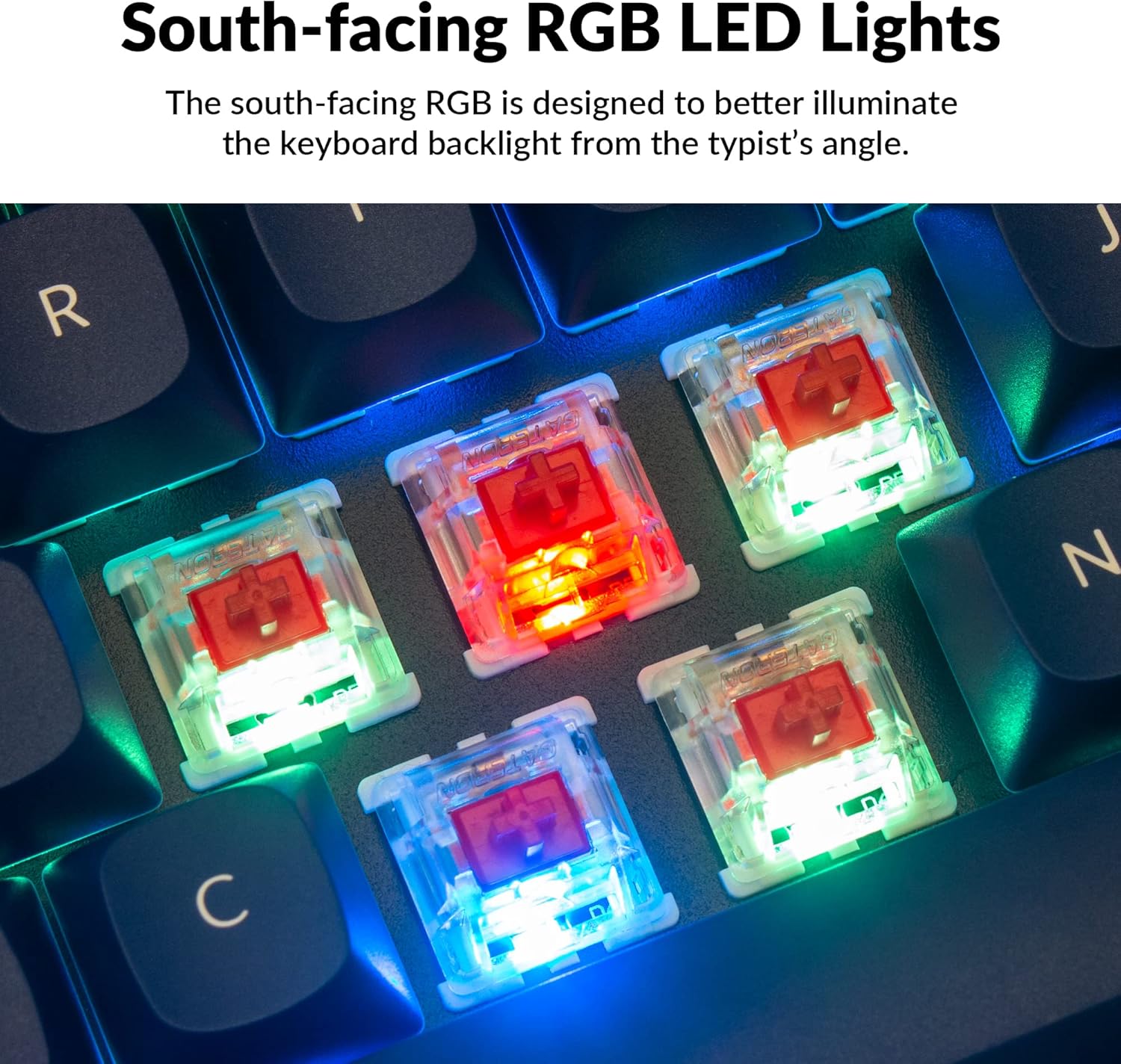
The Q2 comes with premium non-shine-through PBT keycaps, known for their durability and oil resistance. The keyboard features south-facing RGB LEDs, designed to provide better illumination of the backlight from the typist's perspective.
Выява: Падрабязны view of the Keychron Q2's double-shot PBT keycaps, highlighting their texture and legends.

Image: A close-up of the Keychron Q2's south-facing RGB LEDs illuminating the switches from below.
Тэхнічнае абслугоўванне
1. Чыстка клавіятуры
Рэгулярная чыстка дапамагае падтрымліваць прадукцыйнасць і знешні выгляд клавіятуры.
- Выдаленне пылу: Выкарыстоўвайце балон са сціснутым паветрам, каб выдзьмуць пыл і смецце паміж клавішамі.
- Ачыстка клавіш: For deeper cleaning, remove the keycaps using the provided keycap puller. Wash them with mild soap and water, then ensure they are completely dry before reattaching.
- Ачыстка корпуса: Працярыце алюмініевы корпус мяккай губкайamp тканіна. Пазбягайце рэзкіх хімікатаў, якія могуць пашкодзіць аздабленне.
2. Switch and Stabilizer Maintenance
The hot-swappable design allows for easy maintenance of switches and stabilizers.
- Замена перамыкача: If a switch becomes faulty, replace it using the hot-swapping procedure described in the Operating Instructions.
- Stabilizer Lubrication: For optimal performance and reduced wobbliness on larger keys (space bar, shift, enter), the PCB-mounted screw-in stabilizers can be lubricated. This typically involves disassembling the keyboard to access the stabilizers.

Image: An exploded diagram of the Keychron Q2, showing its various components like keycaps, switches, top case, gaskets, plate, PCB, sound absorbing foam, case foam, bottom case, and silicone gaskets, illustrating ease of disassembly.
Ліквідацыю непаладак
Агульныя праблемы і рашэнні:
- Клавіятура не адказвае:
- Пераканайцеся, што USB-кабель надзейна падключаны як да клавіятуры, так і да кампутара.
- Verify the Mac/Windows switch on the back of the keyboard is set to the correct operating system.
- Try connecting the keyboard to a different USB port or a different computer to rule out port issues.
- Перазагрузіце кампутар.
- Не працуюць пэўныя клавішы:
- Remove the keycap and switch for the non-functional key. Inspect the switch pins for bends or damage. Straighten bent pins carefully or replace the switch if damaged.
- Ensure the switch is fully seated in the PCB.
- Check VIA software to ensure the key has not been accidentally remapped or disabled.
- Праблемы з RGB-падсветкай:
- Пераканайцеся, што клавіятура правільна падключана.
- Use the VIA software to check and adjust lighting settings.
- Perform a factory reset if lighting issues persist (refer to Keychron's official support for specific reset procedures).
- Keyboard Disconnecting Randomly:
- Паспрабуйце іншы кабель USB.
- Ensure the USB port on your computer is stable and providing sufficient power.
- Абнавіце драйверы USB вашага кампутара.
If you encounter issues not covered here, please refer to the official Keychron support resources.
Тэхнічныя характарыстыкі
| Асаблівасць | Дэталь |
|---|---|
| Марка | Кейхрон |
| Назва мадэлі | Q2 |
| Нумар мадэлі | Q2-J1 |
| Раскладка клавіятуры | 65% (68 Keys), QWERTY |
| Тэхналогія падлучэння | Правадны (USB-A, USB-C) |
| Сумяшчальныя прылады | PC (Linux, MacOS, Windows) |
| Тып перамыкача | Gateron G Pro Red (Linear), Hot-swappable |
| Падсвятленне | RGB (паўднёвы выгляд) |
| Матэрыял | Full Aluminum Frame, PBT Keycaps |
| Памеры прадукту | 12.89 см Д х 4.76 см Ш х 1.33 см В |
| Асаблівасці | QMK/VIA Programmable, Double Gasket Design |
Інфармацыя аб гарантыі
Keychron products typically come with a standard manufacturer's warranty. For detailed information regarding the warranty period, coverage, and terms and conditions for your Keychron Q2 keyboard, please refer to the official Keychron webсайт або гарантыйны талон, які ўваходзіць у камплект пастаўкі прадукту. Захоўвайце пацвярджэнне пакупкі для прэтэнзій па гарантыі.
Падтрымка і рэсурсы
For further assistance, software downloads (VIA), firmware updates, and frequently asked questions, please visit the official Keychron support page:
- Keychron Official Webсайт: www.keychron.com
- QMK/VIA Software & Firmware: www.keychron.com/pages/qmk-via
- Keychron Store: Наведайце краму Keychron на Amazon
You can also find community forums and additional user guides online for advanced customization and troubleshooting tips.