
1. Уводзіны
This manual provides essential information for setting up, operating, maintaining, and troubleshooting your Alienware X17 R1 Gaming Laptop. Please read this manual thoroughly to ensure optimal performance and longevity of your device.

Figure 1: Alienware X17 R1 Gaming Laptop
2. Змесціва ўпакоўкі
Ensure all items are present in your Alienware X17 R1 package:
- Alienware X17 R1 Notebook
- Адаптар сілкавання
- Шнур харчавання
- Кіраўніцтва карыстальніка (гэты дакумент)
3. Прадукт скончыўсяview
3.1 Design and Dimensions
The Alienware X17 R1 features a sleek, thin design in Lunar Light (white) with Dark Side of the Moon (black) accents for the keyboard and deck. Its dimensions are approximately 11.79 x 15.72 x 0.82 inches (LxWxH) and it weighs around 7.05 pounds.

Figure 2: Alienware X17 R1 Side Profile
3.2 Парты і раздымы
The Alienware X17 R1 is equipped with a comprehensive set of ports, primarily located at the rear for efficient cable management and thermal performance.
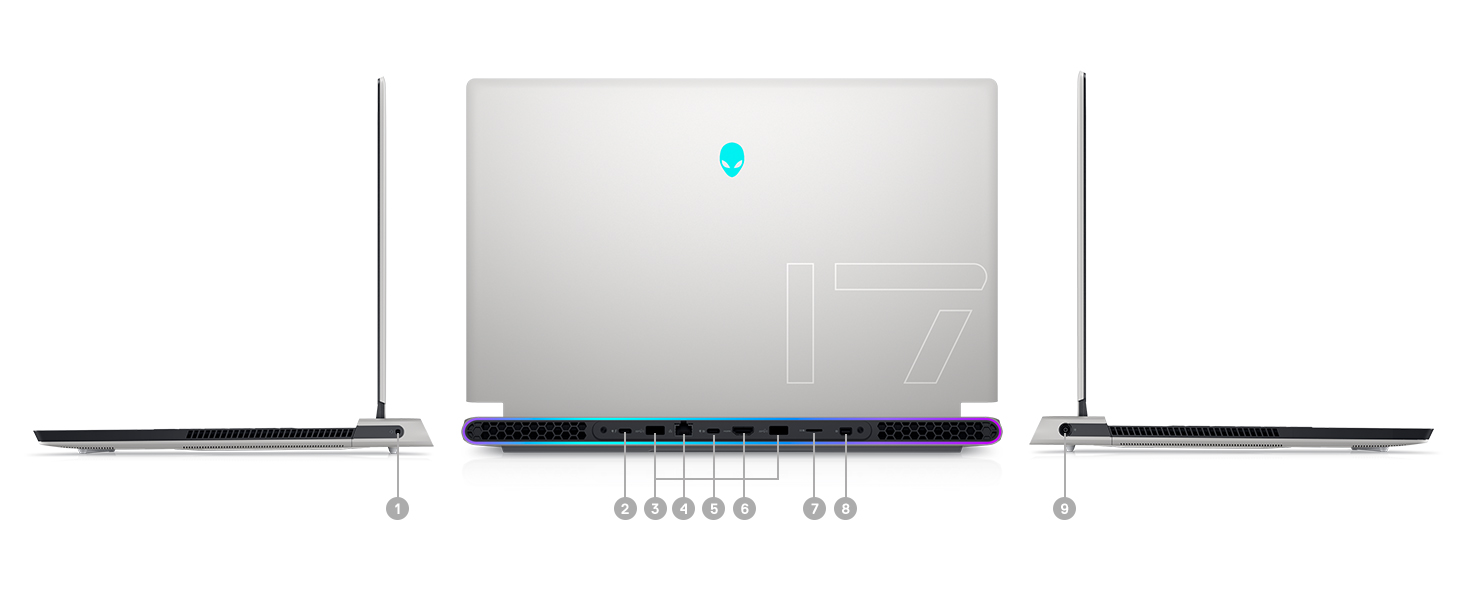
Figure 3: Rear Ports and Connectors
- Power/DC-in Port
- Mini Display Port 1.4
- HDMI 2.1 (for up to 4K/120Hz output)
- Type-C USB 3.2 Gen 2 Port with Power Delivery (5V/3A)
- Killer E3100 RJ-45 2.5G Ethernet
- Прылада для чытання карт Micro SD
- USB 3.2 Gen 1 Type-A with Powershare
- Type-C Thunderbolt™ 4/USB 3.2 Gen 2 Port with Power Delivery (5V/3A)
- Global Headset Jack
3.3 Клавіятура і сэнсарная панэль
The laptop features an AlienFX keyboard with per-key RGB lighting and an AlienFX Lighting design supporting 16.8 million colors. The touchpad is glass, offering solid tracking and responsive gestures.

Figure 4: AlienFX Keyboard and Touchpad
3.4 Дысплей
The 17.3-inch Full HD (1920 x 1080) display boasts a 360Hz refresh rate and 1ms response time, enhanced with ComfortView Plus, NVIDIA G-SYNC, and Advanced Optimus for a smooth visual experience.

Figure 5: 360Hz Display
3.5 Сістэма астуджэння
The Alienware X17 R1 incorporates advanced thermal management with its Cryo-Tech™ Technologies. This includes an exclusive Quad Fan design and Element 31, an encapsulated gallium-silicone thermal interface material, to ensure efficient heat dissipation during intensive use.

Figure 6: Cryo-Tech Cooling System
Video 1: Official Alienware X17 R1 Product Overview, highlighting key features including the cooling system.
4. Настройка
4.1 Першапачатковае ўключэнне
- Unpack your Alienware X17 R1 laptop and all accessories.
- Connect the power adapter to the laptop's power port and then to a power outlet.
- Open the laptop lid and press the power button (Alienware head logo) to turn on the device.
- Follow the on-screen instructions to complete the Windows 11 setup process.
4.2 Падключэнне перыферыйных прылад
Utilize the various ports on the rear and sides of the laptop to connect external monitors, keyboards, mice, and other accessories. For optimal display performance, use the HDMI 2.1 or Mini Display Port 1.4 for external monitors.

Figure 7: Connecting External Peripherals
5. Кіраванне ноўтбукам
5.1 Кіраванне харчаваннем
The Alienware X17 R1 offers tailored power states to optimize performance or battery life. These can be managed through the Alienware Command Center software:
- Ціхі рэжым: Reduces fan noise and power consumption.
- Збалансаваны рэжым: Offers a balance between performance and acoustics.
- Рэжым поўнай хуткасці: Maximizes fan speed for peak performance.
- Рэжым эканоміі батарэі: Optimizes settings for extended battery life.
- Рэжым прадукцыйнасці: Prioritizes performance for demanding tasks.
5.2 Windows Hello
The laptop supports Windows Hello for secure and convenient login using facial recognition via the integrated webкулачок.
5.3 Камандны цэнтр Alienware
This software allows you to customize various aspects of your laptop, including RGB lighting, power profiles, and overclocking settings. It is recommended to keep the software updated for the best experience.

Figure 8: Alienware Command Center
6. Тэхнічнае абслугоўванне
6.1 Ачыстка
- Выкарыстоўвайце мяккую тканіну без ворса для чысткі экрана і вонкавых паверхняў.
- Для ўстойлівых плям злёгку пачысціцеampпрацярыце тканіну вадой або сродкам для ачысткі экрана.
- Рэгулярна чысціце вентыляцыйныя адтуліны, каб прадухіліць назапашванне пылу, які можа паўплываць на эфектыўнасць астуджэння.
6.2 Абнаўленне праграмнага забеспячэння
Keep your operating system, drivers, and Alienware Command Center software updated to ensure optimal performance, security, and compatibility. Use the Alienware Update utility or visit the Dell support webсайт для апошніх абнаўленняў.
6.3 Upgradable Components
The Alienware X17 R1 offers upgradable slots for memory and storage:
- 2 x RAM Slots (DDR4)
- 1 x M.2 PCIe Gen 4 SSD Slot
- 1 x M.2 PCIe Gen 3 SSD Slot
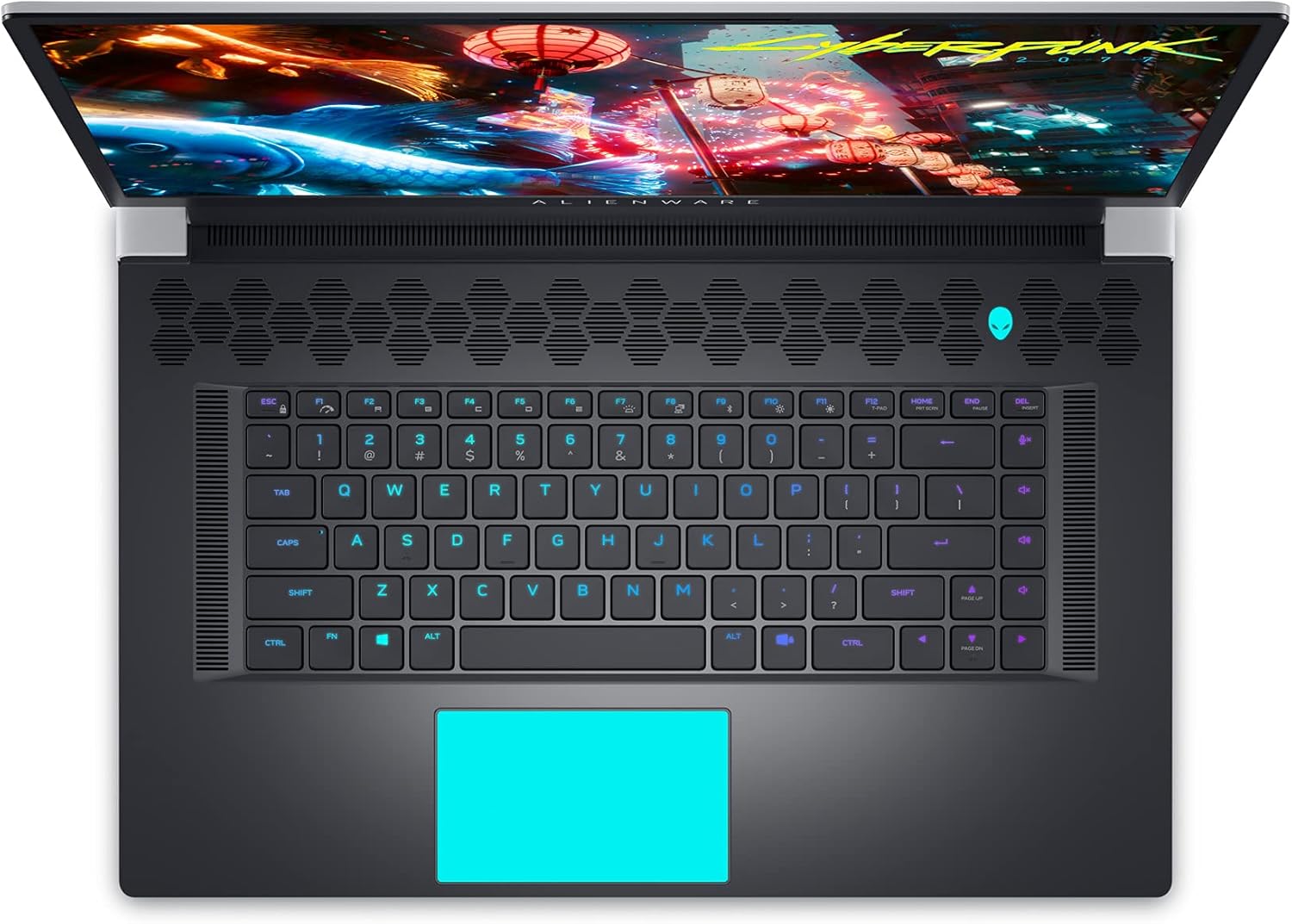
Figure 9: Internal Components and Upgradable Slots
7. Выпраўленне непаладак
If you encounter issues with your Alienware X17 R1, try the following basic troubleshooting steps:
- Няма харчавання: Пераканайцеся, што адаптар сілкавання надзейна падключаны як да ноўтбука, так і да разеткі. Паспрабуйце іншую разетку.
- Праблемы з адлюстраваннем: If the screen is blank, try connecting an external monitor to verify if the issue is with the laptop's display or the graphics card. Update graphics drivers.
- Адставанне прадукцыйнасці: Check your power management settings in Alienware Command Center. Ensure all drivers are up to date. Monitor temperatures to prevent thermal throttling.
- Праблемы з падключэннем: For Wi-Fi or Ethernet issues, restart your router and the laptop. Check network adapter drivers.
- Праграмныя збоі: Restart the application or the laptop. Ensure your operating system and applications are updated.
For more advanced troubleshooting or persistent issues, refer to the Dell support webсайт або звярніцеся ў службу падтрымкі.
8. Тэхнічныя характарыстыкі
| Асаблівасць | Спецыфікацыя |
|---|---|
| Назва мадэлі | Alienware x17 R1 |
| Працэсар | 11th Generation Intel Core i7-11800H (8 Cores, up to 4.6 GHz) |
| АЗП | 32 ГБ DDR4 3200 МГц |
| Захоўванне | 1 TB M.2 PCIe NVMe Solid State Drive |
| Графічная карта | NVIDIA GeForce RTX 3080 16 ГБ GDDR6 |
| Дысплей | 17.3-inch FHD (1920 x 1080) 360Hz 1ms with ComfortView Plus, NVIDIA G-SYNC and Advanced Optimus |
| Аперацыйная сістэма | Windows 11 хатняя |
| Бесправоднае падключэнне | Killer AX 1675 + Bluetooth 5.2 |
| Парты | 3x USB 3.0, 2x Type-C (Thunderbolt 4/USB 3.2 Gen 2), HDMI 2.1, Mini DisplayPort 1.4, Ethernet, Micro SD, Headset Jack |
| Вага прадмета | 7.05 фунта |
| Памеры прадукту | 11.79 х 15.72 х 0.82 цалі |
| Колер | Месяцовае святло (белае) |
9. Гарантыя і падтрымка
Your Alienware X17 R1 laptop is covered by Dell's standard warranty. For detailed warranty information, technical support, or service requests, please visit the official Dell support website or contact their customer service. Keep your purchase receipt and product serial number handy for faster assistance.
Падтрымка Dell Webсайт: www.dell.com/support