
1. Уводзіны
This manual provides essential instructions for the safe and efficient operation of your HP AF1009 Micro Cut Paper Shredder. Please read this manual thoroughly before using the shredder and retain it for future reference. This shredder is designed for home and small office use to securely dispose of sensitive documents.
2. Інфармацыя па бяспецы
Каб забяспечыць бяспечную працу і пазбегнуць траўмаў або пашкоджанняў, выконвайце наступныя меры засцярогі:
- Трымайце рукі, валасы і свабодную вопратку далей ад шчыліны для ўводу паперы.
- Не ўстаўляйце пальцы ці іншыя часткі цела ў адтуліну шрэдара.
- Remove all staples and paper clips before using the auto-feed tray. For manual feed, the shredder can handle staples.
- Заўсёды трымайце дзяцей і хатніх жывёл далей ад шрэдара.
- Не распыляйце ў шрэдар якія-небудзь лёгкаўзгаральныя рэчывы або змазкі.
- Адключайце шрэдар ад сеткі, калі ён не выкарыстоўваецца або перад чысткай.
- Do not shred adhesive labels, continuous forms, or plastic sheets (other than credit cards).

Выява: Уверсе view of the shredder with the auto-feed tray open, highlighting the "ATTENTION" warning regarding staples and clips.
3. Асаблівасці прадукту
The HP AF1009 Micro Cut Paper Shredder offers advanced features for secure and convenient document disposal:
- Micro Cut Shredding: Transforms documents into tiny, unreadable particles (4x smaller than cross-cut) for enhanced security.
- Dual Feed Options:
- Латок для аўтаматычнай падачы: Holds up to 100 sheets for unattended shredding.
- Слот для ручной падачы: Shreds up to 9 sheets at a time.
- Versatile Shredding: Capable of shredding paper, credit cards, and staples.
- Аўтаматычная праца: Features auto start/stop for ease of use.
- Датчыкі бяспекі: Equipped with overheat and overload sensors to protect the motor and prevent damage.
- Large Wastebasket: A 4.5-gallon pull-out wastebasket minimizes emptying frequency.
- Празрыстае акно: Allows easy monitoring of shredded waste levels.

Image: Detailed infographic illustrating the key features and capabilities of the HP AF1009 Micro Cut Shredder.
4. Настройка
- Распакуйце: Асцярожна дастаньце шрэдар з упакоўкі.
- Пасада: Place the shredder on a flat, stable surface. Ensure the wastebasket is correctly inserted into the main unit.
- Падключэнне сілкавання: Падключыце шнур сілкавання да звычайнай электрычнай разеткі.
- Уключэнне: Locate the Power (On/Off) button on the control panel and press it to turn on the shredder. The "Ready" indicator light should illuminate.

Выява: Уверсе view of the HP AF1009 shredder, showing the control panel with the power button and status indicators.
5. Інструкцыя па эксплуатацыі
5.1. Using the Auto Feed Tray (up to 100 sheets)
- Ensure the shredder is powered on and the "Ready" light is illuminated.
- Lift the auto-feed tray cover.
- Fan the stack of paper to prevent sticking.
- Insert up to 100 sheets of paper into the auto-feed tray. Ensure the paper is aligned and lies flat.
- Зачыніце вечка латка аўтаматычнай падачы. Шрэдар аўтаматычна пачне здрабненне.
- Важна: Remove all staples and paper clips from documents before using the auto-feed tray.
5.2. Using the Manual Feed Slot (up to 9 sheets)
- Ensure the shredder is powered on and the "Ready" light is illuminated.
- Устаўце да 9 аркушаў паперы ў шчыліну для ручной падачы. Шрэдар аўтаматычна распазнае паперу і пачне здрабненне.
- For credit cards, insert one card at a time into the center of the manual feed slot.
- The shredder will stop automatically once the material has passed through.
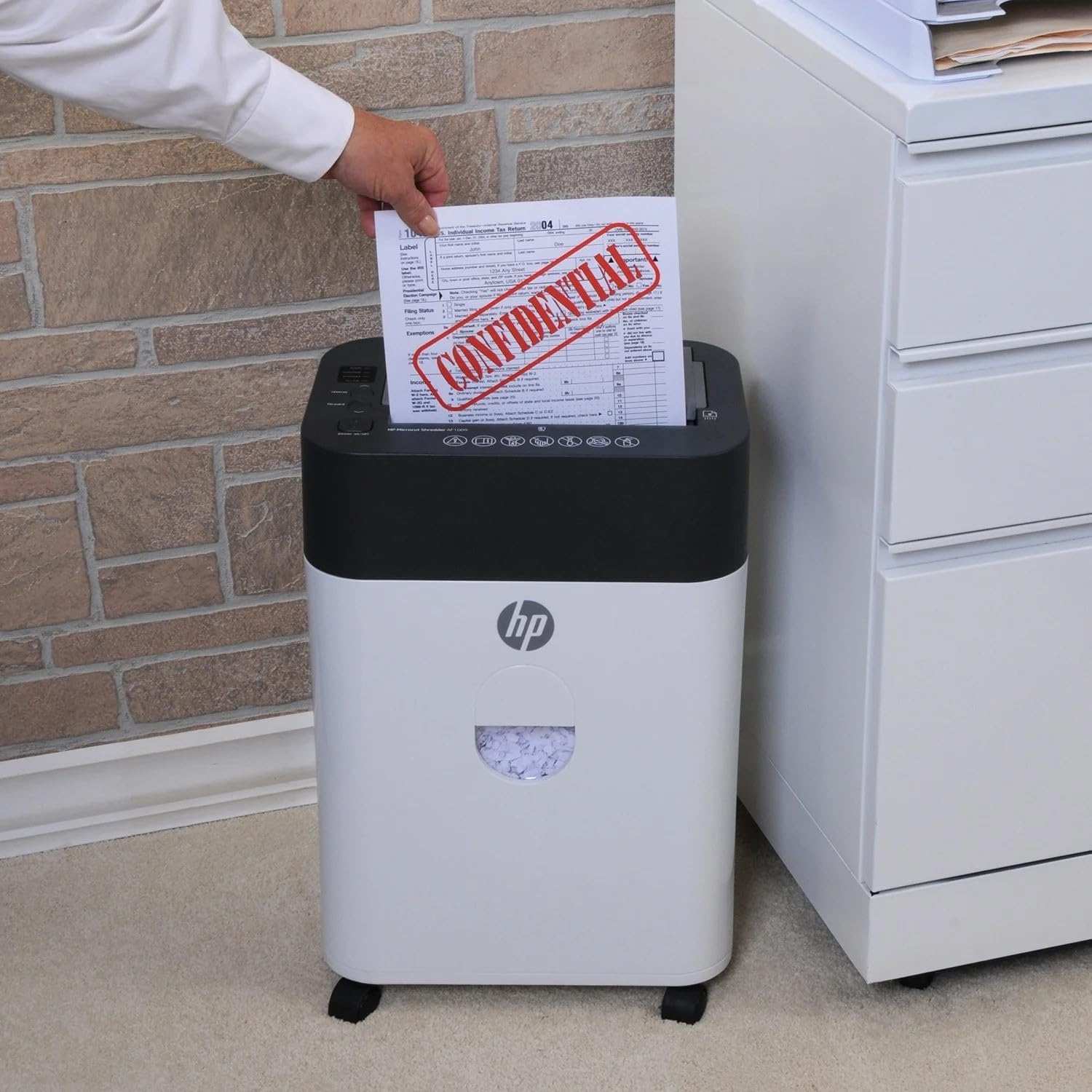
Image: Demonstrating manual paper insertion into the shredder.
5.3. Функцыя рэверсу
In case of a paper jam or if you need to retrieve a document, use the reverse function. Press the "Reverse" button on the control panel to eject the paper. Once the paper is clear, press the "Forward" button or turn the shredder off and on again to resume normal operation.
6. Тэхнічнае абслугоўванне
6.1. Emptying the Wastebasket
- Monitor the transparent window on the front of the shredder to check the waste level.
- When the "Bin Full" indicator light illuminates, or the wastebasket appears full, turn off the shredder and unplug it.
- Carefully pull out the wastebasket from the front of the unit.
- Утылізуйце здробнены матэрыял.
- Slide the wastebasket back into the shredder until it clicks into place.
- Падключыце і ўключыце шрэдар.
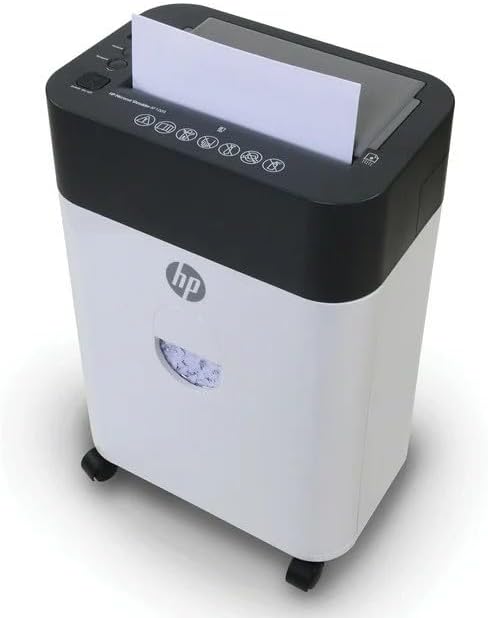
Image: The shredder's wastebasket with a transparent window, indicating when it needs emptying.
6.2. Shredder Oiling (Recommended)
Regular oiling of the shredder blades is recommended to maintain performance and extend the life of the unit. Use shredder oil (not included) and follow the instructions provided with the oil. Typically, this involves applying oil to a sheet of paper and shredding it, or directly applying oil to the blades while running in reverse (refer to oil product instructions for specifics).
7. Выпраўленне непаладак
Refer to the indicator lights on the control panel for common issues:
| Светлавы індыкатар | праблема | Рашэнне |
|---|---|---|
| Ready (Blue) | Shredder is ready for operation. | Ніякіх дзеянняў не патрабуецца. |
| Overheat (Red) | Shredder has been used continuously for too long and is overheating. | Turn off the shredder and unplug it. Allow it to cool down for at least 30 minutes before resuming use. |
| Overload (Red) | Too much paper was inserted, causing the motor to strain. | Press the "Reverse" button to clear the jam. Reduce the amount of paper and try again. If the jam persists, unplug the shredder and carefully remove the paper manually. |
| Bin Full (Red) | The wastebasket is full and needs to be emptied. | Turn off the shredder, unplug it, and empty the wastebasket. Reinsert the wastebasket securely. |
8. Тэхнічныя характарыстыкі
| Асаблівасць | Дэталь |
|---|---|
| Марка | HP |
| Нумар мадэлі | AF1009 |
| Тып разрэзу | Micro Cut |
| Ёмістасць аўтаматычнай падачы | 100 Standard Sheets |
| Ёмістасць ручной падачы | 9 лістоў |
| Ёмістасць смеццевага кошыка | 4.5 галонаў |
| Здрабняе матэрыялы | Папера, крэдытныя карты, скрепки |
| Рэжым працы | Аўтаматычны |
| Асаблівасці | Automatic Start-Stop, Overheat Sensor, Overload Sensor |
| Крыніца харчавання | Правадная электрычная |
| Памеры прадмета (Д х Ш х У) | 8.6" x 13.03" x 19.78" |
| Вага прадмета | 21.3 фунта |
9. Гарантыя
This HP AF1009 Micro Cut Paper Shredder includes a 1-гадовая гарантыя на дэталі і 90-дзённая гарантыя на працу from the date of purchase. Please retain your proof of purchase for warranty claims. For warranty service or support, please contact HP customer service.
10. Падтрымка кліентаў
For further assistance, technical support, or to inquire about replacement parts, please visit the official HP website or contact their customer service department. Refer to the product packaging or the manufacturer's webсайт для атрымання актуальнай кантактнай інфармацыі.