
1. Уводзіны
Thank you for choosing the PRITOM Tronpad 7-inch Android 10 Tablet PC. This manual provides essential information to help you set up, operate, and maintain your new device. Please read these instructions carefully before use to ensure optimal performance and longevity of your tablet.
2. Прадукт скончыўсяview
The PRITOM Tronpad tablet features a 7-inch HD IPS display, a Quad-Core processor, 32GB of internal storage, and runs on Android 10. It includes dual cameras, Wi-Fi, and Bluetooth connectivity, designed for general use and entertainment.
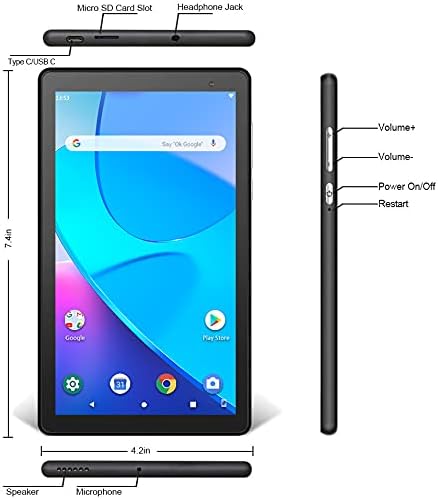
Выява: спераду і збоку view of the PRITOM Tronpad tablet, highlighting the location of its ports and buttons. These include the Micro SD Card Slot, Headphone Jack, Type C/USB C port, Speaker, Microphone, Volume Up and Down buttons, Power On/Off button, and a dedicated Restart button.
Фізічныя кампаненты:
- Слот для карты Micro SD: Для пашырэння ёмістасці захоўвання.
- Раз'ём для навушнікаў: Для падключэння правадных навушнікаў.
- Type C/USB C Port: Для зарадкі і перадачы дадзеных.
- Дакладчык: Аўдыё выхад.
- Мікрафон: Для ўводу гуку.
- Кнопкі рэгулявання гучнасці (+/-): Каб рэгуляваць гучнасць гуку.
- Кнопка ўключэння/выключэння: To power the device on or off, or to put it to sleep/wake it up.
- Кнопка перазапуску: A dedicated button for restarting the tablet if it becomes unresponsive.
3. Настройка
3.1 Першапачатковая зарадка
Before first use, fully charge your tablet. Connect the provided USB-C cable to the tablet's USB-C port and the other end to a compatible power adapter. The charging indicator will typically show the charging status on the screen.
3.2 Уключэнне/выключэнне
- Каб уключыць: Press and hold the Power On/Off button until the PRITOM logo appears.
- Каб выключыць: Press and hold the Power On/Off button until a power menu appears on the screen. Select "Power off" and confirm.
- Каб заснуць/прачнуцца: Briefly press the Power On/Off button to put the tablet to sleep or wake it up.
3.3 Майстар пачатковай налады
Пры першым уключэнні планшэт правядзе вас праз працэс пачатковай налады:
- Выбар мовы: Выберыце пераважную мову.
- Падключэнне Wi-Fi: Выберыце сваю сетку Wi-Fi і ўвядзіце пароль для падключэння да Інтэрнэту.
- Уліковы запіс Google: Sign in with your existing Google account or create a new one. This is necessary to download apps from the Google Play Store.
- Дата і час: Усталюйце правільную дату і час або дазвольце сетцы ўсталяваць іх аўтаматычна.
- Бяспека: Для бяспекі наладзьце блакіроўку экрана (PIN-код, узор або пароль).
4. Інструкцыя па эксплуатацыі
4.1 Асноўная навігацыя
Планшэт выкарыстоўвае сэнсарныя жэсты для навігацыі:
- Націсніце: Каб выбраць элемент або адкрыць праграму.
- Націсніце і ўтрымлівайце: Для доступу да кантэкстных меню або перамяшчэння значкоў.
- Правядзіце пальцам: Для пракруткі старонак або спісаў.
- Дробка: Каб павялічыць або паменшыць маштаб малюнкаў і web старонкі.
4.2 Падключэнне Wi-Fi
- Перайсці да Налады > Сетка і інтэрнэт > Wi-Fi.
- Уключыць/выключыць Wi-Fi On.
- Выберыце патрэбную сетку са спісу і ўвядзіце пароль, калі будзе прапанавана.
4.3 Спалучэнне па Bluetooth
- Перайсці да Налады > Падключаныя прылады > Bluetooth.
- Пераключыць Bluetooth On.
- Пераканайцеся, што прылада, якую вы хочаце падключыць, знаходзіцца ў рэжыме спалучэння.
- Выберыце прыладу са спісу даступных прылад і выконвайце падказкі на экране, каб завяршыць спалучэнне.
4.4 Выкарыстанне камеры
The tablet is equipped with dual cameras (front and rear).

Image: The PRITOM Tronpad tablet being used to capture a moment with its dual camera functionality.
- Адкрыйце Камера дадатак.
- Націсніце на значок камеры, каб пераключыцца паміж пярэдняй і задняй камерамі.
- Націсніце кнопку спуску засаўкі, каб зрабіць фотаздымак або пачаць/спыніць відэазапіс.
4.5 Кіраванне праграмамі
- Усталяванне праграм: Адкрыйце Крама Google Play app, search for your desired app, and tap "Install".
- Выдаленне праграм: Tap and hold the app icon on the home screen or app drawer, then drag it to "Uninstall" or select "App info" and then "Uninstall". Alternatively, go to Налады > Праграмы і апавяшчэнні, выберыце праграму і націсніце «Выдаліць».
4.6 Кіраванне сховішчам
The tablet comes with 32GB of internal storage. You can expand this using a Micro SD card.
- To Insert Micro SD Card: Gently insert the Micro SD card into the designated slot until it clicks into place.
- To Manage Storage: Перайсці да Налады > Захоўванне каб view выкарыстанне і кіраванне сховішчам files.
4.7 Кіраванне батарэяй
Каб аптымізаваць тэрмін службы батарэі:
- Адрэгулюйце яркасць экрана да камфортнага ўзроўню.
- Выключайце Wi-Fi і Bluetooth, калі яны не выкарыстоўваюцца.
- Зачыніце невыкарыстоўваныя праграмы, якія працуюць у фонавым рэжыме.
- Уключыць рэжым эканоміі батарэі ў Налады > акумулятар.
5. Тэхнічнае абслугоўванне
5.1 Ачыстка планшэта
Use a soft, lint-free cloth to clean the screen and body of the tablet. Avoid using harsh chemicals or abrasive materials, which can damage the screen or finish.
5.2 Абнаўленне праграмнага забеспячэння
Periodically check for software updates to ensure your tablet has the latest features and security patches. Go to Налады > сістэма > Абнаўленне сістэмы.
5.3 Рэзервовае капіраванне дадзеных
Regularly back up important data to a cloud service (like Google Drive) or an external storage device to prevent data loss.
6. Выпраўленне непаладак
If you encounter issues with your PRITOM Tronpad tablet, try the following solutions:
- Планшэт не рэагуе: Press and hold the Power On/Off button for about 10-15 seconds to force a restart. Alternatively, use the dedicated Restart button if available (refer to Product Overview дыяграма).
- Павольная прадукцыйнасць: Close unused apps, clear cache (Settings > Storage > Cached data), or restart the tablet. Consider uninstalling rarely used apps to free up storage.
- Праблемы з падключэннем Wi-Fi: Ensure Wi-Fi is enabled. Restart your Wi-Fi router and the tablet. Forget the network and reconnect.
- Акумулятар не зараджаецца: Ensure the USB-C cable and power adapter are securely connected and functional. Try a different cable or adapter.
- Збоі ў праграмах: Clear the app's cache and data (Settings > Apps & notifications > [App Name] > Storage & cache). If the issue persists, uninstall and reinstall the app.
If these steps do not resolve the issue, please contact PRITOM customer support for further assistance.
7. Тэхнічныя характарыстыкі
| Асаблівасць | Спецыфікацыя |
|---|---|
| Марка | ПРЫТОМ |
| Назва мадэлі | Tronpad Tablet |
| Памер экрана | 7 цалі |
| Дазвол экрана | 1024x600 |
| Аперацыйная сістэма | Android 10 |
| Працэсар | Чатырох'ядравы |
| АЗП | 1 ГБ |
| Памер жорсткага дыска / флэш-памяці | 32 ГБ |
| Бесправадны тып | 802.11bgn (Wi-Fi) |
| Тыл WebДазвол камеры | 2.2 МП |
| Вага прадмета | 8.8 унцыі |
| Памеры прадукту | 7.5 х 4.3 х 0.4 цалі |
| Сярэдні тэрмін службы батарэі | 6 гадзін |
8. Гарантыя і падтрымка
8.1 Інфармацыя аб гарантыі
PRITOM products are designed for quality and reliability. For specific warranty terms and conditions, please refer to the warranty card included with your product or visit the official PRITOM webсайт.
8.2 Падтрымка кліентаў
If you have any questions, issues, or require technical assistance, please contact PRITOM customer support. The PRITOM team aims to provide attentive service and will respond to inquiries promptly, typically within 24 hours.
You can often find support contact information (such as email) on the PRITOM brand store page or within the product packaging.