
Уводзіны
This manual provides detailed instructions for the installation, operation, and maintenance of your AXAGON ADSA-ST USB 3.0 Docking Station. This device is designed to connect 2.5" and 3.5" SATA SSDs and HDDs to your computer via a USB 3.0 interface, offering fast data transfer speeds.
Калі ласка, уважліва прачытайце гэтую інструкцыю перад выкарыстаннем прадукту, каб забяспечыць належную працаздольнасць і пазбегнуць пашкоджанняў.
Змест пакета
Праверце наяўнасць усіх кампанентаў у камплекце:
- AXAGON ADSA-ST Docking Station
- USB 3.0 Type-A to Micro-B cable
- Адаптар сілкавання
- Кіраўніцтва карыстальніка (гэты дакумент)

Image: The AXAGON ADSA-ST Docking Station shown alongside its retail packaging, illustrating the product and its box.
Асноўныя характарыстыкі
- Supports 2.5" and 3.5" SATA I/II/III SSDs and HDDs.
- USB 3.0 (USB 3.2 Gen 1) interface with up to 5 Gbps transfer speed.
- SATA 6G (SATA III) support.
- Падтрымка пратаколу UASP (USB Attached SCSI Protocol) для павышэння прадукцыйнасці.
- TRIM support for SSDs.
- HDD Auto Spindown function.
- LED indication for power and activity.
- Compact design with aluminum body.

Малюнак: А view of the AXAGON ADSA-ST Docking Station highlighting its 5 Gbps USB 3.2 Gen 1 speed and compact size.
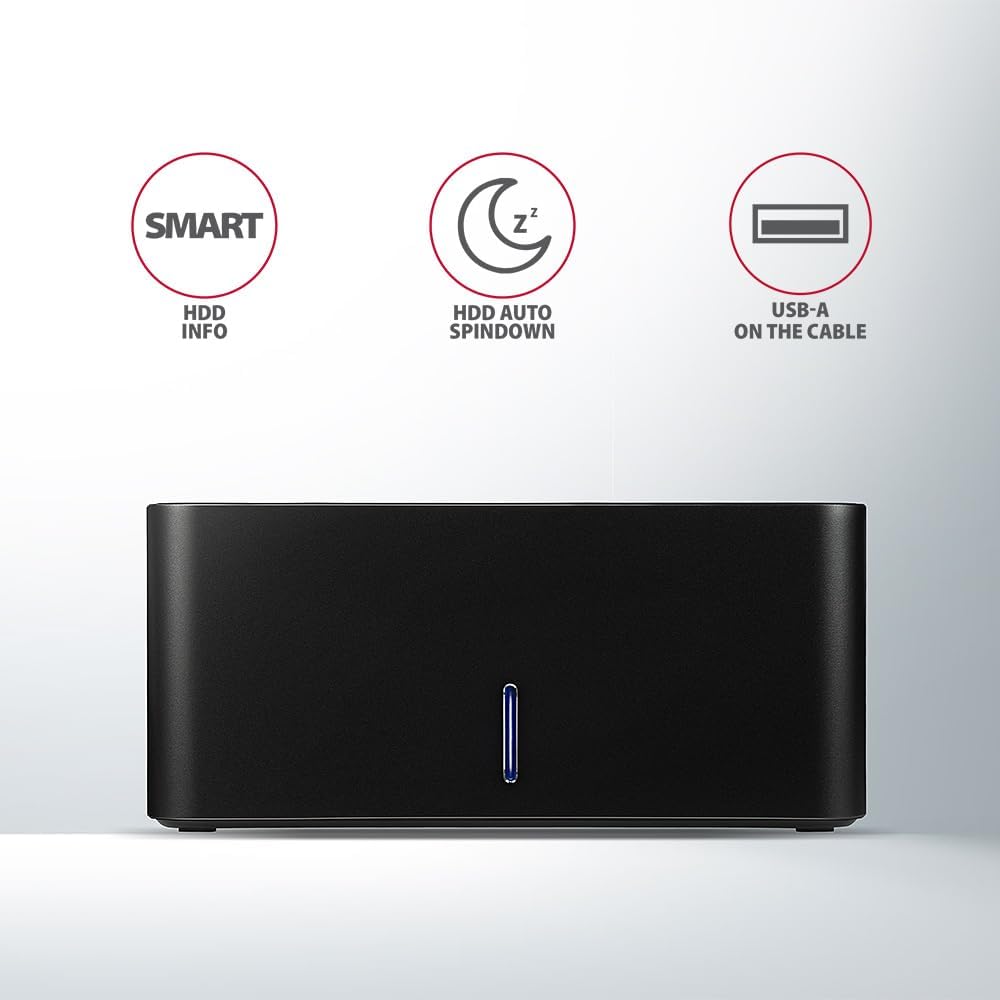
Image: The docking station from the front, indicating features like SMART HDD info, automatic HDD spindown, and USB-A connectivity.
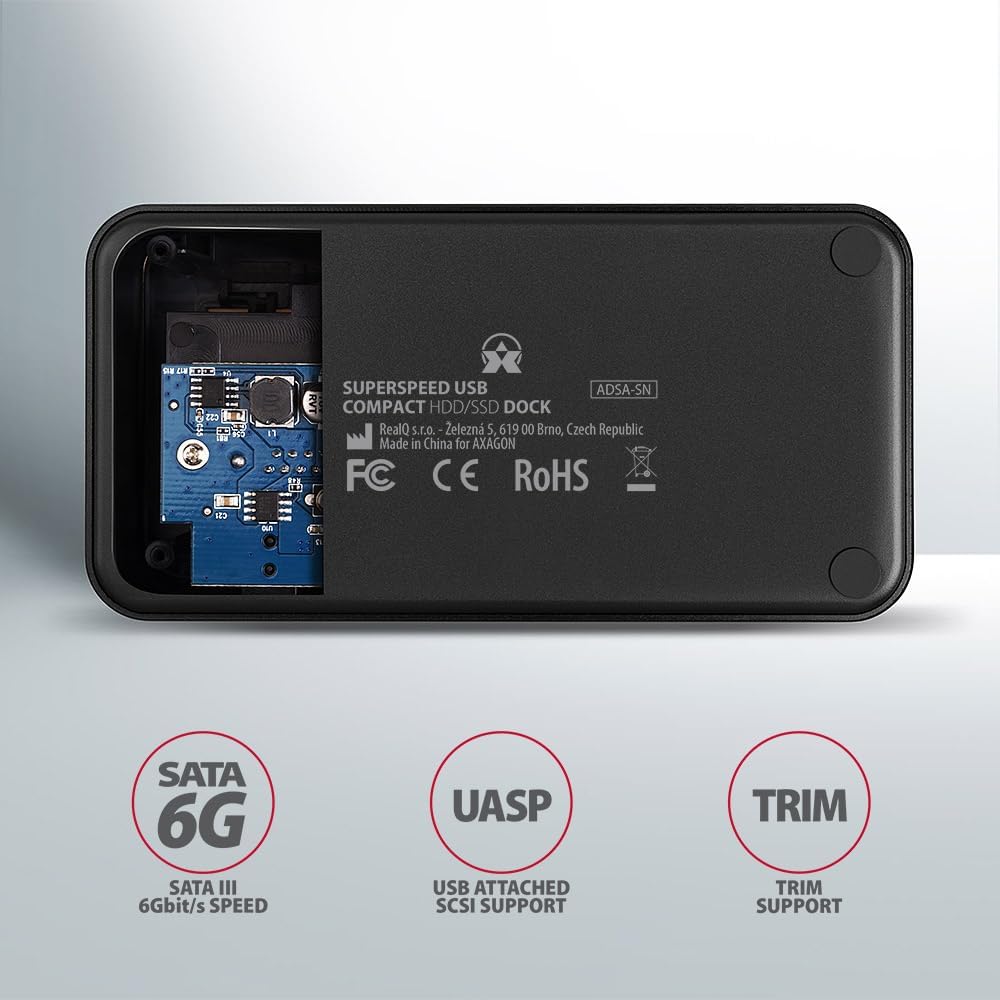
Image: The underside of the docking station, showing internal components and highlighting SATA 6G, UASP, and TRIM support.
Інструкцыя па наладзе
- Падключыце адаптар сілкавання: Plug the included power adapter into the DC IN port on the back of the docking station and then into a power outlet.
- Падключыцеся да кампутара: Connect the USB 3.0 cable from the docking station's Micro-B port to an available USB 3.0 (or higher) port on your computer.
- Insert HDD/SSD:
- For 2.5" SSD/HDD: Gently slide the 2.5" drive into the slot until it connects firmly with the SATA connector.
- For 3.5" HDD: Gently slide the 3.5" drive into the slot until it connects firmly with the SATA connector.
Ensure the drive is inserted correctly with the SATA connector facing the correct direction. Do not force the drive.

Image: A 2.5-inch SSD being inserted into the docking station, demonstrating compatibility with smaller drives.
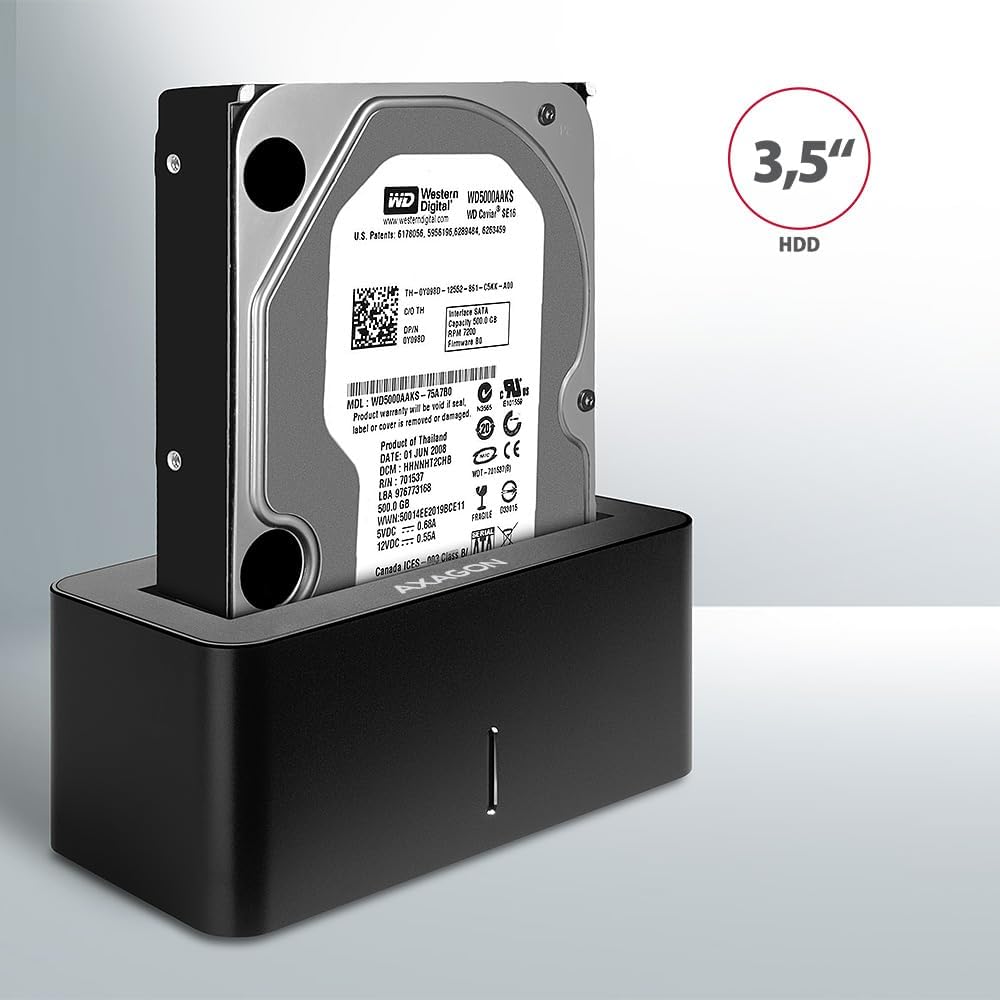
Image: A 3.5-inch HDD being inserted into the docking station, demonstrating compatibility with larger drives.
- Уключэнне: Press the power button located on the back of the docking station. The LED indicator on the front will illuminate.
Image: The rear panel of the docking station, showing the power button, USB Micro-B port, and power input for connection.
Інструкцыя па эксплуатацыі
Распазнаванне дыска
Once powered on and connected, your operating system should automatically detect the inserted drive. If it's a new drive, you may need to initialize and format it through Disk Management (Windows) or Disk Utility (macOS) before it appears in File Даследчык/Пошукавальнік.
Святлодыёдны індыкатар
The LED indicator on the front of the docking station provides status information:
- Суцэльны сіні: Power on, drive idle.
- Міргае сіні: Drive activity (reading or writing data).
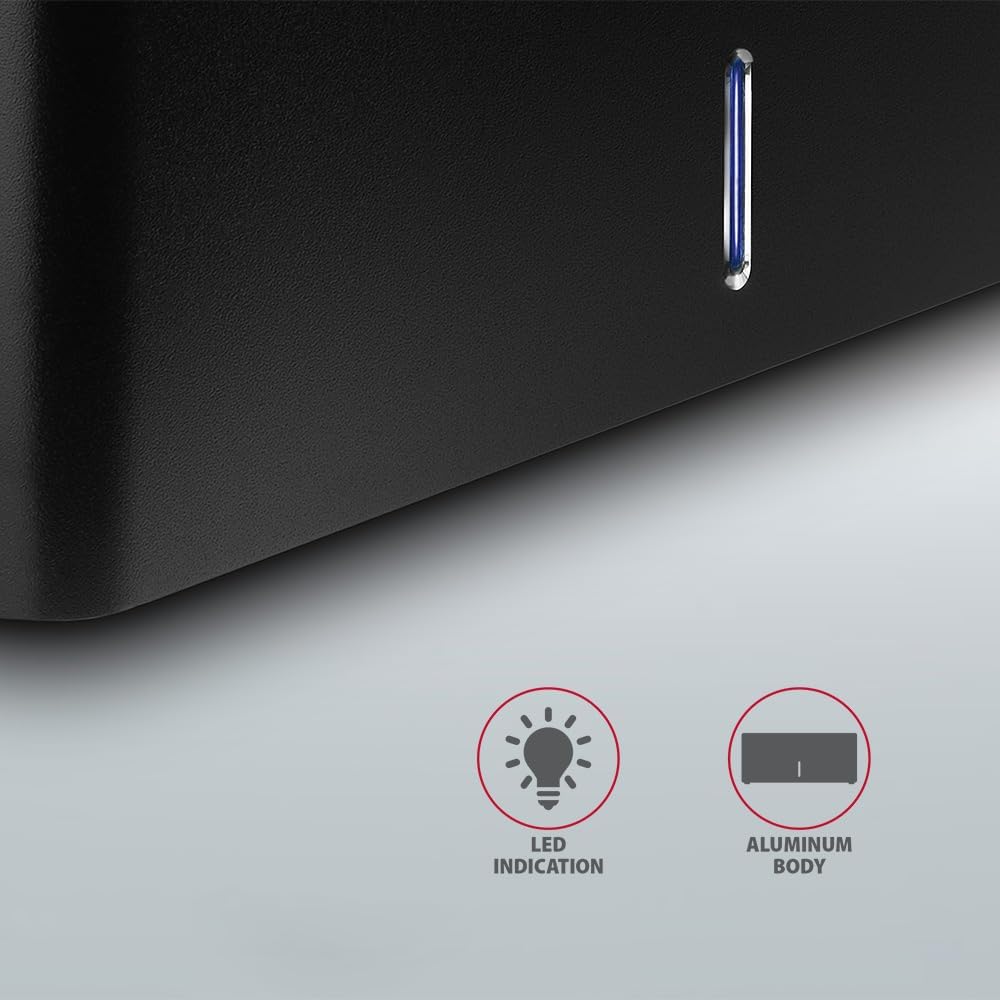
Выява: буйны план view of the docking station's front panel, highlighting the LED indicator light.
Removing a Drive
Before removing a drive, always safely eject it from your operating system to prevent data corruption. After ejection, gently pull the drive straight out of the docking station slot.
HDD Auto Spindown
The docking station supports automatic spindown of the HDD when it is idle for a certain period, conserving power and extending drive lifespan. This feature is managed by the operating system or the drive itself.
Тэхнічнае абслугоўванне
- Трымайце док-станцыю ў чысціні і без пылу. Выкарыстоўвайце для чысткі мяккую сухую тканіну.
- Пазбягайце ўздзеяння на прыладу экстрэмальных тэмператур, вільготнасці або прамых сонечных прамянёў.
- Не спрабуйце разбіраць або рамантаваць прыладу самастойна. Звярніцеся да кваліфікаванага абслугоўваючага персаналу.
- Ensure proper ventilation around the docking station during operation.
Ліквідацыю непаладак
- Дыск не выяўлены:
- Пераканайцеся, што адаптар сілкавання надзейна падключаны, а док-станцыя ўключана.
- Verify the USB cable is properly connected to both the docking station and the computer.
- Паспрабуйце іншы порт USB на вашым кампутары.
- Ensure the HDD/SSD is fully seated in the docking station's slot.
- Check Disk Management (Windows) or Disk Utility (macOS) to see if the drive is recognized but uninitialized/unformatted.
- Test with a different HDD/SSD to rule out a drive issue.
- Павольная хуткасць перадачы дадзеных:
- Ensure the docking station is connected to a USB 3.0 (or higher) port on your computer. USB 2.0 ports will limit speeds.
- Verify your operating system and drivers are up to date.
- The actual speed depends on the drive's performance and your computer's USB controller.
- Drive disconnects randomly:
- Праверце ўсе кабельныя злучэнні.
- Пераканайцеся, што адаптар сілкавання забяспечвае стабільнае харчаванне.
- Disable USB power saving features in your computer's operating system settings.
Тэхнічныя характарыстыкі
| Асаблівасць | Дэталь |
|---|---|
| Марка | АКСАГОН |
| Нумар мадэлі | ADSA-SN |
| Апаратная платформа | PC |
| Сумяшчальныя прылады | Ноўтбук, настольны ПК |
| Сумяшчальнасць з драйверамі | 2.5" / 3.5" SATA I/II/III SSD/HDD |
| Інтэрфейс | USB 3.0 (USB 3.2 Gen 1) |
| Хуткасць перадачы даных | Up to 5 Gbps (USB 3.0), 6 Gbps (SATA III) |
| Усяго партоў USB | 1 (Micro-B) |
| Колькасць адсекаў для дыскаў | 1 |
| Колер | Чорны |
| Вага прадмета | 2.2 фунта (прыблізна 1 кг) |
| Памеры ўпакоўкі | 3.94 х 0.79 х 0.39 цалі (прыблізна 10 х 2 х 1 см) |
| Дата першай даступнасці | 30 сакавіка 2021 г |
Гарантыя і падтрымка
Каб атрымаць інфармацыю аб гарантыі і тэхнічнай падтрымцы, звярніцеся да афіцыйнага сайта AXAGON. webсайт або звярніцеся да мясцовага дыстрыбутара. Захоўвайце пацвярджэнне пакупкі для прэтэнзій па гарантыі.