
Microsoft 2026
Microsoft Modern USB-C Headphones User Manual
Мадэль: 2026
Уводзіны
The Microsoft Modern USB-C Headphones are designed to provide high-quality audio for calls, meetings, and general use, particularly optimized for Microsoft Teams. They offer clear sound, a noise-reducing microphone, and intuitive controls for enhanced productivity and communication.
Змест пакета
- Microsoft Modern USB-C Headset
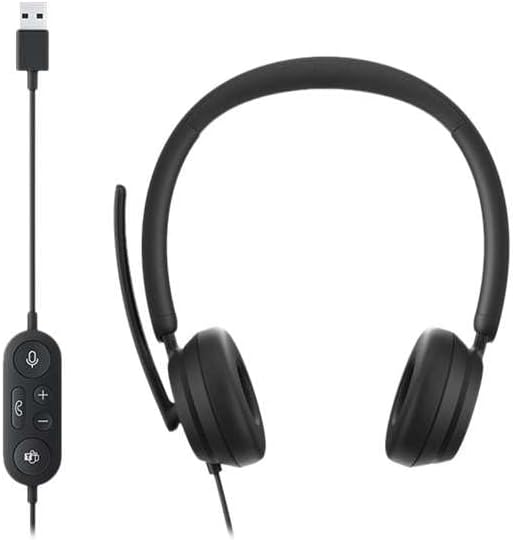
Image: The Microsoft Modern USB-C Headphones, featuring the headset with its attached USB-C cable and inline control unit. The control unit has buttons for mute, volume up/down, call answer/end, and a Microsoft Teams button.
Настройка
Падключэнне гарнітуры
- Locate an available USB-C port on your computer or compatible device.
- Plug the USB-C connector of the headset into the USB-C port.
- Your operating system (Windows 11/10/8.1/8 or Mac OS 11.0/10.15) should automatically detect and install the necessary drivers.
Налада мікрафона
- The microphone boom is flexible. Position it approximately one inch from your mouth for optimal voice pickup.
- The microphone features noise reduction to minimize background distractions during calls.

Выява: буйны план view of the earcups and the adjustable microphone boom of the Microsoft Modern USB-C Headphones.
Кіраванне гарнітурай
Убудаваныя элементы кіравання
The inline control unit provides convenient access to essential functions:
- Кнопка адключэння: Press to mute or unmute your microphone. An indicator light on the control unit may show mute status.
- Кнопкі павелічэння / памяншэння гучнасці: Адрэгулюйце гучнасць праслухоўвання.
- Кнопка выкліку: Націсніце, каб адказаць ці скончыць выклік.
- Кнопка Microsoft Teams: Quickly launch or bring Microsoft Teams to the foreground.

Выява: Падрабязны view of the inline control unit, showing the microphone mute, volume up/down, call, and Microsoft Teams buttons.
Камфорт і дызайн
The headset features padded and lightweight earcups designed for extended wear, ensuring comfort during long calls or work sessions.

Image: A close-up showing the soft, padded earcup of the Microsoft Modern USB-C Headphones, highlighting its comfortable design.
Тэхнічнае абслугоўванне
- Уборка: Для чысткі гарнітуры выкарыстоўвайце мяккую сухую тканіну. Пазбягайце выкарыстання агрэсіўных хімічных рэчываў або абразіўных матэрыялаў.
- захоўванне: Захоўвайце гарнітуру ў прахалодным, сухім месцы, калі яна не выкарыстоўваецца. Пазбягайце экстрэмальных тэмператур.
- Сыход за кабелем: Не згінайце і не цягніце кабель USB-C празмерна, каб пазбегнуць пашкоджанняў.
Ліквідацыю непаладак
| праблема | Рашэнне |
|---|---|
| Няма гуку з гарнітуры |
|
| Не працуе мікрафон |
|
| Кампутар не распазнае гарнітуру |
|
Тэхнічныя характарыстыкі
| Марка | Microsoft |
| Назва мадэлі | I6N-00009 |
| Нумар мадэлі тавару | 2026 |
| Тэхналогія падлучэння | Правадны (USB-C) |
| Размяшчэнне вушэй | Над вухам |
| Формаў-фактар | На вуха |
| Матэрыял | Штучная скура |
| Тып кіравання | Кантроль выклікаў |
| Сумяшчальныя прылады | Прылады, сумяшчальныя з USB-C |
| Сумяшчальнасць аперацыйнай сістэмы | Windows 11 / 10 / 8.1 / 8, Mac OS 11.0/10.15 |
| Памеры прадукту | 16 х 3.99 х 24.99 см |
| Вага прадмета | 390 г |
| Узровень воданепранікальнасці | Водатрывалы |
Гарантыя і падтрымка
For warranty information and technical support, please refer to the official Microsoft support website or contact Microsoft customer service. Details regarding specific warranty periods and terms are typically provided with your purchase documentation or available online.
You can find support resources at the official Microsoft support page: support.microsoft.com