
SteelSeries 62535
Кіраўніцтва карыстальніка гульнявой мышы SteelSeries Prime FPS Neo Noir Edition
Мадэль: 62535 | Марка: SteelSeries
Прадукт скончаныview
The SteelSeries Prime FPS Gaming Mouse Neo Noir Edition is a limited edition, lightweight gaming mouse designed for competitive FPS gameplay. It features a battle-tested shape, hyper-durable design, and a textured matte finish for optimal grip and comfort during extended use. This mouse is equipped with advanced optical switches and a high-performance sensor to deliver precise and responsive control.
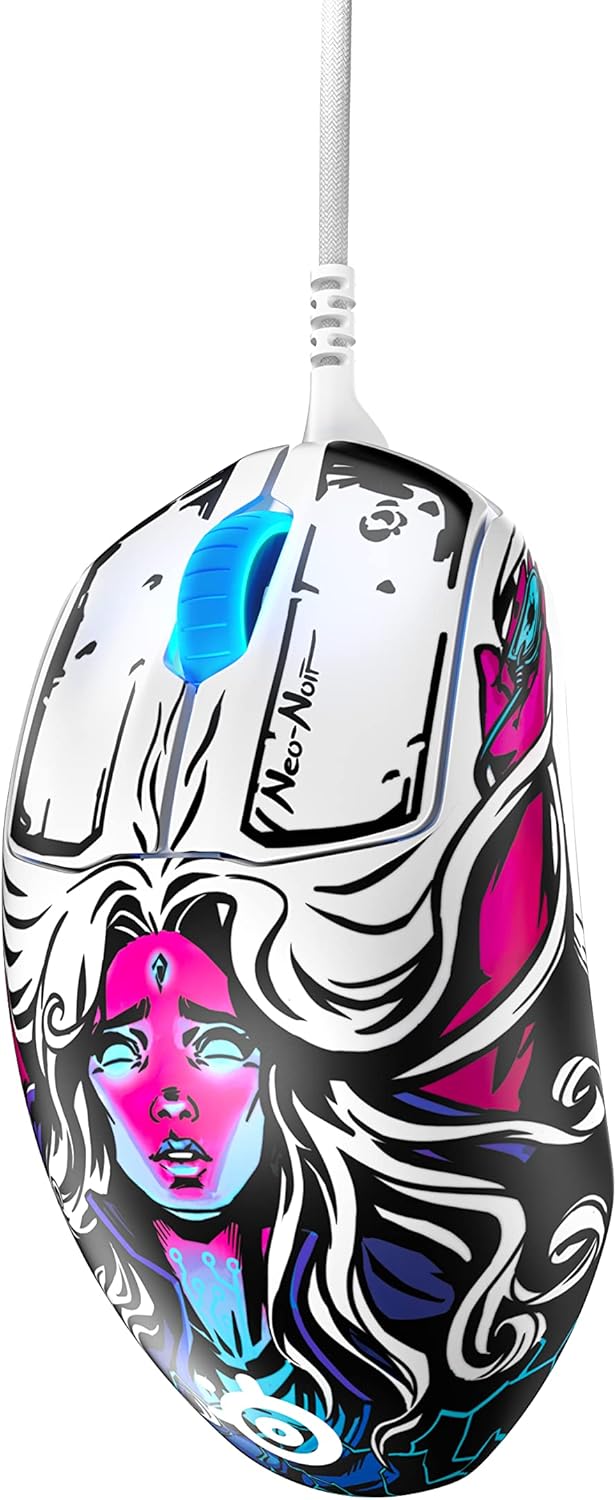
Асноўныя функцыі ўключаюць у сябе:
- Prestige Optical Magnetic Switches: Revolutionary switches that actuate lightning fast using infrared beams, rated for an industry-best 100 million clicks using neodymium magnets, ensuring durability and consistent performance.
- TrueMove Pro Optical Sensor: A top-of-the-line sensor delivering 18,000 CPI (Counts Per Inch), 450 IPS (Inches Per Second), and 50G acceleration with advanced tilt tracking for unparalleled precision.
- Лёгкі дызайн: Weighing only 69g, developed with input from esports professionals for sustained comfort and battle-tested durability.
- On-board Customization: Allows for direct adjustment of 4 polling rates and up to 5 pre-set or customized CPIs without software.
- Brilliant Prism RGB Lighting: Customizable RGB lighting integrated into the scroll wheel.
Настройка
Сістэмныя патрабаванні
Before connecting your SteelSeries Prime FPS Gaming Mouse, ensure your system meets the following requirements:
- Operating System: Windows, macOS, Xbox, or Linux.
- Даступны порт USB.
Падлучэнне мышы
- Знайдзіце даступны USB-порт на вашым кампутары або гульнявой прыстаўцы.
- Insert the USB connector of the SteelSeries Prime FPS Gaming Mouse into the USB port.
- Ваша аперацыйная сістэма павінна аўтаматычна выявіць і ўсталяваць неабходныя драйверы.

Усталёўка праграмнага забеспячэння (SteelSeries GG)
For full customization and advanced features, it is recommended to install the SteelSeries GG software:
- Наведайце афіцыйны сайт SteelSeries webсайт: steelseries.com/gg
- Download the SteelSeries GG software compatible with your operating system.
- Выконвайце інструкцыі на экране, каб завяршыць усталёўку.
- Once installed, launch SteelSeries GG to access mouse settings, including CPI, button remapping, and RGB lighting customization.
Operating Your SteelSeries Prime FPS Gaming Mouse
Асноўныя функцыі
- Пстрычка левай кнопкай мышы: Кнопка асноўнага дзеяння.
- Пстрыкніце правай кнопкай мышы: Secondary action button, often used for context menus or alternate actions.
- Кола пракруткі: Выкарыстоўваецца для пракруткі дакументаў або web pages. Can also be clicked for a middle-mouse button function.
- Бакавыя кнопкі: Two programmable buttons located on the left side of the mouse, typically used for forward/back navigation or in-game actions.
- CPI Button: Located on the bottom of the mouse, this button allows for on-the-fly cycling through pre-set or customized CPI profiles.

Customization with SteelSeries GG
The SteelSeries GG software unlocks the full potential of your Prime FPS Gaming Mouse:
- Карэкціроўка CPI: Fine-tune your mouse sensitivity from 100 to 18,000 CPI. You can set up to 5 distinct CPI profiles and switch between them using the on-board CPI button.
- Праграмаванне кнопак: Remap any of the 5 programmable buttons to perform specific keyboard functions, macros, or media controls.
- RGB асвятленне: Customize the Brilliant Prism RGB lighting on the scroll wheel with various effects, colors, and brightness levels.
- Хуткасць галасавання: Adjust the polling rate (125Hz, 250Hz, 500Hz, 1000Hz) to control how frequently the mouse reports its position to your computer. A higher polling rate generally provides smoother tracking.
- Паскарэнне/Запаволенне: Adjust mouse acceleration and deceleration settings to suit your preference.
Тэхнічнае абслугоўванне
Ачыстка вашай мышы
Regular cleaning helps maintain the performance and longevity of your mouse:
- Знешні выгляд: Выкарыстоўвайце мяккую тканіну без ворса. dampвадой або мяккім ачышчальным растворам. Пазбягайце выкарыстання агрэсіўных хімічных рэчываў або абразіўных матэрыялаў.
- Датчык: Gently clean the optical sensor on the bottom of the mouse with a cotton swab or compressed air to remove dust and debris. Ensure the mouse is disconnected before cleaning.
- Лапкі мышкі: Periodically check the PTFE feet on the bottom of the mouse for wear or debris. Clean gently if needed.

Захоўванне
When not in use, store your mouse in a clean, dry environment away from extreme temperatures and direct sunlight. Avoid coiling the cable too tightly to prevent damage.
Ліквідацыю непаладак
If you encounter issues with your SteelSeries Prime FPS Gaming Mouse, refer to the following common solutions:
Мыш не рэагуе
- Праверце падключэнне USB: Пераканайцеся, што кабель USB надзейна падключаны да спраўнага порта USB на вашым камп'ютары. Паспрабуйце іншы порт USB.
- Перазагрузіце кампутар: Просты перазапуск часта можа вырашыць праблемы з падключэннем.
- Тэст на іншай прыладзе: If possible, test the mouse on another computer to determine if the issue is with the mouse or your system.
- Праверце дыспетчар прылад (Windows): Verify that the mouse is recognized in Device Manager and that there are no driver conflicts.
Inconsistent Tracking or Cursor Lag
- Чысты датчык: Dust or debris on the optical sensor can cause tracking issues. Refer to the Maintenance section for cleaning instructions.
- Mouse Pad Surface: Ensure you are using the mouse on a clean, uniform surface. Highly reflective or uneven surfaces can interfere with optical tracking.
- Adjust CPI: Experiment with different CPI settings in the SteelSeries GG software to find the optimal sensitivity for your usage.
- Хуткасць галасавання: Ensure the polling rate is set appropriately. While higher is generally better, very high polling rates on older systems might cause issues.
Buttons Not Registering or Double-Clicking
- Праверка праграмнага забеспячэння: Open SteelSeries GG and ensure button assignments are correct and there are no conflicting profiles.
- Абнаўленне прашыўкі: Check for and install any available firmware updates for your mouse via the SteelSeries GG software.
- Фізічная перашкода: Inspect the buttons for any physical debris that might be preventing proper actuation.
Тэхнічныя характарыстыкі
| Асаблівасць | Дэталь |
|---|---|
| Марка | SteelSeries |
| Нумар мадэлі | 62535 |
| Датчык | TrueMove Pro Optical Sensor |
| CPI (Counts Per Inch) | Up to 18,000 CPI |
| IPS (цалі ў секунду) | IPS 450 |
| Паскарэнне | 50G |
| Выключальнікі | Prestige Optical Magnetic Switches (100M Click Rating) |
| Гузікі | 5 праграмуемых кнопак |
| Вага | 69 г (2.43 унцыі) |
| Памеры (ДхШхВ) | 7.32 х 4.96 х 2.17 цалі |
| Сувязь | Правадной USB |
| Сумяшчальнасць аперацыйнай сістэмы | Windows, macOS, Xbox, Linux |
| Колер | Neo Noir |
Гарантыя і падтрымка
Інфармацыя аб гарантыі
SteelSeries products are manufactured to the highest quality standards. This product is covered by a limited manufacturer's warranty. For specific warranty terms and conditions, including duration and coverage details, please refer to the warranty card included with your product or visit the official SteelSeries webсайт.
Падтрымка кліентаў
For technical assistance, troubleshooting, or general inquiries, please visit the SteelSeries support page:
You may also find helpful resources, FAQs, and community forums on their webсайт.