
1. Уводзіны
Thank you for choosing the Baseus Orange Dot Wireless Presenter. This device is designed to enhance your presentations with its RF2.4GHz wireless technology, integrated laser pointer, and versatile USB/Type-C receiver. This manual provides detailed instructions for setup, operation, maintenance, and troubleshooting to ensure optimal performance.
2. Змесціва ўпакоўкі
Перш чым працягнуць, пераканайцеся, што ў вашай упакоўцы ёсць усе неабходныя рэчы:
- Baseus Orange Dot Wireless Presenter
- USB/Type-C Dual Receiver
- AAA Battery (for battery version)
- Кіраўніцтва карыстальніка (гэты дакумент)

выява: Contents of the package include the wireless presenter, a USB/Type-C receiver, and an AAA battery.
3. Інструкцыі па ўсталёўцы
3.1 Устаноўка батарэі
If your presenter is the battery-powered version, follow these steps:
- Open the battery compartment cover located at the rear of the presenter.
- Устаўце адну батарэйку тыпу AAA, пераканаўшыся, што станоўчая (+) і адмоўная (-) клемы правільна сумяшчаюцца з пазнакамі ўнутры адсека.
- Надзейна зачыніце крышку батарэйнага адсека.
выява: Insert one AAA battery into the designated compartment. Ensure correct polarity.
3.2 Падключэнне прымача
The presenter features a dual USB/Type-C receiver for broad compatibility.
- Locate the receiver stored magnetically within the presenter's body. Gently pull it out.
- Plug the receiver into an available USB-A or Type-C port on your computer or laptop. The system will automatically detect and install the necessary drivers. No additional software installation is required.

выява: The dual USB/Type-C receiver connects to your computer for wireless operation.

выява: The receiver can be stored magnetically within the presenter body when not in use.
4. Інструкцыя па эксплуатацыі
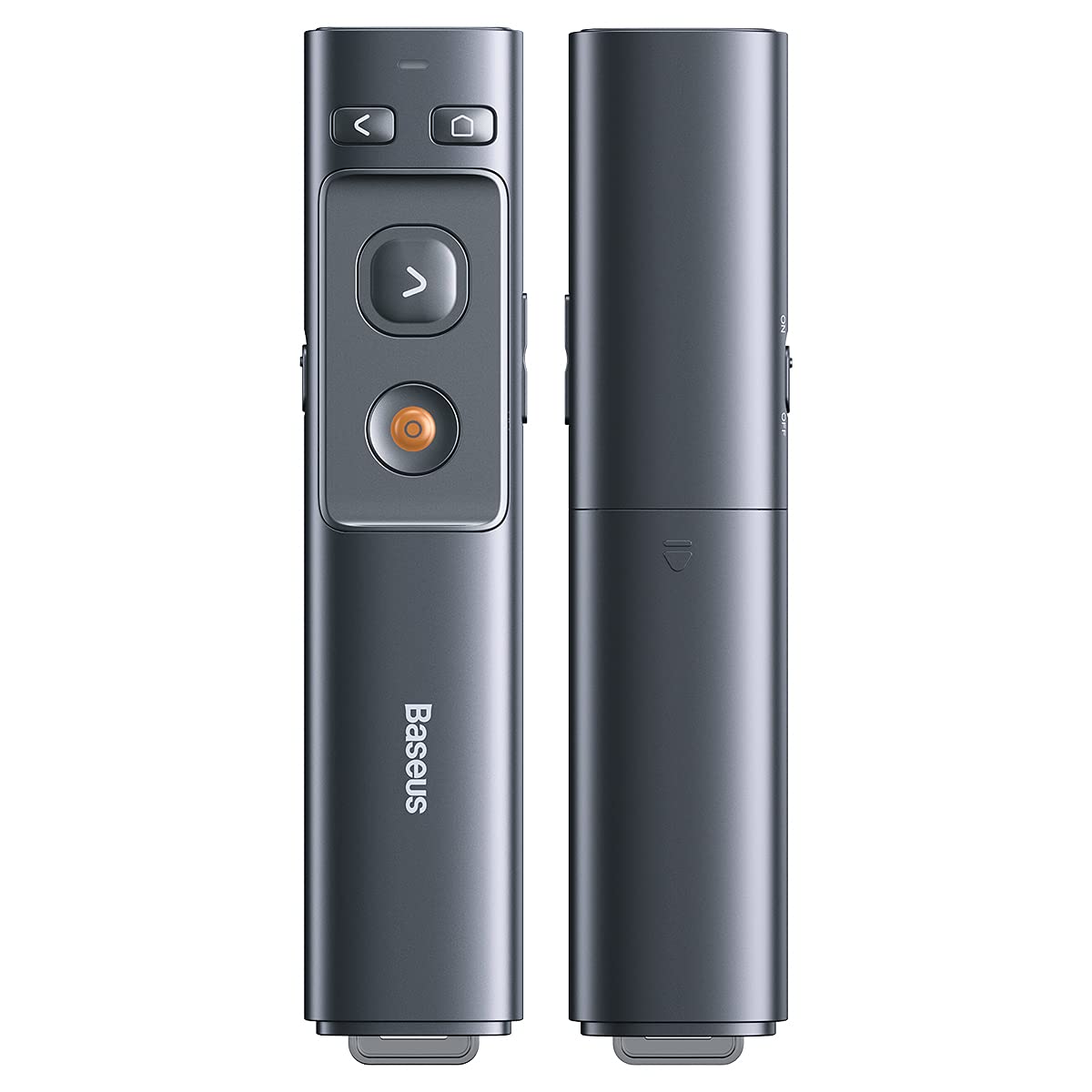
Familiarize yourself with the presenter's buttons for effective control during your presentation.

выява: Control buttons for page navigation, laser activation, and volume adjustment.
4.1 Уключэнне/выключэнне сілкавання
The presenter typically powers on automatically when the receiver is connected and a button is pressed. To conserve battery, ensure the receiver is disconnected when not in use.
4.2 Presentation Control
- Page Up Button (<): Press to move to the previous slide or page.
- Page Down Button (>): Press to move to the next slide or page.
- Full Screen/Black Screen Button: Press to toggle between full-screen mode and black screen mode in presentation software.
4.3 Функцыя лазернай указкі
Press and hold the dedicated laser button (usually a red dot icon) to activate the red laser pointer. Release the button to turn off the laser.

выява: The laser pointer function highlights content on a display.
4.4 Рэгулятар гучнасці
Use the designated volume buttons (if present) to adjust the audio output of your computer during a presentation.
5. Тэхнічнае абслугоўванне
Proper care ensures the longevity of your Baseus Orange Dot Wireless Presenter.
- Уборка: Для чысткі паверхні прэзентацыі выкарыстоўвайце мяккую сухую тканіну. Пазбягайце выкарыстання агрэсіўных хімічных рэчываў або абразіўных матэрыялаў.
- захоўванне: When not in use, store the presenter and its receiver in a dry, cool place. Always store the receiver inside the presenter's magnetic compartment to prevent loss.
- Сыход за батарэяй: For battery-powered versions, remove the AAA battery if the presenter will not be used for an extended period to prevent leakage.
6. Выпраўленне непаладак
If you encounter issues with your presenter, refer to the following common problems and solutions:
- Presenter is unresponsive:
- Ensure the receiver is securely plugged into a USB-A or Type-C port on your computer.
- For battery versions, check if the AAA battery is inserted correctly and has sufficient charge. Replace if necessary.
- Паспрабуйце падключыць прыёмнік да іншага USB-порта на вашым кампутары.
- Перазагрузіце кампутар.
- Лазерная ўказка не працуе:
- Ensure the presenter has power (battery charged/inserted).
- Confirm you are pressing and holding the correct laser activation button.
- Слайды не перагортваюцца наперад/назад:
- Verify that your presentation software (e.g., PowerPoint, Keynote) is active and in presentation mode.
- Ensure the receiver is properly connected and recognized by your computer.
7. Тэхнічныя характарыстыкі
| Асаблівасць | Дэталь |
|---|---|
| Марка | Басейс |
| Назва мадэлі | Orange Dot Wireless Presenter |
| Нумар мадэлі | LFZ_OrangeDotPresenter |
| Сувязь | Бесправадная радыёчастотная сувязь 2.4 ГГц |
| Тып прыёмніка | USB-A / Type-C Dual Interface |
| Тып лазера | Чырвоны лазер |
| Лазерная дыстанцыя | Да 100 метраў |
| Дыстанцыйнае кіраванне | Да 100 метраў |
| Крыніца харчавання | 1 x AAA Battery (for battery version) |
| Вага прадмета | 60 г |
| Памеры ўпакоўкі | 19.5 х 7 х 1.9 см |
| Краіна паходжання | Кітай |
8. Гарантыя і падтрымка
Baseus products are designed for reliability and performance. For warranty information, please refer to the warranty card included with your purchase or visit the official Baseus website. For technical support or further assistance, please contact Baseus customer service through their official channels.