
Logitech 910-006346
Кіраўніцтва карыстальніка бесправадной мышы Logitech Signature M650 L for Business
Мадэль: 910-006346
1. Уводзіны
The Logitech Signature M650 L for Business Wireless Mouse is designed to enhance productivity and comfort for users with large-sized hands. It offers versatile connectivity options, including Logi Bolt USB receiver for secure connections and Bluetooth Low Energy for cross-platform flexibility. Featuring SmartWheel technology for adaptable scrolling and SilentTouch technology for quiet clicks, this mouse aims to reduce fatigue and improve user experience.
This manual provides comprehensive instructions for setting up, operating, maintaining, and troubleshooting your Signature M650 L mouse.

Image: The Logitech Signature M650 L mouse in graphite color, displayed alongside its retail packaging, highlighting its design and key features.
2. Што ў скрынцы
Upon unboxing your Logitech Signature M650 L mouse, verify that all the following components are included:
- Signature M650L Mouse
- USB Receiver (Logi Bolt)
- 1 батарэйка тыпу АА (папярэдне ўсталяваная або ўваходзіць асобна)
- Інструкцыі (гэтае кіраўніцтва)

Image: A visual representation of the items included in the product package: the Signature M650 L mouse and the Logi Bolt USB receiver, alongside the product box.
3. Асноўныя магчымасці
- SmartWheel Scrolling: Automatically switches between line-by-line precision and super-fast free-spin mode for efficient navigation.
- Бясшумнае пстрыканне: Equipped with SilentTouch technology, reducing click noise by 90% for a quieter work environment.
- Падвойнае падключэнне: Connects via Logi Bolt USB receiver for robust, secure connections or via Bluetooth Low Energy for broad compatibility.
- Эрганамічны дызайн: Contoured shape and soft thumb area provide comfort, reducing forearm muscle activity by 25% compared to a laptop touchpad.
- Customizable Side Buttons: Two programmable side buttons allow for personalized shortcuts and increased productivity.
- Доўгі тэрмін службы батарэі: Enjoy up to 24 months of battery life on a single AA battery.
- Мультыплатформенная сумяшчальнасць: Works seamlessly with Windows, macOS, Linux, Chrome OS, iPadOS, and Android.
- Устойлівы дызайн: Made with certified post-consumer recycled plastic to minimize environmental impact.

Image: An annotated diagram highlighting the key features of the Logitech Signature M650 L mouse, including silent clicking, SmartWheel, Bluetooth connectivity, customizable side buttons, comfort shape & texture, and 24-month battery life.

Image: A comparison showing the relative sizes of the standard M650 mouse and the larger M650 L mouse, indicating that the product is available in two sizes to fit different hand dimensions.
4. Кіраўніцтва па наладцы
4.1. Устаноўка батарэі
- Знайдзіце батарэйны адсек на ніжняй баку мышы.
- Адкрыйце крышку батарэйнага адсека.
- Устаўце батарэйку тыпу АА, якая ўваходзіць у камплект, сачыце за правільнай палярнасцю (+/-).
- Надзейна зачыніце крышку батарэйнага адсека.
4.2. Падключэнне мышы
The Signature M650 L offers two primary connection methods:
4.2.1. Logi Bolt USB Receiver (Recommended for Business Environments)
- Remove the Logi Bolt USB receiver from the mouse's battery compartment (if stored there).
- Падключыце USB-прыёмнік Logi Bolt да даступнага порта USB-A на вашым кампутары.
- Уключыце мыш з дапамогай выключальніка харчавання на яе ніжняй панэлі.
- The mouse should automatically connect to the receiver. If not, press and hold the connect button on the mouse (usually near the power switch) until the LED indicator blinks, then release.

Выява: буйны план view of the Logi Bolt USB receiver plugged into the side of a laptop, illustrating its compact size and secure connection.
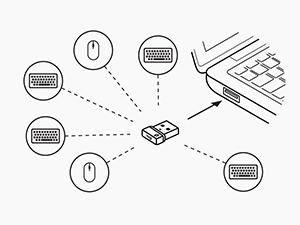
Image: A diagram illustrating how a single Logi Bolt USB receiver can connect to multiple compatible Logitech devices, including mice and keyboards, providing a unified wireless solution.
4.2.2. Bluetooth з нізкім энергаспажываннем
- Уключыце мыш з дапамогай выключальніка харчавання на яе ніжняй панэлі.
- Press and hold the connect button on the mouse (usually near the power switch) for 3 seconds until the LED indicator blinks rapidly, indicating it's in pairing mode.
- На вашым камп'ютары або прыладзе адкрыйце налады Bluetooth.
- Select "Logitech M650 L" from the list of available devices and follow any on-screen prompts to complete pairing.
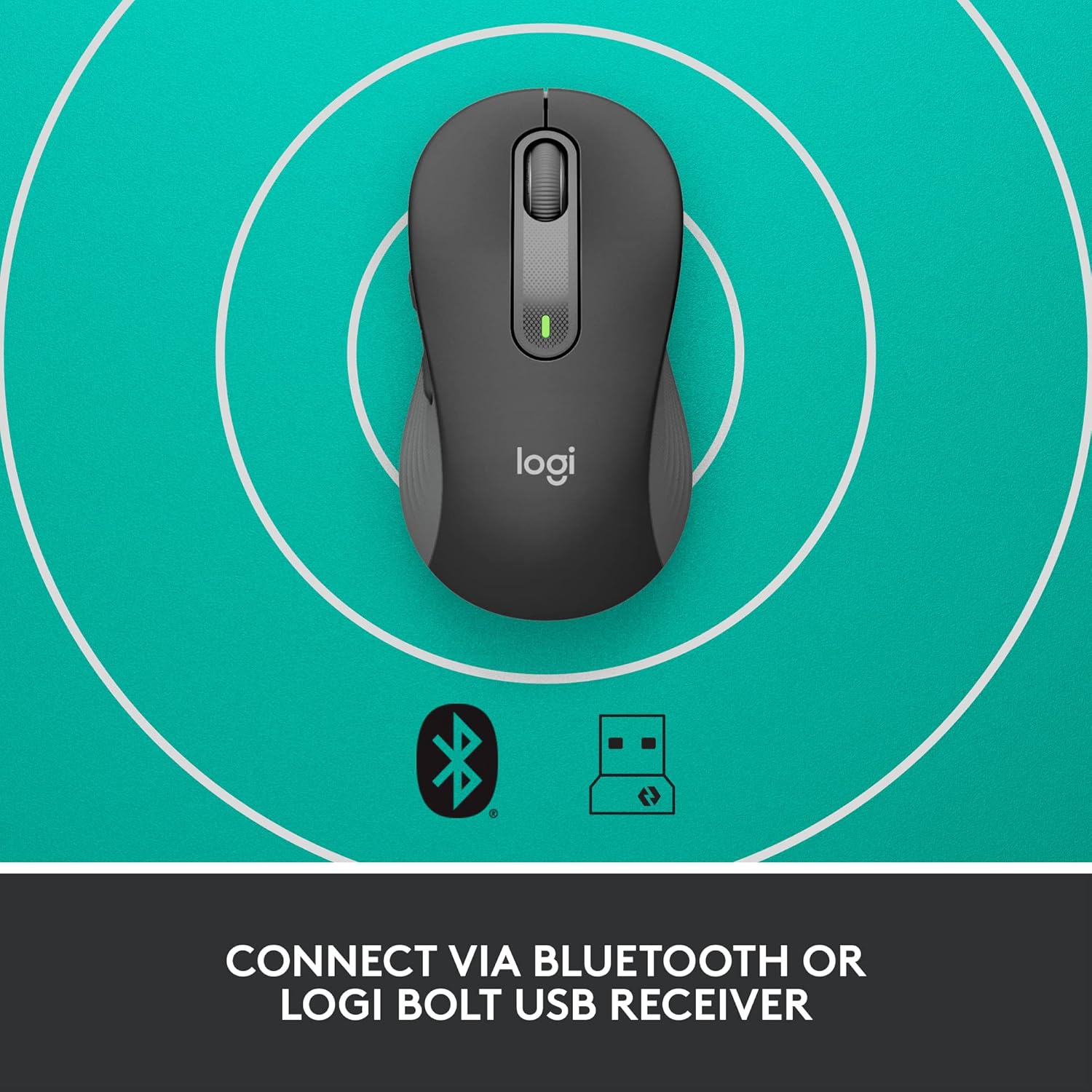
Image: The Logitech Signature M650 L mouse positioned on a surface with concentric circles, accompanied by Bluetooth and Logi Bolt icons, signifying its dual connectivity options.
5. Кіраванне мышшу
5.1. Асноўныя функцыі
- Пстрычка левай кнопкай мышы: Першаснае дзеянне, выбар.
- Пстрыкніце правай кнопкай мышы: Кантэкстнае меню.
- Разумнае кола: Scroll up/down. The wheel automatically switches between precise line-by-line scrolling and hyper-fast free-spin scrolling based on your scrolling speed.
- Бакавыя кнопкі: By default, these buttons may perform forward/back actions in web браўзэры.
5.2. Customizing Buttons (Logitech Options Software)
To unlock the full potential of your Signature M650 L mouse, download and install the Logitech Options software from the official Logitech webсайт (www.logitech.com/software/logi-options-plus.html). This software allows you to:
- Reassign the side buttons to perform various functions (e.g., copy, paste, open applications, media controls).
- Adjust pointer speed (DPI).
- Customize SmartWheel behavior.
- View стан батарэі.
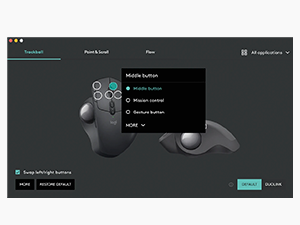
Image: A screenshot of the Logitech Options software interface, demonstrating how users can customize mouse buttons and settings for enhanced productivity.
6. Тэхнічнае абслугоўванне
6.1. Чыстка мышы
Каб падтрымліваць аптымальную прадукцыйнасць і гігіену, рэгулярна чысціце мыш:
- Выкарыстоўвайце мяккую безворсовую тканіну, злёгку dampвадой або ачышчальным растворам, бяспечным для электронікі.
- Wipe down the surface of the mouse.
- Для аптычнага датчыка выкарыстоўвайце сухі ватовы тампон, каб акуратна ачысціць пыл або смецце.
- Пазбягайце выкарыстання агрэсіўных хімікатаў, абразіўных ачышчальнікаў або апускання мышы ў вадкасць.
6.2. Замена батарэі
When the battery indicator light on your mouse turns red or the mouse becomes unresponsive, it's time to replace the AA battery. Follow the battery installation steps in Section 4.1.
7. Выпраўленне непаладак
| праблема | Магчымая прычына | Рашэнне |
|---|---|---|
| Мышка не рэагуе | Low battery; Receiver disconnected; Bluetooth not paired; Mouse powered off. | Replace battery; Re-insert Logi Bolt receiver; Re-pair Bluetooth; Turn mouse on. |
| Cursor lag or erratic movement | Interference; Dirty optical sensor; Surface issues; Low battery. | Move mouse closer to receiver/device; Clean optical sensor; Use a mouse pad; Replace battery. |
| Бакавыя кнопкі не працуюць | Logitech Options not installed or configured; Software conflict. | Install/reinstall Logitech Options; Check button assignments in software; Restart computer. |
| Немагчыма падключыцца праз Bluetooth | Mouse not in pairing mode; Device's Bluetooth off; Interference. | Ensure mouse is in pairing mode (blinking LED); Enable Bluetooth on device; Move away from other wireless devices. |
8. Тэхнічныя характарыстыкі
| Асаблівасць | Дэталь |
|---|---|
| Марка | Logitech |
| Назва мадэлі | Подпіс M650 L |
| Нумар мадэлі тавару | 910-006346 |
| Тэхналогія падлучэння | Прыёмнік Bluetooth Low Energy, USB Logi Bolt |
| Тэхналогія выяўлення руху | Аптычны |
| Колер | Графіт |
| Вага прадмета | 3.93 унцыі (прыблізна 111.4 грамаў) |
| Памеры прадукту (ДxШxВ) | 4.65 х 2.58 х 1.64 цалі (прыблізна 11.8 х 6.55 х 4.17 см) |
| Тып батарэі | 1 батарэі АА (у камплекце) |
| Сярэдні тэрмін службы батарэі | Да 24 месяцаў |
| Апаратная платформа | ПК, Linux, Mac |
| Сумяшчальнасць аперацыйнай сістэмы | Windows 11, Windows 10, macOS 10.15+, Linux, Chrome OS, iPadOS 13.4+, Android 5.0+ |
| Краіна паходжання | Кітай |
9. Гарантыя і падтрымка
9.1. Інфармацыя аб гарантыі
Прадукцыя Logitech звычайна пастаўляецца з абмежаванай гарантыяй на абсталяванне. Калі ласка, звярніцеся да гарантыйнага талона, які ўваходзіць у камплект прадукту, або наведайце афіцыйны сайт Logitech. website for the most current and detailed warranty information applicable to your region and product model.
9.2. Падтрымка кліентаў
For technical assistance, product inquiries, or to report issues, please visit the Logitech support webсайт:
You may also find helpful FAQs, troubleshooting guides, and driver downloads on their support portal.
Ask a question about this manual
Ask about setup, troubleshooting, compatibility, parts, safety, or missing instructions. Manuals+ will review the question and use this page’s manual context to help answer it.