
OBSBOT OBS-200002
Інструкцыя па эксплуатацыі пульта дыстанцыйнага кіравання OBSBOT Tiny 2
Мадэль: OBS-200002
Уводзіны
Пульт дыстанцыйнага кіравання OBSBOT Tiny 2 распрацаваны для паляпшэння вашага вопыту з серыяй OBSBOT Tiny. webcams, including Tiny 2 Lite, Tiny 2, Tiny 4K, Tiny 1080P, Tiny SE, and the OBSBOT UVC to HDMI Adapter 2nd Gen. This smart remote provides intuitive control over various camera functions and AI features, offering a more convenient and pleasant usage experience.
It combines the functionality of a remote control with a presentation clicker, allowing for seamless control during video calls, live streaming, and presentations.
Змест пакета
- OBSBOT Tiny 2 Remote Control
- USB Receiver Dongle (stored inside the remote's battery compartment)
- User Guide/Instructions
Відэа: Unboxing and initial setup of the OBSBOT Tiny Remote Control, including battery installation and USB dongle location.
Настройка
1. Устаноўка батарэі
- Адкрыйце вечка адсека для батарэй на задняй частцы пульта дыстанцыйнага кіравання.
- Устаўце дзве батарэйкі тыпу ААА, сачыце за правільнай палярнасцю (+/-).
- Зачыніце крышку батарэйнага адсека.
2. Падключэнне USB-прыёмніка
- Locate the USB receiver dongle inside the remote's battery compartment.
- Plug the USB receiver dongle into an available USB 2.0 or higher port on your computer.
3. Software Setup (OBSBOT TinyCam)
- Ensure your OBSBOT Tiny series webcam is connected to your computer and the OBSBOT TinyCam software is running.
- Navigate to the settings within the OBSBOT TinyCam software.
- Scroll down to find the "Remote Control" option and enable it.
- Цяпер пульт дыстанцыйнага кіравання павінен быць спалучаны і гатовы да выкарыстання.
Інструкцыя па эксплуатацыі
Схема і функцыі пульта дыстанцыйнага кіравання
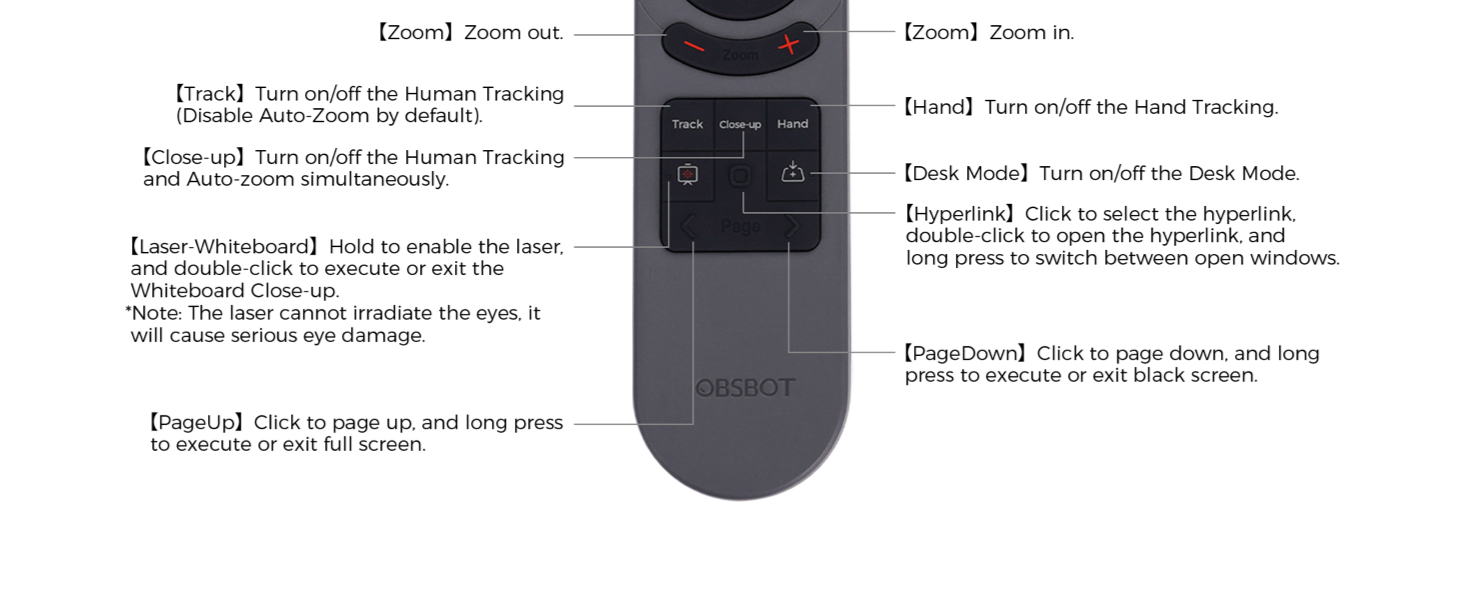
выява: Detailed diagram illustrating the buttons and their corresponding functions on the OBSBOT Tiny 2 Remote Control.
- Кнопка харчавання: Turns the connected OBSBOT Tiny series webкамера ўключана або выключана.
- Кнопкі напрамкі: Control the pan and tilt of the webкулачок.
- Кнопка скіду: Resets the camera's position to its default (square zero).
- Device Selection Buttons (Left/Right Arrows): Allows switching control between multiple connected OBSBOT devices (if connected to the same computer).
- Кнопкі павелічэння/памяншэння маштабу: Адрэгулюйце ўзровень маштабавання камеры.
- P1, P2, P3 Buttons: Preset buttons to save and recall specific camera positions and zoom levels.
- Кнопка адсочвання: Toggles Human Tracking on/off. Disables Auto Zoom by default.
- Кнопка буйнога плана: Activates Close-up mode, turning on Human Tracking and Auto Zoom simultaneously.
- Ручная кнопка: Toggles Hand Tracking on/off.
- Кнопка рэжыму працоўнага стала: Уключае/выключае рэжым працоўнага стала.
- Кнопка лазернай дошкі: Hold to enable the laser pointer. Double-click to execute or exit Whiteboard Close-up. Note: The laser cannot irradiate the eyes; it will cause serious eye damage.
- Кнопка гіперспасылкі: Націсніце, каб выбраць гіперспасылку. Двойчы націсніце, каб адкрыць гіперспасылку. Доўгі націск — пераключэнне паміж адкрытымі вокнамі.
- Кнопка PageDown: Click to page down. Long press to execute or exit a black screen.
- Кнопка PageUp: Click to page up. Long press to execute or exit full screen.
Важная заўвага: Some keys on the remote controller will not work with OBSBOT Tiny 4K and OBSBOT Tiny, as the features controlled by those keys (e.g., Close-up, Hand, Laser-Whiteboard, Desk Mode) are not integrated into those specific models.
Галасавое кіраванне
The OBSBOT Tiny 2 webcam supports voice control for various functions, including waking up the device, initiating tracking, and adjusting zoom. Refer to the OBSBOT TinyCam software settings for a full list of voice commands and to enable/disable this feature.
Відэа: Demonstration of the OBSBOT Meet Remote Control features and functions.
Прыкладанні

Video Meetings: Control your camera's focus and framing during online conferences.

Remote Classes: Utilize presentation clicker features and camera control for engaging online teaching.

Жывая трансляцыя: Adjust camera angles and zoom on the fly for dynamic broadcasts.
Тэхнічнае абслугоўванне
- Keep the remote control clean and dry. Use a soft, dry cloth for cleaning.
- Avoid exposing the remote to extreme temperatures or direct sunlight.
- Калі пульт не будзе выкарыстоўвацца працяглы час, выміце батарэйкі, каб прадухіліць іх уцечку.
- Store the USB receiver dongle securely within the remote's battery compartment to prevent loss.
Ліквідацыю непаладак
- Пульт не адказвае:
- Праверце, ці правільна ўсталяваныя батарэйкі і ці дастаткова яны зараджаныя. Пры неабходнасці замяніце іх.
- Ensure the USB receiver dongle is securely plugged into your computer.
- Verify that the "Remote Control" option is enabled in the OBSBOT TinyCam software settings.
- Restart the OBSBOT TinyCam software and/or your computer.
- Specific features not working:
- Confirm that your OBSBOT webcam model supports the specific feature (e.g., Close-up, Desk Mode). Refer to your webcam's manual for compatibility.
- Ensure your OBSBOT TinyCam software and webcam firmware are up to date.
- Перашкоды:
- Avoid using the remote near strong electromagnetic interference sources.
Тэхнічныя характарыстыкі
| Памеры прадукту | 10 х 2 х 0.01 цалі |
| Вага прадмета | 1.76 унцыі |
| Нумар мадэлі тавару | АБС-200002 |
| Батарэі | 2 батарэйкі AAA (не ўваходзяць у камплект) |
| Марка | АБСБОТ |
| Асаблівасць | Эрганамічны |
| Колер | Чорны |
| Максімальная колькасць падтрымоўваных прылад | 4 |
| Сумяшчальныя прылады | OBSBOT Tiny series webcams, OBSBOT UVC to HDMI Adapter 2nd Gen, Personal Computer |
Гарантыя і падтрымка
For warranty information, technical support, or further assistance, please visit the official OBSBOT webсайт або звярніцеся непасрэдна ў службу падтрымкі кліентаў. Захоўвайце чэк аб куплі для прэтэнзій па гарантыі.
Ask a question about this manual
Ask about setup, troubleshooting, compatibility, parts, safety, or missing instructions. Manuals+ will review the question and use this page’s manual context to help answer it.