
TomTom 1YB5.002.20
TomTom GO Expert Truck Sat Nav User Manual
Model: 1YB5.002.20
Уводзіны
This manual provides essential information for setting up, operating, maintaining, and troubleshooting your TomTom GO Expert Truck Sat Nav. Please read it carefully to ensure optimal performance and safe use of your device.
The TomTom GO Expert is designed for professional large vehicle navigation, offering custom routing and POIs for buses, trucks, and coaches, along with live alerts for various road restrictions.
Што ў скрынцы
Пасля адкрыцця ўпакоўкі пераканайцеся ў наяўнасці ўсіх кампанентаў:
- TomTom GO Expert Device
- Аўтамабільная зарадная прылада
- Click-and-Drive Mount
- Кароткае кіраўніцтва

Выява: спераду view of the TomTom GO Expert Sat Nav device, showing its 5-inch capacitive screen and the TomTom logo at the bottom.
Настройка
1. Мантаж прылады
- Ачысціце лабавое шкло: Ensure the area where you intend to mount the device is clean and dry.
- Прымацаваць мацаванне: Securely attach the Click-and-Drive mount to your windshield or dashboard. Press the suction cup firmly against the surface and flip the lever to lock it in place.
- Падключыце прыладу: Slide the TomTom GO Expert device onto the mount until it clicks securely.
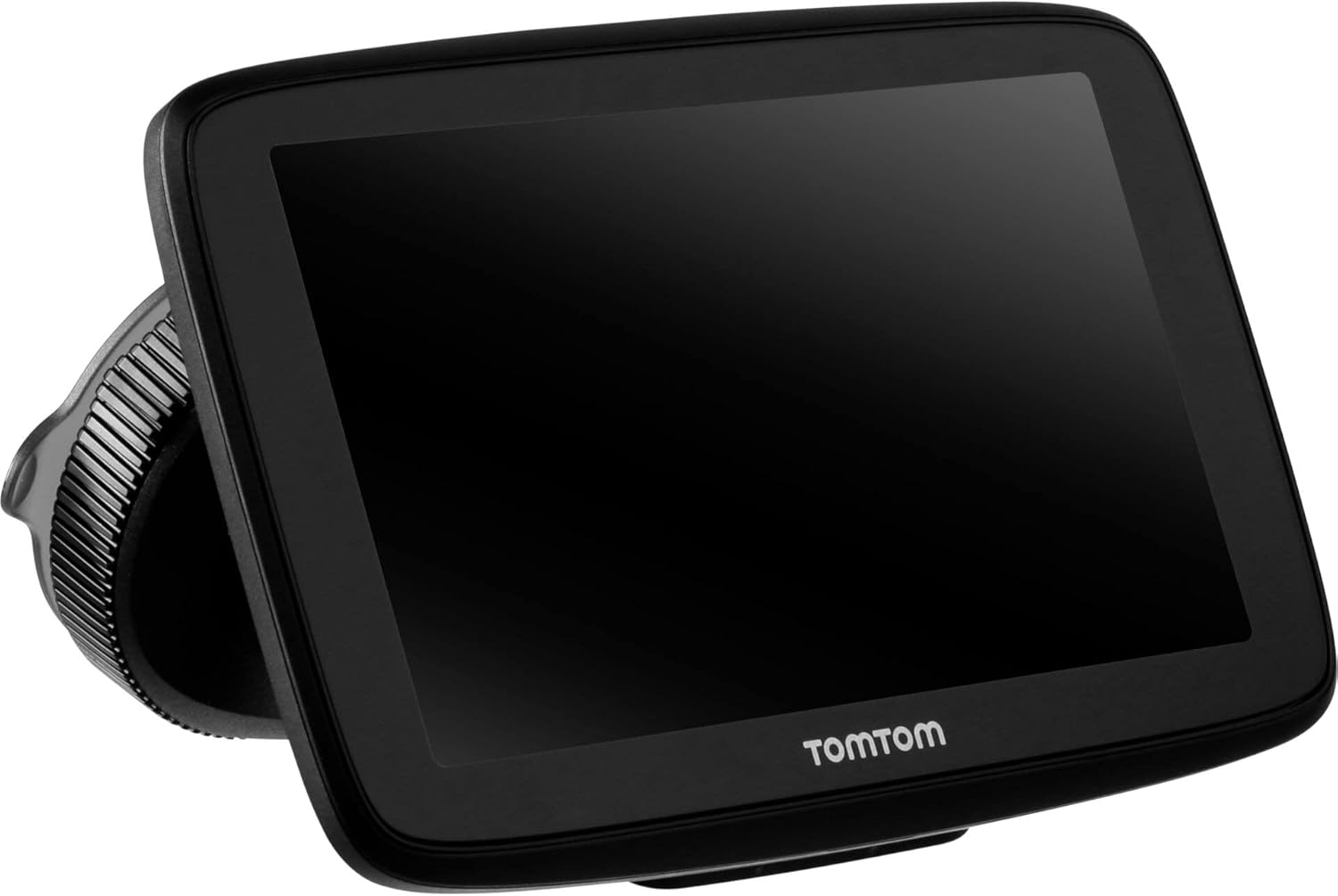
Image: The TomTom GO Expert Sat Nav device attached to its Click-and-Drive mount, viewed from an angle, showing the suction cup base.
2. Уключэнне і зарадка
- Connect the Car Charger: Plug the car charger into your vehicle's 12V power outlet.
- Падключэнне да прылады: Connect the other end of the charger to the TomTom GO Expert device.
- Першапачатковая плата: Перад першым выкарыстаннем дайце прыладзе зарадзіцца не менш за 30 хвілін або пакуль індыкатар батарэі не пакажа дастатковы зарад.

Выява: Side profile of the TomTom GO Expert Sat Nav device, showing its slim design and how it connects to the Click-and-Drive mount.
3. Пачатковая налада і падключэнне да Wi-Fi
- Выконвайце падказкі на экране, каб выбраць мову і рэгіён.
- Connect to a Wi-Fi network for quick map updates and traffic information. Navigate to Налады > Wi-Fi і абярыце сваю сетку.
- Configure your vehicle profile (truck, bus, coach) by entering dimensions, weight, and other relevant details. This is crucial for custom routing.
Кіраванне прыладай
Асновы навігацыі
- Entering a Destination: Tap the search icon on the main menu and enter an address, POI, or coordinates.
- Карыстальніцкая маршрутызацыя: The device will automatically calculate routes based on your configured vehicle profile, avoiding unsuitable roads for large vehicles.
- Live Traffic Updates: With an active Wi-Fi connection, the device provides real-time traffic information to help you avoid delays.
- Lane Guidance: The device displays clear lane guidance to help you prepare for exits and turns.
- Галасавое кіраванне: Use voice commands for hands-free operation. Refer to the on-screen guide for available commands.
Map Updates and Services
Your TomTom GO Expert receives 3X faster updates via Wi-Fi. Ensure your device is connected to a stable Wi-Fi network to download the latest maps and software updates conveniently and at no extra cost.
- Абнаўленні карты: Перайсці да Налады > Абнаўленні і новыя элементы to check for and install map updates.
- Speed Camera Alerts: The device includes 1 year of speed camera alerts. Ensure this service is active for safer driving.
Тэхнічнае абслугоўванне
- Уборка: Use a soft, lint-free cloth to clean the screen and device casinг. Не выкарыстоўвайце абразіўныя ачышчальнікі або растваральнікі.
- Абнаўленні праграмнага забеспячэння: Regularly check for and install software updates via Wi-Fi to ensure optimal performance and access to new features.
- Сыход за батарэяй: To prolong battery life, avoid exposing the device to extreme temperatures. If storing for an extended period, ensure the battery is partially charged.
- захоўванне: When not in use, store the device in a cool, dry place, away from direct sunlight.
Ліквідацыю непаладак
Агульныя праблемы і рашэнні
- Прылада не ўключаецца:
- Ensure the car charger is securely connected to both the device and the vehicle's power outlet.
- Check the vehicle's power outlet for functionality.
- Try resetting the device by holding the power button for 15-20 seconds.
- Няма сігналу GPS:
- Пераканайцеся, што прылада мае чысты view of the sky. Obstructions like tall buildings or tunnels can block the signal.
- Move to an open area and allow the device a few minutes to acquire satellites.
- Check for any pending software updates that might improve GPS performance.
- Map Not Updating:
- Verify that the device is connected to a stable Wi-Fi network.
- Ensure there is sufficient storage space on the device for the new map data.
- Restart the device and try the update again.
- Сэнсарны экран не рэагуе:
- Выканайце мяккі скід, утрымліваючы кнопку харчавання, пакуль прылада не перазагрузіцца.
- Пераканайцеся, што экран чысты і без смецця.
Тэхнічныя характарыстыкі
| Асаблівасць | Дэталь |
|---|---|
| Памеры прадукту | 5.51 х 0.79 х 3.54 цалі |
| Вага прадмета | 12.7 унцыі |
| Нумар мадэлі | 1YB5.002.20 |
| Батарэі | Патрабуецца 1 літый-іённы акумулятар (у камплекце) |
| Аперацыйная сістэма | Windows (internal OS) |
| Тэхналогіі падключэння | Bluetooth, бесправадная сувязь (Wi-Fi) |
| Асаблівасці | Bluetooth, Lane Assist, Touchscreen |
| Увод чалавечага інтэрфейсу | Сэнсарны экран |
| Колер | Чорны |
| Тып абслугоўвання аўтамабіля | Bus, Truck |
| Памер экрана | 5 цалі |
| Тып карты | Ва ўсім свеце |
| Рэжым выхаду гуку | Дакладчык |
Гарантыя і падтрымка
For detailed warranty information and technical support, please visit the official TomTom support webсайт або звярніцеся да гарантыйнага талона, які пастаўляецца з вашым прадуктам.
Інтэрнэт-падтрымка: www.tomtom.com/support
Ensure you have your device's serial number and model number (1YB5.002.20) ready when contacting support.
Ask a question about this manual
Ask about setup, troubleshooting, compatibility, parts, safety, or missing instructions. Manuals+ will review the question and use this page’s manual context to help answer it.