
Уводзіны
The HyperGear HyperStream 1080P Webcam provides high-definition video and clear audio for various applications, including online meetings, classes, and streaming. This manual provides instructions for setup, operation, maintenance, and troubleshooting to ensure optimal performance of your webкулачок.
Змест пакета
Калі ласка, пераканайцеся, што ўсе прадметы прысутнічаюць у вашай упакоўцы:
- HyperGear HyperStream 1080P Webкамера
- Кабель USB
- Убудаваны мікрафон
Прадукт скончаныview
The HyperGear HyperStream 1080P Webcam is designed for ease of use and high-quality performance. Key features include:
- Crystal-Clear 1080P HD Resolution: Delivers sharp and vibrant visuals.
- Built-in Noise Reduction Microphone: Captures clear audio by reducing background sounds.
- USB-злучэнне Plug & Play: Requires no additional software or drivers for quick setup.
- Wide-Angle 110° Lens: Ахоплівае шырокае поле view, suitable for group interactions.
- Auto-White Balance: Automatically adjusts to various lighting conditions for optimal image quality.
- Рэгуляванае мацаванне з заціскам: Securely attaches to monitors or laptops, and can also be positioned as a standalone unit.
Інструкцыя па наладзе
Follow these steps to set up your HyperGear HyperStream 1080P Webкамера:
- Распакуйце Webкамера: Акуратна зніміце webcam and its USB cable from the packaging.

Image: The HyperGear HyperStream 1080P Webcam is designed for instant plug-and-play setup without requiring additional drivers. Simply connect the USB cable to your computer.
- Змантаваць Webкамера:
- На маніторы/ноўтбуку: Open the adjustable clip and place it securely on top of your monitor or laptop screen. Adjust the angle to ensure the webcam is stable and facing you.
- На працоўным стале: Складзіце заціск, каб атрымалася ўстойлівая падстаўка, і пастаўце яго webпастаўце камеру на роўную паверхню, напрыклад, на стол.

Выява: The webcam features an adjustable mount that allows it to be clamped onto any screen or display, or positioned as a standalone unit on your desk. It offers 180-degree rotation for flexible positioning.
- Падключыцеся да вашай прылады: Падключыце кабель USB ад webcam into an available USB port on your computer (PC, Mac) or Xbox console. The webcam is plug-and-play, so no additional drivers are typically required.
- Праверце злучэнне: Your operating system should automatically detect the webcam. You can verify its connection in your device settings or within your preferred video conferencing/streaming application.
Інструкцыя па эксплуатацыі
Once connected, the HyperGear HyperStream 1080P WebКамера гатовая да выкарыстання з рознымі праграмамі.
Сумяшчальнасць сістэмы
The webcam is compatible with multiple operating systems and platforms:
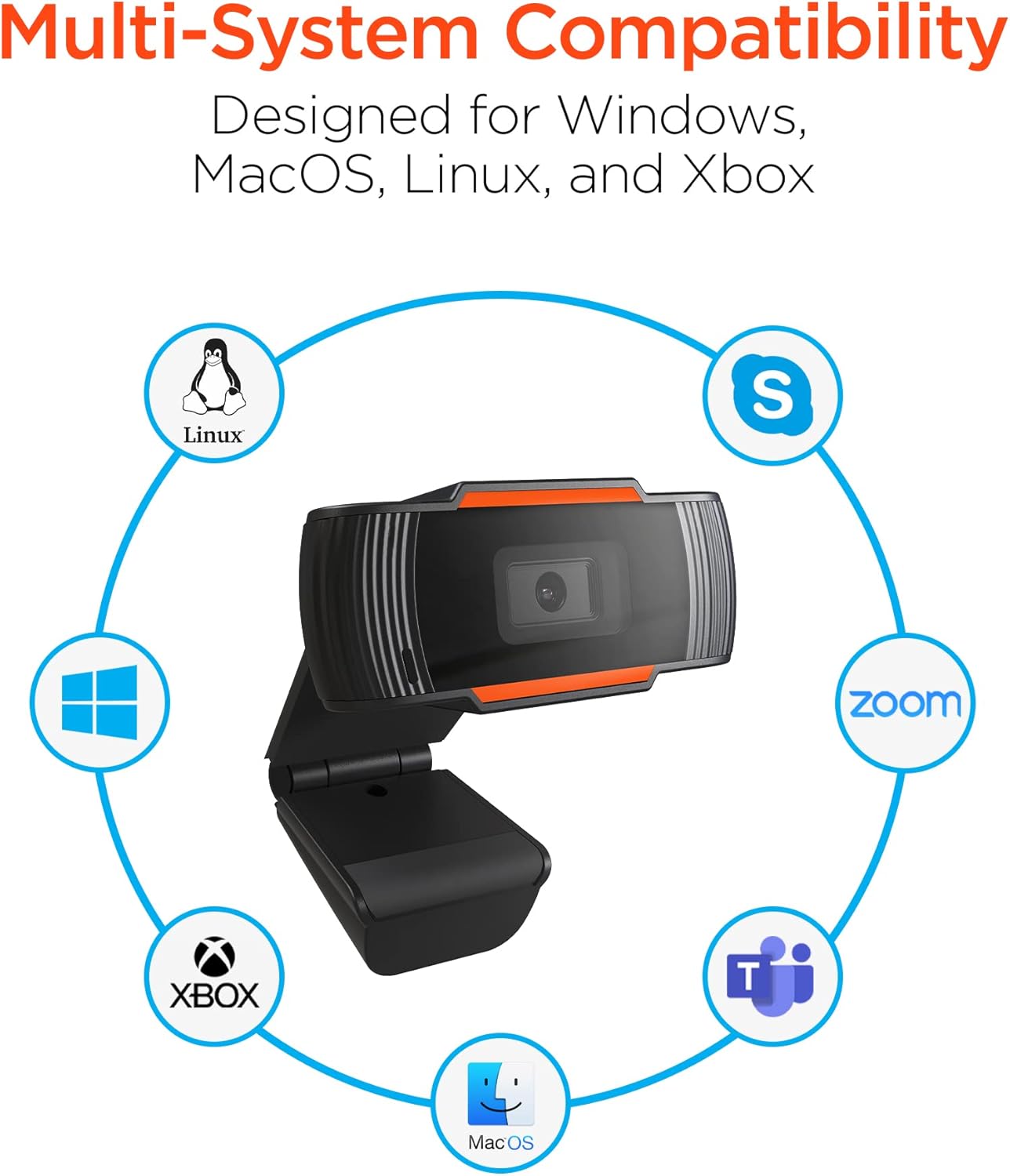
Image: The HyperGear HyperStream 1080P Webcam offers multi-system compatibility, designed for use with Windows, MacOS, Linux, and Xbox, as well as popular communication platforms like Skype, Zoom, and Microsoft Teams.
- вокны
- macOS
- Linux
- Xbox
- Compatible with popular video conferencing software (e.g., Skype, Zoom, Microsoft Teams).
Выкарыстоўваючы Webкамера
- Выберыце Webкамера: In your video conferencing or streaming application, navigate to the video and audio settings. Select "HyperGear HyperStream 1080P Webcam" as your video input device and its integrated microphone as your audio input device.
- Adjust Position and Angle: Забяспечце webcam is positioned to capture your desired view. The 110° wide-angle lens is ideal for capturing multiple participants or a broader background.

Image: The 110° ultra wide-angle lens ensures that your entire team and presentations fit within the frame, making it suitable for group meetings and collaborative environments.
- Benefit from Auto-White Balance and Fixed Focus: The webcam automatically adjusts for optimal lighting and maintains a sharp focus on subjects within its field of view, eliminating the need for manual adjustments.

Выява: The webcam features fixed focus and auto-white balance (AWB) to automatically adjust to various lighting conditions (like daylight or fluorescent), ensuring clear and sharp visuals without manual intervention.
- Utilize Noise Reduction Microphone: The built-in microphone actively reduces ambient noise, ensuring your voice is clear and easily understood during calls.

Image: The integrated noise reduction microphone minimizes unwanted background noise and distortions, ensuring clear audio during your video calls and streams.
Тэхнічнае абслугоўванне
Каб забяспечыць даўгавечнасць і аптымальную прадукцыйнасць вашага webкулачок, выконвайце наступныя рэкамендацыі па тэхнічным абслугоўванні:
- Уборка: Gently wipe the lens with a soft, lint-free cloth. Avoid using harsh chemicals or abrasive materials that could scratch the lens or damage the casing.
- захоўванне: Калі ён не выкарыстоўваецца, захоўвайце яго webЗахоўвайце камеру ў чыстым, сухім месцы, удалечыні ад экстрэмальных тэмператур і прамых сонечных прамянёў.
- Апрацоўка: Пазбягайце падзення webcam or subjecting it to strong impacts, which could damage internal components.
Ліквідацыю непаладак
If you encounter issues with your HyperGear HyperStream 1080P Webкамерай, паспрабуйце наступныя дзеянні па ліквідацыі непаладак:
- WebКамера не выяўлена:
- Пераканайцеся, што кабель USB надзейна падключаны да абодвух webcam and your computer's USB port.
- Паспрабуйце падключыць webкамеру ў іншы порт USB.
- Перазагрузіце кампутар.
- Check your operating system's device manager (Windows) or System Information (macOS) to see if the webкамера ёсць у спісе.
- Няма відэавыхаду:
- Пераканайцеся, што webУ наладах вашага прыкладання ў якасці прылады відэаўваходу выбрана камера.
- Пераканайцеся, што ніякія іншыя праграмы ў цяперашні час не выкарыстоўваюць webcam, бо некаторыя сістэмы дазваляюць доступ да яго толькі аднаму дадатку адначасова.
- Check for any physical obstructions covering the lens.
- Няма аўдыёўваходу (мікрафон):
- Пацвердзіце, што webcam's microphone is selected as the audio input device in your application's settings and your system's sound settings.
- Check that the microphone is not muted in your application or system settings.
- Ensure your system's privacy settings allow applications to access the microphone.
- Дрэнная якасць відэа:
- Ensure you have adequate lighting in your environment. While the webcam has auto-white balance, sufficient ambient light is crucial for best results.
- Ачысціць webcam lens if it appears smudged or dirty.
- Check your internet connection speed if streaming or video conferencing, as a slow connection can affect video quality.
Тэхнічныя характарыстыкі
| Асаблівасць | Дэталь |
|---|---|
| Марка | HyperGear |
| Назва мадэлі | HyperStream Portable 1080P |
| Дазвол відэазахопу | 1080p |
| Тэхналогія падлучэння | USB |
| Колер | чорны |
| Асаблівасць | Рэгуляваны |
| Тып відэакамеры | Webкамера |
| Аперацыйная сістэма | Windows, macOS |
| Тып аб'ектыва | Шырокі кут |
| Тып фокусу | Фіксаваны фокус |
| Суадносіны бакоў выявы | 16:9 |
| Тып кантролю экспазіцыі | Аўтаматычны |
| Эфектыўнае дазвол відэа | 1920 пікселя |
| Сумяшчальныя прылады | Персанальны кампутар |
| Убудаваны медыя | Microphone, USB Cable |
| Вага прадмета | 4.72 унцый |
| UPC | 633755155390 |
| ASIN | B09S51KSC4 |
Гарантыя і падтрымка
For warranty information and customer support, please refer to the documentation included with your purchase or visit the official HyperGear webсайт.
Вы таксама можаце наведаць в HyperGear Store on Amazon каб атрымаць дадатковую інфармацыю пра прадукт і рэсурсы падтрымкі.