
1. Уводзіны
This manual provides essential information for the proper installation, operation, and maintenance of your PowerColor Red Devil AMD Radeon RX 6650 XT Graphics Card. Please read this guide thoroughly before proceeding with installation to ensure optimal performance and longevity of your product.
The PowerColor Red Devil AMD Radeon RX 6650 XT is designed for high-performance gaming and demanding graphical tasks, featuring 8GB of GDDR6 memory and advanced cooling solutions.
2. Змесціва ўпакоўкі
Пераканайцеся, што ўсе пералічаныя ніжэй элементы прысутнічаюць у камплекце з вашым прадуктам:
- PowerColor Red Devil AMD Radeon RX 6650 XT Graphics Card
- Кіраўніцтва па хуткай усталёўцы / Кіраўніцтва карыстальніка
- Graphics Card Holder (for support)
- ARGB LED Cable (for lighting synchronization)
- Крапежныя шрубы
3. Сістэмныя патрабаванні
Перад усталёўкай пераканайцеся, што ваша сістэма адпавядае наступным мінімальным патрабаванням:
- Матчына плата: PCI Express compatible motherboard with one x16 PCIe slot.
- крыніца харчавання: Minimum 650W or greater power supply.
- Сістэмная памяць (RAM): Minimum 8GB, Recommended 16GB.
- Дысплей: A display with HDMI or DisplayPort input is required.
- Прылады ўводу: Keyboard and mouse required for installation software.
- Аперацыйная сістэма: 64-bit operating system required. Supported OS include Linux, Windows 7/10/11.
- Падтрымка API: DirectX 12 and Vulkan support.
4. Настройка
4.1. Фізічная ўстаноўка
- Падрыхтуйце сваю сістэму:
- Выключыце камп'ютар і адлучыце кабель сілкавання ад разеткі.
- Open your computer case to access the motherboard.
- If replacing an existing graphics card, disconnect its power cables and display cables. Carefully unlatch the PCIe retention clip and remove the old card.
- Insert the Graphics Card:
- Locate an available x16 PCIe slot on your motherboard.
- Align the graphics card with the PCIe slot and press down firmly until it is securely seated and the retention clip locks into place.
- Secure the Graphics Card:
- Use the provided mounting screws to secure the graphics card to your computer case's expansion slot brackets.
- Install the included graphics card holder to prevent GPU sag, adjusting its height as needed.
- Падключэнне кабеляў харчавання:
- Connect the 8-pin and 6-pin PCIe power connectors from your power supply to the corresponding ports on the graphics card. Ensure a firm connection.
- Падключэнне кабеляў дысплея:
- Connect your monitor(s) to the graphics card using HDMI or DisplayPort cables. The card supports 1 HDMI and 3 DisplayPort outputs.
- Зачыніце корпус і ўключыце харчаванне:
- Зачыніце корпус кампутара і зноў падключыце кабель харчавання.
- Уключыце кампутар.
4.2. Ўстаноўка праграмнага забеспячэння
- Спампаваць драйверы:
- Visit the official AMD or PowerColor website to download the latest Radeon Software drivers for your specific operating system.
- Выдаліце старыя драйверы (калі ёсць):
- If you had a previous graphics card, it is recommended to uninstall its drivers using a utility like Display Driver Uninstaller (DDU) in Safe Mode to prevent conflicts.
- Install New Drivers:
- Run the downloaded Radeon Software installer. Follow the on-screen prompts to complete the installation.
- During installation, your display may flicker or go black temporarily. This is normal.
- Перазапуск сістэмы:
- Перазагрузіце кампутар пасля завяршэння ўсталёўкі драйвера.
- Наладзьце параметры дысплея:
- Once Windows loads, right-click on the desktop and select "Display settings" or open Radeon Software.
- Adjust your display resolution and refresh rate to match your monitor's capabilities.
- Enable AMD FreeSync (if your monitor supports it) for a smoother gaming experience.
5. Рэжымы працы і функцыі
5.1. Пераключальнік падвойнага BIOS
Your graphics card features a Dual BIOS switch, allowing you to choose between two performance profiles:
- OC (Overclock) Mode: Provides higher clock speeds for maximum performance.
- Маўклівы рэжым: Offers quieter operation with slightly reduced clock speeds.
The BIOS switch is located on the side of the card, near the power connectors. Ensure your system is powered off before changing the BIOS mode.
5.2. Advanced Cooling System
The Red Devil series is equipped with a robust cooling solution to maintain optimal temperatures during intense gaming sessions:
- Triple-Fan Design: Features three optimized static pressure fans for efficient airflow.
- Large Heatsink: A massive heatsink with vertical aluminum fins maximizes heat dissipation.
- Copper Base Direct Touch: Ensures efficient heat transfer from the GPU to the heatsink.
5.3. Customizable RGB Lighting
The graphics card features customizable RGB lighting on the fans, side shroud, and backplate. Use the PowerColor Devil Zone RGB software to personalize lighting effects and colors to match your system's aesthetic. The output LEDs on the display ports also illuminate for easy connection in low-light conditions.
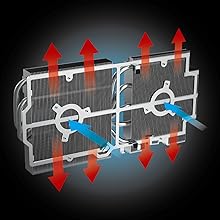
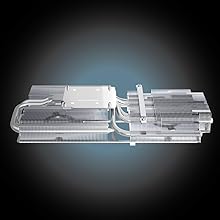


Video: OVERVIEW | Red Devil AMD Radeon RX 6600 XT Graphics Card. Гэта відэа забяспечвае завяршэннеview of the PowerColor Red Devil AMD Radeon RX 6600 XT, highlighting its design and features. While the video specifically mentions the RX 6600 XT, many features and design elements are similar to the RX 6650 XT model.
6. Тэхнічныя характарыстыкі
| Асаблівасць | Каштоўнасць |
|---|---|
| Відэа памяць | 8 ГБ GDDR6 |
| Струменевыя працэсары | 2048 |
| Game Clock (OC/Silent) | 2523 МГц / 2447 МГц |
| Boost Clock (OC/Silent) | 2694 МГц / 2669 МГц |
| Гадзіннік памяці | 17.5 Гбіт/с |
| Мінімальная магутнасць сістэмы | 650 Вт |
| Максімальны дазвол экрана | 7680x4320 |
| Графічны супрацэсар | AMD Radeon RX 6650 XT |
| Марка чыпсэта | AMD |
| Інтэрфейс вываду відэа | 1x HDMI, 3x DisplayPort |
| Вага прадмета | 3.17 фунта |
| Памеры прадукту (ДxШxВ) | 10.39 х 5.94 х 2.13 цалі |
7. Тэхнічнае абслугоўванне
To ensure the longevity and optimal performance of your graphics card, regular maintenance is recommended:
- Выдаленне пылу: Periodically clean dust from the fans and heatsink using compressed air. Ensure the system is powered off before cleaning.
- Паток паветра: Ensure your computer case has adequate airflow to prevent overheating. Keep cables tidy and clear of fan pathways.
- Абнаўленні драйвераў: Regularly check the AMD website for the latest driver updates to benefit from performance improvements and bug fixes.
8. Выпраўленне непаладак
Калі ў вас узніклі праблемы з відэакартай, выканайце наступныя дзеянні па ліквідацыі непаладак:
- Няма дысплея/чорны экран:
- Ensure all power cables (8-pin and 6-pin) are securely connected to the graphics card.
- Verify that display cables are firmly connected to both the graphics card and the monitor.
- Праверце, ці на вашым маніторы ўсталяваны правільны ўваходны сігнал.
- Паспрабуйце іншы кабель дысплея або манітор, калі такі маецца.
- Нестабільнасць/збоі сістэмы:
- Ensure your power supply meets the minimum 650W requirement.
- Абнавіце драйверы відэакарты да апошняй версіі.
- Monitor GPU temperatures using Radeon Software or third-party tools. Ensure adequate cooling.
- If overclocking, try reverting to default clock speeds or switching to Silent BIOS mode.
- Нізкая прадукцыйнасць:
- Пераканайцеся, што драйверы вашай графікі абноўленыя.
- Check in-game settings and reduce demanding options if necessary.
- Verify that your system's CPU and RAM meet recommended specifications.
- Ensure AMD FreeSync is enabled if your monitor supports it.
9. Гарантыя і падтрымка
Your PowerColor Red Devil AMD Radeon RX 6650 XT Graphics Card is covered by a manufacturer's warranty. Please refer to the warranty information included in your product packaging or visit the official PowerColor website for details on warranty terms, registration, and technical support. Keep your proof of purchase for warranty claims.
For further assistance, visit the PowerColor support webсайт або звязацца з іх камандай абслугоўвання кліентаў.