
1. Уводзіны
This manual provides essential information for setting up, operating, and maintaining your NiPoGi Mini PC AM02PRO. Please read this guide thoroughly before using the device to ensure optimal performance and longevity. The NiPoGi Mini PC is a compact and powerful desktop computer designed for various applications, including office work, home entertainment, and light gaming.
2. Змесціва ўпакоўкі
Праверце наяўнасць усіх прадметаў у камплекце:
- NiPoGi Mini PC AM02PRO
- Адаптар сілкавання
- Кабель HDMI
- Кіраўніцтва карыстальніка
3. Прадукт скончыўсяview
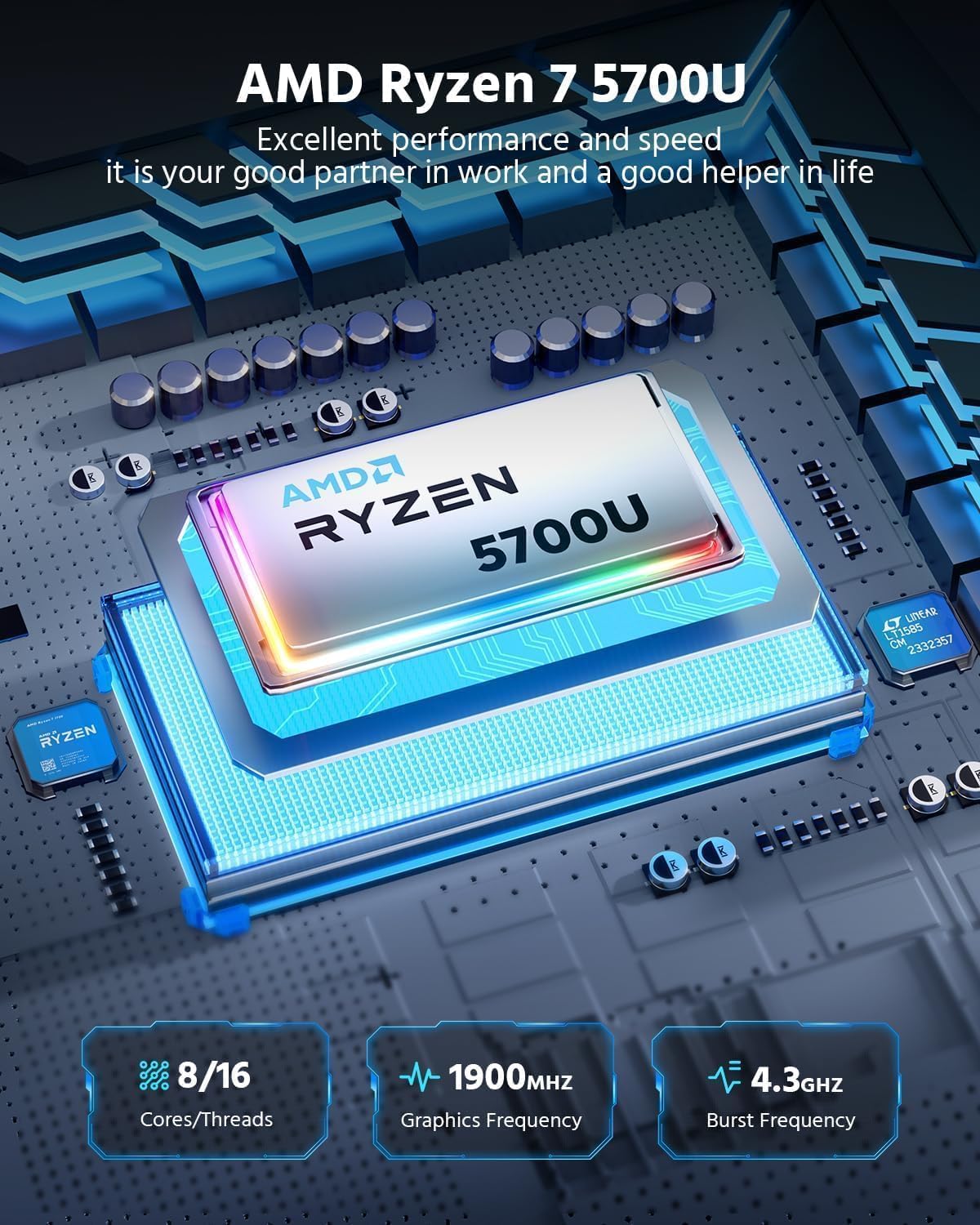
The NiPoGi Mini PC AM02PRO features an AMD Ryzen 7 5700U processor, offering efficient performance in a small form factor. It supports dual display output and high-speed connectivity.
Выява: спераду view of the NiPoGi Mini PC AM02PRO, showcasinг яго кампактны дызайн.
3.1 Працэсар і прадукцыйнасць
Equipped with an AMD Ryzen 7 5700U processor, this mini PC delivers excellent performance for multitasking, productivity, and multimedia. It features 8 cores and 16 threads, with a burst frequency up to 4.3 GHz and integrated Radeon Graphics with a frequency of 1900 MHz.
Выява: Падрабязная view of the AMD Ryzen 7 5700U processor, highlighting its core count, graphics frequency, and burst frequency.
3.2 Памяць і захоўванне
The device comes with 32GB DDR4 RAM (16GB x 2) and a 512GB M.2 SSD. The RAM is expandable up to 64GB via two SODIMM slots, and the M.2 SSD supports expansion up to 2TB, providing ample space and speed for your applications and data.

Выява: Унутраная view of the mini PC, illustrating the dual SO-DIMM memory slots and the M.2 SSD slot for memory and storage expansion.
3.3 Парты і падключэнне
The Mini PC offers a comprehensive set of ports for various peripherals and displays:
- 1x HDMI 2.0 (4K пры 60 Гц)
- 1x DisplayPort
- 4 порта USB 3.0
- 1x Gigabit Ethernet LAN (RJ45)
- 1 порт USB-C
- 1 раз'ём для мікрафона
- 1x DC Power input
- 1x кнопка харчавання
Wireless connectivity includes Wi-Fi 6 (802.11ax) and Bluetooth 5.2, ensuring fast and stable network connections and peripheral pairing.
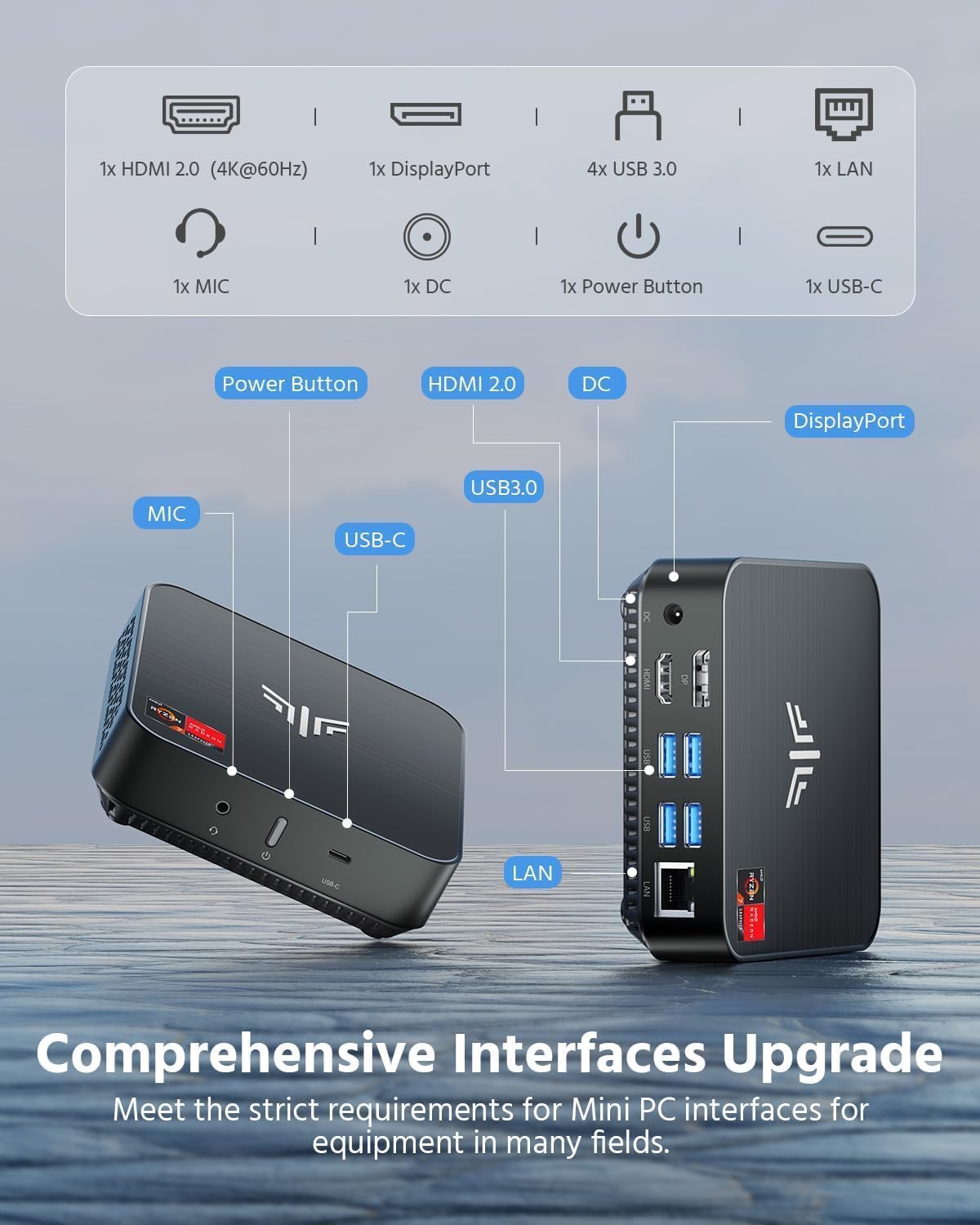
Image: Diagram showing the various ports available on the NiPoGi Mini PC, including HDMI, DisplayPort, USB 3.0, USB-C, LAN, and audio jacks.
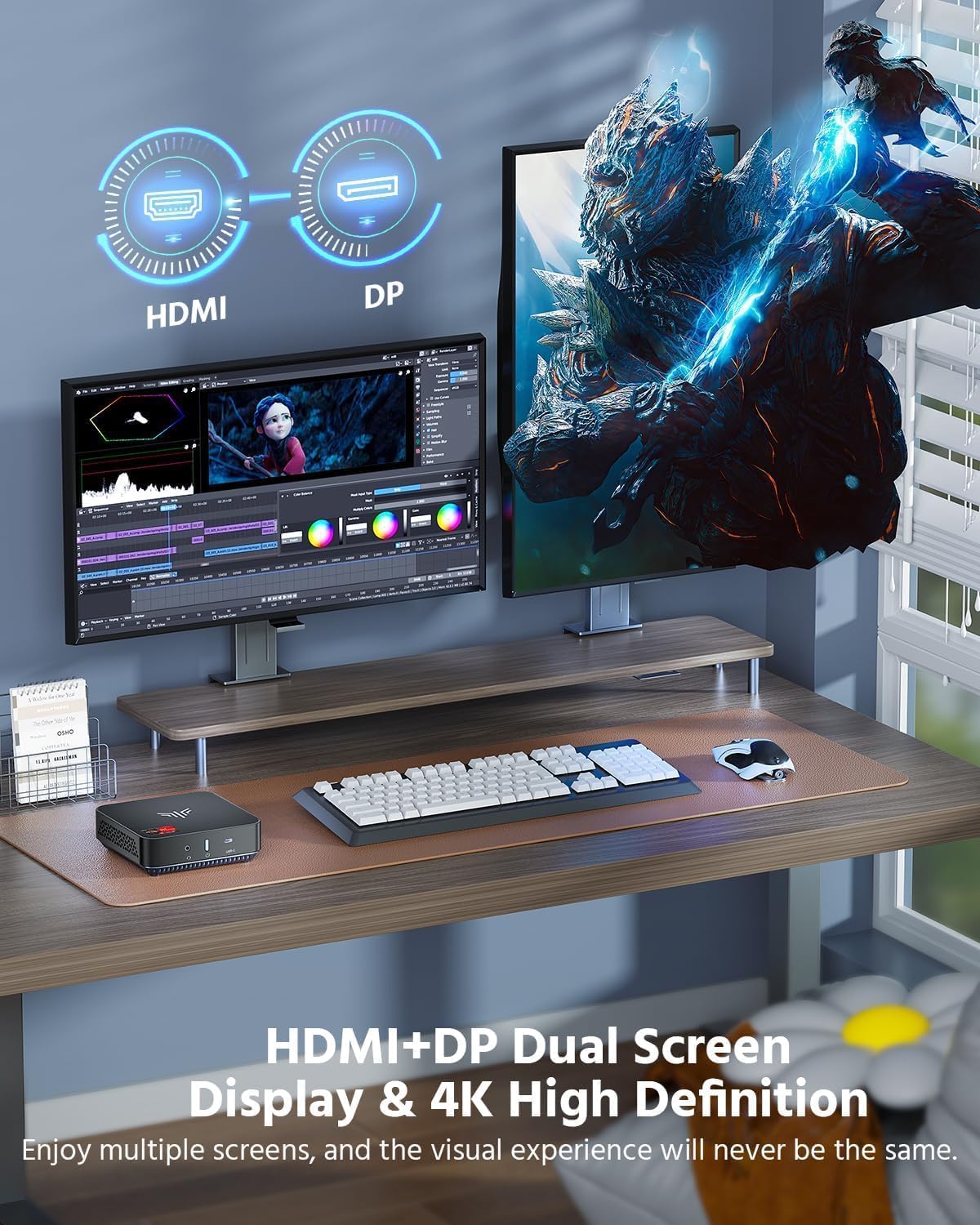
3.4 Dual Display Support
The Mini PC supports dual 4K display output at 60Hz via HDMI and DisplayPort, allowing for an extended desktop experience and enhanced productivity.
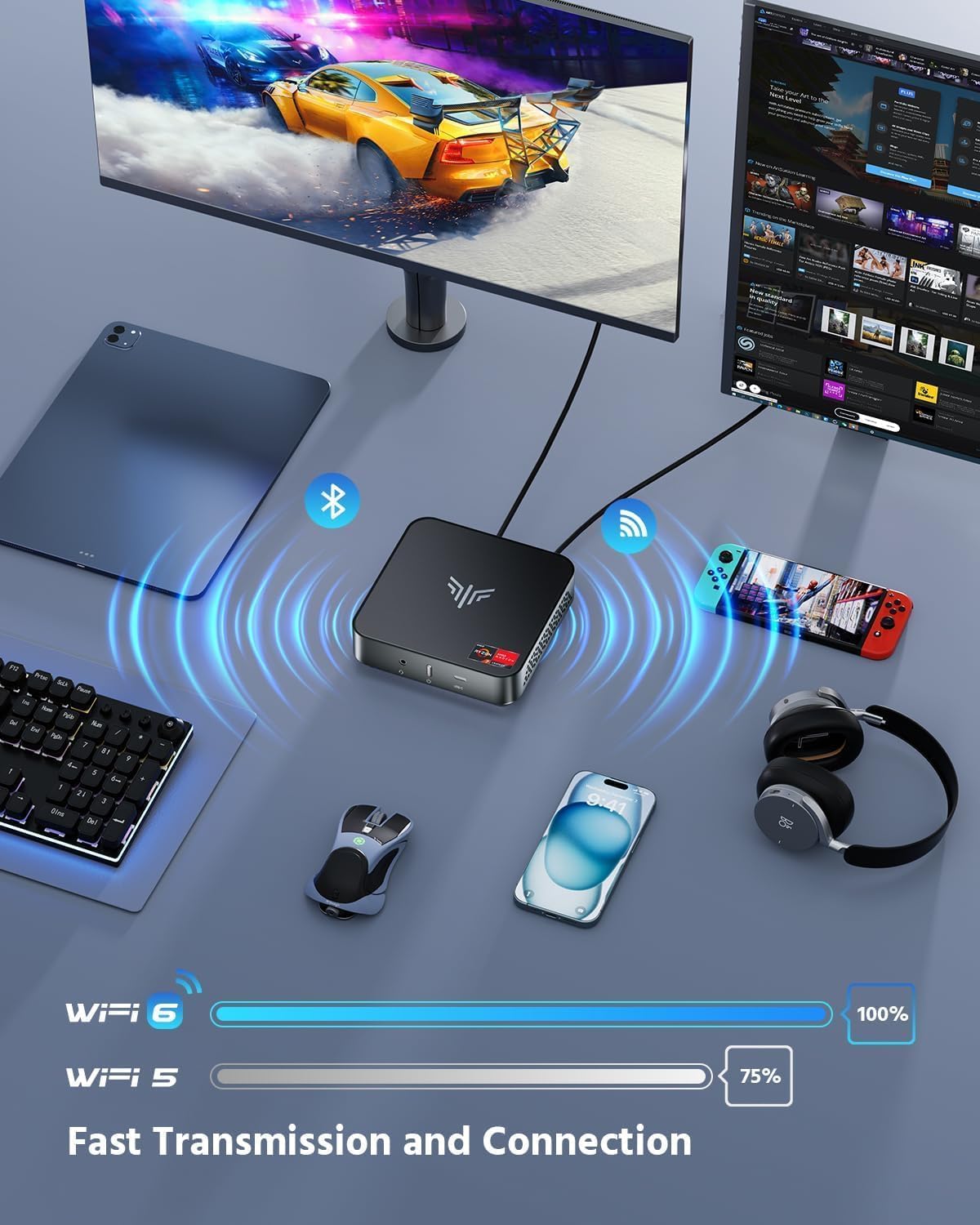
Image: A NiPoGi Mini PC connected to two monitors, demonstrating its dual 4K display capabilities for an immersive visual experience.
3.5 Параметры ўстаноўкі
The compact design allows for flexible placement. It can be placed on a desk or mounted to the back of a monitor using a VESA mount bracket (not included), helping to optimize your workspace.
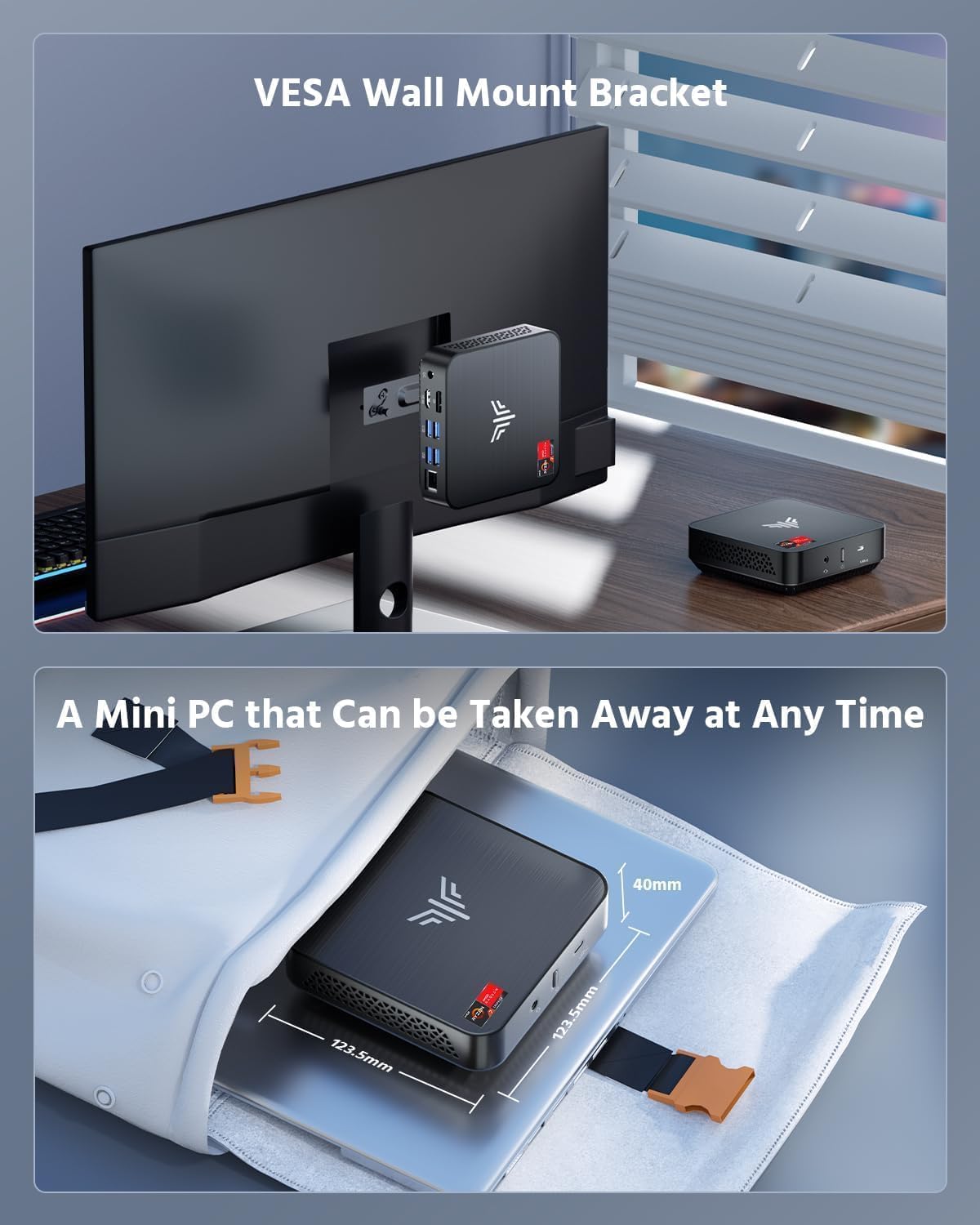
Image: The NiPoGi Mini PC shown mounted on the back of a monitor using a VESA bracket, and also highlighting its small size for portability.
4. Інструкцыі па ўсталёўцы
Follow these steps to set up your NiPoGi Mini PC:
- Падключэнне да дысплея: Connect the Mini PC to your monitor or TV using the provided HDMI cable or a DisplayPort cable.
- Падключэнне перыферыйных прылад: Падключыце клавіятуру, мыш і любыя іншыя прылады USB да даступных партаў USB.
- Падключэнне да сілкавання: Connect the power adapter to the DC input port on the Mini PC, then plug the adapter into a power outlet.
- Уключэнне: Press the power button on the Mini PC. The device will boot up, and you should see the operating system on your display.
- Першапачатковая ўстаноўка: Выконвайце інструкцыі на экране, каб завяршыць пачатковую наладу Windows 11 Pro, у тым ліку мову, рэгіён, сеткавае падключэнне і стварэнне ўліковага запісу карыстальніка.
5. Інструкцыя па эксплуатацыі
5.1 Уключэнне/выключэнне сілкавання
- Каб уключыць: Націсніце кнопку харчавання адзін раз.
- Каб выключыць: Націсніце кнопку «Пуск» у Windows, а затым выберыце «Харчаванне» > «Завяршыць працу».
- Каб перазапусціць: Націсніце кнопку «Пуск» у Windows, а затым выберыце «Харчаванне» > «Перазагрузка».
- Спаць: Націсніце кнопку «Пуск» у Windows, а затым выберыце «Харчаванне» > «Сон».
5.2 Сеткавае падключэнне
- Правадное злучэнне: Connect an Ethernet cable from your router/modem to the LAN port on the Mini PC.
- Бесправоднае злучэнне: In Windows, click the Wi-Fi icon in the taskbar, select your network, enter the password, and click Connect.
5.3 Налады BIOS
Каб атрымаць доступ да налад BIOS, націсніце клавішу DEL key repeatedly during startup when the NiPoGi logo appears. Here you can configure boot options, system time, and other hardware settings.
6. Тэхнічнае абслугоўванне
Рэгулярнае тэхнічнае абслугоўванне дапамагае забяспечыць даўгавечнасць і аптымальную прадукцыйнасць вашага міні-ПК.
- Уборка: Use a soft, dry cloth to clean the exterior of the Mini PC. For dust accumulation in vents, use compressed air. Ensure the device is powered off and unplugged before cleaning.
- Абнаўленні праграмнага забеспячэння: Рэгулярна правярайце наяўнасць абнаўленняў і драйвераў Windows і ўсталёўвайце іх, каб забяспечыць стабільнасць і бяспеку сістэмы.
- Вентыляцыя: Ensure the Mini PC is placed in a well-ventilated area and that its vents are not obstructed to prevent overheating.
- Рэзервовае капіраванне даных: Перыядычна рабіце рэзервовыя копіі важных дадзеных на знешні дыск або ў воблачнае сховішча, каб прадухіліць іх страту.
7. Выпраўленне непаладак
If you encounter issues with your Mini PC, refer to the following common troubleshooting steps:
| праблема | Магчымае рашэнне |
|---|---|
| Няма адлюстравання на маніторы |
|
| Міні-ПК не ўключаецца |
|
| Няма падключэння да інтэрнэту |
|
| Сістэма павольная або не рэагуе |
|
8. Тэхнічныя характарыстыкі
Detailed technical specifications for the NiPoGi Mini PC AM02PRO:
| Асаблівасць | Дэталь |
|---|---|
| Нумар мадэлі | AM02PRO |
| Працэсар | AMD Ryzen 7 5700U (8 Cores/16 Threads, up to 4.3 GHz) |
| Графіка | Integrated Radeon Graphics (1900 MHz) |
| Аперацыйная сістэма | Windows 11 Pro |
| АЗП | 32GB DDR4 (2x 16GB SO-DIMM, expandable to 64GB) |
| Захоўванне | 512GB M.2 NGFF SSD (expandable to 2TB) |
| Бесправоднае падключэнне | Wi-Fi 6 (802.11ax), Bluetooth 5.2 |
| Правадное падключэнне | Гігабітны Ethernet (RJ45) |
| Відэавыхад | 1x HDMI 2.0 (4K@60Hz), 1x DisplayPort (4K@60Hz) |
| Парты USB | 4x USB 3.0, 1x USB-C |
| Аўдыё | 1x Microphone Jack |
| Памеры (Д х Ш х У) | 12 х 12 х 4 см |
| Вага | 470 грамаў |
9. Гарантыя і падтрымка
The NiPoGi Mini PC AM02PRO comes with a 1-year warranty. For technical assistance or warranty claims, please contact NiPoGi customer support. 24/7 support is available to assist you with any issues or questions you may have.