
1. Уводзіны
This manual provides essential information for the proper use and maintenance of your Headwolf FPad 1 Android Tablet. Please read this guide thoroughly before operating the device to ensure optimal performance and longevity. The Headwolf FPad 1 is an 8-inch tablet designed for everyday use, featuring a responsive display and the Android 12 operating system.
2. Змесціва ўпакоўкі
Upon unboxing your Headwolf FPad 1 tablet, please verify that all the following items are included:
- Headwolf FPad 1 Tablet
- Кіраўніцтва карыстальніка (гэты дакумент)
- Power Adapter (USB-A wall charger)
- Зарадны кабель USB-A да USB-C
Note: The tablet may come with a pre-applied screen protector for immediate use.
3. Device Layout and Overview
Familiarize yourself with the physical components and ports of your Headwolf FPad 1 tablet.

Малюнак 3.1: Пярэдняя і задняя часткі view of the Headwolf FPad 1 Tablet.
3.1. Задняя панэль
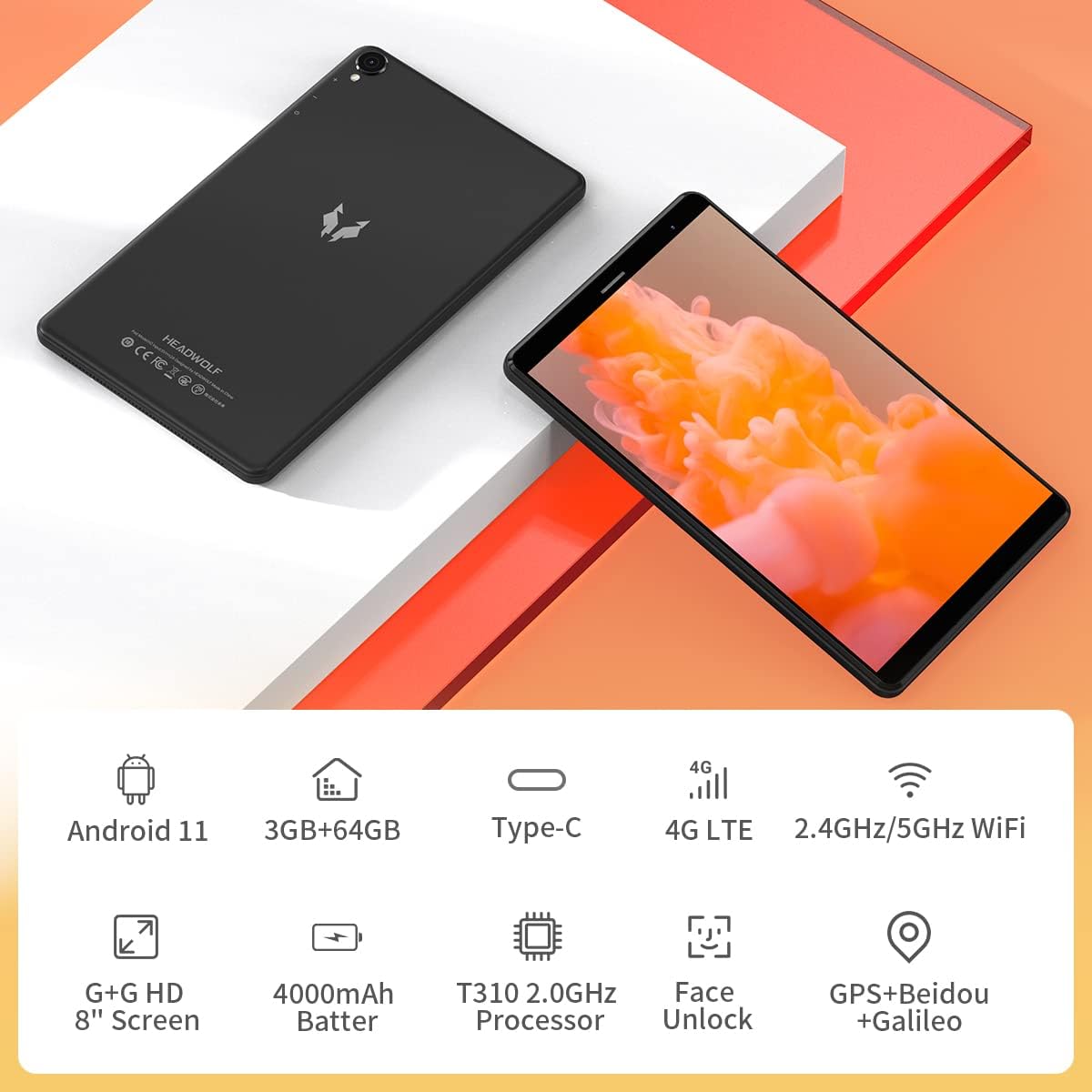
Figure 3.2: The back panel features the Headwolf logo, regulatory markings, and the rear camera module.
3.2. Пярэдняя панэль

Figure 3.3: The front of the tablet displays the 8-inch screen, the front-facing camera, and an earpiece for calls.
3.3. Збоку Viewы і парты

Figure 3.4: The side of the tablet includes the power button, volume rocker, 3.5mm headphone jack, SIM card slot, MicroSD card slot, and USB-C charging port.
- Кнопка харчавання: Размешчана на правым баку, выкарыстоўваецца для ўключэння/выключэння або абуджэння/пераводу прылады ў рэжым сну.
- Рэгулятар гучнасці: Adjacent to the power button, controls audio volume.
- Задняя камера: 5MP camera with LED flash, located on the back panel.
- Пярэдняя камера: 5MP camera, located on the front bezel above the screen.
- Порт USB-C: For charging and data transfer, located on the top edge.
- Гняздо для навушнікаў 3.5 мм: For connecting wired headphones, located on the top edge.
- Слот для SIM-карты: Supports 4G LTE connectivity (check regional compatibility), located on the top edge.
- Слот для карты MicroSD: For expandable storage, located on the top edge.
- Дакладчыкі: Located on the bottom edge.
4. Настройка
4.1. Пачатковае ўключэнне
- Press and hold the Power Button on the right side of the tablet until the Headwolf logo appears on the screen.
- The tablet will boot up, displaying the Android welcome screen.
4.2. Language and Region Selection
Follow the on-screen prompts to select your preferred language and region. This will configure the tablet's default settings.
4.3. Падключэнне да сеткі
Connect your tablet to a Wi-Fi network to access the internet and complete the setup process. You may also insert a 4G LTE SIM card for mobile data connectivity (if supported in your region).
4.4. Налада ўліковага запісу Google
Sign in with your Google account or create a new one. This is necessary to download apps from the Google Play Store and access Google services.
5. Інструкцыя па эксплуатацыі
5.1. Базавая навігацыя
- Жэсты на сэнсарным экране: Націсніце, каб выбраць, правядзіце пальцам, каб пракруціць, звядзіце пальцамі, каб павялічыць.
- Галоўны экран: Атрымлівайце доступ да праграм і віджэтаў. Правядзіце пальцам улева або ўправа, каб перамяшчацца паміж экранамі.
- Панэль апавяшчэнняў: Правядзіце пальцам уніз ад верхняй часткі экрана, каб атрымаць доступ да апавяшчэнняў і хуткіх налад.
5.2. Сувязь
- Wi-Fi: Go to Settings > Network & Internet > Wi-Fi to connect to available networks. The tablet supports 2.4GHz and 5GHz Wi-Fi.
- Bluetooth: Go to Settings > Connected devices > Bluetooth to pair with Bluetooth accessories (e.g., headphones, speakers). The tablet supports Bluetooth 5.0.
- 4G LTE: If a compatible SIM card is inserted, mobile data can be enabled via Settings > Network & Internet > Mobile network.
- GPS: The tablet has built-in GPS for navigation and location services.
5.3. Камеры
The Headwolf FPad 1 features 5MP front and rear cameras.

Figure 5.1: The tablet is equipped with dual 5MP cameras and supports face unlock.
- Фотаздымкі: Open the Camera app, select photo mode, and tap the shutter button.
- Запіс відэа: In the Camera app, switch to video mode and tap the record button. Video recording is supported up to 1080p.
- Налады камеры: Adjust settings like filters, white balance, and composition lines within the Camera app.
5.4. Media Consumption
Enjoy videos, music, and e-books on your tablet's HD display.

Figure 5.2: The 8-inch HD IPS display provides a clear viewвопыт работы ў розных СМІ.
- Прайграванне відэа: Use pre-installed apps like YouTube or download others from the Play Store.
- Аўдыё: The tablet features stereo speakers. For a more immersive experience, connect headphones via the 3.5mm jack or Bluetooth.
5.5. Гульнявая
The UNISOC T310 Quad-Core processor allows for smooth performance in most casual games. For graphically intensive games, performance may vary, and lower settings might be required for optimal gameplay.

Figure 5.3: The tablet's processor is capable of handling various gaming applications.
6. Тэхнічнае абслугоўванне
- Уборка: Для чысткі экрана і корпуса выкарыстоўвайце мяккую тканіну без ворса. Пазбягайце выкарыстання агрэсіўных хімічных рэчываў.
- Сыход за батарэяй: Каб падоўжыць тэрмін службы батарэі, пазбягайце экстрэмальных тэмператур і частай поўнай разрадкі батарэі.
- Абнаўленні праграмнага забеспячэння: Рэгулярна правярайце наяўнасць абнаўленняў сістэмы і ўсталёўвайце іх, каб забяспечыць аптымальную прадукцыйнасць і бяспеку.
- Кіраванне сховішчам: Перыядычна чысціце непатрэбнае files and apps to free up internal storage. Consider using a MicroSD card for additional storage.
7. Выпраўленне непаладак
This section addresses common issues you might encounter with your Headwolf FPad 1 tablet.
7.1. Прылада не ўключаецца
- Ensure the battery is charged. Connect the tablet to the power adapter and wait a few minutes before attempting to power it on again.
- Press and hold the Power Button for at least 10-15 seconds to perform a forced restart.
7.2. Slow Performance/Freezing
- Зачыніце невыкарыстоўваныя праграмы, якія працуюць у фонавым рэжыме.
- Clear cache data from apps and the system.
- Перазапусціце планшэт.
- Забяспечце дастаткова вольнай прасторы для захоўвання.
7.3. Праблемы з падключэннем да Wi-Fi
- Уключыце і выключыце Wi-Fi у хуткіх наладах або ў наладах.
- Перазапусціце свой Wi-Fi маршрутызатар.
- Забудзьцеся пра сетку і падключыцеся зноў.
7.4. Якасць камеры
The 5MP cameras are designed for basic photography and video calls. For optimal results, ensure good lighting conditions. Camera performance may not be comparable to high-end smartphone cameras.
8. Тэхнічныя характарыстыкі
| Асаблівасць | Спецыфікацыя |
|---|---|
| Марка | Ваўкалак |
| Назва мадэлі / серыя | FPad 1 / F1 |
| Нумар мадэлі тавару | F2 |
| Аперацыйная сістэма | Android 12 (some marketing may refer to Android 11) |
| Памер экрана | 8 цалі |
| Дазвол дысплея | 1280x800 HD IPS |
| Працэсар | UNISOC T310 Quad-Core A75 (2 GHz) |
| АЗП | 3 ГБ |
| Унутраная памяць | 64 ГБ |
| Сховішча з магчымасцю пашырэння | MicroSD up to 512GB (some sources indicate up to 2TB) |
| Задняя камера | 5 МП |
| Пярэдняя камера | 5 МП |
| Ёмістасць батарэі | 4000mAh (up to 7-8 hours usage) |
| Порт для зарадкі | USB Type-C |
| Бесправоднае падключэнне | 5G WiFi, Bluetooth 5.0, 4G LTE |
| Навігацыя | GPS, Beidou, Galileo |
| Памеры (ДхШхВ) | 8.31 х 0.38 х 4.97 цалі |
| Вага прадмета | 11.4 унцый (прыблізна 320 г) |
| Колер | Purple (as listed in specifications, though product images show black/grey) |
9. Гарантыя і падтрымка
For warranty information and technical support, please refer to the documentation included with your purchase or visit the official Headwolf webсайт. Захоўвайце пацвярджэнне пакупкі для любых гарантыйных прэтэнзій.