
Nasuque B09XQL2NJY
Кіраўніцтва карыстальніка Bluetooth-клавіятуры Nasuque
Model: B09XQL2NJY
Марка: Nasuque
Уводзіны
Thank you for choosing the Nasuque Bluetooth Keyboard. This wireless, rechargeable, and ultra-slim keyboard is designed for seamless compatibility with Mac OS and iOS devices, including MacBook Pro/Air, iMac, iPhone, and iPad Pro/Air/Mini. Featuring a full-size layout with a numeric keypad and a stable scissor mechanism beneath each key, it offers a comfortable and precise typing experience. Its multi-device capability allows you to connect and switch between up to three devices effortlessly.

Image: The Nasuque Bluetooth Keyboard in silver, showcasinяго поўная кампаноўка і тонкі прафесійныfile.
Змест пакета
Калі ласка, пераканайцеся, што ўсе прадметы прысутнічаюць у вашай упакоўцы:
- Nasuque Bluetooth Keyboard
- USB-кабель для зарадкі
- Dust Cover (Silicone protector)
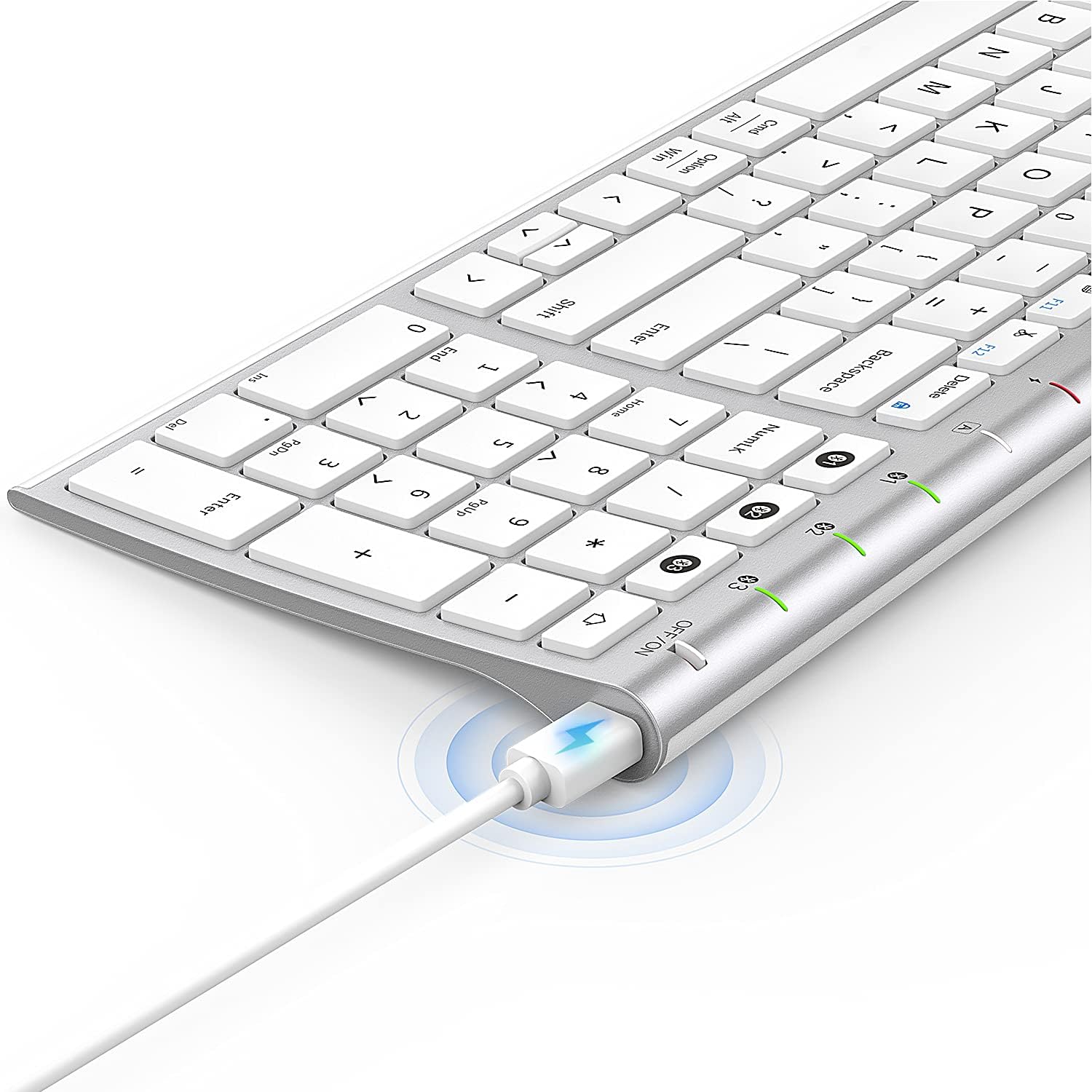
Image: The included USB charging cable, used to recharge the keyboard's built-in battery.
Налада і спалучэнне
Уключэнне/выключэнне
Locate the ON/OFF switch on the top right side of the keyboard. Slide the switch to the "ON" position to power on the keyboard. Slide it to "OFF" when not in use to conserve battery.
Зарадка клавіятуры
The keyboard features a built-in rechargeable lithium battery. Connect the included USB charging cable to the charging port on the keyboard and the other end to a USB power source (e.g., computer USB port, USB wall adapter). The charging indicator light will illuminate during charging and turn off when fully charged.
Спалучэнне некалькіх прылад праз Bluetooth
This keyboard supports connection with up to three devices simultaneously. Follow these steps to pair your devices:
- Пераканайцеся, што клавіятура ўключана.
- Націсніце Fn клавіша і адна з клавіш канала Bluetooth (1, 2, або 3) simultaneously to select a channel. For first-time pairing, choose an unused channel.
- Доўгі націск Fn key and the selected Bluetooth channel key (1, 2, або 3) for 3-5 seconds until the corresponding channel indicator light (01, 02, або 03) starts blinking rapidly. This indicates the keyboard is in pairing mode.
- On your device (MacBook, iMac, iPhone, iPad, etc.), go to Bluetooth settings and enable Bluetooth.
- Пошук available devices. The keyboard will appear as "Nasuque Keyboard" or similar. Select it to connect.
- Once connected, the indicator light will stop blinking and remain solid for a few seconds before turning off.
- Repeat these steps for up to two additional devices using the other Bluetooth channels.
To switch between paired devices, simply short press the Fn key and the corresponding Bluetooth channel key (1, 2, або 3).
Сістэмныя патрабаванні: Compatible with Mac OS X 10.12 or higher and Bluetooth 4.0 or higher.

Image: The keyboard's top right corner showing the three Bluetooth channel indicators (01, 02, 03) for multi-device pairing.

Image: An illustration demonstrating the keyboard's ability to easily switch between a laptop, tablet, and smartphone.
Video: A demonstration of the Nasuque Bluetooth Keyboard's multi-device connectivity and ease of use with various Apple devices.
Інструкцыя па эксплуатацыі
Функцыянальныя клавішы
The keyboard features a row of function keys (F1-F12) that perform various system functions when pressed in combination with the Fn key. These include media controls (play/pause, volume), brightness adjustment, and other shortcuts common to Mac OS.
Лікавая клавіятура
The integrated numeric keypad provides convenient data entry for numbers and calculations. Ensure the Num Lock key is active if needed for specific applications.

Выява: буйны план view of the keyboard's compact full-size layout, highlighting the numeric keypad.
Вопыт набору тэксту
The keyboard utilizes a stable scissor mechanism beneath each key, providing a responsive and comfortable typing experience with a low profile.
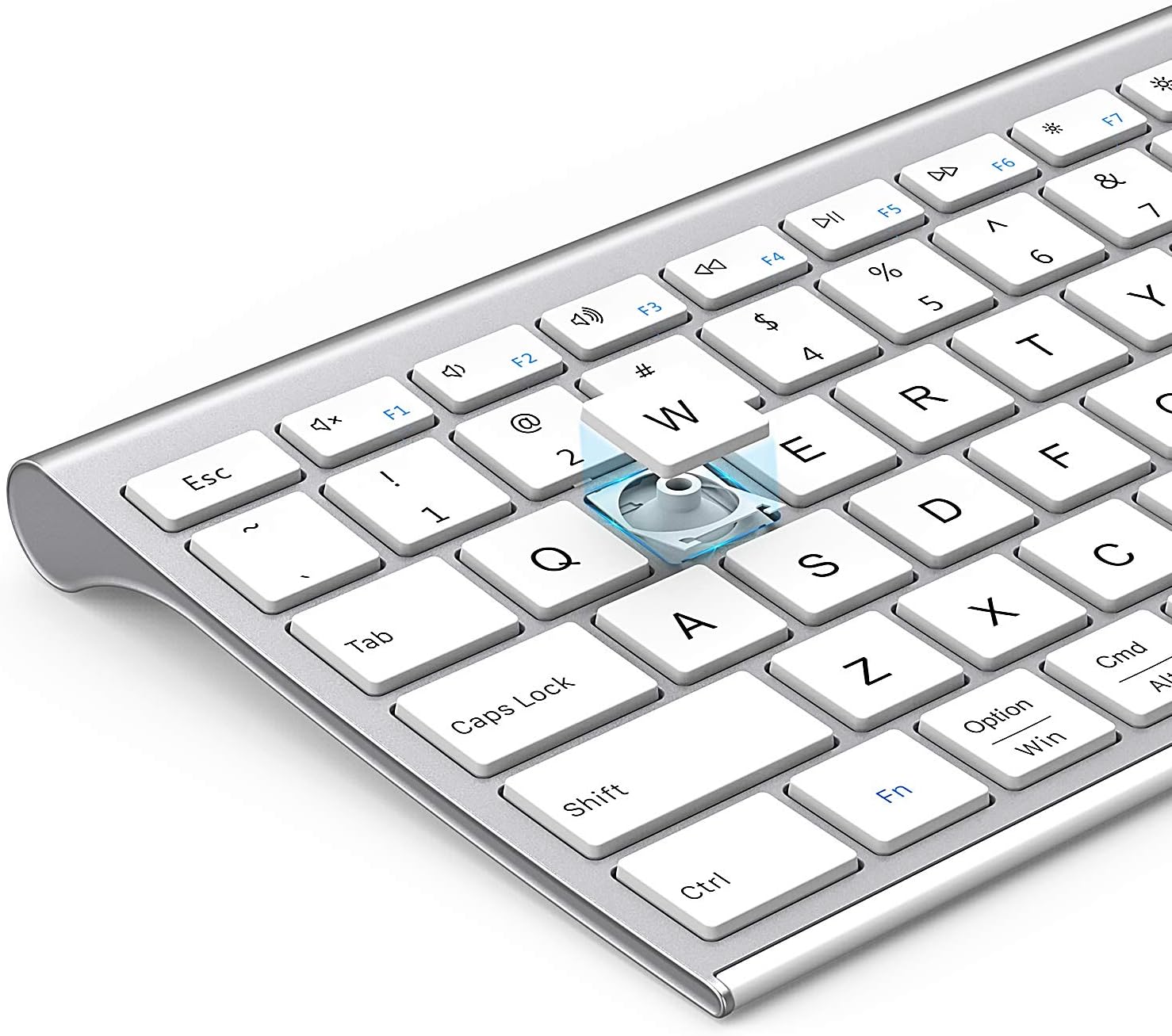
Выява: Выбухнула view of a keycap, illustrating the underlying scissor mechanism for stable and precise typing.
Тэхнічнае абслугоўванне
Каб забяспечыць даўгавечнасць і аптымальную прадукцыйнасць вашай клавіятуры, выконвайце наступныя рэкамендацыі па абслугоўванні:
- Уборка: Выкарыстоўвайце мяккую, сухую тканіну без ворса, каб праціраць паверхню клавіятуры. Для выдалення ўстойлівага бруду злёгкуampПрацярыце тканіну вадой або мяккім ачышчальным растворам. Пазбягайце празмернай вільготнасці.
- Пылаахоўны чахол: Utilize the included silicone dust cover when the keyboard is not in use to protect it from dust, spills, and debris.
- захоўванне: Захоўвайце клавіятуру ў прахалодным, сухім месцы, удалечыні ад прамых сонечных прамянёў і экстрэмальных тэмператур.
- Пазбягайце вадкасці: Do not expose the keyboard to liquids. In case of accidental spills, immediately power off the keyboard and allow it to dry completely before use.
Ліквідацыю непаладак
If you encounter issues with your Nasuque Bluetooth Keyboard, please refer to the following common solutions:
| праблема | Магчымая прычына | Рашэнне |
|---|---|---|
| Keyboard does not connect or is not detected. | Keyboard is off, low battery, not in pairing mode, or device Bluetooth is off. |
|
| Клавішы не рэагуюць або націскаюцца няправільна. | Low battery, connection interference, or software issue. |
|
| Цяжкасці з пераключэннем паміж прыладамі. | Incorrect key press or device not properly paired to selected channel. |
|
Тэхнічныя характарыстыкі
| Асаблівасць | Дэталь |
|---|---|
| мадэль | B09XQL2NJY |
| Сувязь | Bluetooth (Multi-device support for up to 3 devices) |
| Сумяшчальнасць | Mac OS X 10.12 or higher, Bluetooth 4.0 or higher (MacBook Pro/Air, iMac, iPhone, iPad Pro/Air/Mini) |
| Памеры (Д х Ш х У) | 14.41 х 4.92 х 0.64 цалі |
| Вага | 1.12 фунта |
| акумулятар | Літыевая акумулятарная батарэя |
| Дыстанцыя дзеяння | Да 8 метраў (26 футаў) |
| Ключавы механізм | Нажніцы-выключальнік |

Image: Diagram illustrating the precise dimensions of the Nasuque Bluetooth Keyboard.
Гарантыя і падтрымка
For warranty information, technical support, or any inquiries regarding your Nasuque Bluetooth Keyboard, please contact the manufacturer directly through the retailer's platform or the contact information provided with your purchase. Please retain your proof of purchase for warranty claims.
Ask a question about this manual
Ask about setup, troubleshooting, compatibility, parts, safety, or missing instructions. Manuals+ will review the question and use this page’s manual context to help answer it.