
1. Уводзіны
This manual provides detailed instructions for the setup, operation, maintenance, and troubleshooting of your FMOUSE Slim White Wireless Bluetooth Mouse M113. Please read this manual thoroughly before using the product to ensure optimal performance and longevity.

Image 1: FMOUSE M113 Slim White Wireless Bluetooth Mouse
2. Змесціва ўпакоўкі
Пасля адкрыцця ўпакоўкі пераканайцеся, што ў камплекце ёсць усе наступныя прадметы:
- 1 x FMOUSE M113 Wireless Mouse
- 1 x USB Charging Cable (Type-C, 80cm/31.5in)
- 1 x USB Receiver (2.4GHz)
- 1 х Інструкцыя па эксплуатацыі

Image 2: Package contents of the FMOUSE M113 mouse
3. Настройка
3.1 Зарадка мышы
Before initial use, fully charge the mouse using the provided Type-C USB cable. The charging port is located at the front of the mouse.
- Зарадка: The scroll wheel light will display red.
- Зарадка завершана: The scroll wheel light will turn off.
- Нізкі зарад батарэі: The scroll wheel light will flash red.

Image 3: Type-C charging port and battery indicators
3.2 Connecting the Mouse (Dual Mode)
The FMOUSE M113 supports two connection modes: 2.4GHz Wireless (via USB receiver) and Bluetooth 5.1. You can switch between modes using the selector switch on the bottom of the mouse.

Image 4: Dual connection options for the mouse
3.2.1 Бесправадное злучэнне 2.4 ГГц (USB-прыёмнік)
- Locate the USB receiver stored in the magnetic slot on the bottom of the mouse.
- Падключыце USB-прыёмнік да вольнага порта USB на вашым кампутары.
- Slide the switch on the bottom of the mouse to the 2.4G position (indicated by a USB icon).
- Мышка павінна аўтаматычна падключыцца да вашай прылады.
3.2.2 Bluetooth 5.1 Падключэнне
- Slide the switch on the bottom of the mouse to the Bluetooth position (indicated by a Bluetooth icon).
- The scroll wheel light will flash, indicating it is in pairing mode.
- On your device (e.g., MacBook, iPad, Laptop), navigate to the Bluetooth settings.
- Пошук available devices and select "FMOUSE M113" (or similar) to pair.
- Once paired, the scroll wheel light will stop flashing and remain solid.
Відэа 1: Скончанаview of FMOUSE M113 features and connectivity
4. Кіраванне мышшу
4.1 Асноўныя функцыі
- Пстрычка левай кнопкай мышы: Першасны выбар і актывацыя.
- Пстрыкніце правай кнопкай мышы: Доступ да кантэкстных меню.
- Кола пракруткі: Пракручвае змесціва вертыкальна.
4.2 Рэгуляванне DPI
The mouse features 4 adjustable DPI levels (800/1200/1600/2400) to customize cursor sensitivity. Press the Кнопка DPI (located near the scroll wheel) to cycle through the settings. The scroll wheel light color indicates the current DPI level.
- 800 DPI: (Specific color may vary, refer to image)
- 1200 DPI: (Specific color may vary, refer to image)
- 1600 DPI: (Specific color may vary, refer to image)
- 2400 DPI: (Specific color may vary, refer to image)
To turn the scroll wheel light on or off, long-press the DPI button for 2 seconds.

Image 5: 4 Adjustable DPI levels and corresponding light indicators
4.3 Desktop Return Button
The mouse includes a dedicated Desktop Return button. Pressing this button will instantly minimize all open windows and return you to your computer's desktop. This feature is useful for quick privacy or task switching.

Image 6: Function of the Desktop Return button
4.4 Mute/Volume Control Button
The Кнопка адключэння гуку provides quick audio control:
- Адзін прэс: Mutes or unmutes your computer's audio.
- Long Press (2 seconds) and Scroll: After a long press, you can adjust the computer's volume by scrolling the wheel up or down.

Image 7: Mute and volume adjustment functions
4.5 Функцыя бясшумнага кліку
The FMOUSE M113 is designed with silent click buttons, reducing noise during use. This makes it suitable for quiet environments such as libraries, offices, or late-night work.
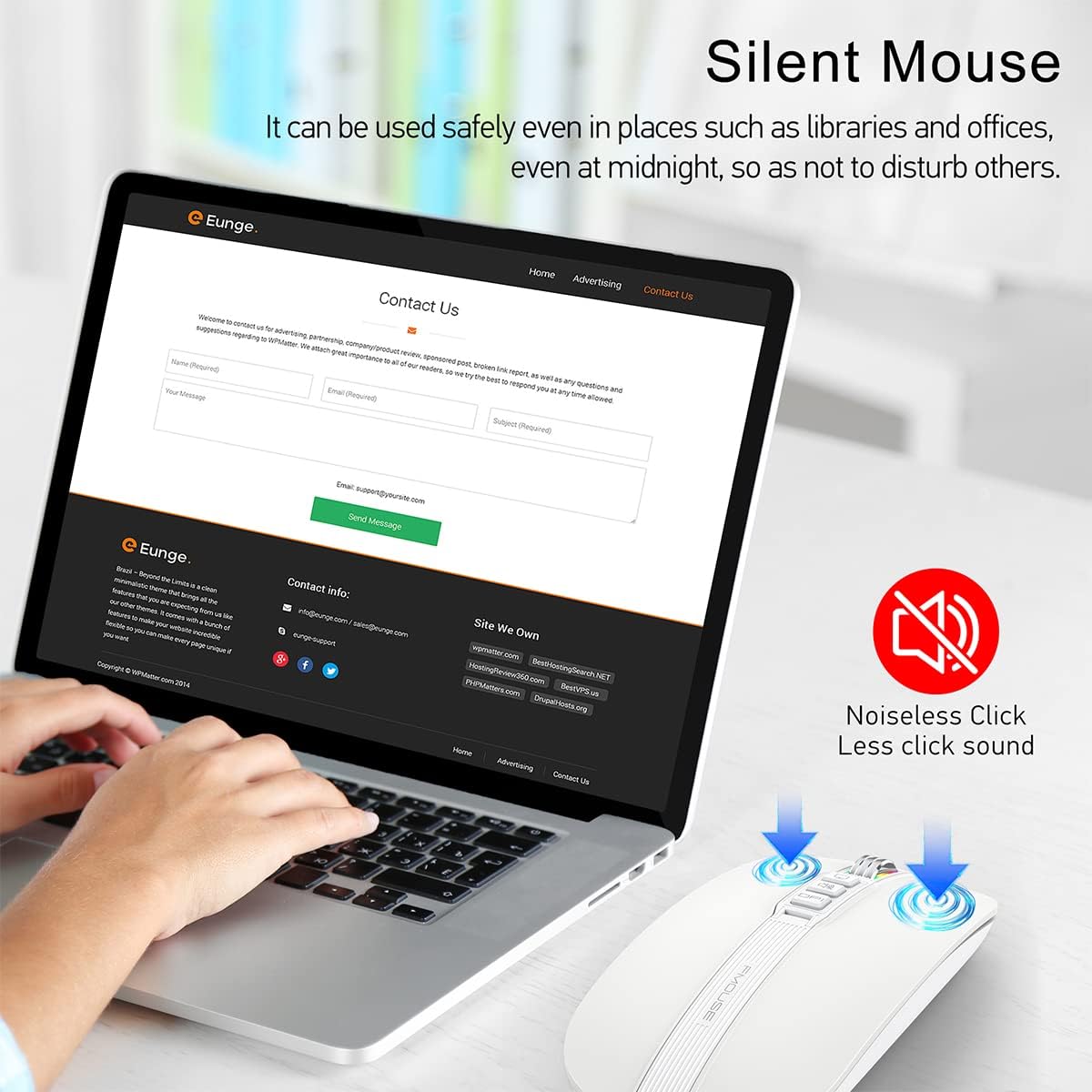
Image 8: Silent click feature of the mouse
5. Тэхнічнае абслугоўванне
5.1 Ачыстка
- Disconnect the mouse from your device before cleaning.
- Выкарыстоўвайце мяккую, сухую тканіну без ворса, каб праціраць паверхню мышы.
- Для ўстойлівых забруджванняў злёгку dampen the cloth with water or a mild electronic cleaner. Avoid excessive moisture.
- Не выкарыстоўвайце агрэсіўныя хімікаты, абразіўныя ачышчальнікі або растваральнікі.
5.2 Сыход за акумулятарам
- Charge the mouse regularly to maintain battery health.
- Пазбягайце частай поўнай разрадкі акумулятара.
- Do not expose the mouse to extreme temperatures, as this can affect battery life.
5.3 Захоўванне
- When not in use for extended periods, store the mouse in a cool, dry place.
- Ensure the mouse is turned off to conserve battery life.
- The USB receiver can be stored in its magnetic slot on the bottom of the mouse to prevent loss.
6. Выпраўленне непаладак
6.1 Праблемы з падключэннем
- Mouse not connecting via 2.4GHz USB receiver:
- Ensure the USB receiver is securely plugged into a working USB port.
- Verify the switch on the bottom of the mouse is set to the 2.4G position.
- Try plugging the receiver into a different USB port. - Мыш не падключаецца праз Bluetooth:
- Ensure the switch on the bottom of the mouse is set to the Bluetooth position.
- Check that Bluetooth is enabled on your device.
- Remove any previous pairings of the mouse from your device's Bluetooth settings and attempt to pair again.
- Ensure the mouse is sufficiently charged.
6.2 DPI Light Behavior
- DPI light not changing color: Press the DPI button to cycle through settings. If it still doesn't change, ensure the mouse is powered on and charged.
- DPI light is off: Long-press the DPI button for 2 seconds to toggle the light on/off.
6.3 Праблемы з зарадкай
- Мышка не зараджаецца:
- Ensure the Type-C charging cable is securely connected to both the mouse and a power source.
- Try using a different USB port or power adapter.
- Check if the charging cable is damaged. - Scroll wheel light flashing red: This indicates a low battery. Connect the mouse to a power source for charging.
6.4 Cursor Movement
- Erratic or no cursor movement:
- Ensure the mouse is properly connected (2.4GHz or Bluetooth).
- Check the battery level and charge if necessary.
- Clean the optical sensor on the bottom of the mouse.
- Ensure the mouse is used on a suitable surface (not highly reflective or transparent).
7. Тэхнічныя характарыстыкі
| Асаблівасць | Спецыфікацыя |
|---|---|
| Памеры прадукту | 4.45 х 2.24 х 0.98 цалі (113 х 57 х 25 мм) |
| Вага прадмета | 2.4 унцыі (68 грам) |
| Тэхналогія падлучэння | Bluetooth 5.1, 2.4GHz Wireless (USB) |
| Тэхналогія выяўлення руху | Аптычны |
| Ўзроўні DPI | 800/1200/1600/2400 |
| Тып батарэі | 1 літый-іённы акумулятар (у камплекце) |
| Порт для зарадкі | Тып-C |
| Асаблівасці | One-click DPI adjustment, One-click access to desktop, One-click muting, Three shortcut keys |

Image 9: Dimensions of the FMOUSE M113 mouse
8. Гарантыя і падтрымка
8.1 Інфармацыя аб гарантыі
FMOUSE products are designed and manufactured to the highest quality standards. For specific warranty details, please refer to the warranty card included in your product packaging or visit the official FMOUSE webсайт. Захоўвайце чэк аб куплі як пацвярджэнне пакупкі для гарантыйных прэтэнзій.
8.2 Падтрымка кліентаў
If you encounter any issues or have questions regarding your FMOUSE M113 mouse that are not covered in this manual, please contact FMOUSE customer support through the following channels:
- Афіцыйны Webсайт: Visit the FMOUSE Store on Amazon
- электронная пошта: Глядзіце ўпакоўку прадукту або афіцыйныя webсайт для кантактнай электроннай пошты.