
YQSAVIOR YQ10S
YQSAVIOR 10" Android 14 Tablet User Manual
Мадэль: YQ10S | Марка: YQSAVIOR
1. Уводзіны
This user manual provides comprehensive instructions for the YQSAVIOR 10" Android 14 Tablet (Model: YQ10S). It covers essential information regarding product setup, operation, maintenance, and troubleshooting. Please read this manual thoroughly before using your tablet to ensure proper functionality and to maximize your user experience.
2. Інфармацыя па бяспецы
- Бяспека акумулятара: Do not attempt to replace the battery yourself. Use only the provided charger and cable. Avoid exposing the tablet to extreme temperatures or direct sunlight.
- Воданепранікальнасць: This tablet is not water-resistant. Avoid exposure to liquids.
- Уборка: Disconnect the tablet from power before cleaning. Use a soft, dry cloth. Avoid abrasive cleaners or solvents.
- Утылізацыя: Dispose of the tablet and its accessories responsibly according to local regulations. Do not dispose of electronic waste in household trash.
- дзеці: Трымайце дробныя дэталі і ўпаковачныя матэрыялы далей ад дзяцей, каб прадухіліць небяспеку ўдушша.
3. Змесціва ўпакоўкі
Праверце, ці ёсць усе прадметы ў вашай упакоўцы:
- 1x YQ10S tablet
- 1x зарадная прылада
- 1x кабель тыпу C
- 1x Кіраўніцтва карыстальніка (гэты дакумент)
4. Прадукт скончыўсяview
Familiarize yourself with the physical features and components of your YQSAVIOR 10" Android 14 Tablet.

Малюнак 4.1: Спераду і ззаду view of the YQSAVIOR 10" Android 14 Tablet in Pink. The tablet features a sleek design with a textured pink back panel and a black front display.
4.1. Ключавыя кампаненты
- Дысплей: 10-inch IPS Touch Screen with 1280x800 resolution for vibrant colors and clear visuals.
- Пярэдняя камера: 2.0MP camera, typically located above the screen for video calls and selfies.
- Задняя камера: 8.0MP camera, located on the back panel for capturing photos and videos.
- Кнопка харчавання: Usually on the side, used to turn the tablet on/off or put it to sleep/wake.
- Кнопкі гучнасці: Typically located near the power button, used to adjust audio volume.
- Порт USB Type-C: Для зарадкі і перадачы дадзеных.
- Слот для карты MicroSD: Allows for storage expansion up to 1TB.
- Падвойныя дынамікі: Located on the sides or bottom for audio output.

Малюнак 4.2: The tablet supports 5G/2.4G WiFi and Wi-Fi 6, ensuring fast and stable network connectivity for browsing and streaming.
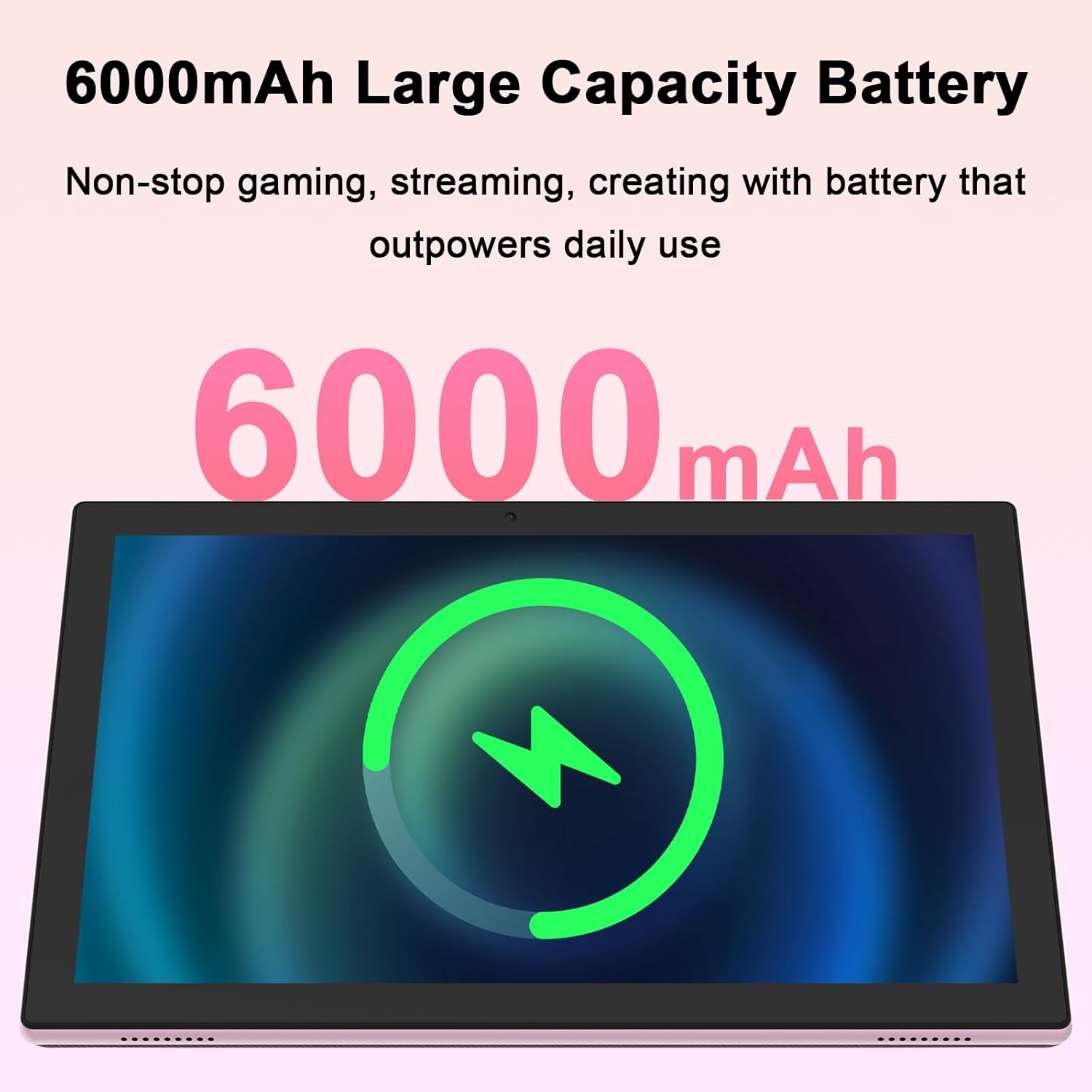
Малюнак 4.3: Equipped with a 6000mAh large capacity battery, the tablet provides extended usage time for various activities.
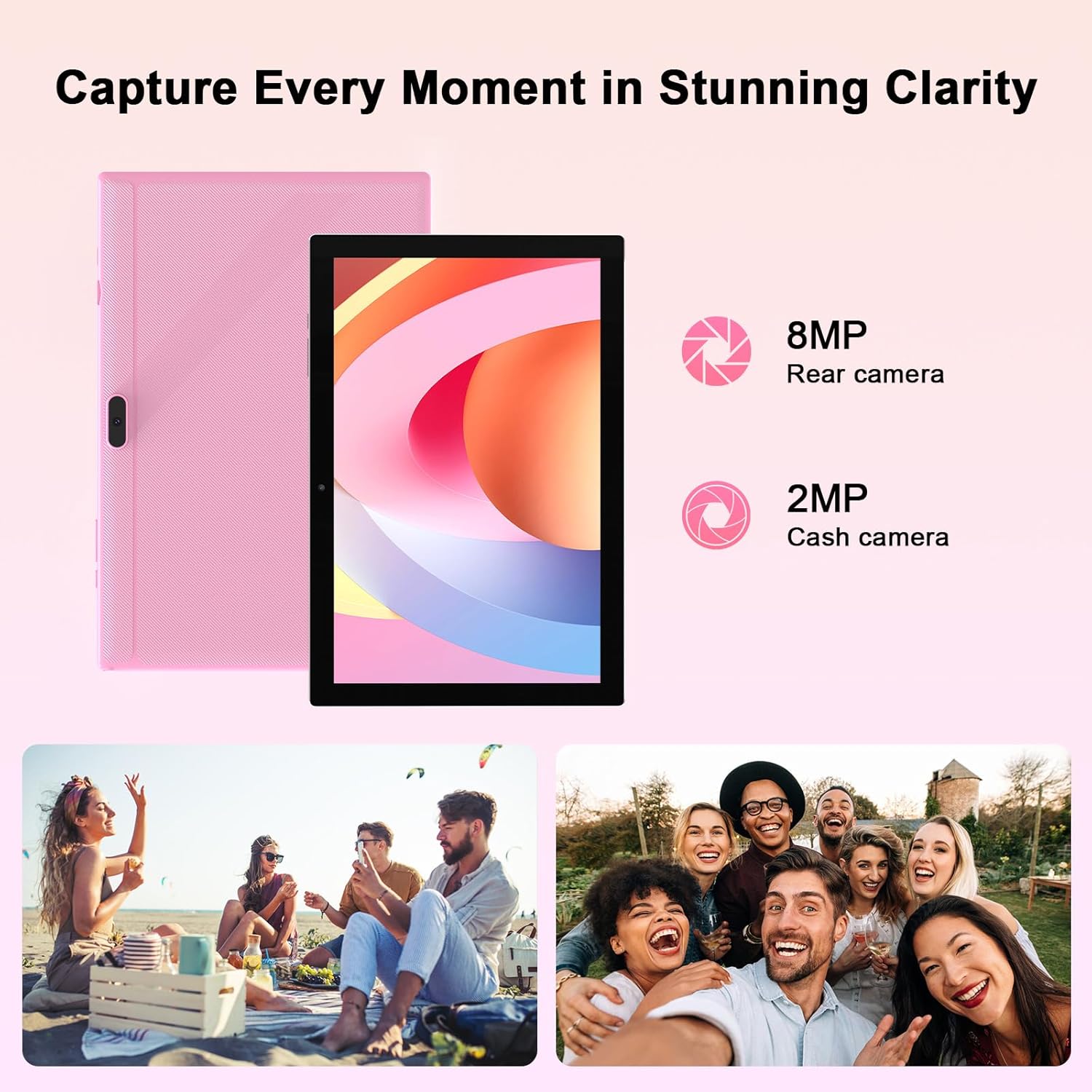
Малюнак 4.4: The tablet features an 8MP rear camera and a 2MP front camera, suitable for capturing moments and video calls.

Малюнак 4.5: The tablet's powerful quad-core processor and 8GB RAM (4+4GB) ensure smooth performance for gaming and multimedia consumption.

Малюнак 4.6: With 64GB ROM and support for up to 1TB expandable storage via TF card, the tablet offers ampмесца для праграм, фота і відэа.
Відэа 4.1: Афіцыйная відэапрэзентацыя прадуктуasing the YQSAVIOR 10-inch tablet's features, including its display, speakers, and overall design. This video highlights the tablet's suitability for various uses.
5. Настройка
5.1. Зарадка планшэта
Before first use, fully charge your tablet. Connect the provided Type-C cable to the tablet's charging port and the other end to the charger. Plug the charger into a power outlet. The battery indicator on the screen will show charging status. A full charge typically takes several hours.
5.2. Уключэнне / выключэнне харчавання
- Каб уключыць: Press and hold the Power button until the YQSAVIOR logo appears on the screen.
- Каб выключыць: Націсніце і ўтрымлівайце кнопку харчавання, пакуль не з'явіцца меню выключэння харчавання. Выберыце «Выключыць харчаванне» і пацвердзіце.
- Каб заснуць/прачнуцца: Briefly press the Power button to put the tablet to sleep or wake it from sleep mode.
5.3. Пачатковая налада
Пры першым уключэнні планшэт правядзе вас праз працэс пачатковай налады. Выконвайце падказкі на экране, каб:
- Выберыце сваю мову.
- Падключыцеся да сеткі Wi-Fi.
- Sign in with your Google account (or create one).
- Наладзьце блакаванне экрана (PIN-код, ключ, пароль).
- Review і прыняць умовы.
5.4. Падключэнне да Wi-Fi
Каб падключыцца да сеткі Wi-Fi:
- Перайсці да Налады > Сетка і інтэрнэт > Wi-Fi.
- Уключыце Wi-Fi.
- Выберыце патрэбную сетку са спісу.
- Увядзіце пароль, калі будзе прапанавана, і націсніце Злучыцца.
6. Інструкцыя па эксплуатацыі
6.1. Базавая навігацыя
The YQSAVIOR tablet uses a touch-sensitive screen for navigation:
- Націсніце: Каб выбраць элемент або адкрыць праграму.
- Дакраніцеся і ўтрымлівайце: Для доступу да кантэкстных меню або перамяшчэння элементаў.
- Правядзіце пальцам: Для пракруткі экранаў або спісаў.
- Звядзенне пальцамі для павелічэння: Каб павялічыць або паменшыць маштаб малюнкаў і web старонкі.
6.2. Кіраванне праграмамі
As a GMS Certified Tablet, you can download and install a wide variety of applications from the Google Play Store.
- Усталяванне праграм: Адкрыйце Play Store праграма, знайдзіце патрэбную праграму і націсніце Усталяваць.
- Выдаленне праграм: Touch and hold the app icon on the home screen or app drawer, then drag it to "Uninstall" or select "App info" and choose "Uninstall".
6.3. Кіраванне сховішчам
Your tablet comes with 64GB of internal storage. You can expand this by inserting a MicroSD card (up to 1TB).
- Устаўка карты MicroSD: Locate the MicroSD card slot, gently insert the card until it clicks into place.
- Кіраванне сховішчам: Перайсці да Налады > Захоўванне каб view выкарыстанне і кіраванне сховішчам files.
6.4. Выкарыстанне камеры
Use the built-in cameras to capture photos and videos.
- Адкрыйце Камера дадатак.
- Switch between front (2MP) and rear (8MP) cameras using the camera switch icon.
- Націсніце кнопку спуску засаўкі, каб зрабіць фотаздымак або пачаць/спыніць відэазапіс.
6.5. Злучэнне Bluetooth
Connect your tablet to Bluetooth devices like headphones or speakers.
- Перайсці да Налады > Падключаныя прылады > Bluetooth.
- Уключыце Bluetooth.
- Выберыце сваю прыладу са спісу даступных прылад для спалучэння.
7. Тэхнічнае абслугоўванне
7.1. Чыстка планшэта
Каб падтрымліваць планшэт у аптымальным стане:
- Выкарыстоўвайце мяккую тканіну без ворса, каб праціраць экран і корпус.
- Для ўстойлівых плям злёгкуampпрацярыце тканіну вадой або сродкам для чысткі экранаў, прызначаным для электронікі.
- Пазбягайце распылення вадкасцей непасрэдна на планшэт.
7.2. Абнаўленне праграмнага забеспячэння
Рэгулярна правярайце наяўнасць абнаўленняў праграмнага забеспячэння і ўсталёўвайце іх, каб пераканацца, што ваш планшэт мае найноўшыя функцыі, патчы бяспекі і паляпшэнні прадукцыйнасці.
- Ensure your tablet is connected to Wi-Fi.
- Перайсці да Налады > сістэма > Абнаўленне сістэмы.
- Выконвайце інструкцыі на экране, каб праверыць наяўнасць даступных абнаўленняў і ўсталяваць іх.
8. Выпраўленне непаладак
This section addresses common issues you might encounter with your YQSAVIOR tablet.
| праблема | Магчымая прычына | Рашэнне |
|---|---|---|
| Планшэт не ўключаецца. | Нізкі зарад батарэі; праграмны збой. | Charge the tablet for at least 30 minutes. Perform a forced restart by holding the Power button for 10-15 seconds. |
| Tablet is slow or freezes. | Занадта шмат запушчаных праграм; мала месца для захоўвання; састарэлае праграмнае забеспячэнне. | Close unused apps. Clear cache. Free up storage space. Check for system updates. Restart the tablet. |
| Немагчыма падключыцца да Wi-Fi. | Няправільны пароль; праблема з маршрутызатарам; Wi-Fi адключаны. | Ensure correct password. Restart your Wi-Fi router. Toggle Wi-Fi off and on in tablet settings. |
| Акумулятар хутка разраджаецца. | Высокая яркасць экрана; фонавыя праграмы; дрэнны сігнал. | Reduce screen brightness. Close background apps. Disable unused features like Bluetooth/GPS. |
| Apps crashing or not installing. | Insufficient storage; app incompatibility; corrupted data. | Clear app cache/data. Free up storage. Ensure app is compatible with Android 14. Reinstall the app. |
If problems persist, consider performing a factory data reset (Налады > сістэма > Скінуць параметры > Сцерці ўсе даныя (скід да заводскіх налад)). Note: This will erase all data on your tablet, so back up important files першы.
9. Тэхнічныя характарыстыкі
| Асаблівасць | Дэталь |
|---|---|
| Марка | YQSAVIOR |
| Назва мадэлі | YQ10S |
| Аперацыйная сістэма | Android 14 |
| Памер экрана | 10 цалі |
| Дазвол экрана | 1280x800 IPS-дысплей |
| Працэсар | 1.6 GHz Quad-core (ARM Rockchip) |
| АЗП | 8GB (4+4GB) |
| Унутраная памяць (ROM) | 64 ГБ |
| Сховішча з магчымасцю пашырэння | Карта памяці MicroSD да 1 ТБ |
| Задняя камера | 8 МП |
| Пярэдняя камера | 2 МП |
| Бесправадны тып | 802.11n (2.4G WiFi), Bluetooth |
| Ёмістасць батарэі | 6000 мАг |
| Сярэдні тэрмін службы батарэі | 10 Hours (mixed use) |
| Вага прадмета | 14.1 унцый (прыблізна 400 г) |
| Памеры прадукту (ДxШxВ) | 10 х 4.6 х 0.3 цалі |
| Колер | Ружовы |
10. Гарантыя і падтрымка
YQSAVIOR products are designed and manufactured to the highest quality standards. For information regarding warranty coverage, technical support, or service inquiries, please refer to the warranty card included with your product or visit the official YQSAVIOR website. Please have your product model number (YQ10S) and purchase details ready when contacting support.
Ask a question about this manual
Ask about setup, troubleshooting, compatibility, parts, safety, or missing instructions. Manuals+ will review the question and use this page’s manual context to help answer it.