
1. Уводзіны
This manual provides detailed instructions for setting up, operating, and maintaining your MINIX X35-i Plus 4K Ultra HD Industrial Android Player. This device is designed for reliable performance in digital signage and various industrial applications, offering robust connectivity and a pre-rooted Android 11 firmware.

Image 1.1: MINIX X35-i Plus Industrial Android Player. This image displays the compact black device alongside icons indicating its key features: 4K Ultra HD resolution, WiFi 6 connectivity, and Android 11 operating system.
2. Змесціва ўпакоўкі
Калі ласка, пераканайцеся, што ўсе пералічаныя ніжэй прадметы ўваходзяць у ваш пакет:
- MINIX X35-i Plus Unit
- Двухдыяпазонная антэна
- Кабель HDMI
- Кабель USB-C да USB-A
- 12V 2A Power Adapter (with multiple plug types)
- Пульт дыстанцыйнага кіравання
- Кіраўніцтва па ўстаноўцы

Image 2.1: Contents of the MINIX X35-i Plus package. This image shows the main unit, a power adapter with interchangeable international plugs, a remote control, an HDMI cable, a USB-C to USB-A cable, a dual-band antenna, and a setup guide.
3. Прадукт скончыўсяview
The MINIX X35-i Plus features a compact design with various ports for comprehensive connectivity. Understanding the layout of these ports is essential for proper setup and operation.
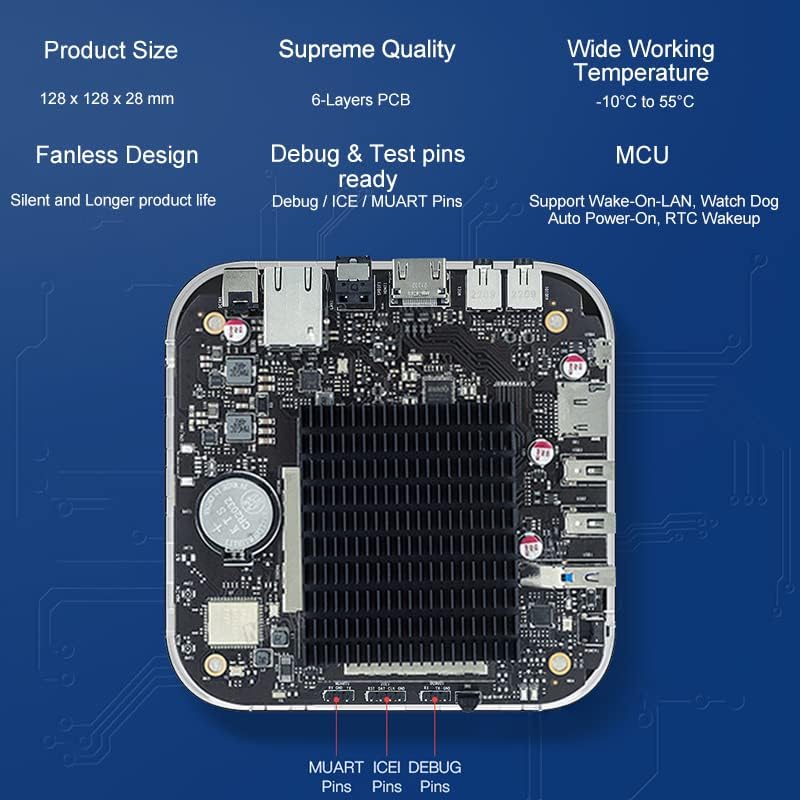
Image 3.1: MINIX X35-i Plus device with port labels and dimensions. The image highlights the device's dimensions (128mm x 128mm x 28mm) and labels its ports: Power Button, USB 3.0, 2x USB 2.0, TF Card Slot, OTG, Kensington Lock, Headphone Jack, Microphone Jack, HDMI 2.0, Gigabit Ethernet, S/PDIF, and DC 12V Power Jack.
Унутраны дызайн
The device incorporates industrial-grade components and a 6-layer PCB for stable, long-term operation. Its fanless design ensures silent operation and extended product life, suitable for continuous 24/7 use.

Малюнак 3.2: Унутраная частка view of the MINIX X35-i Plus PCB. This image shows the internal circuit board, highlighting the fanless heatsink design and debug/test pins (MUART, ICEI, DEBUG) for advanced users or developers.
4. Кіраўніцтва па наладцы
Follow these steps to set up your MINIX X35-i Plus:
- Падключыце антэну: Screw the dual-band antenna onto the designated connector at the rear of the device.
- Падключэнне да дысплея: Connect one end of the HDMI cable to the HDMI port on the MINIX X35-i Plus and the other end to an HDMI input on your display (TV, monitor, projector).
- Падключэнне да сеткі (неабавязкова):
- Правадное злучэнне: Connect an Ethernet cable from your router or network switch to the Gigabit Ethernet port on the device.
- Бесправоднае злучэнне: The device supports 802.11ax Dual-Band Wi-Fi 6. You will configure the Wi-Fi connection after initial power-on.
- Падключэнне перыферыйных прылад (неабавязкова):
- USB прылады: Connect USB keyboards, mice, or other peripherals to the available USB 3.0 (x1) or USB 2.0 (x2) ports.
- Аўдыяпрылады: Connect headphones or external speakers to the 3.5mm Headphone Jack. For digital audio, use the S/PDIF port.
- Мікрафон: Connect a microphone to the 3.5mm Microphone Jack.
- Уключэнне: Connect the 12V 2A power adapter to the DC 12V Power Jack on the device, then plug the adapter into a power outlet. The device should automatically power on or can be turned on using the power button.
5. Інструкцыя па эксплуатацыі
5.1 Initial Boot and Android 11 System
Upon first power-on, the device will boot into the Android 11 operating system. Follow the on-screen prompts for initial setup, including language selection and network configuration. The device features a pre-rooted firmware, allowing for advanced customization.

Image 5.1: Android 11 operating system interface. This image illustrates the Android 11 system running on the MINIX X35-i Plus, emphasizing its 'rooted firmware' and 'customization accept' features.
5.2 Падключэнне да сеткі (Wi-Fi 6)
The MINIX X35-i Plus supports Wi-Fi 6 (802.11ax) for faster and more reliable wireless connections. To connect to Wi-Fi:
- Перайсці да Налады > Сетка і Інтэрнэт > Wi-Fi.
- Turn Wi-Fi On.
- Выберыце патрэбную сетку са спісу і ўвядзіце пароль, калі будзе прапанавана.

Image 5.2: Illustration of Wi-Fi 6 capabilities. This image highlights the device's Wi-Fi 6 support, indicating speeds up to 2400Mbps, which is three times faster than Wi-Fi 5.
5.3 Дадатковыя магчымасці
- Абуджэнне па лакальнай сетцы (WOL): Allows the device to be powered on remotely via a network message. Ensure this feature is enabled in the system settings if required.
- Аўтаматычнае харчаванне: Configures the device to automatically power on when electricity is supplied, ideal for unattended installations.
- RTC (Real-Time Clock) Wakeup: Enables scheduled power-on times.
- Вартавы сабака: A hardware feature that monitors system operation and can automatically restart the device if it becomes unresponsive, ensuring continuous uptime.
- Падтрымка сэнсарнага экрана: The device supports touch screen displays, making it suitable for interactive digital signage applications.
Image 5.3: MINIX X35-i Plus connected to a touch screen display. This image demonstrates the device's compatibility with touch screen interfaces, suitable for interactive kiosks or digital signage.
5.4 Сцэнарыі прымянення
The MINIX X35-i Plus is versatile and can be deployed in various industrial and commercial settings:
- Лічбавая шыльда
- Гандлёвыя аўтаматы
- Медыцынскае абсталяванне
- Гульнявыя прыстаўкі
- Robot Assistance
- Digital POS Registers

Image 5.4: Various use cases for the MINIX X35-i Plus. This image depicts the device being used in diverse environments such as vending machines, medical equipment, game consoles, robot assistance, digital POS registers, and advertising machines.
6. Тэхнічнае абслугоўванне
The MINIX X35-i Plus is designed for low maintenance due to its fanless construction and robust components.
- Уборка: Use a soft, dry cloth to clean the exterior of the device. Avoid using liquid cleaners or aerosols directly on the unit.
- Вентыляцыя: Although fanless, ensure the device is placed in a location with adequate airflow to prevent heat buildup, especially during continuous operation.
- Абнаўленні прашыўкі: Periodically check the official MINIX webсайт для абнаўленняў прашыўкі, каб забяспечыць аптымальную прадукцыйнасць і бяспеку.
7. Выпраўленне непаладак
If you encounter issues with your MINIX X35-i Plus, refer to the following common solutions:
- Няма харчавання:
- Пераканайцеся, што адаптар сілкавання надзейна падключаны як да прылады, так і да спраўнай разеткі.
- Пераканайцеся, што разетка працуе.
- Няма вываду на дысплей:
- Check that the HDMI cable is firmly connected to both the device and the display.
- Пераканайцеся, што ваш дысплей настроены на правільную крыніцу ўваходнага сігналу HDMI.
- Try a different HDMI cable or display if possible.
- Пульт дыстанцыйнага кіравання не рэагуе:
- Пераканайцеся, што паміж пультам дыстанцыйнага кіравання і ІЧ-прыёмнікам прылады няма перашкод.
- Заменіце батарэі пульта дыстанцыйнага кіравання.
- Consider using a USB keyboard and mouse for easier navigation if the remote remains problematic.
- Cannot Connect to Wi-Fi/Network:
- Verify that the Wi-Fi antenna is properly attached.
- Праверце маршрутызатар і падключэнне да Інтэрнэту.
- Пераканайцеся, што вы ўводзіце правільны пароль Wi-Fi.
- Калі выкарыстоўваецца правадное падключэнне, пераканайцеся, што кабель Ethernet надзейна падключаны.
- Issues with Google Account or Bluetooth Pairing:
- Ensure the device has a stable internet connection for Google account services.
- Для Bluetooth пераканайцеся, што перыферыйная прылада знаходзіцца ў рэжыме спалучэння і знаходзіцца ў зоне дзеяння.
- Restart the device and attempt pairing again.
- Сістэма не рэагуе:
- Press and hold the power button for 5-10 seconds to force a shutdown, then restart the device.
- If the issue persists, a factory reset may be necessary (refer to advanced settings, this will erase all data).
8. Тэхнічныя характарыстыкі
| Асаблівасць | Спецыфікацыя |
|---|---|
| Назва мадэлі | X35-i Plus |
| працэсар | RK3566 Cortex-A55 Quad-Core |
| графічны працэсар | Mali-G52-2EE |
| Памяць | 2 ГБ DDR4 |
| Унутраная памяць | 32 ГБ eMMC 5.1 |
| Аперацыйная сістэма | Android 11 (Pre-Rooted Firmware) |
| Відэавыхад | HDMI 2.0, up to 4K@60Hz |
| Аўдыёвыхад | HDMI 2.0, 3.5mm stereo jack, optical S/PDIF |
| Бесправоднае падключэнне | Двухдыяпазонны Wi-Fi 802.11ax 6, Bluetooth 5.0 |
| Правадныя сеткі | RJ-45 Gigabit Ethernet |
| Перыферыйны інтэрфейс | Micro SD card reader, USB 3.0 x1, USB 2.0 x2, OTG port x1, Kensington Lock, 3.5mm Headphone jack, 3.5mm Microphone jack, IR Receiver |
| Электразабеспячэнне | 12V/2A adapter (CE, FCC certified) |
| Асаблівасці | Wake On LAN, Auto Power, RTC, Watchdog, HDMI CEC, Portrait mode, Miracast, Electrostatic Prevention for interfaces, Gigabit Ethernet Port with lightning protection design, Over-voltagе абарона |
| Памеры прадукту | 5.04 х 5.04 х 1.1 цалі (128 х 128 х 28 мм) |
| Вага прадмета | 1.61 фунта (730 грамаў) |
| Колер | Чорны |
9. Інфармацыя аб гарантыі
For detailed warranty information, please refer to the official MINIX website or contact your point of purchase. Warranty terms and conditions may vary by region and retailer.
10. Падтрымка
If you require further assistance or have questions not covered in this manual, please utilize the following support channels:
- Official MINIX Webсайт: Наведайце www.minix.com.hk for product information, FAQs, and firmware downloads.
- MINIX Forum: Engage with the community and find solutions at www.theminixforum.com.
- Amazon Customer Support: For purchase-related inquiries, log in to your Amazon account, go to 'Your Orders', and select 'Ask Product Question' for the MINIX X35-i Plus.
- Сацыяльныя сеткі: Connect with MINIX on Facebook at http://www.facebook.com/minixtech.