
1. Уводзіны
Thank you for choosing the PRIXTON Cinema Mini Projector. This compact and versatile projector is designed to provide an immersive viewing experience for movies, games, and presentations. Its multiple connectivity options and portable design make it ideal for various environments. Please read this manual carefully before using the projector to ensure proper operation and to maximize its lifespan.
2. Інфармацыя па бяспецы
- крыніца харчавання: Выкарыстоўвайце толькі пазначаны адаптар сілкавання. Пераканайцеся, што гучнасцьtagсумяшчальны з вашым рэгіёнам.
- Вентыляцыя: Do not block the ventilation openings. Ensure adequate space around the projector for proper airflow to prevent overheating.
- Бяспека вачэй: Не глядзіце непасрэдна ў аб'ектыў праектара, калі ён уключаны.amp уключаны. Яркае святло можа пашкодзіць вочы.
- Вада і вільгаць: Трымайце праектар далей ад вады, дажджу і празмернай вільготнасці. Не карыстайцеся ім мокрымі рукамі.
- Уборка: Адключыце сілкаванне перад чысткай. Выкарыстоўвайце мяккую сухую тканіну. Пазбягайце вадкіх ачышчальнікаў.
- Размяшчэнне: Размясціце праектар на ўстойлівай роўнай паверхні. Пазбягайце размяшчэння яго пад прамымі сонечнымі прамянямі або побач з крыніцамі цяпла.
- дзеці: Трымайце праектар і яго аксэсуары ў месцах, недаступных для дзяцей.
3. Змесціва ўпакоўкі
Калі ласка, праверце наяўнасць усіх прадметаў у вашай упакоўцы:
- Міні-праектар PRIXTON Cinema
- Пульт дыстанцыйнага кіравання
- Адаптар сілкавання
- Кіраўніцтва карыстальніка
4. Прадукт скончыўсяview
Familiarize yourself with the various parts of your PRIXTON Cinema Mini Projector.
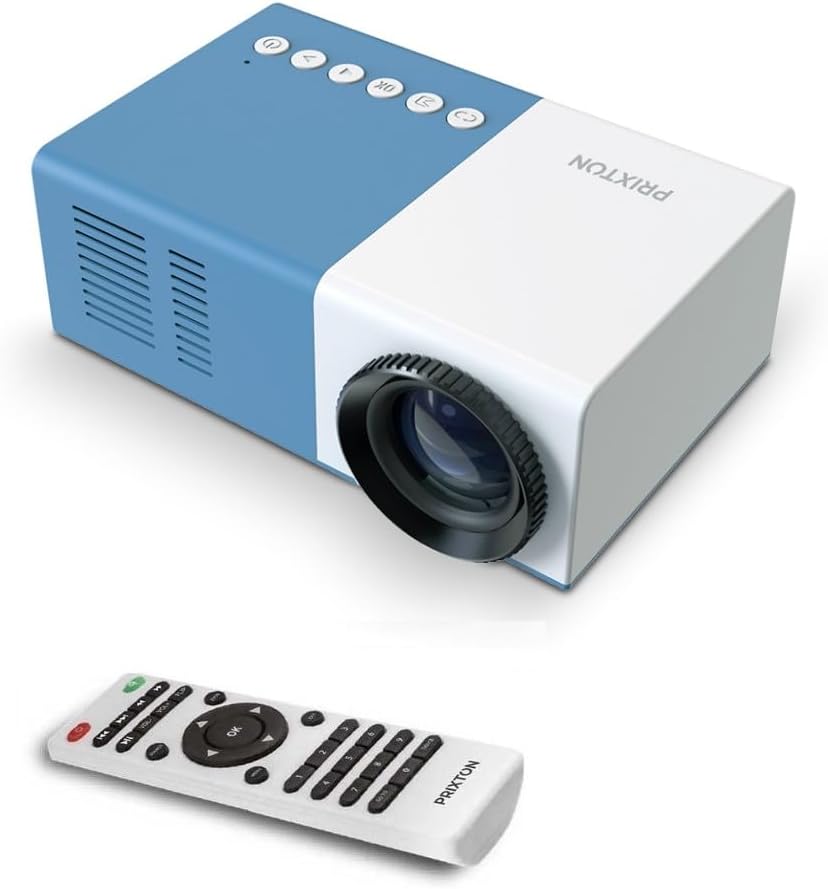
Малюнак 4.1: Спераду і зверху View of the PRIXTON Cinema Mini Projector with its remote control. The projector is blue and white, showing the lens, control buttons, and the included remote.
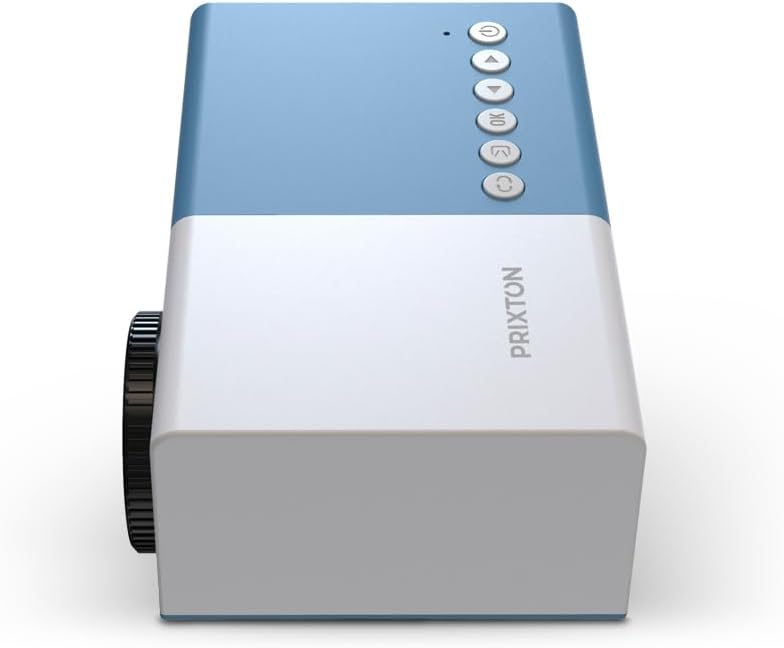
Малюнак 4.2: Топ view of the projector, highlighting the control buttons (Power, Menu, OK, Navigation) and the focus wheel on the side.
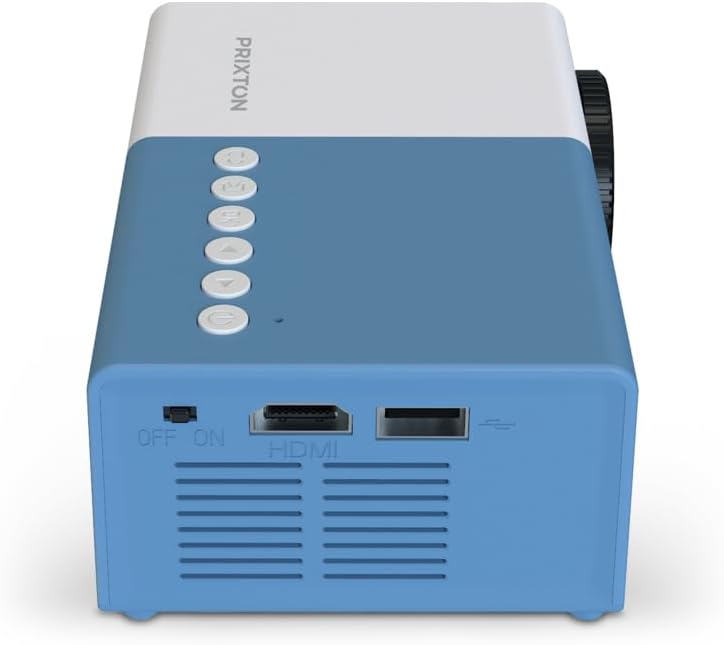
Малюнак 4.3: Тыл view of the projector, showing the power switch, HDMI port, USB port, and ventilation grilles.

Малюнак 4.4: Збоку view of the projector, displaying the MicroSD card slot, AV In port, and additional ventilation.
Кампаненты:
- Аб'ектыў: Праецыруе выяву на экран.
- Фокуснае кола: Рэгулюе выразнасць выявы.
- Кнопкі кіравання: Power, Menu, OK, and navigation buttons for on-device control.
- Выключальнік сілкавання: Уключае або выключае праектар.
- Порт HDMI: Connects to devices like laptops, streaming sticks, and game consoles.
- Порт USB: Для прайгравання медыяфайлаў з USB-назапашвальнікаў.
- Слот MicroSD: For media playback from MicroSD cards.
- AV-уваход: Connects to older devices using an AV cable.
- Убудаваны дынамік: Забяспечвае выхад гуку.
5. Настройка
5.1 Падключэнне харчавання
- Падключыце адаптар сілкавання да ўваходнага порта сілкавання праектара.
- Падключыце адаптар сілкавання да насценнай разеткі.
- Flip the power switch on the projector to the 'ON' position. The power indicator light should illuminate.
5.2 Размяшчэнне і праекцыя
Place the projector on a stable surface, ensuring the lens is facing the projection surface (wall or screen).

Малюнак 5.1: Illustration of projection distance and screen size. The projector can project images between 24 and 60 inches, with a maximum distance of 2 meters from the surface.
- For optimal image quality, ensure the room is dark.
- The projector can display images from 24 inches to 60 inches.
- The optimal projection distance is up to 2 meters (approximately 6.5 feet). Adjust the distance to achieve your desired screen size.
6. Аперацыйная
6.1 Уключэнне/выключэнне сілкавання
- Каб уключыць: After connecting power, press the Power button on the projector or the remote control.
- Каб выключыць: Press the Power button again. Confirm shutdown if prompted.
6.2 Рэгуляванне фокусу
After powering on, the image may appear blurry. Use the focus wheel located on the side of the projector to sharpen the image until it is clear.
6.3 Выбар крыніцы
To select an input source (HDMI, USB, MicroSD, AV):
- Press the 'Source' or 'Input' button on the remote control or the projector.
- Use the navigation buttons to highlight your desired input source.
- Press 'OK' to confirm your selection.
7. Сувязь
The PRIXTON Cinema Mini Projector offers multiple ways to connect your devices.
Падключэнне HDMI 7.1
Connect devices such as laptops, streaming sticks (e.g., Chromecast, Fire TV Stick), game consoles, or Blu-ray players using an HDMI cable.
- Connect one end of the HDMI cable to your device and the other end to the HDMI port on the projector.
- Select 'HDMI' as the input source (refer to Section 6.3).
7.2 USB and MicroSD Playback
The projector supports direct media playback from USB drives and MicroSD cards.
- Insert your USB drive into the USB port or your MicroSD card into the MicroSD slot.
- Select 'USB' or 'MicroSD' as the input source.
- Перамяшчацца па files using the remote control and select the media you wish to play.
7.3 AV In Connection
For older devices that use composite video and stereo audio (RCA), connect them via the AV In port.
- Connect the AV cable from your device to the AV In port on the projector.
- Select 'AV' as the input source.
8. Аўдыёвыхад
The projector features an integrated stereo speaker, providing audio for your content. Volume can be adjusted using the remote control.

Малюнак 8.1: The PRIXTON Cinema Mini Projector in use, projecting content in a living room environment, demonstrating its portability and ease of setup for home entertainment.
9. Тэхнічнае абслугоўванне
9.1 Ачыстка аб'ектыва
Use a soft, lint-free cloth specifically designed for optical lenses. Do not use abrasive cleaners or excessive force, as this can scratch the lens.
9.2 Ачыстка корпуса праектара
Wipe the exterior of the projector with a soft, dry cloth. Avoid using chemical cleaners that may damage the finish.
9.3 Вентыляцыя
Regularly check that the ventilation grilles are free from dust and debris to ensure proper heat dissipation and prevent overheating.
9.4 Захоўванне
When not in use, store the projector in a cool, dry place, away from direct sunlight and extreme temperatures. If possible, use the original packaging or a protective case.
10. Выпраўленне непаладак
Калі ў вас узніклі праблемы з праектарам, звярніцеся да наступных распаўсюджаных праблем і рашэнняў.
| праблема | Магчымая прычына | Рашэнне |
|---|---|---|
| Няма выявы на экране | No power; Incorrect input source; Cable not connected. | Check power connection and switch; Select correct input source; Ensure HDMI/AV/USB cable is securely connected. |
| Відарыс размыты | Фокус не адрэгуляваны; праектар занадта блізка/далёка. | Adjust the focus wheel; Adjust projection distance. |
| Няма гуку | Volume too low; Muted; Source device audio issue. | Increase volume; Unmute projector; Check audio settings on source device. |
| Пульт дыстанцыйнага кіравання не працуе | Batteries low/dead; Obstruction; Remote not aimed at sensor. | Replace batteries; Remove obstructions; Aim remote directly at the projector's IR sensor. |
| Праектар пераграваецца і выключаецца | Blocked ventilation; Prolonged use. | Ensure vents are clear; Allow projector to cool down; Operate in a well-ventilated area. |
11. Тэхнічныя характарыстыкі
Technical specifications for the PRIXTON Cinema Mini Projector.
| Асаблівасць | Спецыфікацыя |
|---|---|
| Марка | Прыкстан |
| Нумар мадэлі | Cinema Mini |
| Колер | Сіні |
| Праекцыйная тэхніка | святлодыёд |
| Роднае дазвол | QVGA 320 x 240 |
| Падтрымліваецца дазвол | Up to Full HD (1920 x 1080) |
| Яркасць | 900 люмен (15 люменаў ANSI) |
| Памер праекцыі | 24" - 60" |
| Адлегласць праекцыі | Да 2 метраў |
| Сувязь | HDMI, USB, MicroSD, AV In |
| Аўдыёвыхад | Убудаваны стэрэадынамік |
| Асаблівасці | Лёгкі, партатыўны |
| Уключаныя кампаненты | Пульт дыстанцыйнага кіравання |
12. Гарантыя і падтрымка
For warranty information, please refer to the documentation provided at the time of purchase or contact your retailer. Information regarding spare parts availability and software updates is not available in this manual. For further assistance or technical support, please visit the official PRIXTON webсайт або звярніцеся ў службу падтрымкі кліентаў.